
SQL Deploy Developer's Guide - Database Deployment
Software for SQL Server and MSDE
How many times have you deployed an initial version of
your
SQL Server
or MSDE Database application to your clients or
departments, then wondered how you are going to make
updates to the Database schema in the future without
hassle?
Introduction
1) Optimise your database for maximum performance. Read
our
Rules To Better SQL Server Databases
. Instead of manually implementing these rules, use
SSW SQL Auditor
to automatically implement many of them for you.
Download
it and give it a go.
2) Setup your script directories and files
-
Create a new script directory under your application
folder. This directory is for the scripts which will
create/manipulate the database structure, and
insert/manipulate important static data. Place all
appropriate scripts in this directory.
Your first script should drop (take this out if the
database is of high importance) and create the
database, your second should create tables, stored
procs, views, etc and so on.
If you have not got any scripts of your database yet
then you can use the program "scptxfr.exe" (supplied
with SQL Server under C:\Program Files\Microsoft SQL
Server\MSSQL\Upgrade ) in order to script out your
entire database.
An example command line to use is:
SCPTXFR.exe /s <ServerName> /d
<DatabaseName> /P <SA_Password> /f
ver0001.sql /H /A
Eg., "SCPTXFR.exe" /s (local) /d Northwind /f
ver0001.sql /P mypassword /H /A
-
If you have sample data, create another script
directory also under your application folder. Place
all your insert scripts in there.
-
Once all your files are in this directory make sure
that they are named correctly. SSW SQL Deploy will
determine the order of the scripts from there name.
Make sure they are in alphabetical order. If you are
unsure, have a look at the Samples\DatabaseSQLScripts
folder under your SSW SQL Deploy installation.
It's important that you apply a flexible and
useful
naming standard
to your SQL scripts.
-
SSW SQL Deploy will store the names of the run
scripts in a _zsDataVersion table. If SQL Deploy
runs and this table does not exist already, the user
will be asked if they want SQL Deploy to install it
for them. To avoid complication, we recommend that
you include the SQL that makes the table in your
first script. You can find the SQL in the
_zsDataVersion.sql file. CHECK FISRT
Integrating SQL Deploy into your application
1) Using SQL Deploy Check for Version Checks
The SQL Deploy Check is a com compliant assembly which
helps find what version of the database the client
currently has. The application may then alert the user
that he needs to update the database of version X.XX
because the scripts are version X.XX.
 Connection String
|
Gets or sets the connection string to the
database.
|
|
CurrentDatabaseVersion
|
Gets the version of the current database according
to the connection string. This is the last run
script against the database, stored in the
_zsDataVersion table.
|
|
NewDatabaseVersion
|
Gets the latest version of the scripts.
|
|
SQLScriptPath
|
Gets or sets the path to the SQL scripts.
|
This code illustrates how SSW SQL Deploy Check maybe
used in your application.
Using SSW.SQLDeploy.Check;

                        ...

                        ...

                        string strConnection = "Data Source=(local);Initial Catalog=Northwind;";

                        string strSQLDatabaseScripts = "c:\temp\Scripts"

                        ClientUtil cu = new ClientUtil();

                        if(cu.IsNewVersion(strConnection,steSQLDatabaseScripts)){

                             MessageBox.Show("Please upgrade your database to "+
                        cu.NewDatabaseVersion +", it is currently "+cu.CurrentDatabaseVersion);


                        }

                        ...
|
2) Using SQL Deploy Compare to upgrade database
changes
The SQL Deploy Compare feature provides the ability to
compare all the scripts against the current database and
update the new changes.
|
Connection String
|
Gets or sets the connection string to the
database.
|
|
SQLScriptPath
|
Gets or sets the path to the SQL scripts.
|

|
|
This code illustrates how SSW SQL Deploy Compare maybe
used in your application.
		using SSW.Framework.Data;

		using SSW.Framework.Data.SqlServer;

		...

		...

		string strDatabaseName = "SQLDeploySampleDatabase";

		string TempDatabaseName = strDatabaseName + "_TEMP";

string strDatabaseScriptPath = "../DatabaseSQLScripts/";


Settings settings = new Settings();

settings.FolderPath = Server.MapPath(strDatabaseScriptPath);


SQLFileFinder finder = new SQLFileFinder();

finder.FillAdvanced(settings);

finder.SetEnabledOnAllFiles(true);

SQLFileCollection files = finder.EnabledFiles();


settings.Connection = "Server=localhost;Database=SQLDeploySampleDatabase;";


if (DBUtils.DoesDatabaseExist(TempDatabaseName, settings.Connection))

{

	    DropDatabase(TempDatabaseName, false);

}


settings.ConnectionString.InitialCatalog = TempDatabaseName;

settings.IsNewDatabase = !DBUtils.DoesDatabaseExist(strDatabaseName, settings.Connection);

settings.NewDatabaseName = TempDatabaseName;

settings.PlaceHolder = "[DatabaseNamePlaceHolder]";


foreach(SQLFile file in files)

{

	    file.SQLFileStepsReplace("'"+databaseName+"'","'"+TempDatabaseName+"'");

	    file.SQLFileStepsReplace("'"+databaseName+".","'"+TempDatabaseName+".");

	    file.SQLFileStepsReplace(" "+databaseName+" " ," "+TempDatabaseName+" ");

	    file.SQLFileStepsReplace("USE "+databaseName+"" ,"USE "+TempDatabaseName+"");

	    file.SQLFileStepsReplace("DATABASE "+databaseName+"" ,"DATABASE "+TempDatabaseName+"");

}


settings.ConnectionString.InitialCatalog = "";

du.UpgradeDatabase(files, settings, settings.NewDatabaseName, true);
|
3) Using SQL Deploy Project Files (.sdproj)
To automate the upgrade process for later use, you can
make a sdproj file which stores all the information
about your database. SQL Deploy will make this file for
you when you run SQL Deploy for the first time.
After the file has been made, package the file with your
application. We recommend that you put the file with the
rest of your script files in the Script folder we
created in the last step.
Now you can just add new script files to the Scripts
folder and the next time the user double clicks on the
sdproj file, SQL Deploy will automatically select the
new scripts. The user should only have to click next
through all the screens.
4)Using the Options Control
The options control provides means for the application
user to select, create, update and compare the
application database. The options control is powered by
SSW SQL Deploy for all the database creation, upgrade
and compare.
The developer can easily implement this control using
the following steps:
-
Create a new Windows Application project (preferably
in C# as the code listings)
Add the control to your Visual Studio .Net toolbox
-
Right-click on the toolbox, and select "Add/Remove
Items..."
-
Browse for SSW.Framework.WindowsUI.Options.dll under
your SSW SQL Deploy folder
-
Your toolbox should now have the DatabaseSetupControl:
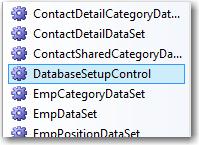
Figure: DatabaseSetupControl added to the VS.Net
toolbox
-
Add the control onto your form by dragging the
control onto your form.
-
Add references to SSW.Framework.Data.dll in order
to access the ConnectionBuilder Class
-
If you intend to show the compare button, add
ExamDiff.exe from your SQL Deploy run directory to
your primary output directory.
-
Set the configuration of the control using the
Configuration property in your load event handler (or
constructor).
|
|
ConnectionBuilder |
Gets or sets the connection string builder for
the connection to the database.
|
|
|
CreateScriptsPath |
Gets or sets the path to the create scripts
folder.
|
|
|
NewDatabaseName |
Gets or sets the database name (set as default
when creating a new database).
|
|
|
DatabaseNamePlaceholder
|
Gets or sets the database name place holder in
the scripts which will be replaced with the
database name.
|
|
|
IsSampleDatabaseNameEnforced
|
Gets or sets whether the sample database name
is enforced on the database creation form.
This will set the database name textbox to be
disabled if insert sample checkbox ticked.
|
|
|
IsDatabaseNameEnforced
|
Gets or sets whether the database name is
enforced on the database creation form. This
will set the database name textbox to be
disabled.
|
|
|
PostCreateScriptsPath
|
Gets or sets the path to the post create
scripts folder.
|
|
|
PostUpgradeScriptsPath
|
Gets or sets the path to the post upgrade
scripts folder.
|
|
|
PreUpgradeScriptsPath
|
Gets or sets the path to the pre upgrade
scripts folder.
|
|
|
ProductName
|
Gets or sets the product name which will
mainly be displayed in the status messages.
|
|
|
SampleDatabaseName
|
Gets or sets the sample database name (set as
default when creating a new database with
insert sample checkbox ticked).
|
|
|
SampleScriptsPath
|
Gets or sets the path to the sample scripts
folder.
|
|
|
UpgradeScriptsPath |
Gets or sets the path to the upgrade scripts
folder.
|
Figure: Properties to set to configure the control
Below is some sample code of setting the control's
configuration & handling the
ConnectionBuilder.ConnectionStringChanged event.
Replace the MyConfiguration properties with the
paths on your computer. A Sample MyConfiguration
Class is shown in the code listing at the bottom.
private void Form1_Load(object sender, System.EventArgs e)

                                        {

                                              databaseSetupControl1.Configuration.ConnectionBuilder.ConnectionString
                                        = MyConfiguration.ConnectionString;

                                              databaseSetupControl1.Configuration.CreateScriptsPath
                                        = MyConfiguration.CreateScriptsPath;

                                              databaseSetupControl1.Configuration.UpgradeScriptsPath
                                        = MyConfiguration.UpgradeScriptsPath;

                                              databaseSetupControl1.Configuration.ProductName =
                                        Application.ProductName;

                                              databaseSetupControl1.Configuration.SampleScriptsPath=
                                        MyConfiguration.SampleScriptsPath;

                                              databaseSetupControl1.Configuration.NewDatabaseName
                                        = "SSWSQLDeployNorthwindSample";

                                              databaseSetupControl1.Configuration.IsDatabaseNameEnforced
                                        = true;

                                              databaseSetupControl1.Configuration.ConnectionBuilder.ConnectionStringChanged+=
                                        new EventHandler(Configuration_ConnectionStringChanged);


                                        }


                                        private void Configuration_ConnectionStringChanged(object sender, EventArgs e)

                                        {

                                           // MessageBox.Show("The connection string has changed, please
                                        handle here.",Application.ProductName);

                                        }
|
Figure: Code listing sample of how to set the
configuration of the control
-
Handle the ConnectionStringChangedevent. In the event
handler the
Configuration.ConnectionBuilder.ConnectionStringChanged
would return the selected connection string. Typically
you would then store this connection string.
-
Note: If you are using SQL Deploy's sample scripts
(typically in C:\Program Files\SSW SQL
Deploy\Samples\WebForm\DatabaseSQLScripts), it is a
good idea to copy them into 3 separate folders:
- CreateScripts - ver0001.sql
-
UpgradeScripts -
ver0002.sql,ver0003.sql,ver0004.sql,ver0005.sql
- SampleScripts - ver0006.sql
Then set the paths for the configuration
accordingly. The listing below shows the
MyConfiguration class encapsulating those script
paths.
public class MyConfiguration

                                        {

                                          public MyConfiguration() {}


                                          public static string ConnectionString

                                          {

                                               get { return ""; }

                                          }


                                          public static string CreateScriptsPath

                                          {

                                             get { return @"c:\Program Files\SSW SQL Deploy\Samples\WebForm\DatabaseSQLScripts\Create";
                                        }

                                          }


                                         public static string UpgradeScriptsPath

                                          {

                                             get { return @"c:\Program Files\SSW SQL Deploy\Samples\WebForm\DatabaseSQLScripts\Upgrade";
                                        }

                                         }


                                          public static string SampleScriptsPath

                                          {

                                             get { return @"c:\Program Files\SSW SQL Deploy\Samples\WebForm\DatabaseSQLScripts\Sample";
                                        }

                                          }

                                        }
|
Figure: Code for a sample MyConfiguration class with
typical script paths
5)Using SQL Deploy On Existing DataBase
In this quick walkthrough we configure SQL Deploy for
the existing "AdventureWorks" sample database for future
changes..
-
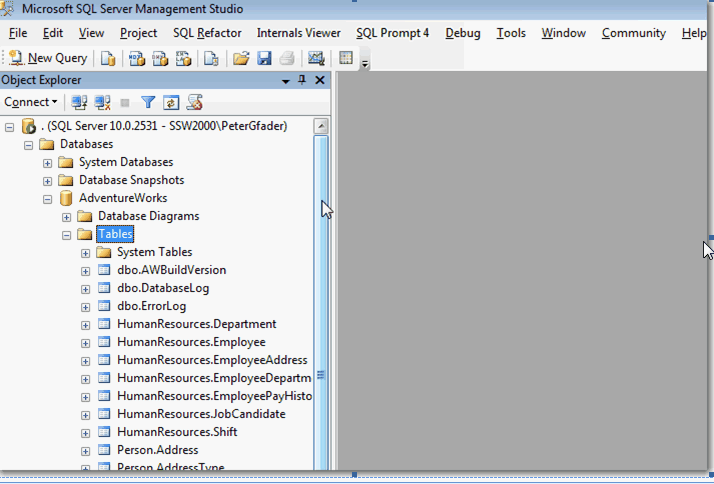
-
Figure: AdventureWorks sample database from Microsoft,
with no "_zsVersion" table code
Step 1: Script your existing database to a
"00000_create_database.sql" script file
-
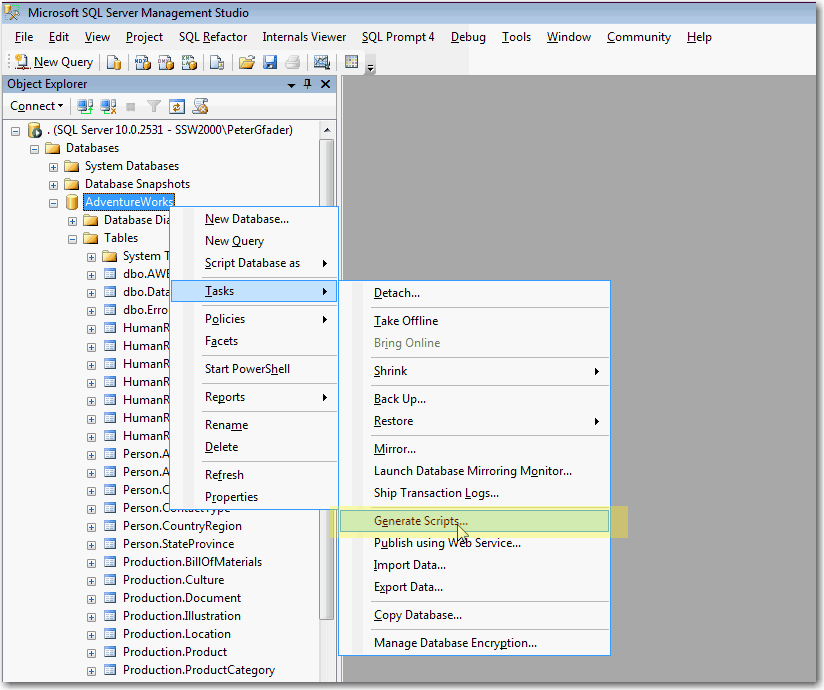
-
Figure: Use SQL Server Management Studio (SSMS) to
generate scripts to create your whole database
-
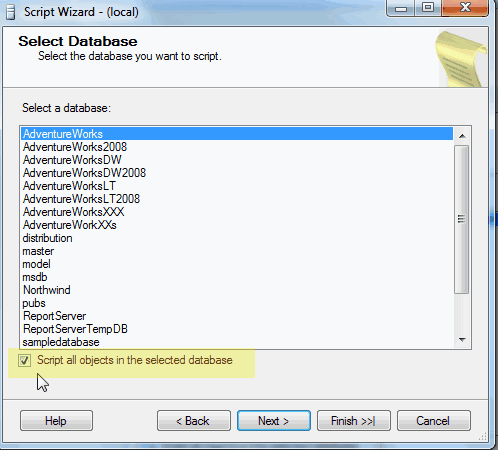
-
Figure:Check the "script all objects in the selected
database" box
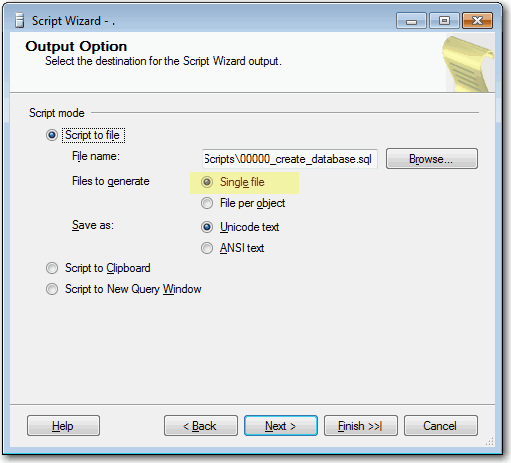
Let SSMS create the "00000_create_database.sql" for you
-
-
Figure:Make sure to create 1 single file in your
project folder
-
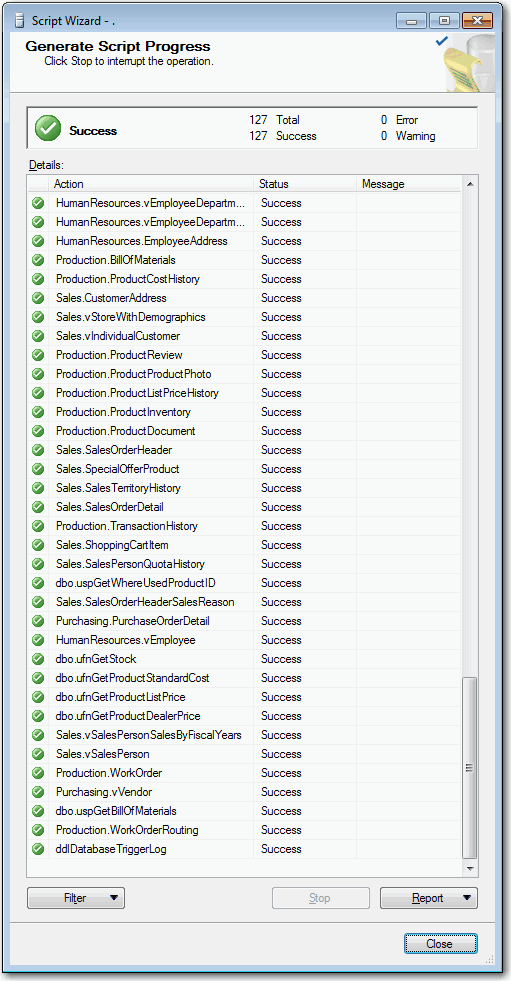
- Figure:Generation of scripts was successful
Add this 2 lines at the start of the script:
CREATE DATABASE [AdventureWorks]
GO
Note: This script is special because it creates a new
database. We identify this by these lines.
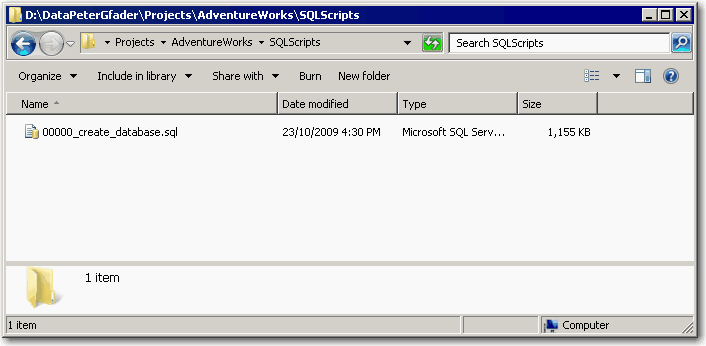
Final result of step 1
-
-
Figure:One "create database script" file in your
project "SQLScripts" folder
Step 2: Tell SQL Deploy that you have run already the
"create database script"
Since you have already an existing database, you have to
tell SQL Deploy about that.
Copy and paste this script into SQL Server Management
Studio and run it on the AdventureWorks database.
This will tell SQL Deploy that this script has been run
already
    USE ADVENTUREWORKS
      GO
           INSERT INTO [dbo].[_zsDataVersion](
           [DateCreated]
           , [EmpUpdated]
           , [ScriptPath]
           , [ScriptFile]
           , [Note]
           , [SQLDeployVersion]
           )
        SELECT
           getdate() -- current time on insert
           ,suser_sname() + ' as ' + user_name() -- system user name
           , N'D:\DataPeterGfader\ProjectsTFS\AdventureWorks\SqlScripts' -- the folder where the script was located, just for tracing purposes
           , N'00000_create_database.sql' -- the name of the script file
           , N'SSWSQLDeploy: Database created manually, don''t delete this record' --
           Note
           N'12.22' -- SQL Deploy version
This step is not necessary if you start with a new
database from scratch.
If you wish that SQL Deploy creates a new database for
you run the wizard as described on
SSW SQL Deploy-Create new database in EXE mode
Final result of step 2
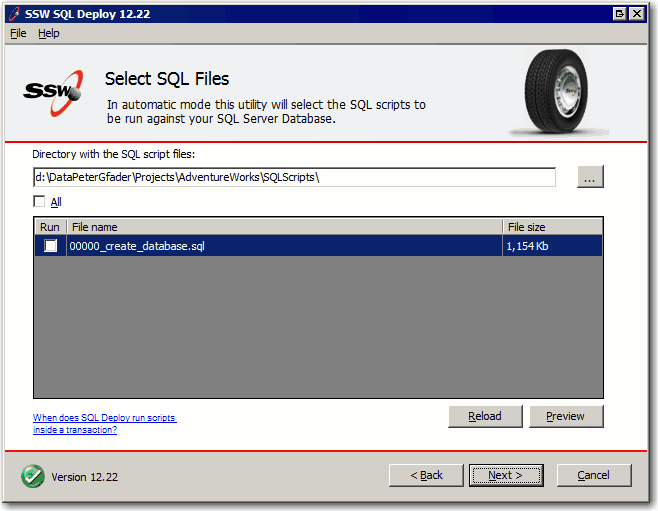
1. Run through the wizard to update your database
-
-
Figure: SQL Deploy sees that
"00000_create_database.sql" has been run already
2. Run "Compare database" and see that your database
matches up with the SQL scripts
Your database is ready and you can start using SQL
Deploy
-

Remember: Make sure to script out your changes as
described on the
sql deploy exe mode page