SharePoint - Do you know how to move a rule? (internal only)
Last updated by Brady Stroud [SSW] over 1 year ago.See historyMoving a rule page from a folder to another is not needed anymore. All rule pages are staying in the same library (folder called "Pages") since we moved the rule pages from 100+ subwebs into the root one.
If you want a rule page to be shown on a different rule summary page, simply change the "Rule Category" field value to the relevant one (see step #7 on Do you know how to create a rule?)
--
Sometimes you might need to move a rule from a category to another. You can do this by following these steps:
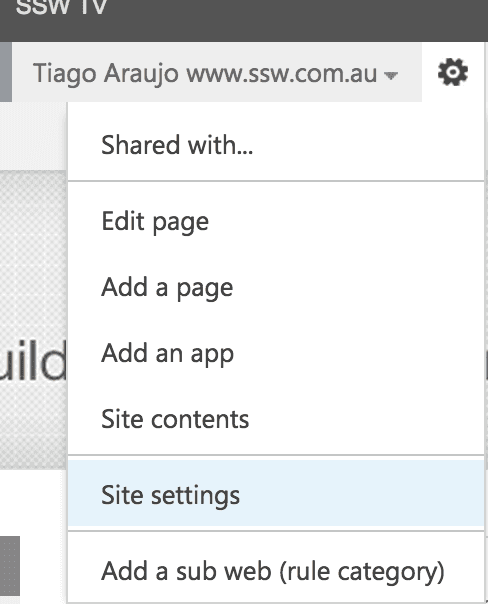
- Click on "Site Settings":
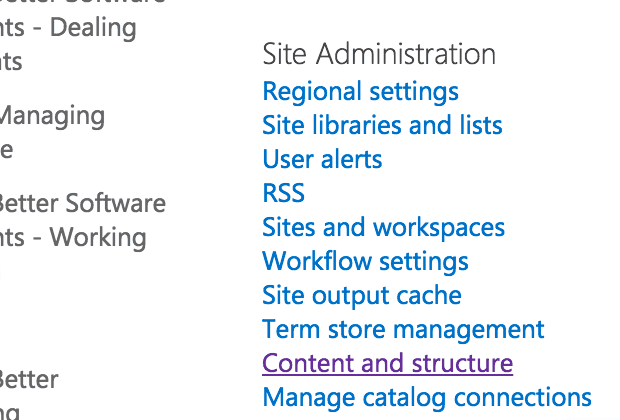
- Under "Site Administration", click on "Content and structure":
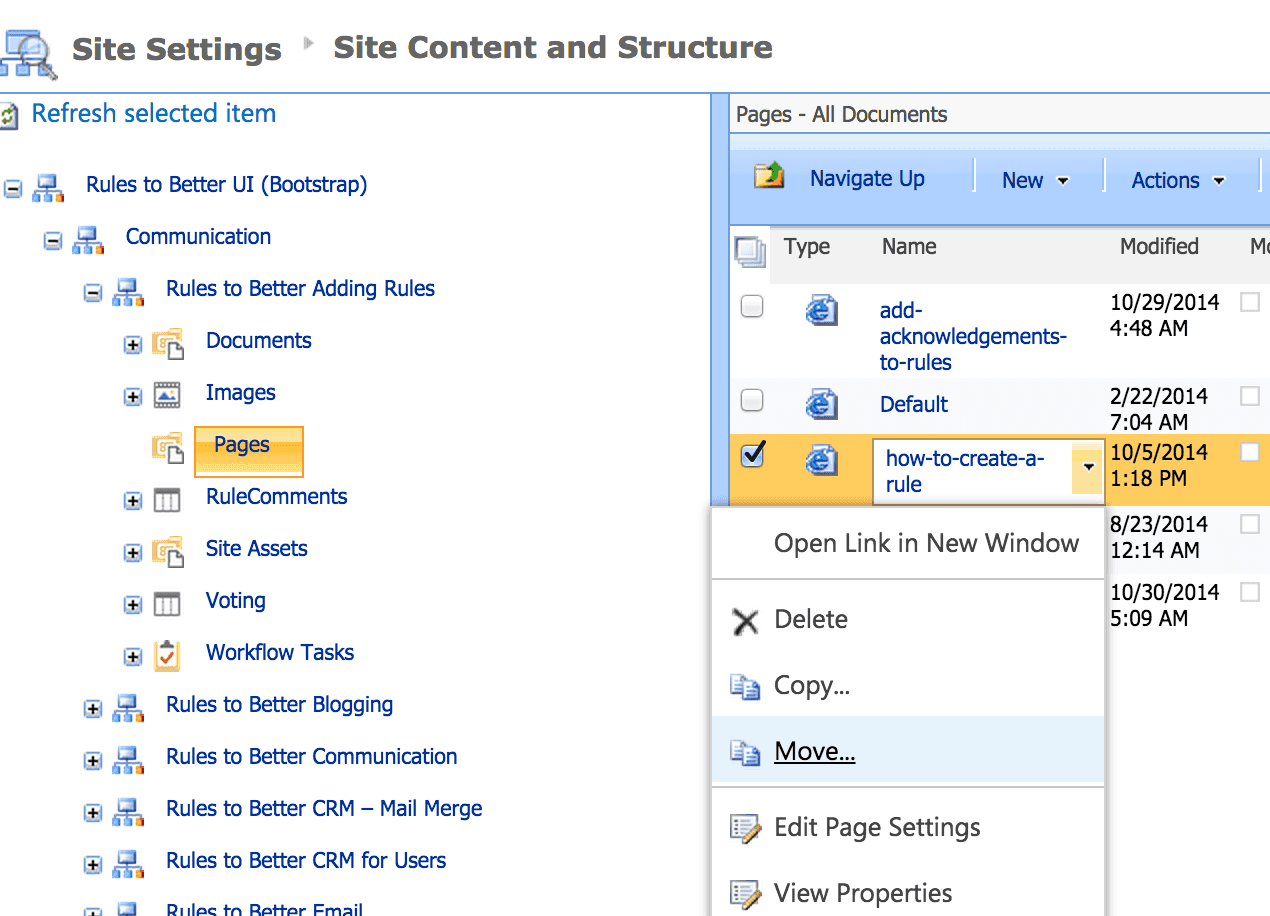
- Navigate on the categories and pages to find the rule you want to move:
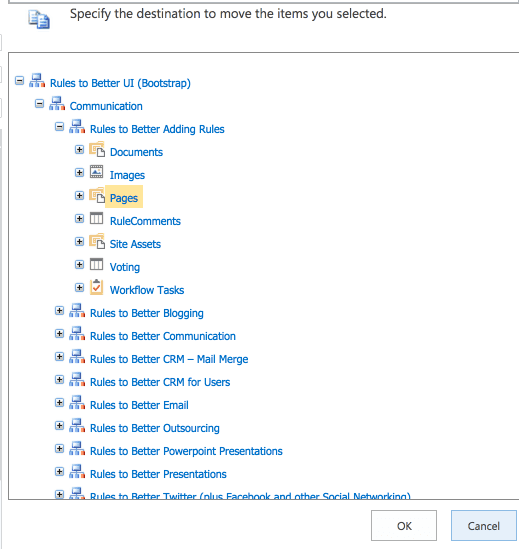
- Select the new location where the rule should be: