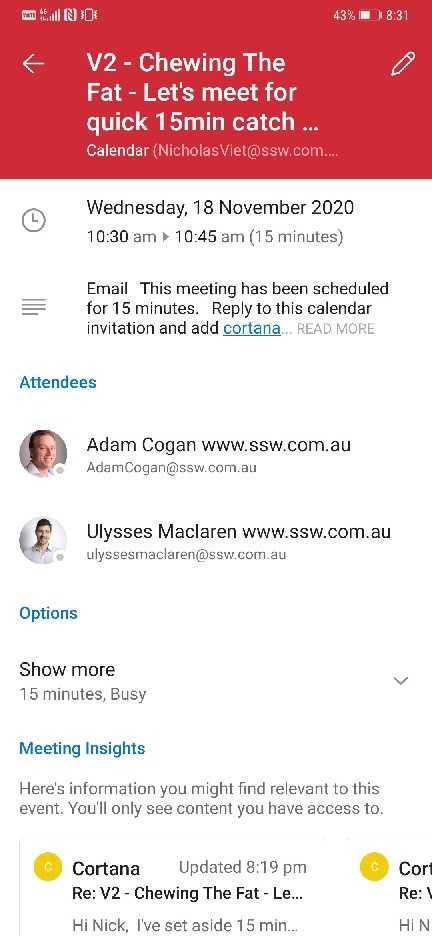
Do you use Microsoft Cortana Scheduler?
Last updated by Tiago Araújo [SSW] over 1 year ago.See historyImportant: Cortana is deprecated.
How to use Microsoft Cortana Scheduler (formerly known as Calendar.help)
This option is best if you're OK to meet any time that your calendar says is free.
Note: The helpful tool Scheduler has a portal too at calendar.help/user/dashboard
Instructions to use Cortana
Step 1 - Register
Register yourself at Meet Scheduler before you can use this feature.
Step 2 - Send an email
Open an email... not an appointment!
| To: | Adam |
| Cc: | Cortana |
| Subject: | Talk about Northwind project |
Figure: after your message, add some request to Cortana as you would a PA
Cortana then handles all the back-and-forth emails to find a time when everyone can meet and then she sends out an invite on your behalf.
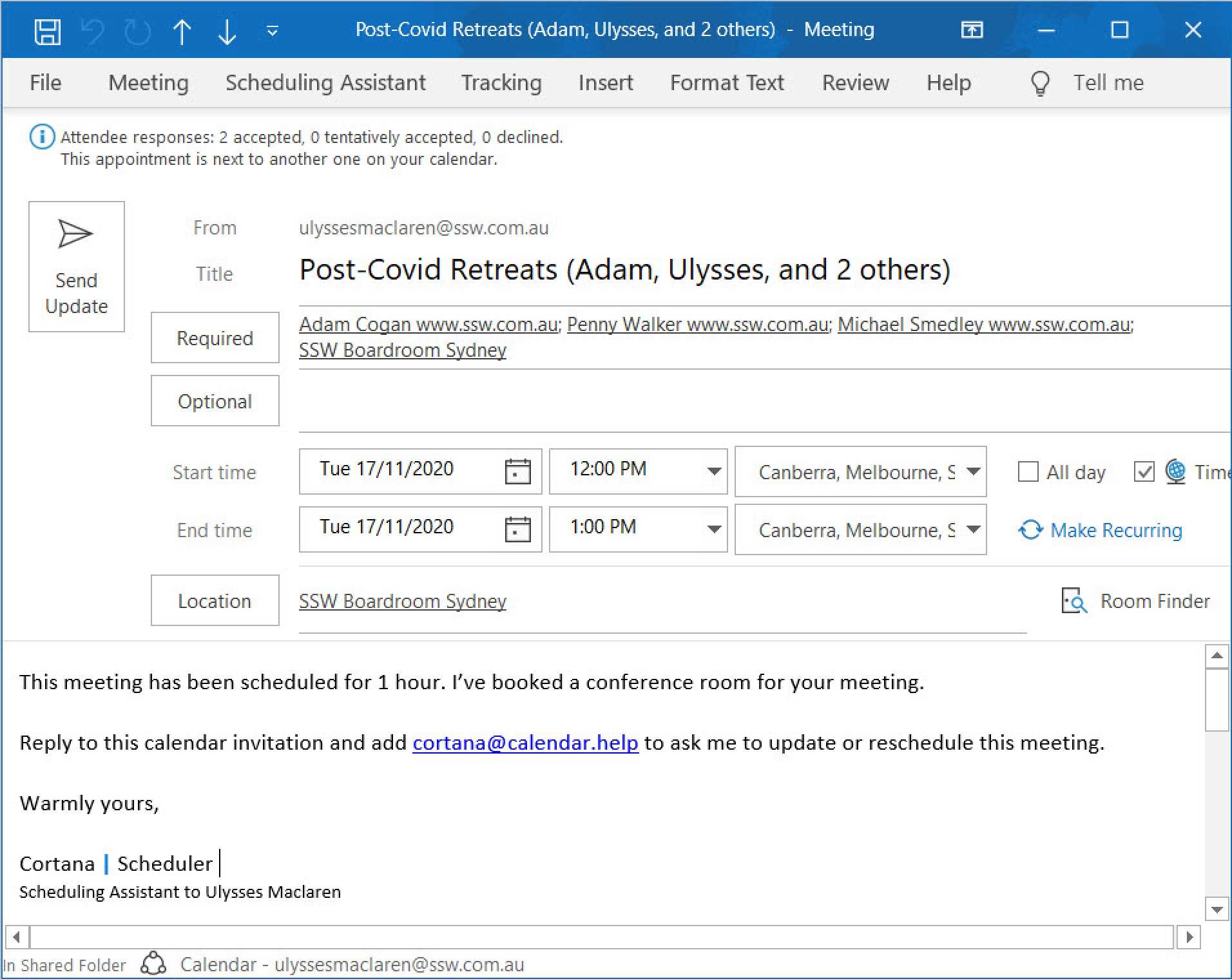
Step 3 - Add Cortana as a contact
To make it easier to add Cortana to your emails, create a Contact.
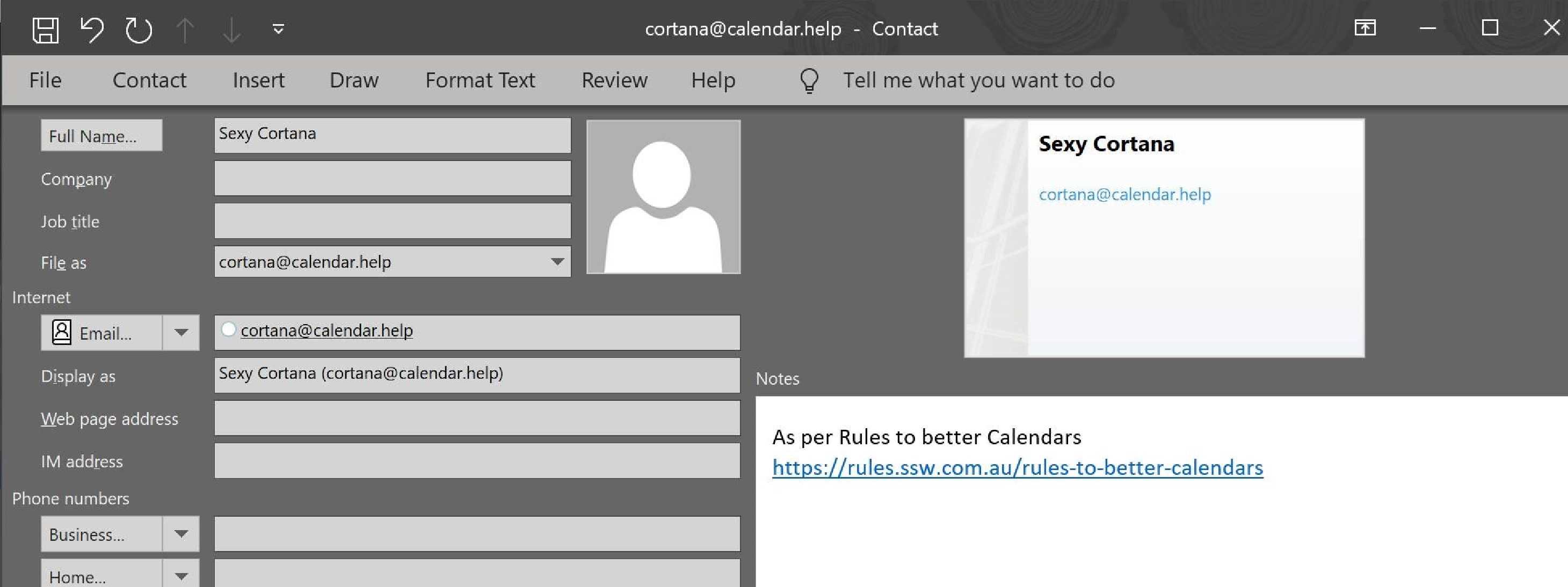
✅ Works great on mobile: