Home
>
Archive
>
StandardsInternal
>
DeveloperGeneral
>
Upgrade to VS 2005 and TFS
-
Upgrade from VS 2003 to VS 2005:
-
For projects that have been upgraded to .NET 2.0 and currently in
SourceSafe:
-
Team Foundation Server:
-
Update Wise Installer and Visual Build Script
NOTE
: There is a conversion utility and walkthrough for Visual SourceSafe
to Team Foundation conversion available at
http://msdn2.microsoft.com/en-us/library/ms181247.aspx
. However, we have chosen to archive all the VSS history so that TFS
is not cluttered with version updates that don't relate to the current
state of our products.
Upgrade from VS 2003 to VS 2005:
Pre-upgrade
- Compile all projects in Release mode.
-
Create a folder named "References" in the solution folder, copy all
the references dll files (eg: SSW.Framework.WindowsUI.dll,
SSW.Registration.dll, etc...) to this folder.
-
Add all the references dll files to solution as "Solution Items", so
they get saved to TFS source control system later.
-
Remove those Framework projects from the solution.
-
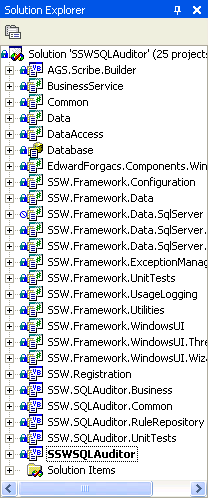
- Figure: Before
-
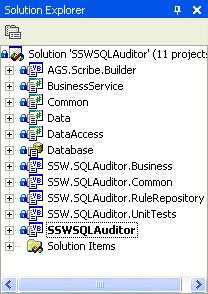
- Figure: Before
- Update all projects references to the dlls.
- Make sure all projects still can compile and run correctly.
-
Check-in everything to SourceSafe, make sure no files are
checked-out.
We are doing this because those framework projects are shared and being
used by all SSW products, if they get upgraded now, all other SSW
products that are still in .NET 1.1 wouldn't be able to use the
Framework, thus the SSW Framework and some other components should be
the last ones to get upgraded.
Upgrade
- Open the .sln in VS 2005.
-
Upgrade the projects using the Visual Studio Conversion Wizard.
-
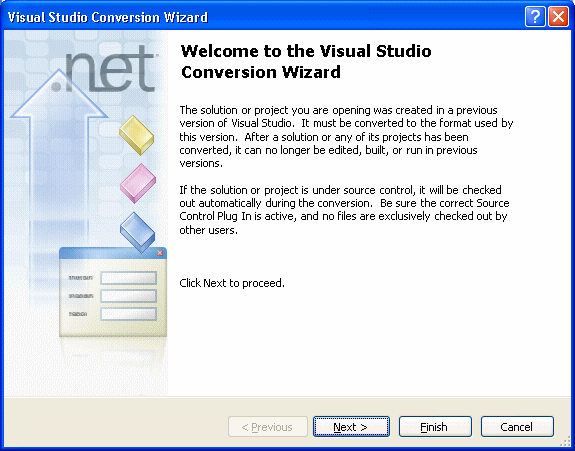
- Figure: Visual Studio Conversion Wizard
-
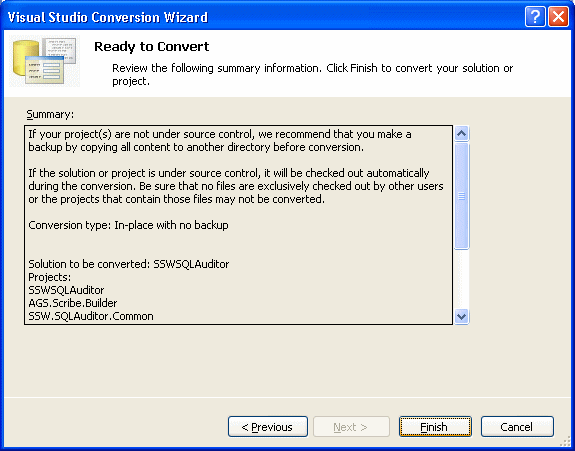
- Figure: Converion Summary
-
When you get prompted with the Source Control dialog, select
"Permanently remove source control binding associate bindings" and
click OK.
-
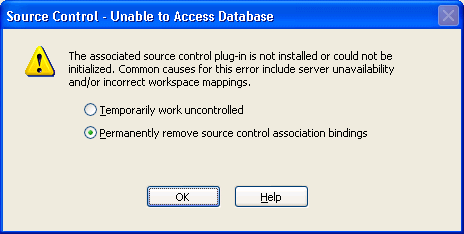
- Figure: Remove the source control association bindings
Note: Now this solution isn't under source control anymore, we
will add this solution to TFS later.
-
Fix all the errors and upgrade issues.
The common one is the InvalidOperationException due to illegal
cross-thread calling.
-
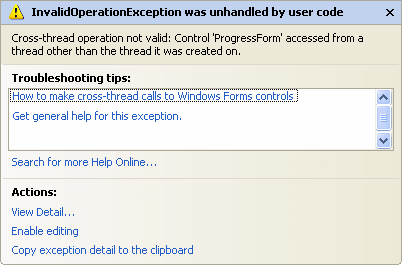
- Figure: InvalidOperationException
For additional information, please refer to MSDN article
How to: Make Thread-Safe Calls to Windows Forms Controls
 .
.
-
The solution or the startup project probably has a .exe.manifest,
this file was used in .NET 1.1 to get the visual style as
Application.EnableVisualStyles() in .NET 1.1 was buggy. For a .NET
2.0 Windows application, please delete the .exe.manifest and use
Application.EnableVisualStyles() to get the visual style.
Find the application entry point and add the highlighted code:
VB:
Module Startup
    Public Sub Main()
        Application.EnableVisualStyles()
        Application.SetCompatibleTextRenderingDefault(False)
...
        Application.Run(StartupForm)
    End Sub
End Module


C#:
[STAThread]
static void Main()
{
    Application.EnableVisualStyles();
    Application.SetCompatibleTextRenderingDefault(false);
...
    Application.Run(new StartupForm);
}
|
The EnableVisualStyles and SetCompatibleTextRenderingDefault should
be added to the top, typically before the Application.Run.
SetCompatibleTextRendering determines whether the controls should
use GDI+ or GDI for text drawing.
|
True
|
Uses GDI+/Graphics.DrawString |
Behaves same as .NET 1.1. |
|
False
|
Uses GDI/TextRenderer |
Behaves similar to .NET 1.1, looks nicer, localizes better.
|
Notice the difference (The obvious difference is the "VB .NET" on
the third line of the description):
-
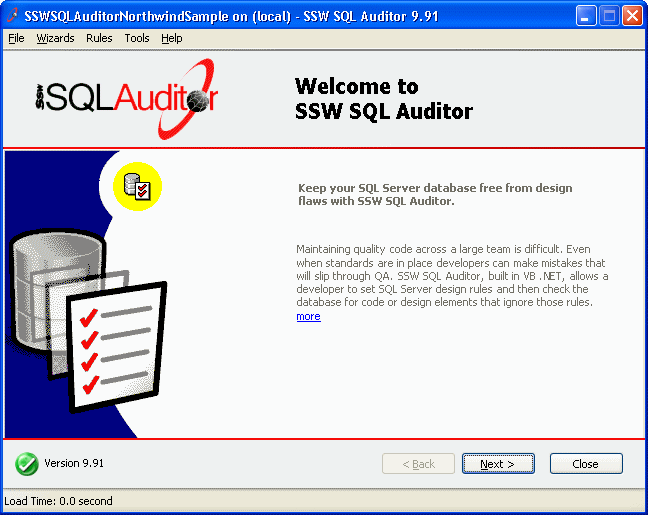
-
Figure: Without
Application.SetCompatibleTextRenderingDefault(False)
-
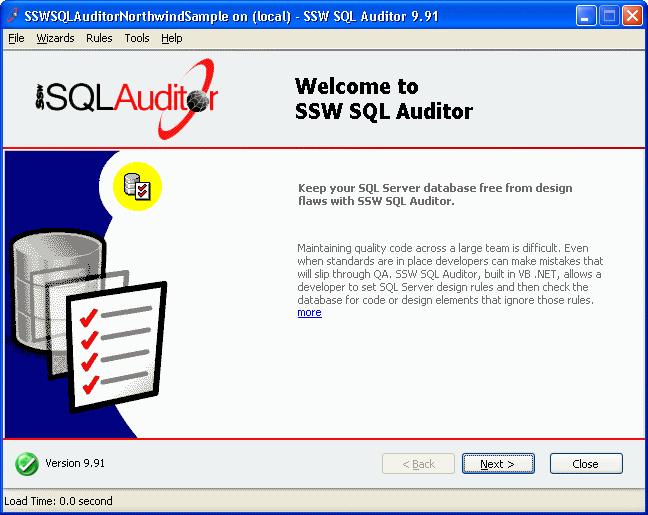
-
Figure: With
Application.SetCompatibleTextRenderingDefault(False)
-
VS 2005 solution allows you to add solution folder, this is new in
VS 2005.
-
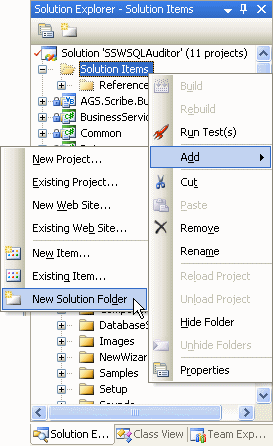
- Figure: Add a new solution folder
Now add 2 new solution folders, named References and Setup.
* Cut all the references .dll files and paste them to the
References" solution folder.
* Move all the files that related to Setup (.wsi, .bld, etc...) to
the "Setup" solution folder.
-
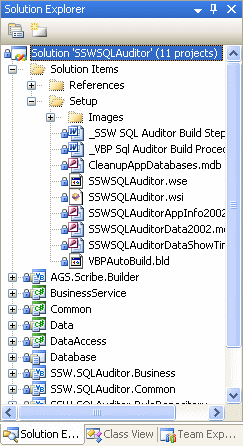
- Figure: The folder structure of Solution Items
-
Most of the SSW products have unit-testing using NUnit, and the
nunit-gui.exe is included as part of the project for end users to
run the unit tests.
If your existing NUnit are built using .NET 1.1, it won't work
with .NET 2.0 projects due to no forward compatibility in .NET
1.1.
Please download the latest NUnit package that is built using .NET
2.0 from
NUnit download page
.
Basically you only need nunit-gui-runner.dll, nunit-gui.exe,
nunit.core.dll, nunit.framework.dll, nunit.uikit.dll, and
nunit.util.dll.
Please include these NUnit files to your solution or update the
existing NUnit files.
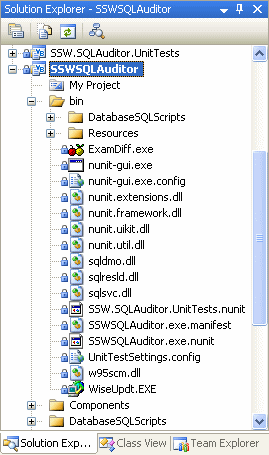
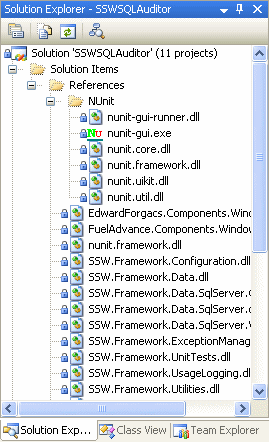
You should put all the NUnit files under the "References" folder.
-
-
Figure: All the NUnit files are in the "bin" folder. (Bad)
-
-
Figure: All the NUnit files are in the "Solution
Items\References\NUnit". (Good)
Add the commands below to your startup project's post-build event.
if exist "$(TargetDir)NUnit" rd /s /q "$(TargetDir)NUnit"
xcopy "$(SolutionDir)References\NUnit" "$(TargetDir)NUnit" /s /i /y /r /q
|
Skip the next section "Unbind the SourceSafe association bindings"
and continue to
Team Foundation Server
.
For projects that have been upgraded to .NET 2.0 and currently in
SourceSafe:
Unbind the SourceSafe association bindings
- Open the .sln
-
Menu: File --> Source Control --> Change Source Control...
-
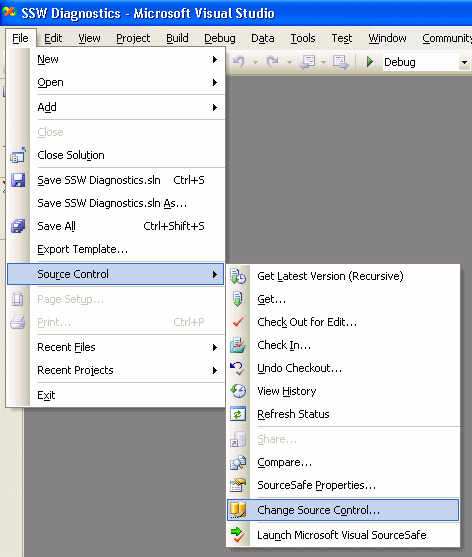
- Figure: Click "Change Source Control..."
-
Unbind the solution and all projects
-
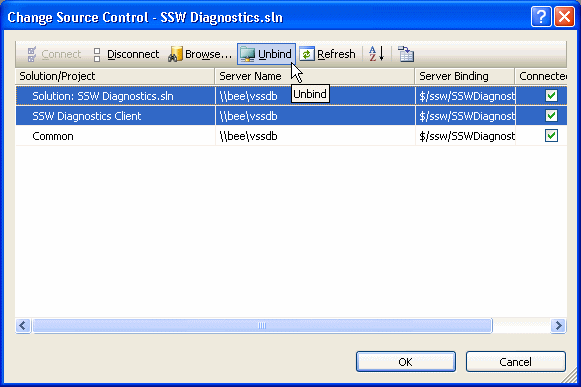
- Figure: Click "Unbind"
-
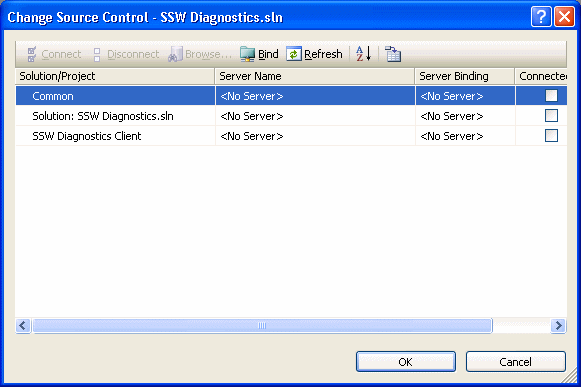
- Figure: Make sure everything has been unbound
Team Foundation Server:
Setup TFS and connect to TFS
-
Install
Team Explorer
, the ISO image is located at
\\bee\SetupFiles\SetupMS_DotNet\MS Visual Studio 2005
TFS\en_vs_2005_tfs_trial.iso
.
-
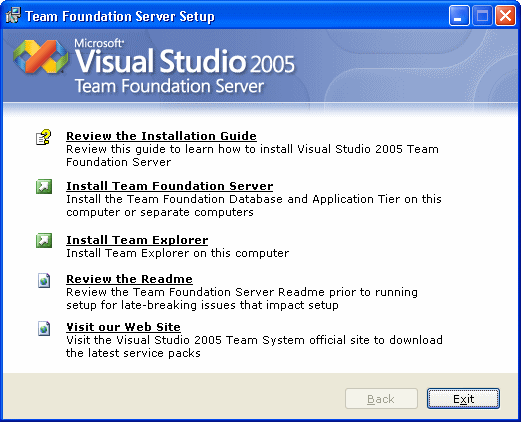
- Figure: Install Team Explorer (third menu item)
-
Go to VS 2005's Options, change the source control to TFS.
-
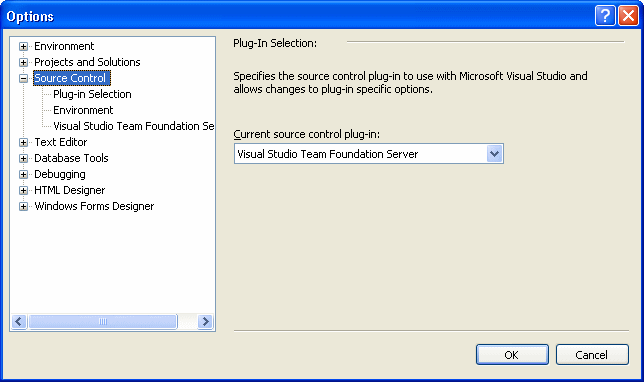
- Figure: Source Control settings
-
Connect to TFS.
-
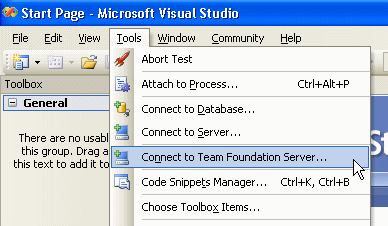
- Figure: Click "Connect to Team Foundation Server..."
The server name is "tfs.northwind.com". So add "tfs.northwind.com"
to the Team Foundation Server list.
-
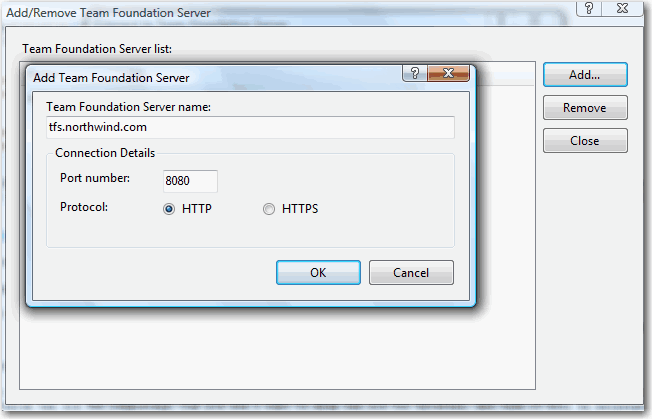
-
Figure: Add "tfs.northwind.com" to the Team Foundation Server
list
Note: TFS doesn't have a standalone program like SourceSafe, everything
is to be done using Team Explorer.
Create new Team Project and check-in the source code
Creating TFS project over VPN could take long time, it will save you
a lot of time if you can log on to a machine in the same LAN to do
this step.
-
Open the Team Explorer.
-
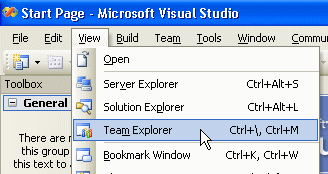
- Figure: Click "Team Explorer"
-
To create a new Team Project.
-
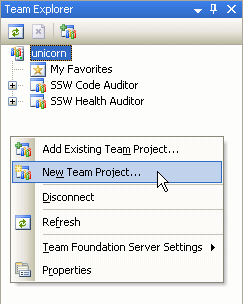
- Figure: Click "New Team Project..."
-
Enter the team project name.
Note
: The team project name is the project's namespace. (Eg:
SSW.SQLAuditor)
There is no way to rename a TFS project after it's created, so be
cautious and make sure you enter it correctly.
-
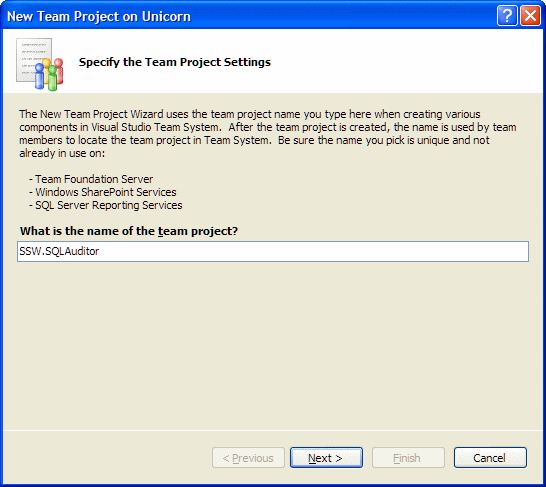
- Figure: Enter the Team Project name
-
Select "MSF for Agile Software Developer – v.40".
-
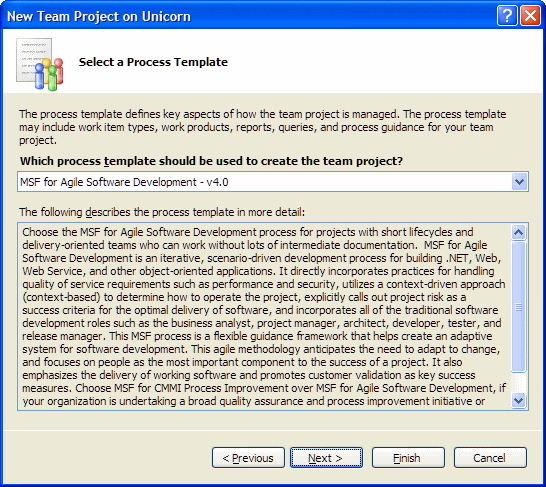
-
Figure: Select "MSF for Agile Software Developer – v.40"
-
Leave the title of team project portal the same as project name.
-
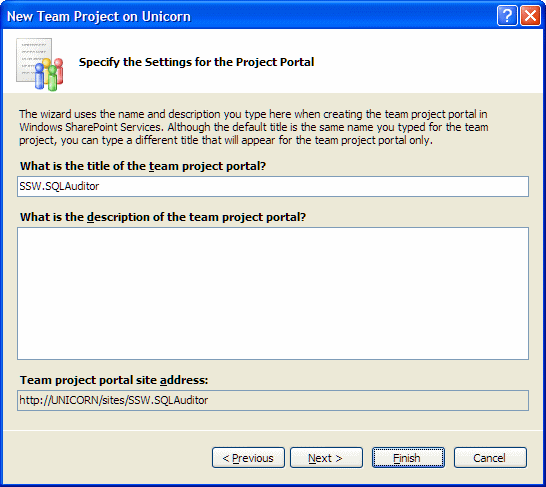
-
Figure: Leave the title of team project portal the same as
project name
-
Create an empty source control folder.
-
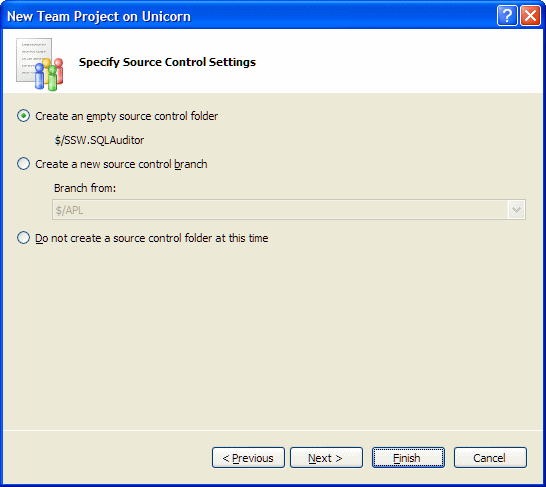
- Figure: Select "Create an empty source control folder"
-
From the step shown on screenshot above, click "Next >" to see
the summary or you can just click "Finish".
The Team Project creation process may take a while...
-
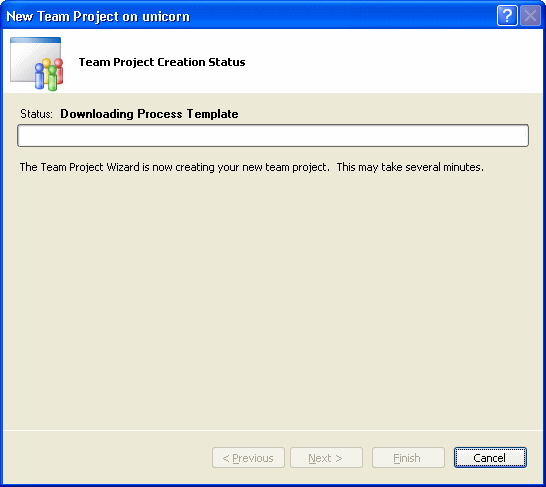
- Figure: Creating new Team Project...
-
Before you add the solution to TFS source control, please move
your solution folder to C:\Data
YourName
\ProjectsTFS\
CompanyName.ProjectName
\trunk.
Eg: C:\DataRyanTee\ProjectsTFS\SSW.SQLAuditor\trunk.
Our TFS should have the source folder structure as below:
-
$/CompanyName.ProjectName/trunk – this will be our main
development
-
$/CompanyName.ProjectName/branches – this will contain our
side branches after each major release (I.e. R10, R11, etc).
Example:
Current development
- $/SSW.CodeAuditor/trunk/SSW.CodeAuditor.sln
-
$/SSW.CodeAuditor/trunk/Business/SSW.CodeAuditor.Business.csproj
Branch for Release 10
- $/SSW.CodeAuditor/branches/R10/SSW.CodeAuditor.sln
-
$/SSW.CodeAuditor/branches/R10/Business/SSW.CodeAuditor.Business.csproj
Dev folder structure should match the TFS source folder structure:
- C:\DataYourName\ProjectsTFS\CompanyName.ProjectName\trunk
-
C:\DataYourName\ProjectsTFS\CompanyName.ProjectName\branches
Note: We use the word "trunk" and "branches" because they're the
standard people use in Subversion and other source control systems
(it's derived from source control 'tree').
-
Add Solution to Source Control...
-
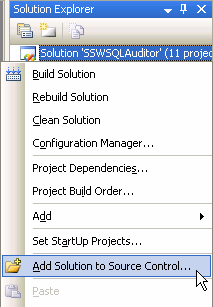
- Figure: Click "Add Solution to Source Control..."
-
Select the team project you just created and enter "trunk" as the
name for the solution folder.
-
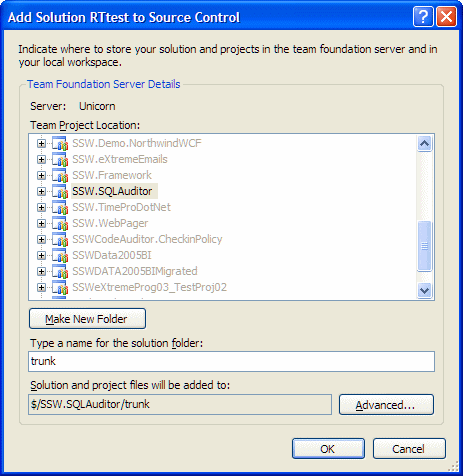
-
Figure: Select the team project you just created and enter
"trunk" as the name for the solution folder
-
After you added the solution to source control, the solution and
all projects will have a little yellow plus sign.
-
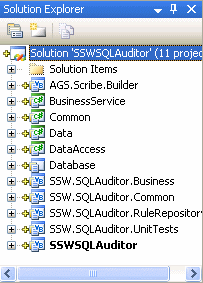
-
Figure: Files that newly added to TFS will have a little yellow
plus sign
-
Check in everything.
-
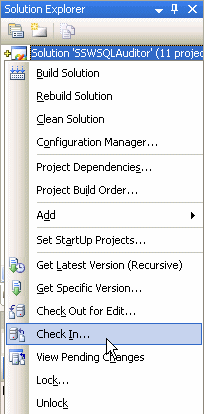
- Figure: Click "Check In..."
-
Finally, zz the source control folder in SourceSafe.
-
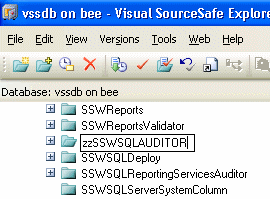
- Figure: zz the folder in VSS
Things you should know when using TFS
-
When you check out any files from SourceSafe, SourceSafe
automatically do a "Get Latest" before checking out the files.
When you check out any files from TFS, the check out process will
not
do a "Get Latest" for you, if you have an older version of the
files, you need to merge your changes when check in the files to
prevent replacing changes made by other developers.
For more information about this new behavior, read
http://www.woodwardweb.com/vsts/000179.html
.
-
Regarding the process of development, we do not branch at end of
each release. Instead we branch when there are bugs in previous
release that have to be fixed before the next release. This is to
minimize branching, since merging between branches is painful.
Process at end of a release (should be integrated with build
script!):
- Make a build
- Label the trunk source tree with the version number
Process when critial bugs occur in previous release:
- Get the source by label
- Branch it into $/Company.Project/branches/vMajor.Minor/
- Make your changes in that branch
-
To see the differences between Team Foundation and Visual
SourceSafe, please read
MSDN: Introduction to Team Foundation for Visual SourceSafe Users
.
Update Wise Installer and Visual Build Script
Coming soon...
Acknowledgements
Ryan Tee