-
How to access the system
-
Login the system admin website via
URL: http://cockatoo/admin or http://192.168.1.27/admin
Username: maint Password: rating
-
Logon to the server
Telnet into cockatoo or log on to galah and use the console in
VMWare
Beijing Office
Connect to 192.168.20.3 via SSH (you can use putty for
teminal (\\gerbil\SetupFiles\SetupNotMS\PUTTY\) and
SSHSecureClient (\\gerbil\SetupFiles\SetupPhoneSystem\)
(Beijing)
Username: root Password: rating
-
How to create a ZAP trunk
ZAP Channel Module provides a layer between Asterisk and your
zaptel device (some kind of telephony hardware that has drivers
which support zaptel API). So ZAP trunk is usually used when you
try to connect your machine to PSTN.
To create a ZAP trunk, you only need to enter the "Trunks"
section, and click "Add ZAP trunk". There are only two things to
be care of, the dial rules (talk about it later) and the ZAP
identifier.
ZAP identifier is the group name of this trunk, e.g. ZAP/g0 stands
for group 0. This can't be changed. You can create multiple trunks
over the same outer line, but you have to keep the same identifier
for everyone.
To get more info of the group configuration, you can read the file
//PhoneSystemServer/etc/asterisk/zapata.conf. It is Asterisk
configure file to read your hardware interface.
Another configure file you maybe touch is
//PhoneSystemServer/etc/zaptel.conf. This file contains the
interface configuration of your hardware card. You may need to
modify this file manually when you add/remove a module on the
card. There are always two types of interface you will face, FXO
and FXS. FXS interface is the module you use to connect your
server to PSTN, while FXO interface is the module you use to
connect to some of your device which can response, like fax.
-
How to create a SIP trunk
The SIP Channel Module enables Asterisk to communicate via VOIP
with SIP telephones and exchanges. You will need to create such a
trunk for using VOIP service.
To create a SIP trunk, you first need to get the username,
password and server IP from your VOIP service provider. Then click
"Add SIP trunk" in "Trunks" section. There you can set the dial
rules and name this trunk, but the main point is the configuration
of connection parameter.
Here are the formats:
Peer details:
username={user account}
type=friend
secret={password}
host={server ip}
fromdomain={server ip}
authuser={user account}
User details:
type=user
secret={password}
context=from-trunk
Register string:
{user account}:{password}@{server ip}
You can contact the service provider MyNetPhone via
- a. Tech Level1 - Sampson So - 8008 8257
- b. Tech Level2 - Nathan Steele - 8008 8264
Beijing Office
BlueTel (Beijing)
Custom service number - 82250336
-
What is Dial Rule
Dial rule has its own patterns like regular expression. You can
apply the same pattern to inbound/outbound route. These rules are
applied after the outbound dial pattern. That means, if you dial
912345678 and add a rule to remove 9 in the number in outbound
route, the number passed to the trunk will be 12345678.
For the details of the rule's grammar, please see the outbound
route section.
-
How to create Devices
To create a device, you will need to navigate to "Devices", and
choose the type of device. For those IP phones and soft phone, we
usually choose "Generic SIP Device". In the next page, you have to
enter the device ID and secret. The device ID must be unique and
digital only. It is also the phone number assigned to the device.
Here you can also select the default user of this device, if you
already have one.
After you click the "submit" button, you will find the device you
created in the right list. Click the device name in the list, then
you will see the detailed configuration. Please set the "nat" to "
no
" since we do not use NAT in our system.
-
How to create a Fax device
Fax is a special kind of device. When you want to create an
extension for a fax machine, you have to choose "Generic ZAP
device" when creating a new device.
The configure page is different from the SIP's. The Device ID and
channel is required. The channel is the FXO interface you will use
to connect to your fax machine. You have to fill its id in this
blank. The id is related to your telephony hardware and can be got
from zaptel.conf.
The detailed configuration is generated automatically, so you
needn't do anything there.
-
How to create user accounts
The "users" keeps the configuration of the services that users
will use, like the voice mail, recording and fax.
You can create a user in "Users" and the device ID (so called
"User Extension" in
the form) is required. The user password is not necessary. It is
only used to log on the device.
-
How to enable the voice mail for a user
Voice mail is already enabled in our system. When the call has not
been answered for a period of time, the system will ask the caller
to leave a message automatically. To set up a voice mail for
special user, you can navigate to "Users", and then select the
user name in the list. At the bottom of the page you will see a
"voicemail & directory" section.
The standard configure is like this.
-
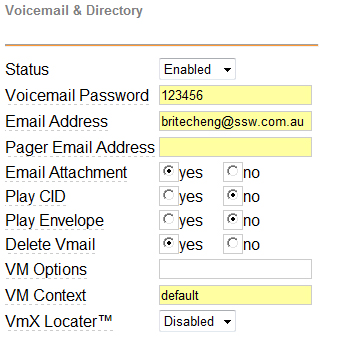
The "Voicemail Password" is used when you want to check the
voicemail via IP Phone or soft phone. The notification email will
send to the email address you enter, with a link to voicemail file
on the server. If you enable the email attachment, the voicemail
file will be attached to the email. "Delete Vmail" means the
voicemail record file will be deleted after sending the email.
Note
: Don't forget to click the "Apply Configuration Changes" at the
top of the page, and then choose "Continue and Reload", or the
changes will not be saved and applied.
-
How to set up an outbound route
An outbound route is a collection of rules that redirect the calls
to different trunks. You can create an outbound route via
"outbound routes". Here you can create rules in the "Dial
Patterns", one line for each, and set the sequence of trunks to
catch the request in "Trunk Sequence". The request call number
that matches the rules will go through the trunk in order, and the
later trunk will be chose only when the former one is busy or
unavailable.
The grammar of rules:
| Expression |
Meaning |
Sample |
| . |
One or more digits |
1. is matched all the numbers started with 1 |
| X |
A single digit, 0-9 |
1XX is matched by 100-199 |
| Z |
1-9 |
1Z is matched by 11-19 |
| N |
2-9 |
1N is matched by 12-19 |
| | |
The number before | will be removed |
9|123 will catch 9123 and remove 9 from the number then pass
123 to the trunk
|
| + |
The number before + will be added to the number after +
|
9+123 will catch 123 and add 9 in front of 123 then pass
9123 to the trunk
|
| [] |
A single digit/character in special range |
[146-8] will catch the number 1, 4, 6, 7 and 8 |
| ! |
Zero or more digits |
The difference between "." and "!" is 1 can be caught by
"1!" but ignored by "1."
|
| #/* |
#/* character. |
|
-
How to create a ring group
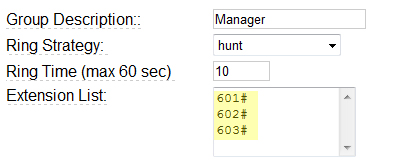
The ring group describes the extension ring order when a call
comes in.When you try to create a ring group, you must set the
group name first. It is the identifier of the ring group and used
every related field. Then you need to choose the strategy of
ringing the extensions. "Hunt" is preferred as it is to ring the
extensions one by one. You can also set the ring duration. In the
extension list, you can enter the device id which is included in
the group. One device for every line and the id must be ended with
"#".
-
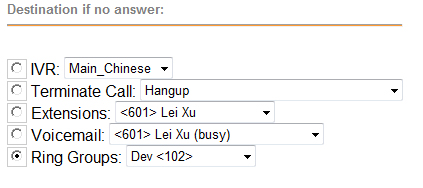
Another thing to be taken care of is the "Destination if no
answer". You can terminate the call, pick up an extension, ask for
leaving a message, or redirect to another ring group.
-
-
How to create IVR
IVR stands for Interactive Voice Response. We can use this to
guide the caller to different groups or extensions. First you need
to choose the announcement (the audio file) to play in this IVR,
then create the options.
-
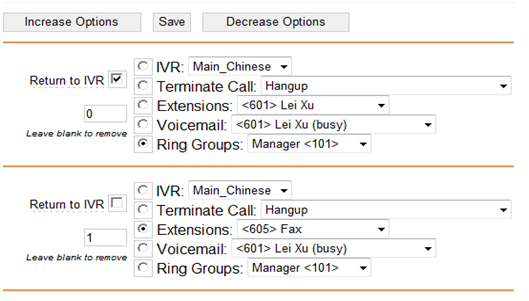
The above is a standard configuration of IVR options. Here you set
the destination of an option and the button for users to press.
Strongly recommend to have an option with its "Return to IVR"
checked, so that the users can go back to previous menu if he
press the wrong button.
-
How to create FollowMe for user/extension
A FollowMe redirects the unanswered call to other destinations,
like your mobile phone, another extension or home. In the FollowMe
page, before you create a FollowMe rule, you need to choose the
extension it belongs to. After that, you can add the destination
phone number or extension number in the Follow-Me list.
-
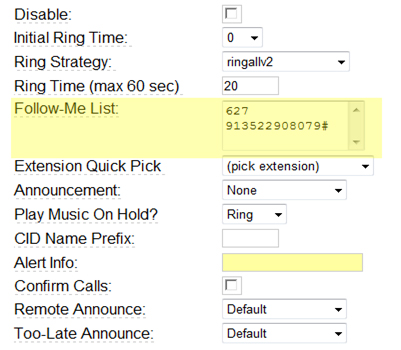
Be care of the phone number you add. It should follow the rules in
outbound routes. In the sample above, the rule requires adding 9
before the number when you make an external call, so you have to
add 9 in front of it. For external numbers, ending with "#" is a
must. Another thing you need look out for is the "Destination if
no answer". If you apply voicemail to a extension, in the case
above, 627, and you choose "Terminate Call" in this page, you will
hear no instructions of leaving voice message. That means, the
priority of "Destination if no answer" in FollowMe is high than
the one in "Users".
-
How to update the system
-
Load up the admin website at http://cockatoo/admin or
http://192.168.1.27/admin
- Click on "Module Admin"
- Click "Check for updates online"
- Check "Show only upgradeable"
-
Only install items that are already installed and have a newer
version online
There is another upgrade area. I am not sure on the relevance
however you should only do this AFTER you complete the upgrade in
the above manner.
-
http://cockatoo/maint/index.php?packages
- Login User: ssw Pass: rating
- You don't need anything to do with Zaptel or ISDN.
Don't know if you ever need anything here but worth a look
-
How to edit device's configuration file
-
Navigate to http://cockatoo/maint/ or http://192.168.1.27/maint/
- Login User: maint Pass: rating
- Click on "Asterisk"
- Click on "Config Edit"
-
It is not recommended to modify the system configuration. I
mention this function is only because it is an easy way to
update the extension configuration. They are stored under
/tftpboot.
-
Trouble shooting
Here are some steps you can follow when the phone system is not
working.
-
Log on to the maintenance web page. http://cockatoo/admin/ or
http://192.168.1.27/admin/
User: maint
Pass: rating
- Check the server status.
-
Make sure the server is not busy by checking the CPU usage in
System Statistics.
-
Dialling "*43" and doing a quick echo test of phone server. In
this test you should check
-
Try restarting the phone server
-
a. Log on to the phone server (see how to access the system)
-
b. restart by entering the command "restart" or shutdown
using "Shutdown now"