Home
>
Archive
>
SSW Standards Internal
>
Developer Network Phone
>
SSW VOIP Phone System Usage
We have a telephone exchange platform, which allows us to make a call
through the Internet.
Setup Eyebeam on your computer. Ask the network administrator whether
you need an IP phone. Create your own extension number and add it to
the phone list.
-
Get your own extension
To use the phone system, at first you need to have your own
extension.
-
a. If you get a physical phone from the network admin, your
extension has been already bound to the phone.
-
b. If you don't have, you have to create one by yourself so that
you can use soft phone to connect to the server.
You could find the extensions already created via
 \ssw\StandardsInternal\developernetworkphone\PhoneList.xlsx
-
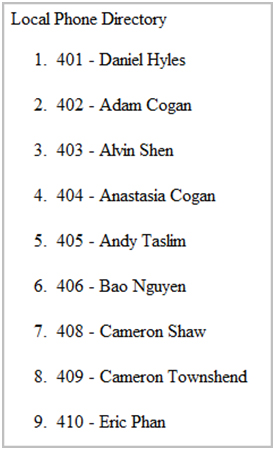
Your new extension number should follow the pattern of the list.
After you have your own extension number, please update
PhoneList.xlsx.
-
Add a new user
-
1) If you are using a physical phone, you can skip this step.
-
2) Go to http://cockatoo/admin or http://192.168.1.27/admin
Login with username: maint and password: SSW standard simple
password
-
3) Click "Users" on the LHS menu
-
a. Create your user on the page
-
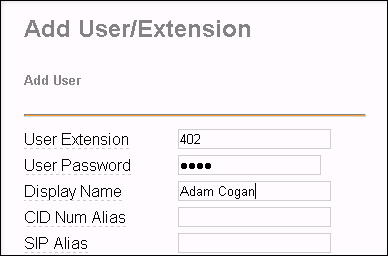
Set your User Extension
-
1. User Extension - your own extensioin number
- 2. User Password - "2727"
- 3. Display Name - Name of person
-
-
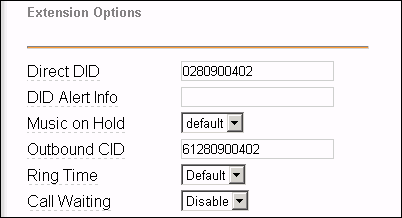
Extension Options
- 4. Direct DID - Phone number
- 5. Outbound CID - Phone number
-
-
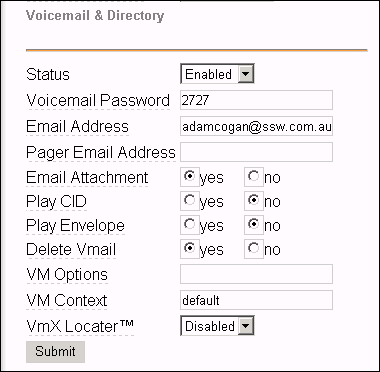
Voicemail & Directory
- 6. Status - "Enabled"
- 7. Voicemail Password - "2727"
- 8. Email Address - users email address
- 9. Email Attachment - "yes"
-
-
-
10. Click “submit” to save your user
record
-
4) Click "Devices"
- a. Choose "Generic SIP Device"
-
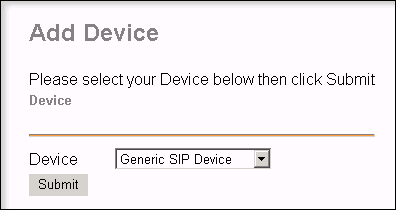
- b. Click Submit
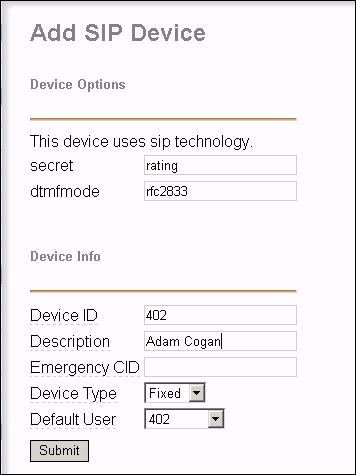
- c. Secret - "rating"
- d. Device ID - same as the user ID
- e. Description - name of person
- f. Default User - same as the userID
- g. Submit
-
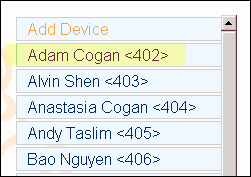
- g. Click on the Device you just create
-
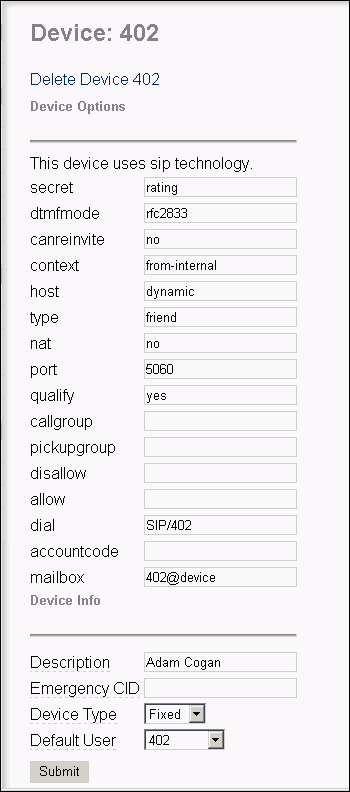
- h. Nat - "no"
- i. Default User - same as the user ID
- j. Submit
-
-
5) Setup HUD password
-
a. http://cockatoo/maint/index.php?hudManager or
http://192.168.1.27/maint/index.php?hudManager
- b. Change password to "rating"
-
Remove a user
- 1) Remove the Device
- 2) Remove the User
- 3) Remove out of any ring groups
-
Software/Phone
We currently use Cisco IP phone 7940G/7970 and eyebeam.
-
How to add your account to Eyebeam
-
Assign your extension to Cisco 7940/7970
You will need to edit the configuration file of the IP phone on
Asterisk server. This is not recommended.
For details, you can view the setup documents of IP Phone.
-
Install HUD on your machine
Go here
\\fileserver\setupfiles\SetupNotMS\SetupProgram\Hud
and install HUD, then run it.
-
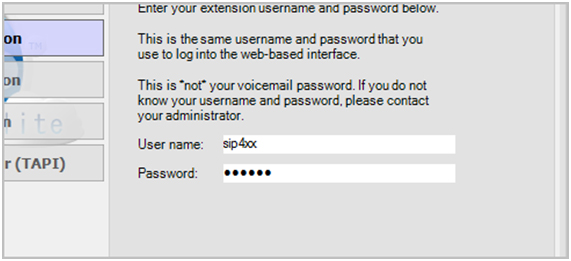
-
Replace xx with the last two numbers of your extension, for
example, if your extension is 425, xx should be 25. The password
shouble be "rating".
-
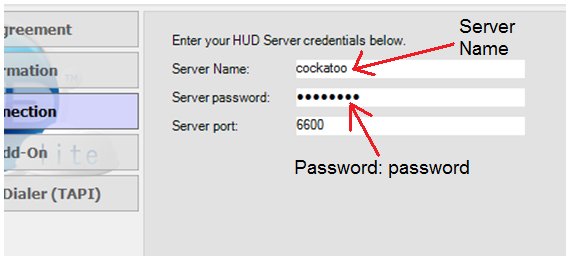
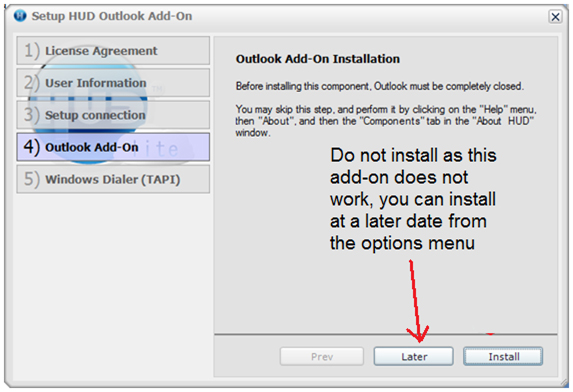
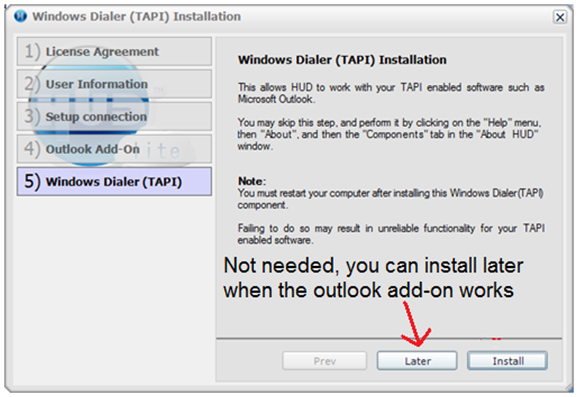
- Installation steps
Other tips:
-
-
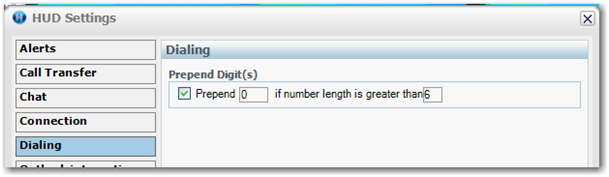
Figure 1: If you want to dial from HUD, you need to change the
prepend digit to 0
-
-
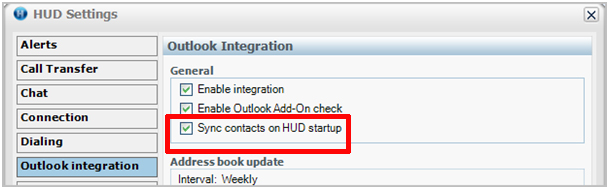
Figure 2: For proper Outlook integration make sure "Sync
contacts on HUD startup" is ticked
-

-
Figure 3: Click "Synchronize Outlook vCards" when you make
changes to or add outlook contacts to sync with HUD
-
Adding your name to Voice Mail
-
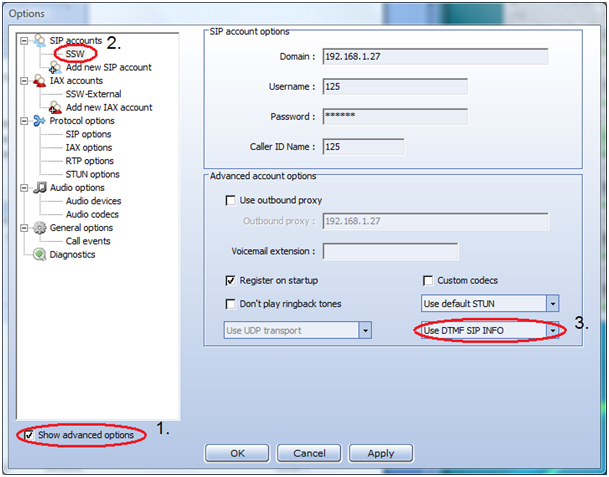
1) Settings | Advanced Options | Select Internal | Account |
Change RFC-2833 to SIP INFO
-
- 2) Dial *97
- 3) Enter in your password (2727)
- 4) Dial 0
- 5) Dial 3 to set your name and follow the prompts
-
How to make a call
As we have many outbound rules for dialling, here are some hints
about how to make a call.
-
(Beijing office)
- 1) For internal calls, dial the number directly.
-
2) For external calls
- a. Domestic: 9 + phone number
- b. International: 8 + phone number
-
(Sydney office)
-
How to transfer a call
To transfer calls you need to know the SIP extension of the person
you are transferring to.
Refer to:
\ssw\StandardsInternal\developernetworkphone\PhoneList.xlsx
Beijing Office
"\\giraffe\datassw\phonesystem\BeijingOfficePhoneList.xlsx" or
"http://192.168.20.3/xmlservices/LocalDirectory.php"
Make the URL a favourite or print off the xlsx file and keep it near
your phone.
EyeBeam
-
-
-
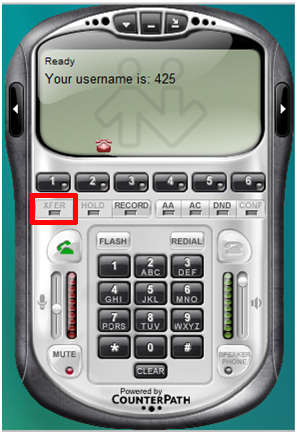
While you are in a call, press the
XFER
button
-
Dial the
extension
of the person you want to transfer to
-
Press the
XFER
button again to complete transfer
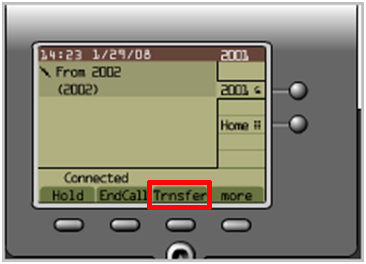
Cisco 7940 (Non-Colour)
-
-
-
While in a call, click
more
, and then click
Trnsfer
.
-
Press
Dial
and dial the
extension
of the phone you want to transfer to.
-
When you hear ringing, press
Trnsfer
again, or when the party answers, announce the call and
press
Trnsfer
.
- Hang up to end your participation in the call.
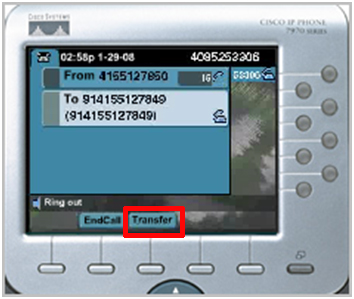
Cisco 7970 (Colour)
-
-
-
While in a call click the
Transfer
softkey.
-
Press
Dial
and dial the
extension
of the phone you want to transfer to.
-
When you hear ringing, press
Transfer
again; or when the party answers, announce the call and
press
Transfer
.
-
Note
: you cannot transfer a call that is on hold, take the call
off hold before transferring.
-
How to hold a conference
You can hold a conference by calling other parties, or join the
conference created by others.
| Action |
7940 |
7970 |
EyeBeam |
| Hold a conference |
1. From a connected call, press
Confrn
.
2. Enter the participant's phone number.
3. Wait for the call to connect.
4. Press
Join
to add the other participant to your call.
|
1. From a connected call, press
Confrn
.
2. Enter the participant's phone number.
3. Wait for the call to connect.
4. Press
Confrn
again to add the participant to your call.
5. Repeat to add additional participants
|
1. With one active call on one of the lines, select another
line and dial a third party
2. To conference in all lines, click
CONF
. All lines will be part of the conference.
3. To suspend the conference, click
CONF
again. The other participants can't speak to one another. To
restart it, click
CONF
again.
|
| Add another party to conference |
Same as above |
Same as above |
1. From a connected call, press
Confrn
.
2. Enter the participant's phone number.
3. Wait for the call to connect.
4. Press
Confrn
again to add the participant to your call.
5. Repeat to add additional participants.
|
| View conference list |
1. Highlight an active conference.
2. Press
ConfList
. Participants are listed in the order in which they join
the conference with the most recent additions at the top.
|
No such function |
Click
Confrn
to pause the conference. Every active line has an active
party.
|
| Remove a party (only for the conference creator) |
In the conference list,
1. Highlight the participant's name.
2. Press
Remove
.
|
No such function |
1. Suspend the conference by clicking
CONF
.
2. Select the line of the participant to remove.
3. Hang up the call.
4. Click
CONF
to re-establish the conference.
|
Note
: if you initiate the conference, you will close it if you hang up
the call. If you want to keep the conference active after you end up
the call, you should transfer the call to another party first.
-
How to switch between calls
You can switch between multiple calls on one or more lines.
Cisco 7970/7940
To switch calls on the same line:
-
Make sure the call that you want to switch to is highlighted.
-
Press
Resume
. Any active call is placed on hold and the selected call is
resumed.
To switch between connected calls on different lines:
-
Press for the line that you are switching to. If a single call
is holding on the line, the call automatically resumes. If
multiple calls are holding, highlight the appropriate call and
press
Resume
.
To switch from a connected call to answer a ringing call
-
Press
Answer
, or if the call is ringing on a different line, press the line
button (flashing). Any active call is placed on hold and the
selected call is resumed.
Eyebeam
Select another line, and then the previous one is on hold
automatically.
-
How to forward a call to another extension
Cisco 7970/7940
To set up call forwarding on your primary line, press
CFwdALL
and enter a target phone number exactly as you would dial it from
your phone. To cancel call forwarding on your primary line, press
CFwdALL
.
EyeBeam
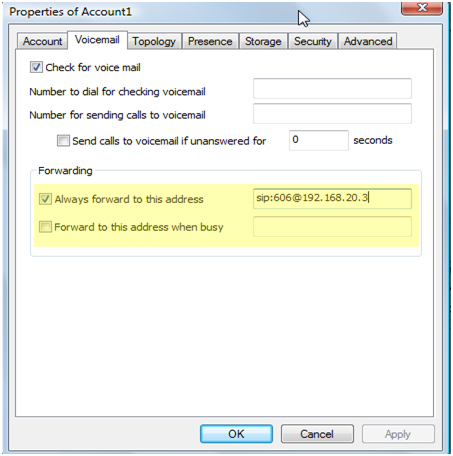
You can set the forward number in SIP account setting.
1. Right click on the soft phone, then click "SIP account setting"
2. Choose you current account, open the "Properties"
3. Go to "Voicemail" tab, complete the "forwarding" section
-
Note: If you set the call forward number on
Cisco 7940
,
all lines
of the phone will be forwarded. But for
Cisco 7970
, the call forward is
line specific
, so the line which forward is not enabled will ring still when a
call is coming.
-
How to set DND ( Do Not Disturb )
DND is a function to block any call to your phone. The caller will
receive a busy tone.
Cisco 7970/7940, Eyebeam
To enable/disable DND, you just need to press the "DND" soft key.
Note: DND will apply to all the lines. If the "Call Forward" is
enabled, the calls will be forwarded directly.
-
How to get your voice message
IP phone/soft phone:
Press *97, then enter your password. Follow the instructions.
Email:
The voice message will be sent to the owner's email box and
deleted immediately. So be careful of some important messages,
there is no backup in the system.
-
How to pick up any extension from any phone
When a call comes in on an extension which is not the phone you
are currently at, you can type
**[extension of phone you want to take call from]
and dial. This will connect you to the call which is going to the
extension you typed
-
Hot keys
The hot keys of our phone are defined in "Feature Code" of Asterisk
server.
Here are some common keys as default:
*43
- Echo test;
*97
- Check voicemail;
*98
- Dial voicemail;
*99
- Check recording.