Home
>
Archive
>
SSW Standards
>
Better Software Suggestions
>
Microsoft Project Suggestions (the rich client like Excel)
-
Project 2010 - Support change highlighting
*FIXED IN PROJECT 2010*
The change highlighting in MS Project does work when working with
TFS.
For more information of the 'Change Highlighting' feature missing,
see
MS Project 2007 Change Highlighting and the Interim Plan
-
(Hinders TFS Integration – but MS Project) - I don't want to
close and reopen to get updates
When changes are made in TFS and synchronized to Project Server,
the Project Manager needs to close MS Project and reopen it to get
the new changes. MS Project should automatically prompt when there
are new changes. This helps the project manager not work with
stale data.
-
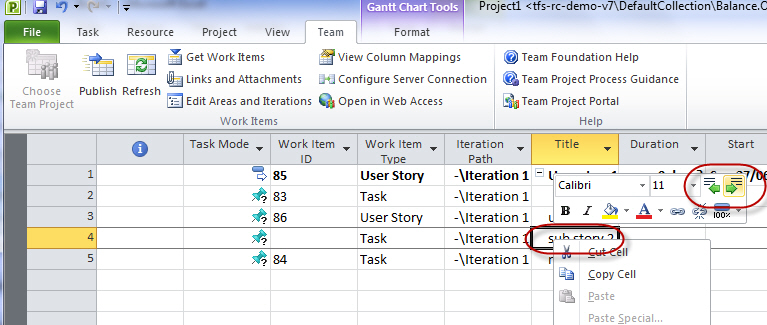
Say I want to enter some tasks to User Stories, it is easy in
Excel. However I watched a user get stuck today.
To fix this Microsoft Project needs to be consistent with Excel
-
-
Figure: Bad example - Nothing on the toolbar, you need to get to
the right field, and then right click
-
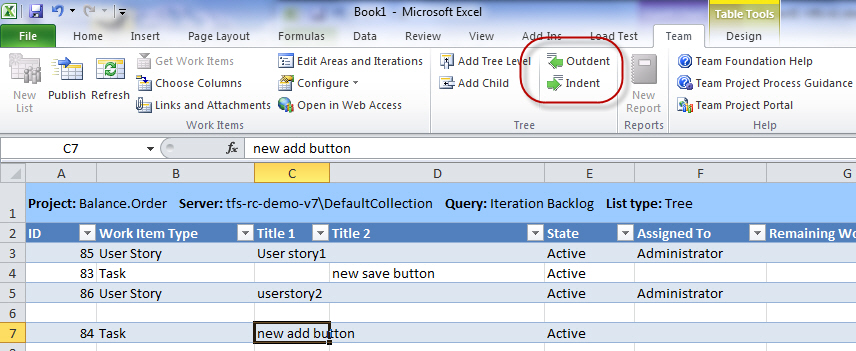
- Figure: Good example - Easy to find on the toolbar
-
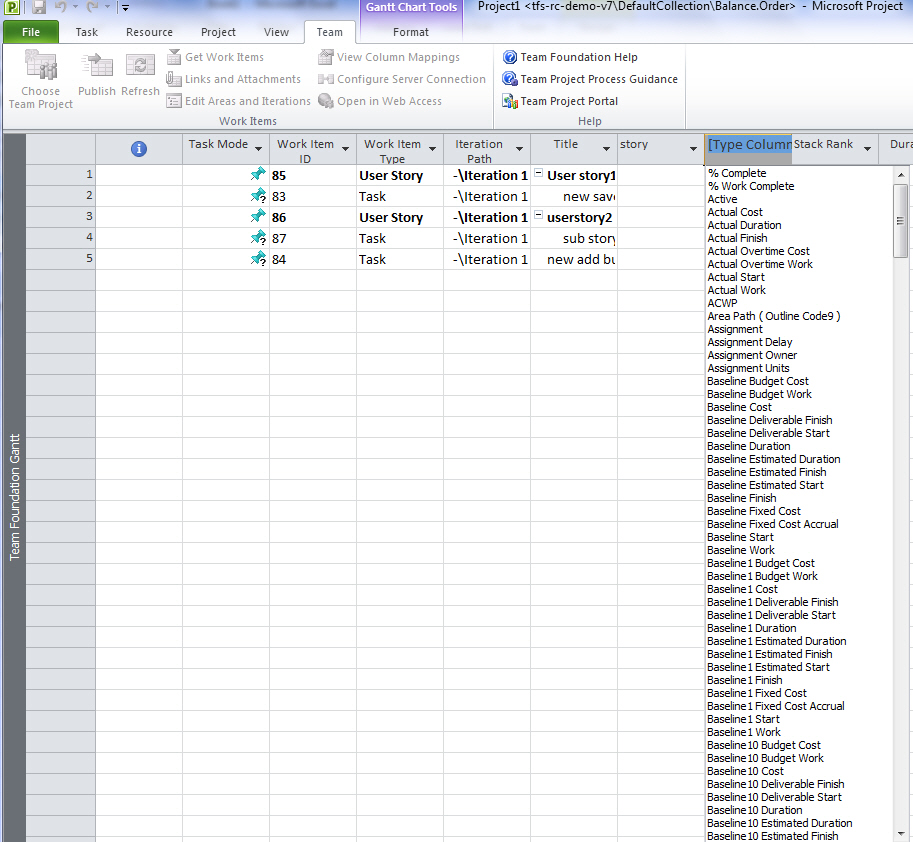
Column Mapping – Show just the TFS fields *IMPORTANT*
-
-
Figure: When you "Insert Column" it is horrible... The lists go
on and on and on...
-
-
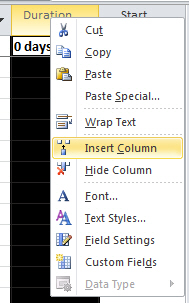
Figure: When adding a column, we need a new one "Insert TFS
Column"
-
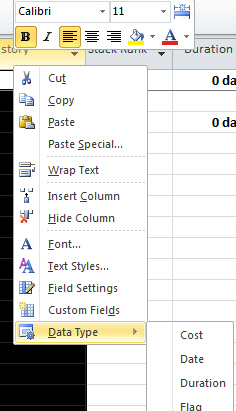
-
Figure: When editing a column we need a new one "TFS Columns"
-
Column Mapping - These should be in the same order
- These should be in the same order.
- Add that dialog should be resizable.
-
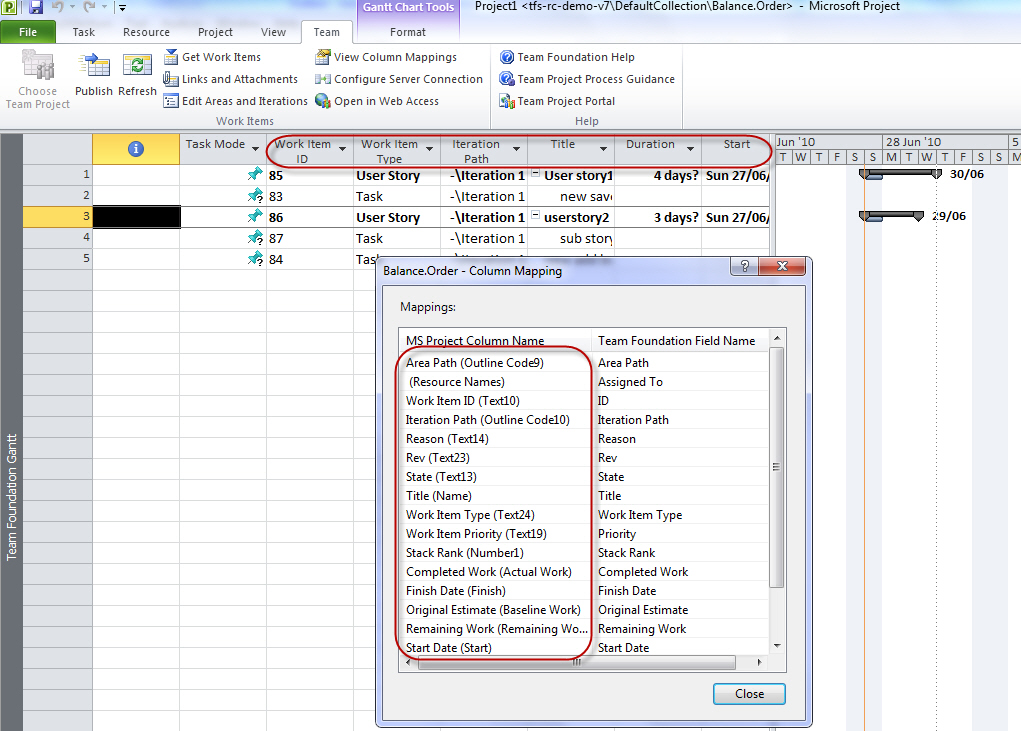
- Figure: These should be in the same order
-
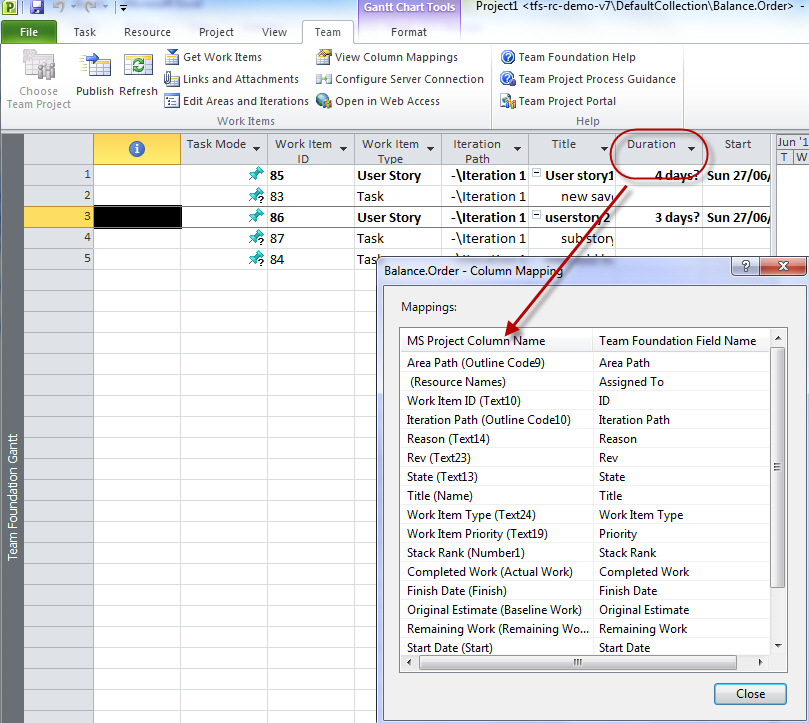
Column Mapping – Show the missing ones too
-
-
Figure: It would help if you show the ones that are unmapped too
-
(Hinders TFS Integration – but Project Server) Help me cost
my projects - it is not ok to lose my resource rates upon closing
the file.
Losing data is unforgivable. If you don’t give a warning, it
is treachery.
To Repro:
-
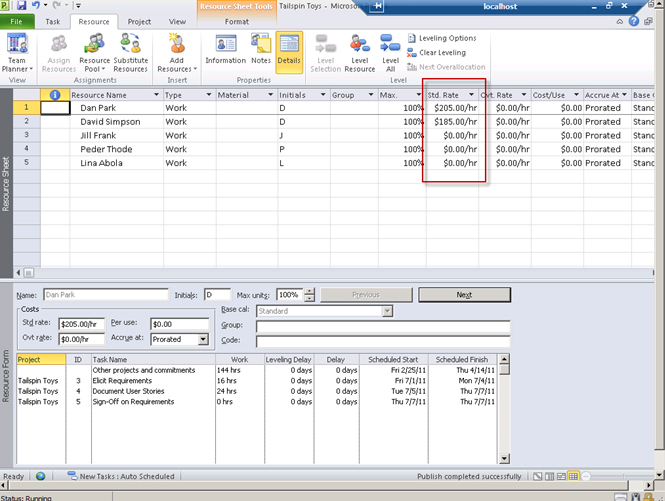
In MS Project (integrated with TFS), go to the Resource Usage
view and enter a Standard Rate for my resource
- Click on File for the backstage view and click Publish
-
Reopen MS Project with the same project – my rates are
lost!
-
-
Figure: The Standard Rate field is lost when I close MS Project
– even if I publish to TFS
The Solution:
- Save the data
-
Clearly indicate the difference between a local resource and a
global resource
-
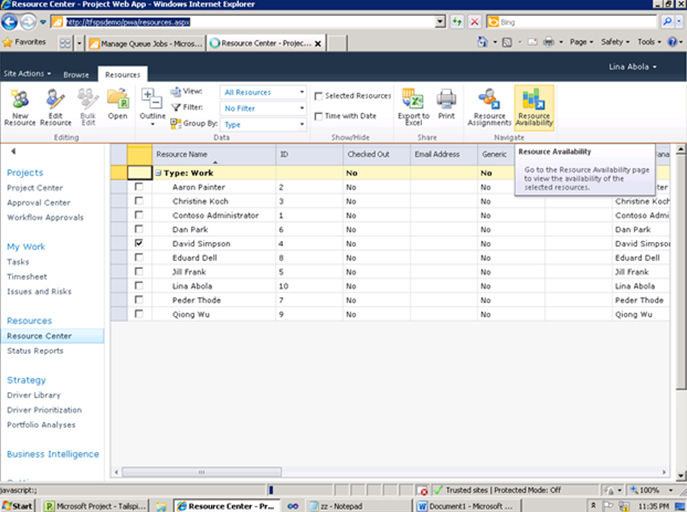
Put a hyperlink "Change rates for global resources" to
http://tfspsdemo/pwa/_layouts/PWA/Admin/AddModifyUser.aspx
-
-
Figure: Save a user from losing data and give them an easy way
to get to the global resources and change the standard rates
-
Enable more rates for a developer
You should be able to set more than 5 rates per developer. This is
too limiting when you have resources working on many client
projects, and varying rates.
-
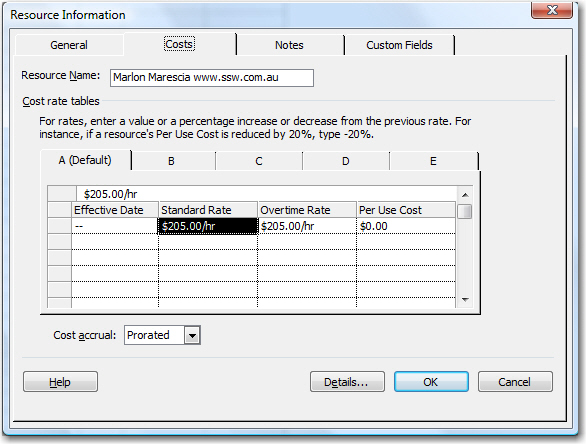
- Figure: Can only set 5 different rates for resources.
-
(Hinders TFS Integration – but Project Server) Help me find
out when I can open my project after a read only message
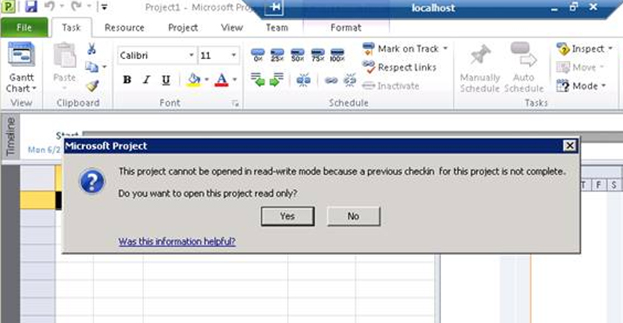
When I publish changes to Project Server using Excel or Visual
Studio integrated with TFS, I can't immediately open the Project
file in MS Project without getting a warning dialog.
-
This warning should have a link to the Jobs Queue in PWA so I
know when I am safe to open the Project file.
-
-
Figure: Read only error shown when there are Pending Jobs in the
Queue
-
-
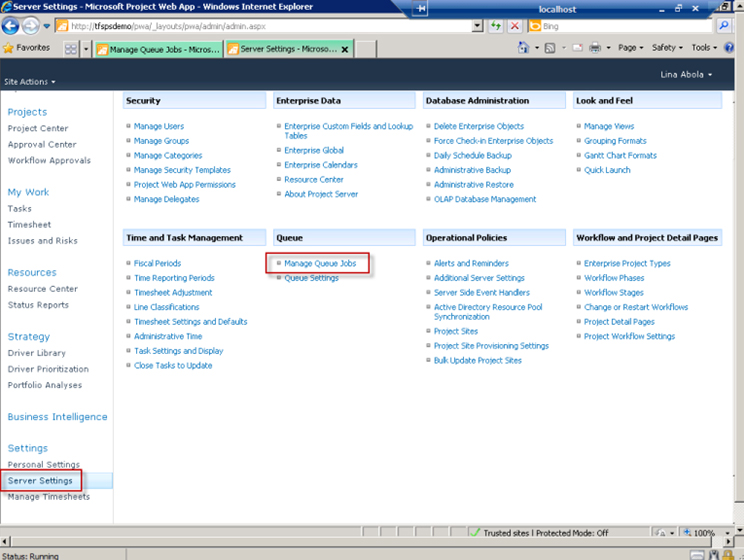
We need a link that takes us directly to the "Manage Queue Jobs"
page in "Server Settings" of PWA. This will show me the jobs
that are stopping the file from being opened
-
(Hinders TFS Integration – but MS Project) - Let me save
resource cost information
When I set or update the rate of resources in MS Project
Professional, these rates are not persisted. The next time I open
Project the rates are zero again.
Note:
We can set the default rates of each resource in Project Web
Access, but Project Managers will use MS Project Professional 99%
of the time.
-
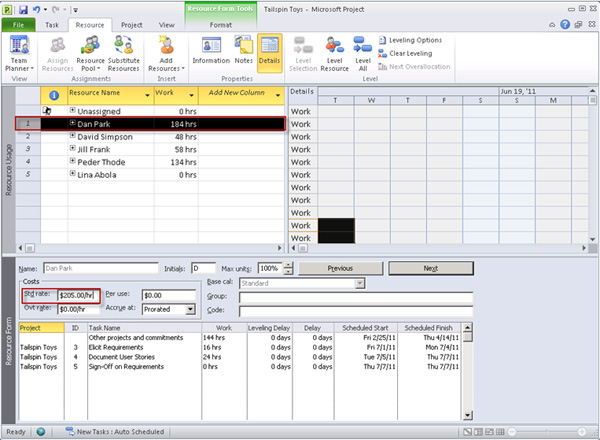
- Figure: Let me save resource cost information
-
Give us this cool visualization control from the MS Project Team
Dreaming away... I love seeing the progress of the work items in
Microsoft Project
-
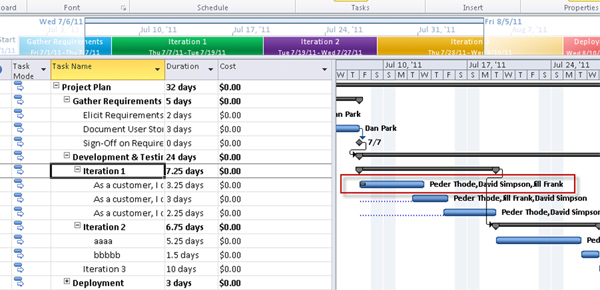
-
Figure: See in Microsoft Project I can visually see that this
task has started
-
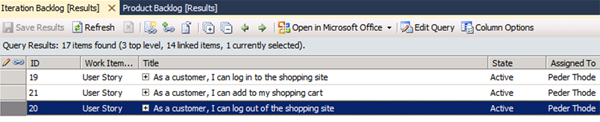
- Figure: Boy in the VS grid I would love that control
-
TimeLine - Don't make me calculate the days
-
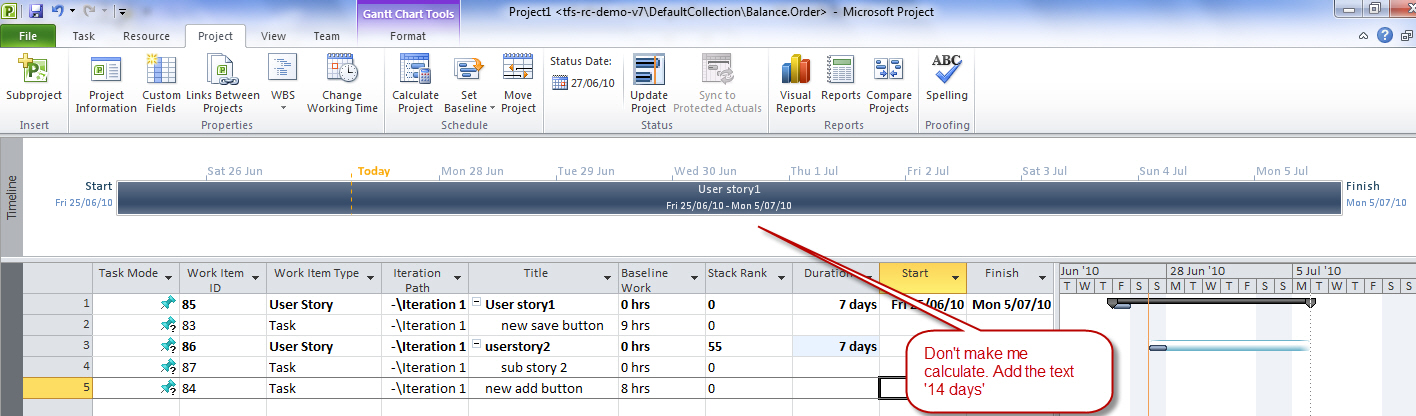
- Figure: Add the number of days
-
Project Professional - Help me see days in hours
I would like:
- to be able to hover and see it in hours
- to right click and change the format from days to
-
to fix the below bug with 'Project Options' | 'Duration is
entered in' | 'Hours'
-
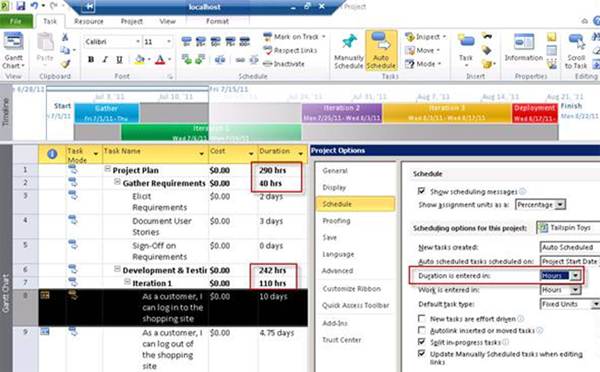
- Figure: I changed the setting, so why am I seeing days?
-

- Figure: I want to see hours (like I am used to in TFS)
Acknowledgements
Adam Cogan