-
Neat format when copying Tables and Views (developers) and .NET
Data Grids (end users)
When a row is copied to the clipboard from a table/view in
Microsoft Access and pasted into a word-processing document
(e.g. WordPad, Word), the data is automatically formatted as a
table.
This doesn't work with .NET DataGrids; instead, when pasted into
a document, the row comes out as a string of characters and tabs
that make up the row, not as a formatted table.
-

-
Figure: The pasted row turns out alright when copied from
Access.
-

-
Figure: This is the same row copied from a Visual Studio
DataGrid/DataGridView - the formatting should be as good as
Access was in 1992!
In addition, add the ability to copy from a list box. Once you
have this, then I won't have this
silly recommendation
.
-
Right-Click/Filter-By Control for Tables and Views (developers)
and .NET Data Grids (end users)
This is exactly the same functionality I requested for Outlook,
but giving developers access to this Control would be very
handy.
-
Make .NET TreeView Tri-State
The .NET TreeView control allows for the display of checkboxes
beside each item. If these checkboxes were tri-state; i.e. could
be either checked, unchecked or gray, it would make it easier
for certain types of information to be represented.
For example, if the sub-items of a particular tree node were
partially selected and the node was collapsed, the checkbox for
that node would fittingly be neither checked nor unchecked but
gray.
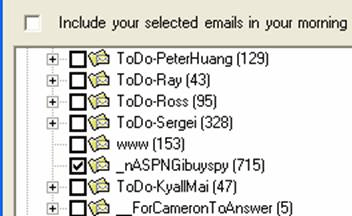
Figure: Here's an example of where a tri-state-checkbox
TreeView could be implemented.
-
Invoking an OLE DB Data Link Properties Dialog Box
The OLE DB Data Link Properties Dialog Box (see screenshot) is a
commonly used dialog that allows a user to configure a
connection to an OLE DB data source.
There are well documented methods of invoking this dialog box
from a Visual Basic 6.0 application. (See Microsoft's
HOWTO: Invoke the OLE DB Data Link Properties Dialog Box in
Visual Basic Code
page.) For .NET programmers, however, there will be a native
.NET class for handling this.
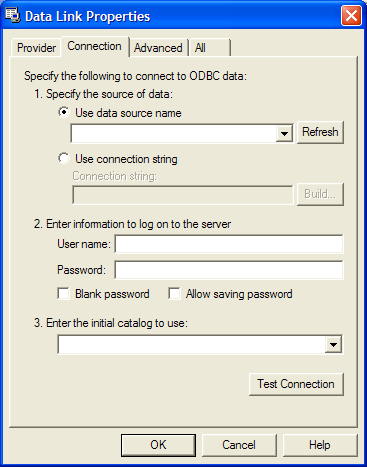
Figure: OLE DB Data Link Properties Dialog Box
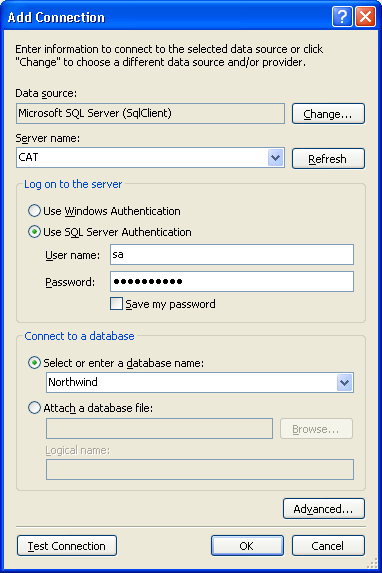
Figure: Visual Studio 2005 comes with a new Database
Connection dialog, but it is not publicly accessible from an
API
It would be a good thing for developers to use the
standard UDL control
to get database settings in their applications.
This functionality could be provided as part of the
System.Windows.Forms as a standard UI form (for example "File
Open" functionality). You will be able to filter out datasources
based on their type (e.g. hide all OLE types) just as you might
filter out file extensions.
PS: And please Scott Guthrie (from the ASP.NET team), give us
the same thing in a web control.
-
Make Separate Event Handlers for ToolBarButtons (this is total
inconsistency)
Visual Basic .NET has made the implementation of menus on forms
quite simple and straightforward. Each MenuBar has its own
MenuItems, and each of these MenuItems can be assigned a
separate event handler, as in the following example.
Private Sub MenuItem6_Click(ByVal sender As System.Object, ByVal e As System.EventArgs)
    Handles MenuItem6.Click


        ClientNew()


    End Sub


    Private Sub MenuItem7_Click(ByVal sender As System.Object, ByVal e As System.EventArgs)
    Handles MenuItem7.Click


        ApplyFilter()


    End Sub


    Private Sub MenuItem9_Click(ByVal sender As System.Object, ByVal e As System.EventArgs)
    Handles MenuItem9.Click


        RemoveFilter()


    End Sub
Figure: VB .NET menu example
There are similarities between creating MenuItems for a MenuBar
and creating ToolBarButtons for a ToolBar. It would be easy and
convenient to handle each toolbar button's Click event
separately. However, this is not possible.
The only way to process such an event at all, currently, is to
use the ToolBar's ButtonClick event, as seen below.
Private Sub ToolBar1_ButtonClick(ByVal sender As System.Object, ByVal e As System.Windows.Forms.ToolBarButtonClickEventArgs)
    Handles ToolBar1.ButtonClick


        If e.Button Is btnNewClient Then


            ClientNew()


        ElseIf e.Button Is btnApplyFilter Then


            ApplyFilter()


        ElseIf e.Button Is btnRemoveFilter Then


            RemoveFilter()


        Else


            MsgBox("Logic Error")


        End If


    End Sub
Figure: Toolbar ButtonClick event
As you can see, it would be simpler and less messy if we had
each menu item's Click event handled in a separate event
procedure.
-
DirtyProvider control
Many intrinsic .NET controls could benefit from an IsDirty
property (or equivalent) that allows you to query whether or not
the control has been changed by the user in any way.
An IsDirty property could be provided by an extended provider in
much the same way as the Tooltip property is provided by the
ToolTip control.
The code below demonstrates the use of an IsDirty property.
If DirtyProvider1.GetIsDirty(Me) = True Then


       Dim result As MsgBoxResult = MsgBox("Do you want to save changes?",
    MsgBoxStyle.YesNoCancel, "Save")


       Select Case result


          Case MsgBoxResult.Yes


             Save()


          Case MsgBoxResult.Cancel


             e.Cancel = True


          Case MsgBoxResult.No


             ' Do nothing - the form will
    close


          Case Else


             MsgBox("Logic Error")


       End Select


    End If
Figure: Example IsDirty code
-
Make Extender Provider Properties More Visible
Extender providers are objects that add properties to other
controls. They are useful in a number of areas. For example, the
ErrorProvider control adds an Error property to all controls,
through which the developer can provide notification of errors
to the user.
However, properties specific to a particular extender provider
are often difficult to locate in the properties window because
they're mixed in with other properties belonging to a control.
Extender provider properties will be separated from normal
properties; this could be done by:
-
Color-coding them in the properties window (using the
background color)
-
Allowing the user to select an extender provider from the top
combo (see figure)
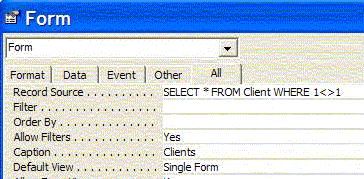
Figure: Extender provider could be selected from the top
combo box
Furthermore, when an extender provider and a normal control are
selected simultaneously, none of the extender properties are
shown in the properties window, as seen below.
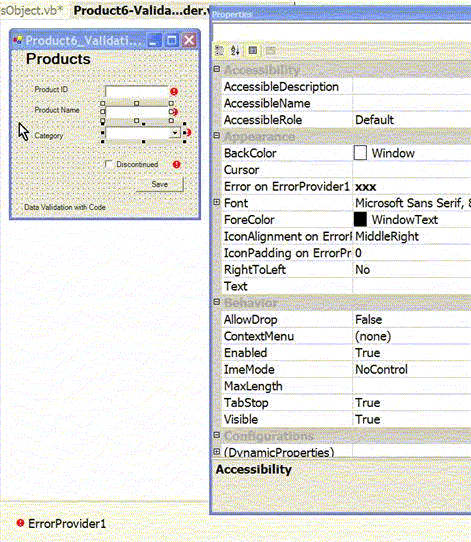
Figure: Extender provider properties will be shown when
extender provider and regular control are selected.
-
Sub forms
Access sub forms were fantastic. So simply and so effective.
Visual Studio needs an out-of-the-box equivalent to manage
Master/Child relationships.
-
Hiding properties in inherited forms
Using special attributes, it is possible to hide properties from
the designer in inherited forms (see
Rules to Better Windows Forms
). However, it would be better to be able to disable properties
(have them appear grayed out or with strikethrough).
-
Would like a Bread crumb control for windows forms
This would be used in wizards this is too much work to do
manually at the moment.

Figure: Bread crumb control for SSW Upsizing PRO!.
-
ListView shouldn't change the checkbox's checkstate on double
click
By default, ListView with checkboxes will automatically check or
uncheck the checkbox on double click. This default behaviour
somehow could be very annoying and make your ListView looks
bugged if you have a custom action for double click event.
Example of ListView that will have custom action on double
click:
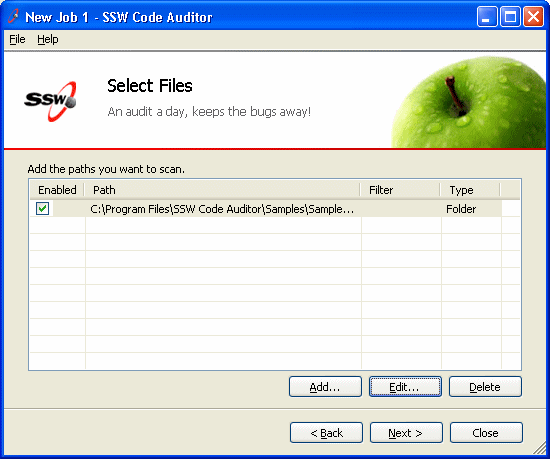
Users would expect to edit the value of "Path" on double click,
not check/uncheck the checkbox.
Double click will really just do 1 action (edit).
How we fix this:
private bool isDoubleClick = false;
private void listView1_MouseDown(object sender, System.Windows.Forms.MouseEventArgs e)
{ if ((e.Button == MouseButtons.Left) && (e.Clicks >= 2) )
    { isDoubleClick = true; }
}
private void listView1_ItemCheck(object sender, System.Windows.Forms.ItemCheckEventArgs e)
{ if (isDoubleClick)
    { e.NewValue = e.CurrentValue; isDoubleClick = false; }
}
private void listView1_DoubleClick(object sender, System.EventArgs e)
{ // Your custom action for double click goes here. :)
}
Suggestion:
Make a boolean property "Automatically check/uncheck checkbox on
double click".
Automatically check/uncheck the checkbox is good (and needed) if
the ListView doesn't have any action on double click.
-
Need the ability to trim characters from a string that does not
completely fit into a ListView column
To implement a custom
string trimming
in ListView, we need to override the Paint event of the
ListView. However, the ListView in .NET 1.x is not really a .NET
control, it is just wrapper around the control in ComCtl. It
doesn't have the OwnerDraw property and Paint Event like other
.NET controls.
There are a few workarounds like generating Paint Event for
ListView on CodeProject.com, but they don't work out really
good.
|
Update: .NET Framework 2.0
This can be implemented easily in .NET Framework 2.0.
E.g:
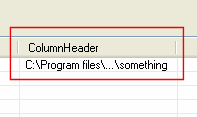
Figure: This can be implemented easily in .NET
Framework 2.0
Steps:
- Set OwnerDraw of ListView to True.
-
ListView in .NET 2.0 has DrawColumnHeader, DrawItem,
and DrawSubItem event handlers. In this case,
DrawSubItem is what we need, add the code like below:
Private Sub ListView1_DrawSubItem(ByVal sender As Object, ByVal e As System.Windows.Forms.DrawListViewSubItemEventArgs)
Handles ListView1.DrawSubItem e.DrawText(TextFormatFlags.PathEllipsis)
End Sub
|
-
Make ComboBox control sortable
We believe ComboBox control will have a property to make it
sortable, which may be called 'SortMember' like the existing
properties of 'DisplayMember' and 'ValueMember'.
-
Ctrl+A to select all text for TextBox
We believe TextBox control will have a property to enable Ctrl+A
to select all text for TextBox, which may be called 'AcceptsCtrlA'
like the existing properties 'AcceptsReturn' and 'AcceptsTab"; It
will make us easy to copy all text by CTRL+A and then CTRL+C -
especially for copy long text in multiple-lines TextBox;
Private Sub txtScript_KeyDown(ByVal sender As System.Object, ByVal e As System.Windows.Forms.KeyEventArgs) Handles txtScript.KeyDown
If e.Control And Also e.KeyCode = Keys.A Then
    Me.txtScript.SelectAll()
End If
End Sub
Figure: Get CTRL+A to select all text in TextBox.
-
A top CheckBox to "select all" in windows forms
The header of a checkbox column (e.g. in DataGridView) will
contain a checkbox by default. When this checkbox is checked,
all checkboxes below are checked too. This checkbox is more than
a check box with all things (e.g. properties, methods and
events) applied to a CheckBox control.
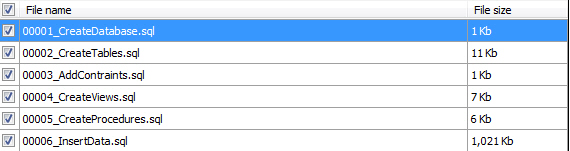
Figure: A top checkbox to select all checkboxes underneath it in
a windows form
-
Adding an error provider on a tab header
According to our experience, the error provider icon will be
able to show on a tab header to indicate the tabpage contains
errors.
-
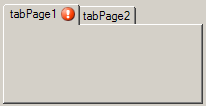
- Figure: Add an error provider on an Tab Header.
-
Transparent images don't get rendered correctly
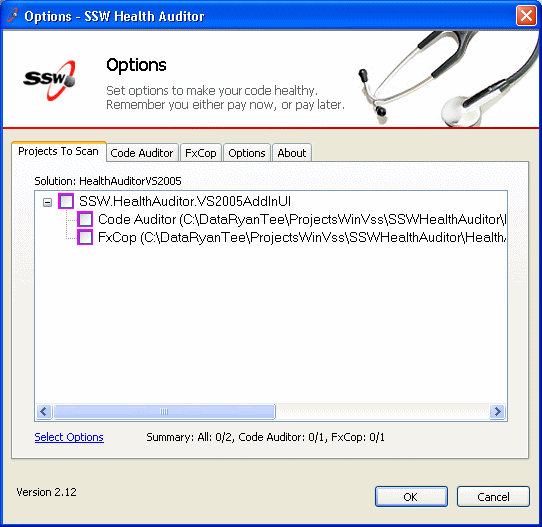
Figure: Transparent images don't get rendered correctly.
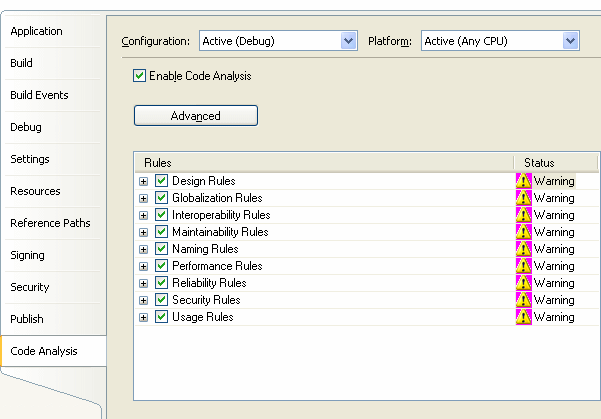
Figure: Transparent images don't get rendered correctly in
project properties form as well.
The purple area will be rendered as transparent.
-
Add support for pasting in screenshots
We can always paste images into the content in Outlook, but we
don't have any control to support this feature. Sometimes images
are more expressive than words, especially when we want to
describe a kind of state or result. Why can't we just paste in
the sceenshots from the clipboard?
See the similar suggestion to web forms
-
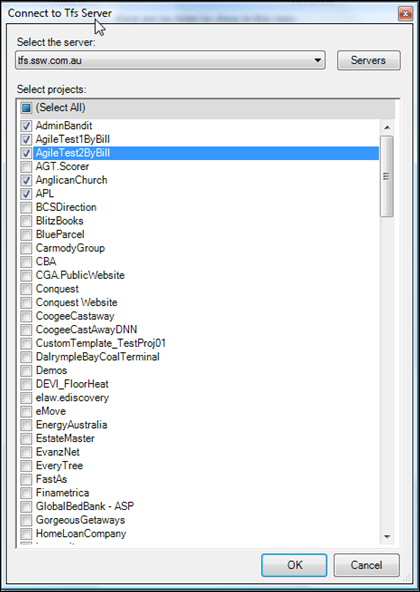
Have a CheckedListBox support Control+A and Control+C
Add support for Control+A to select all items.
Add support for Control+C to copy all items to the clipboard.
-
-
Figure: Windows Forms should have the same functionality
See the same suggestion at
Microsoft WPF Suggestions
.