-
Include and Exclude Mask Consistency
Visual Build PRO provides two columns in certain steps, namely the
step that is used for copying or moving files or folders as shown in
Figure 1 below:
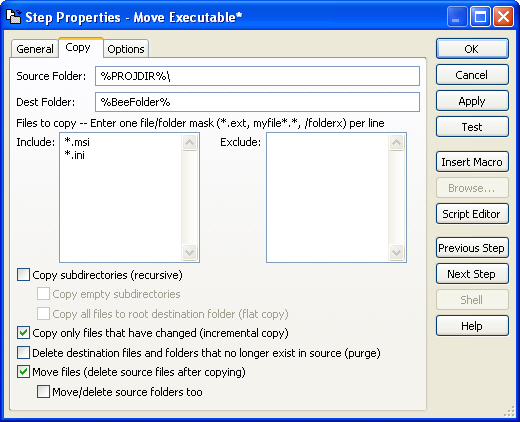
Figure 1: The "Copy" step properties showing include and exclude
text areas that should be available in the "Source Safe" step
properties.
This option proves to be very useful and can be a very important
option when wanting to use Source Safe to either Get latest or Check
out specific files or folders.
However Visual Build Pro does not provide the option to exclude
certain masked out files or folders for the step that provides
access to Source Safe as shown in Figure 2.
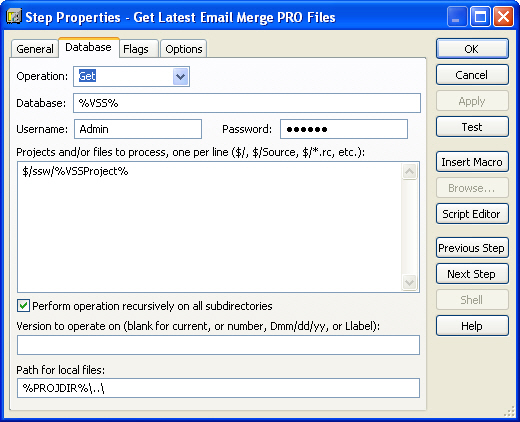
Figure 2: The "SourceSafe" step properties which only provides a
text area to include items. There is no option to exclude
particular files.
Users may want to keep certain files on their local drive that have
been modified. This may include the actual Visual Build Script
itself.
If the user modifies the build process while having Visual Build
open, then restarts the build which could include a step to get the
latest folder in source safe which may include that build script
itself, it may prove to be inconvenient. If the user believes that
the Visual Build script instance that is currently opened seems to
be saved, this may or may not be the one stored in the local drive
after the get latest step.
-
Rename Files or Folders
-
* Fixed by Kinook in Visual Build Pro 6.0 *
When dealing with files and folders, the "Copy" step seems the
most likely to have what they need. Although it provides the
options to copy, move, delete or replace text within files, it
does not provide an option for renaming files themselves.
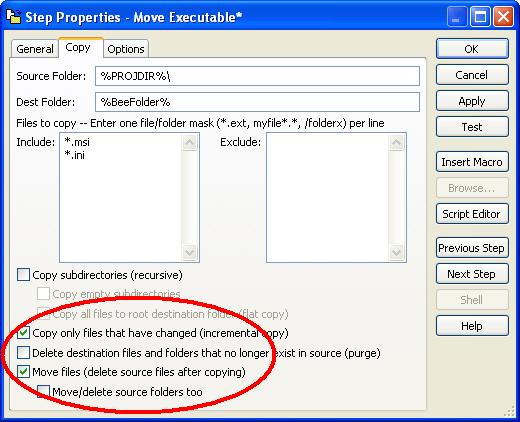
Figure 1: The "Copy" step without the option to rename files.
Developers would find a renaming option very useful. As they build
a setup file from a solution they want released, previous version
numbers will continually mount up in the public folder used for
release setup files. A clean up process should be made to rename
any previous setup versions as we do in SSW, and "zz" them to push
them down to the bottom of the file list.
Developers using Visual Build PRO think renaming is not supported
so they would have to create an extra step using a script to
access the folder and rename it with the
"Scripting.FileSystemObject" COM.
When you create this step it will allow you to clean up any
previous file moves that you have made from the build script.
With the script created to provide a "clean up" of your files, the
following code snippet found in Figure 2 proved to be useful.
Set FileManagment = CreateObject ("Scripting.FileSystemObject")
Set TheFolder = FileManagment.GetFolder("%BeeFolder%")

Set FileList = TheFolder.Files


For Each File in FileList


          fileStart = instr(ThisFile, ".msi") - 1

     fileNoExt = mid(ThisFile, 1, fileStart)

     File.Name = Replace( File.Name, fileNoExt , "zz"&File.Name&"(zzed_by_VBP).msi")


Next
Figure 2: Rename all the files appending zz at the front, and
(zzed_by_VBP).msi to the back.
-
Is any File Checked Out?
Although Visual Build PRO provides the user with the option to skip
over local writable files as shown in Figure 1, the VSS command-line
tool doesn't distinguish between checked out and non-checked out
writeable files.
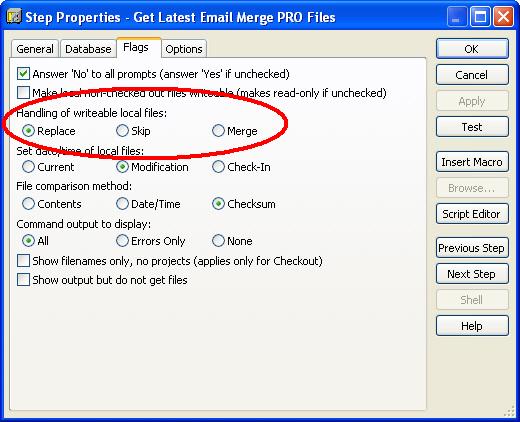
Figure 1: Source Safe properties can skip files that have the
"Read-Only" property unchecked, however that does not necessarily
mean they are checked-out.
To distinguish between files that are checked out or not can be a
very useful option as users can accidentally run the Visual Build
script while having the first step as a "Get Latest" and end up
overwriting all the files that they have forgotten to checked-in,
and hense overwrite all that they have done.
The temporary solution was to create a script that would access the
"SourceSafe" COM object and check the status of the file itself.
The IsCheckedOut() method returns 0 for a file that is not checked
out, 1 for a file that is checked out by a user, and 2 for a file
that is checked out by the current user.
const isFolder = 0

const isFile = 1


dim VSS_FolderName

VSS_FolderName = "$/%VSSPath%/"


Set VSS = CreateObject("SourceSafe")

VSS.open "%VSS%"


CheckTheFolder VSS.VSSItem (VSS_FolderName)


Sub CheckTheFolder(objVSSFolder)


For Each VSSObj In objVSSFolder.Items(False)


        If ype = isFile Then
              If VSSObj.IsCheckedOut = 2 Then

                   Project.Stop

              End if


        Else

              VSS_FolderName = VSS_FolderName & VSSObj.Name & "/"

              set objVSS_SubFolder = VSS.VSSItem (VSS_FolderName)


              CheckTheFolder(objVSS_SubFolder)


              VSS_FolderName = Replace(VSS_FolderName, VSSObj.Name&"/" ,"")

        End if


Next


End Sub
Figure 1: Check recursively for files that have been
checked-out-by-me.
-
Losing focus when text is selected in a text area
-
* Fixed by Kinook in Visual Build Pro 6.0 *
1. When you open a dialog box (double click a step in the build)
then highlight a section of text i.e. as shown in Figure 1:
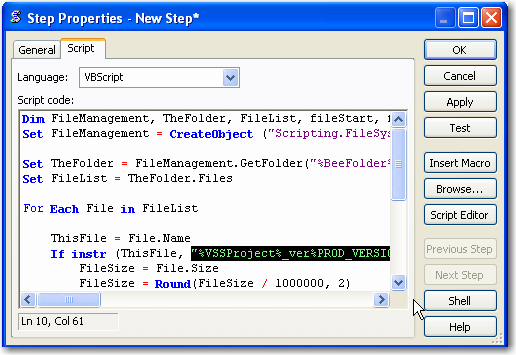
Figure 1: A highlighted section of text in the text area BEFORE
losing focus of the Visual Build Application
2. Then you lose focus of the Visual Build Program and return to it
the text dissapeard as is shown in Figure 2a and 2b:
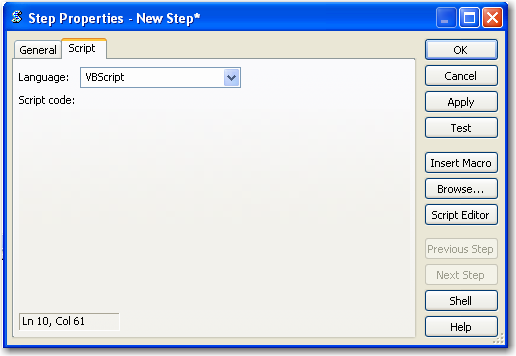
Figure 2a: Code has disappeared after returning focus to the
Visual Build Application
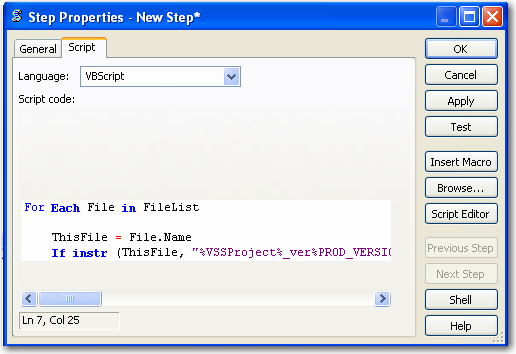
Figure 2b: SOME Code has re-appeared after clicking in the text
area.
-
Acknowledgements
Adam Cogan, Adel Helal