Home
>
Archive
>
SSW Standards
>
Developer Access
>
SSW Link to Access or SQL Server
How to link your SSW Access database to an Access or SQL backend
|
|
Most Access developers split their Access application into two
files the application database and the data database. The
application database (the forms, reports, saved queries and
programming) is installed on the local hard disk, and the data
file is stored on the network drive for access by multiple
users over the network.
Note: SSW recommends Microsoft Access to be installed locally
on the C: drive. To share a Microsoft Access database across a
network, the data database (e.g. SSWDATA.MDB), needs to be
moved to a location on the network that is accessible by
everyone who wants to use the database. The data database
contains only tables and data, not forms and reports.
A copy of the application database (e.g. SSW.MDB) is required
on each computer which will access the shared data. This file
contains the forms, reports, saved queries and programming.
|
|
|
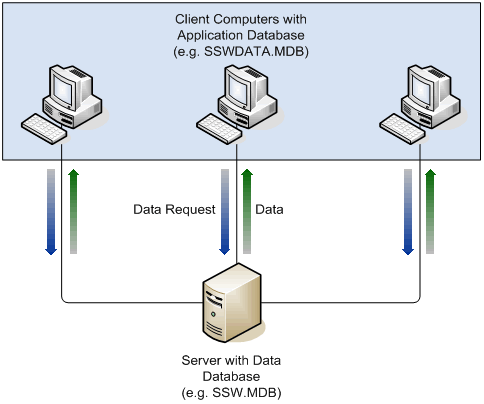
Figure: Split your database into application and data so
that network users can share the data
|
|
The "data" database will be placed on a shared drive such as E:,
F: G: etc. or a UNC \\Server\Data
|
|
Moving the Database and Reconnecting to the Data
|
|
If backend is SQL Server, then your Access database does
not point to a particular data file. Instead your access
to the database is via an ODBC Data Source Name (DSN). A
DSN has a reference to your server (NT or
Windows 2000) and the database name.
|
|
|
- Ensure the database is not in use.
-
Copy the application database onto each computer that needs
to use it.
-
Open the application database on each computer. You can use
the built-in Access linked table manager (in Access under
Tools > Database Utilities > Linked Table Manager
) to link the application database to the data database.
|
|
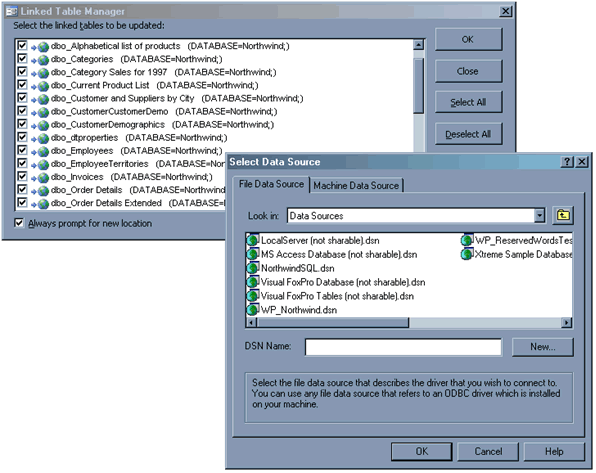
Figure: You can use the Access Linked Table Manager to re-link
your tables to the data database
|
|
|
If you are using
SSW Upsizing PRO!
or
SSW Time PRO!
you can simply open the application and follow the instructions
given on the Attachment Manager to connect to the drive where
the data database is stored.
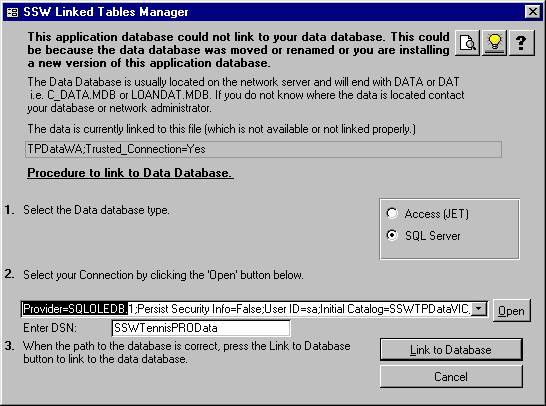
Figure: If you are using SSW Upsizing PRO! or SSW Time PRO!
you can easily re-link your tables using the Attachment
Manager
|