Home
>
Archive
>
SSW Standards
>
Developer Access
>
SSW How to do a Mail Merge in Microsoft Word using Access Data
How to do a Mail Merge in Word Using Access Data
|
This document assumes the use of "Select Clients" which is on
the Reports Tab of SSW Time PRO! If you are not a Time PRO!
user please read on as the instructions are still usable.
|
Mail merging is a process whereby
merge fields
interspersed through your standard or
boilerplate
text are replaced from a data source when printed. This feature allows
you to send a one document to many recipients, with the correct
details for each.
How is this done using Microsoft Word and Access?
It's easy! Just start Word. Select Tools/Mail Merge
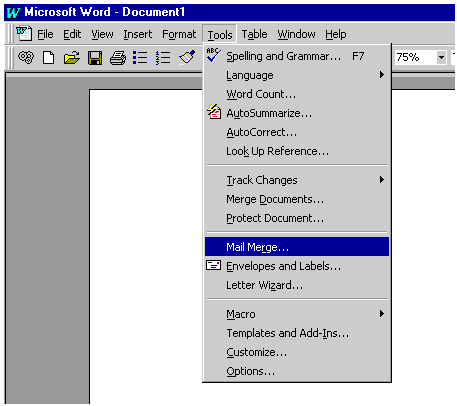
Figure 1: Invoking the Mail Merge Menu
A Wizard called the Mail Merge Helper will appear. The first step is
to tell it which document will contain the merge fields.
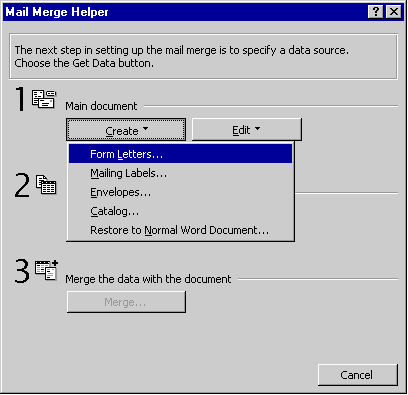
Figure 2: The Mail Merge Helper
You can choose to use the currently open Word document or to open
another.
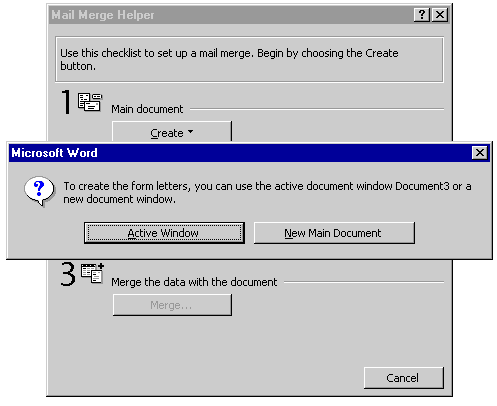
Figure 3: Choosing a document to merge to
If you want to use Access as the source of data for your merge fields,
choose the "Open Data Source " option, under the "Get Data" item.
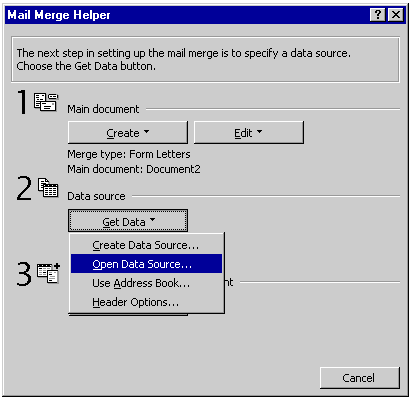
Figure 4: Opening a Link to Access
This will open up a file navigation dialog box, such as shown below.
Use this dialog box to point to the correct Access database file which
contains the merge field information. For example, if you are using
Time PRO! then select C:\Timepro\Ssw97.mdb.
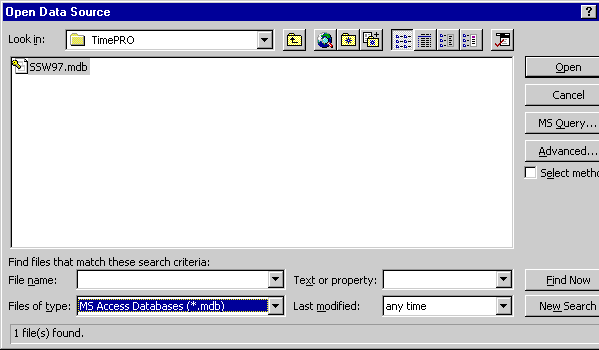
Figure 5: Selecting the right Access database
Since a single database can contain more than one table, a further
dialog box appears enabling you to choose which table (or query) you
wish to use a source for your merge fields. In this case, the
"SelectClient" table is selected.
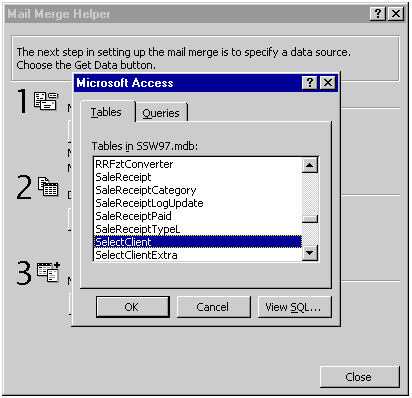
Figure 6: Choosing a table from a large database
The merge fields will appear in a temporary toolbar in Word,
corresponding to the field names in the "SelectClient" table. click
it, and a drop-down selection of merge fields appears. Just select a
field and it is inserted into the document.
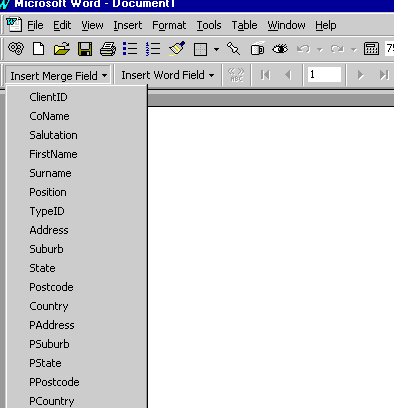
Figure 7: A drop down selection of merge fields to choose from
In this example, the merge fields from "SelectClient" table have been
inserted in between the standard text. Once merged, the correct value
of each record will be substituted where the merge fields are located.
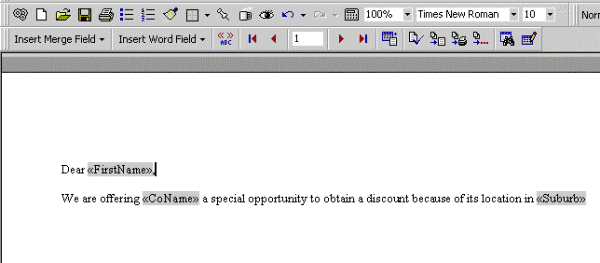
Figure 8: Mixing your boilerplate text with the merge fields
Now that the document is done, are you ready for the merge? If you
don't want to use all the records in the "SelectClient" table then you
can either delete unwanted records through the SelectClient form (in
Time PRO!) Or you can use the "Query Options" in the Mail Merge
Helper.
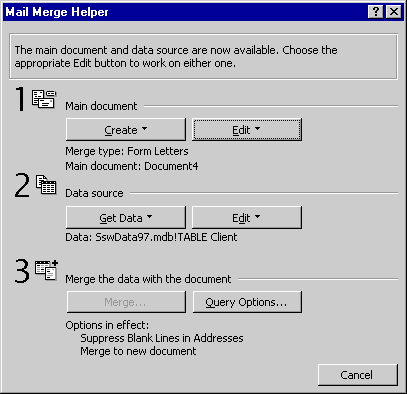
Figure 9: Mail Merge Helper Query Options
Clicking on "Query Options" brings up a control which lets you choose
a part of your table. In this example, the user is limiting the mail
merge only to those whose suburb is "Chatswood".
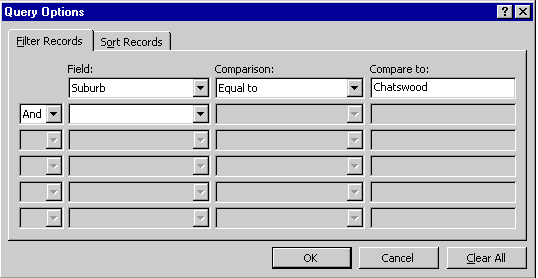
Figure 10: Refining the records which will be merged into the
document
The Mail Merge helper will now let you output the result in a variety
of ways. You might want to examine the mail merge before you print it.
Select "Merge to: New document". This will create a single document
containing all the letters that would have been printed had you chosen
to. You can look through it to see that no awkward substitutions have
taken place.
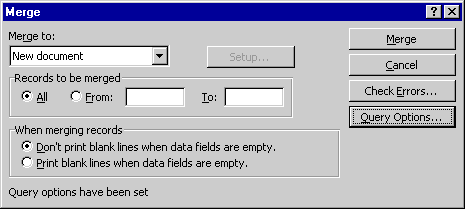
Figure 11: This creates one document containing each merge instance
When you are satisfied, select "Merge to Printer" or "Merge to Email".
This will create one document for each instance, using the
boilerplate
text and subsitituting the correct details in each case.
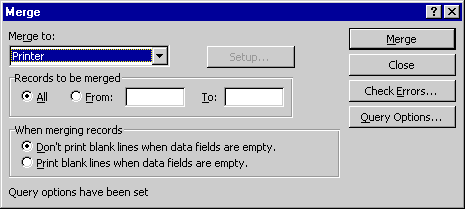
Figure 12: Selecting "Merge to Printer" means the printing will
print each merge instance as a separate document