Home
>
Archive
>
SSW Standards
>
Rules
>
SSW Rules to Better Virtual PCs
Microsoft Virtual PC provides facilities to run a complete operating
system and hard drive images on top of a host operating system. This
is a boon for testing in multiple environments and for hosting
providers.
However, to run Virtual PC in a most efficient way, we have developed
a few rules for a better Virtual PC usage.
Do you agree with them all? Are we missing some?
Let us know
what you think.
-
Do you turn on undo disks for testing purposes?
By default, Virtual PC will not offer you the chance to undo your
changes. When testing applications, you do not want to taint your
test environment with DLLs you have previously installed. You should
be testing on a clean install of the operating system and core
programs (e.g. Office if required, .NET Framework 1.1) - so that
your test environment is the same as the standard user environment.
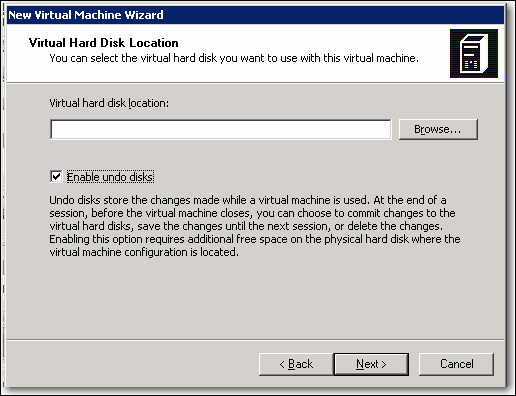
To allow your test Virtual PC image to be rolled back to the state
before you installed your test software, you should check on the
"Enable Undo Disks" option when creating your Virtual PC image.
However in some cases, such as keeping undo disks that haven't been
committed to the virtual hard disk can create a large amount of
disk-related overhead. Therefore it is recommended that developers
store the undo disks on a separate physical disk to the virtual hard
disk.
-
-
Figure - Check on "Enable Undo Disks" when testing so your changes
will are not saved automatically to your drive image (Recommended)
-
-
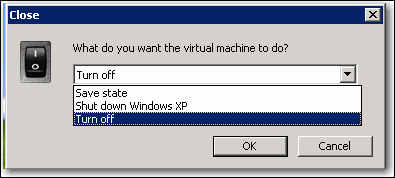
Figure - Check on "Enable Undo Disks" when testing so your changes
will are not saved automatically to your drive image
(RecommendedYou cannot undo changes if undo disks are checked off.
Choosing the "turn off" option will actually save all your
changes! (NOT Recommended)
-
-
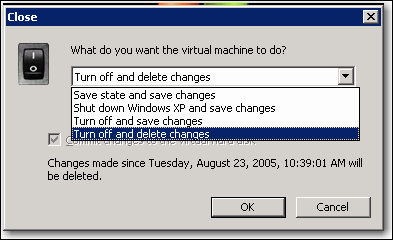
Figure - With Undo Changes checked on, you can now safely shutdown
without affecting your test image (Recommended)
-
Do you set the maximum memory usage and shut down non-essential
services for maximum performance?
Virtual PC can be a resource hog on any machine. For maximum
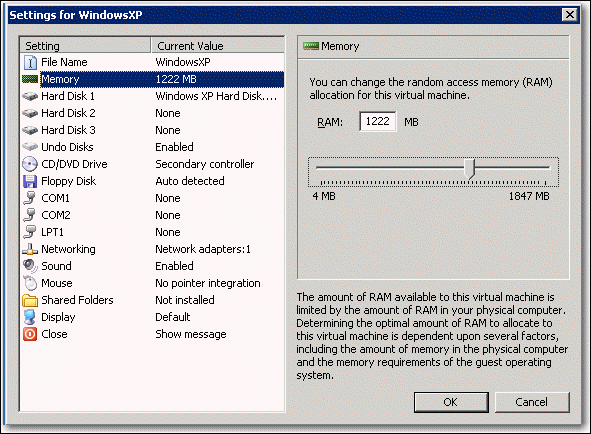
performance in your Virtual PC image, you should set the maximum
memory size greater than the default (the default is typically
128MB). If it is the only virtual PC you are running on the machine,
we recommend you set the memory footprint to 2/3rds of the physical
memory on your machine. You should also shut down all non-essential
services, end any nonessential tasks and close any large
applications (esp Outlook). Otherwise, your Virtual PC image will be
embarrassingly slow when doing that demo to your customers!
-
-
Figure - When running one virtual PC on a machine, kill all
unneccessary processes and set the memory usage to 2/3 of physical
RAM.(Recommended)
-
Do you use Virtual PCs to test beta software?
Betas are perfect candidates for running on Virtual PCs, as their
fundamental function is to provide a baseline application that can
be tested for bugs and possible improvements. Betas can also be
unpredictable and can cause instability if they encounter a problem.
Virtual PCs can be utilized for this scenario, as they offer a
secure and protected environment for carrying out testing on betas
without affecting the host machine.
-
Do you store the virtual hard disk on a separate physical disk to
the host operating system?
By storing the virtual hard disk on a separate physical disk or
hardware that offers better performance and fast access, you can
significantly improve the performance of the Virtual PC, as it will
utilize the resources of the physical disk while freeing up
resources for the host operating system. For optimum performance,
SCSI hard disks, redundant array of independent disks (RAID) or a
SAN should be used to store the virtual hard disks.
-
Do you protect your virtual environment?
The virtual environment mirrors any physical operating system and is
therefore vulnerable to the same viruses and malware that affects
any other operating system. Hence it is necessary to protect the
Virtual PC environment in the same fashion as the host operating
system. This means installing anti-virus protection on each virtual
machine, enabling a firewall to block unwanted incoming and outgoing
traffic and installing the latest security patches and updates to
ensure that the virtual machine is protected against the latest
security threats.
-
Do you backup your virtual machine?
The virtual machine acts like any data storage device and the
associated virtual machine files should be backed up to save all of
the data and configuration settings of that particular virtual
machine. The easiest method for backing up the virtual machine is to
simply backup the virtual hard disk onto a secondary storage device.
The process of restoring the image is just as simple.
-
Do you follow the correct shut down procedure?
Before shutting down the host operating system, it is vital that the
virtual machine be shut down first. This is to ensure that no data
has been lost. Similarly when suspending the host operating system,
the virtual machine must be suspended first to avoid data loss.
-
Do you install virtual machine additions?
Virtual Machine Additions are a set of features that improve the
integration of the host and guest operating systems. It also
improves the performance and manageability of the guest operating
system. Some of the special features included are mouse pointer
integration, time synchronization and overall improvement in the
performance of the guest operating system.
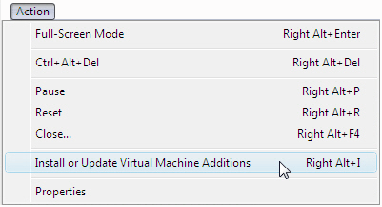
Install the virtual machine additions by following these steps:
-
Start the Virtual machine by selecting the appropriate virtual
machine in the virtual machine console and clicking "Start".
-
When the virtual machine window opens, click "File" and select
"Install virtual machine additions".
- You will be prompted for confirmation, click "yes".
-
-
Figure - Install Virtual machine additions to optimise
performance(Recommended)
-
Do you configure the correct performance settings for the virtual
machine?
Performance improvements can be experienced if the following
settings are applied:
- In the Virtual PC Console, click "File" and then "Options".
- In the Options window, click "Performance".
-
In the right pane, select both "All running virtual machines get
equal CPU time" and "Run Virtual PC at maximum speed" and click
"OK".
-
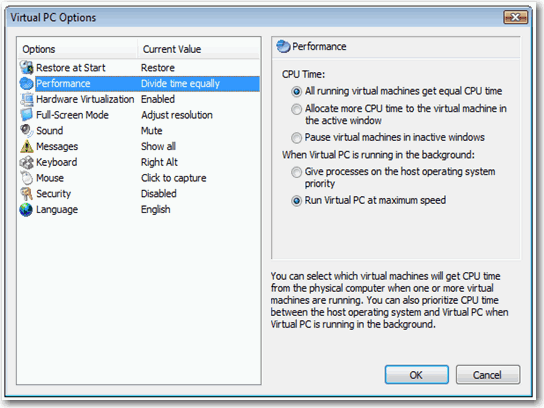
- Configure the performance settings (Recommended)
To enable hardware accelaration please follow these steps:
- Click "Start", then "Run", type "desk.cpl" and click "OK".
- Click "Advanced Settings".
- Open the "Troubleshoot" tab.
-
Click "Change Settings" and move the hardware acceleration slider
to full.
-
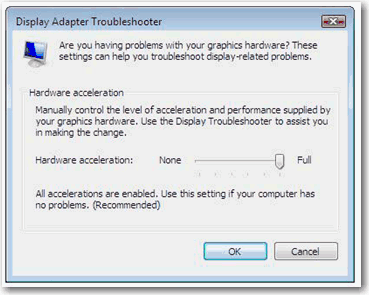
- Figure - Enable hardware accelaration (Recommended)
-
Do you defragment your virtual machine?
Virtual machines should be defragmented regularly for optimum
performance. This includes both the physical drive on which the
Virtual hard drive is located as well as the virtual drives within
the Virtual PC. By doing this you can experience a significant
improvement in the speed of the Virtual PC. The built-in Windows
defragging tool or any other 3rd party tool can be utilized.
-
Do you exclude your virtual machine from anti-virus scans?
You should exclude your virtual machine files from being scanned
by your host anti-virus software. This includes files such as
.vmc, .vhd and .vud. Scanning these files slows down the host
operating and is unnecessary as the anti-virus software installed
in your Virtual PC performs the same task.
-
Do you use an operational base when creating multiple VPC images?
When you consider creating multiple VPC images for different
versions of Visual Studio, Office or other kind of software (Betas
or CTP versions), create first a fully operational base with just
the OS. On top of this OS install additional software to
differencing disks eliminating Side x Side problems. That makes
installation of additional VPC images faster, because you don't
start completely from scratch each time. And you save disk space
by using an OS base for all images.
Acknowledgements
Ishita Prasad
David Klein