-
Do you know which is appropriate for you, Access or SQL Server?
Question:
My Company is considering starting development of a custom
application in Access 97. Because they don't want to spend much
money at this point, they want to use Access database at first and
switch to SQL Server some time in the future. Could you tell me
how difficult it is to switch between these two databases?
Anything I could do now to make the conversion easier when it
comes?
Answer:
Switching from Access (Jet) database to SQL Server isn't as simple
as it seems. Yes, the dialects of SQL are similar, but they're not
the same. More importantly, while SQL Sever is a true relational
database, the Jet database is an Indexed Sequential Access Method
(ISAM) database - also known as a flat file database. Although we
could argue the differences between the two for hours, suffice it
to say that, in many ways, they're exact opposites.
Putting this difference in simple terms: What's fast in Access is
slow in SQL Server, and vice versa. In Access, the fastest way to
get to a record is to open up a table object, specify an index,
and seek to the record. If you want to pull data from several
tables, you can open multiple table objects and seek on them all,
assembling the data programmatically.
With SQL Server, you can't use a table object at all. While
indexes certainly exit (and are vital), you don't normally concern
yourself with them directly. The best way to pull data from
several tables is using a join query. SQL Server is at its best
when it pulls small record sets - whether from one table or joined
from several. This technique is painfully slow in Access.
More importantly, with SQL Server, there are far more features and
protections for data. In a professionally configured SQL Server,
the users (and their front-end applications) can never write
directly to the tables at all. They access the data through views,
and modify the data using stored procedures. None of these
techniques are available in Access.
So, put this thought to your money-saving employer: Are you
actually saving any money by planning a conversion like this? In
short term, maybe. In the long term, no. Yes, for the moment,
you'll delay buying the hardware, software, and training needed to
configure SQL Server. In the long term, you'll still have to buy
all those things and convert the code. And you never know how
these code conversions can go; it's a difficult thing to predict.
Never underestimate the value of a known cost. You know now how
much the SQL Sever is going to cost, and you're already planning
the initial development costs. There's really no way to know for
sure what the cost of conversion will be. If you stick with the
known costs, at least you're certain of what you're in for.
Conversion can eat up a lot of dollars (and time) before it's
completed. It's an unknown, which makes it the worst cost of all.
-
Do you know why to Upsize to SQL Server?
This page is a summary of the SSW whitepapers, as upsizing and
developers will find a number of key differences while migrating
from Access to SQL Server. The 4 main reasons to upsize your
database from Access to SQL Server 2000 are:
- Less Chance of Data Corruption
- Database Log Files Enable Data Recovery
- Support for More Concurrent Users
- Support for a Larger Database
1. Less Chance of Data Corruption
In Access, you open the MDB file directly. If, for example, the
network connection is unexpectedly broken or a client or server
machine shuts off without properly shutting down the application,
there is a good chance your data will be corrupted.
SQL Server, on the other hand, runs as a service – you do
not have direct access to the file. Requests for data are managed
by the SQL Server service, so if the server shuts down
unexpectedly or the network connection is broken, the next request
for data will not be fulfilled. Therefore the integrity of the
data is maintained.
2. Database Log Files Enable Data Recovery
SQL Server has a distinct advantage over Access in that all
transactions (database updates, insertions and deletions) are kept
in a log file. This log records the changes to the data and enough
information to undo the modifications (if necessary later) made
during each transaction. These logs can also be used to recover
your data in the event of system failure.
3. Support for More Concurrent Users
Access supports a maximum of 255 concurrent users, and as such is
not a feasible enterprise-level data storage solution. In a real
world environment it is common to experience major performance
issues with as few as 20 users attempting to use the Access
database simultaneously over a network.
SQL Server supports a concurrent user base that
is limited only by available system memory
, and because of its optimized query processing engine and ability
to simultaneously utilize multiple computers, processors and hard
drives, it can scale to meet any enterprise requirements.
4. Support for a Larger Database
Access supports a maximum database size of 2GB plus linked tables.
Although use of linked tables theoretically enables you to store
much more data, it is common to experience performance issues due
to the amount of data being processed. Generally you should
consider upsizing your Access database(s) if the size of any one
of them reaches 100MB.
SQL Server, on the other hand, has vastly improved storage
capabilities, allowing for 1,048,516 TB of data to be stored
efficiently across multiple devices. It also has self-repairing
and self-compacting features, making it a very robust database
solution.
For many more reasons to upsize your database see the SSW
Whitepaper,
What’s New and Different when Moving Your Backend from
Access to SQL Server 2000
.
-
Do you know the Upsizing Tools?
Read more about these and other tools and how to use them, in the
SSW Whitepaper,
How to Migrate Your Backend from Access to SQL Server 2000
.
-
Do you know the 4 Steps to Migrating Your Backend from Access to
SQL Server 2000?
The Microsoft Upsizing Wizard that comes with Access converts most
of your Access database and database objects into SQL Server.
However, some features in Access are not supported by SQL Server
and vice versa, so it is important that you manually analyze and
rectify any potential issues that may arise before, during and
after the migration process. It is also crucial that once
converted, the resulting database manually be inspected to ensure
all tables, data and relationships were correctly migrated.
Follow these steps to ensure a smooth database migration:
-
Estimate how long it will take -
use the
Sample Release Plan for upsizing
(Upsizing Template)
-
Configure a Copy of Your Live Access Database for Testing
- The first step in upsizing is to configure a copy of your live
Access database. You will first perform a test migration on the
test copy. Once everything is functioning correctly you will
perform the same steps on the live database.
-
Migrate a Test Copy of Your Live Access Database -
Now that you have made an offline copy of your Access database,
you can perform a migration on it, ironing out and pre- and
post-deployment issues that arise. This includes checking the
performance of your forms, changing your DAO code to use ADODB,
running the Upsizing Wizard, and fixing issues in the upsized
SQL Server database.
-
Perform Migration of the Live Database -
Now that all deployment issues have been corrected on your test
database, you can perform the migration on your live database.
As you have already recorded and scripted any structural changes
required, these steps should take less time to perform; it is
simply a matter of running each script against the live Access
database and upsized SQL Server database.
For more details on these steps, see the SSW whitepaper,
How to Migrate Your Backend from Access to SQL Server 2000
.
-
Do you automatically run scripts to keep your dev, test and
production databases in sync?
Once your Access back-end has been migrated to SQL Server, how do
you keep your dev, test and production databases in sync? Back
when everything was in Access, you could just copy the database to
each server each time the schema changed. With SQL Server, on the
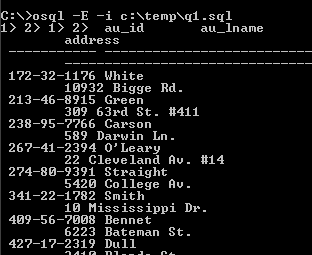
other hand, the best way is to script the changes and run them
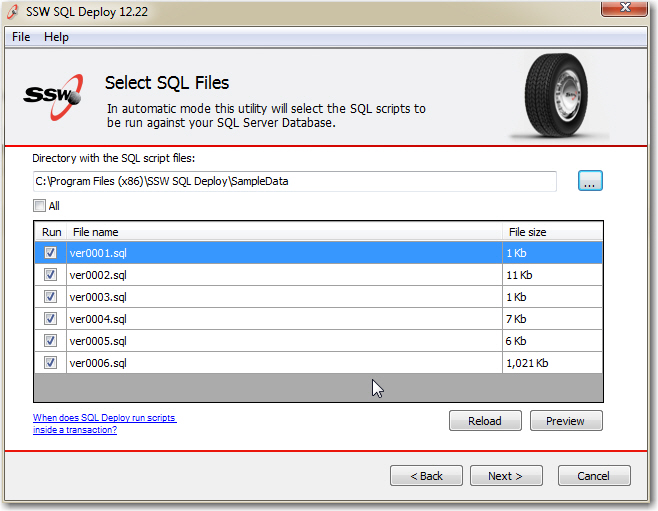
using the supplied OSQL.EXE utility (good) or via the more
user-friendly
SSW SQL Deploy
(better).
-
Dev Server:
(C:\Northwind\NorthwindApp2003.mdb linked to SQL Data) Make a
note of all schema changes
-
Test Server:
(C:\Northwind\NorthwindApp2003.mdb linked to SQL Data)
Manually implement schema changes
-
Production Server:
(C:\Northwind\NorthwindApp2003.mdb linked to SQL Data)
Manually implement schema changes
Bad: Manually implementing schema changes across your servers is
tedious and prone to human error
-
-
Figure: The OSQL command line utility comes with SQL Server and
lets you batch deploy your SQL scripts
-
-
Figure: SQL Deploy provides an easy-to-use and efficient Windows
interface to deploy SQL scripts across your servers
-
Do you know the 4 Steps to Migrating Your Reports to Reporting
Services 2005?
Microsoft SQL Server Reporting Services is a new reporting
platform that has even more functionality and flexibility than
Microsoft Access and Crystal developers have become accustomed to.
In addition, it combines the speed, scalability, and manageability
of centrally managed reporting, as reporting has moved from the
client model to the client-server model. This brings all the
advantages of Web-based applications.
These are the main steps to migrating your Access reports into
Reporting Services 2005:
-
Import your reports into Reporting Services
- Use the built-in
Import Reports
feature to import the Access database reports into Reporting
Services
-
Fix any build warnings and errors
- some features such as conditional formatting and parameters
are not imported during the process and need to be recreated
using expressions
-
Create a shared data source
- so that all your reports are configured to point to the same
SQL database
-
Test and deploy the reports
- to your report server to enable them to be viewed over the web
For more details on these steps, see the SSW whitepaper,
How to Migrate Access Reports to SQL Server Reporting Services
.
-
Do you deploy your Reporting Services reports to your dev, test
and production servers using the Deploy command?
Once you have migrated your Access reports to Reporting Services,
how do you keep your dev, test and production reports in sync? The
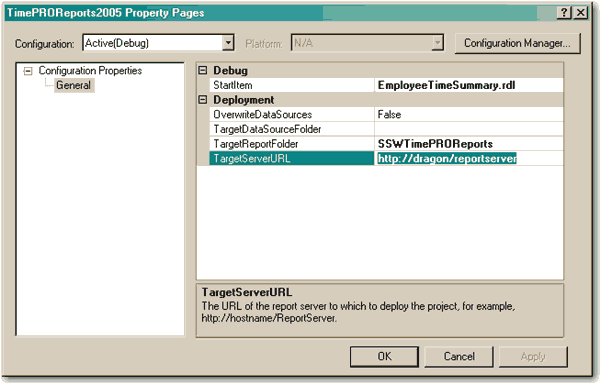
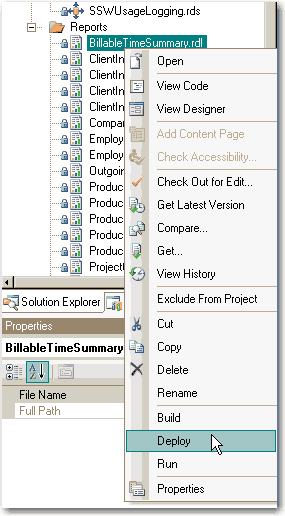
best way is to use the Right-Click Deploy command in Visual Studio.
You will need to change the Report Server each time in the report
project properties.
-
-
Figure: Set the URL for your dev, test or production server then
deploy the report changes accordingly
-
Do you have a nice Access UI?
Now that you have your data in SQL Server and your Reports in
Reporting Services, you need to decide whether or not to keep your
forms in Access or move them to .NET.
If you do decide to keep your forms in Access, keep in mind that
just because you are using Access forms doesn't mean your forms
should look old and stuffy. You can use XP-style icons and layout
guidelines to fast forward your forms into the future. See how you
can quickly and effectively
improve the look and feel of your Access application
.
-
Do you know the 4 steps to Migrating your Forms to .NET?
Access developers generally consider a move to a .NET front-end
for performance, extensibility, security and stability reasons.
This process is known as application conversion and developers
will find a number of key differences while migrating from Access
to the .NET environment. It is crucial that these differences are
noted and appropriate action is taken to ensure a seamless and
incident-free migration from Access to .NET Windows Forms.
Migrating your forms to .NET involves 4 main steps:
-
Create the Data Access Components
- In Access, binding controls to the database is as
straightforward as setting the form’s
RecordSource
property to a query or table and then setting the
ControlSource
for any control to a field in the specified query or table. In
.NET, forms are disconnected from the database. To bind controls
to the database, projects are created that contain classes and
objects to specifically handle database operations.
-
Create the User Interface -
The Visual Studio form designer is quite similar to the Access
form designer. In Access, a new form can be added to a database
by clicking the
New
button on the Forms page of the database window. In Visual
Studio .NET, a form is added by right-clicking a project and
selecting
Add -> Add Windows Form…
-
Bind the Form Controls -
In Access, binding a form control is achieved by setting the
Record Source
property of a form to a query or table and setting the
Control Source
and/or
Row Source
of the control to a field of the form’s record source.
To bind the controls in the a .NET form to your DataSets:
a. Add references to the data access components
b. Create instances of the DataSets
c. Bind the form controls
d. Add code to fill the DataSets
-
Add the Form Functionality -
In Visual Studio .NET, there is no expression builder or macro
support: all form event code is written in functions behind the
form. This is similar to the
code builder
option in Access.
For more details on these steps, see the SSW whitepaper,
How to Migrate Access Forms to .NET Windows Forms
.