|
|
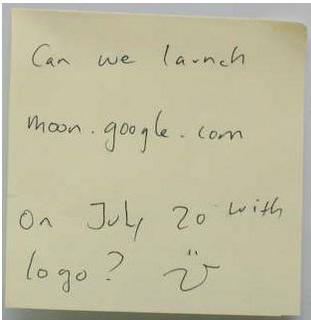
Figure: Ever tried to run a SQL query against a post-it
note? With Google you can query the XML of a calendar.
|
Recurring tasks are tasks that happen on a regular basis, but not
necessarily every day (and therefore potentially easy to forget!)
They might be personal tasks, such as changing the oil in your
prized Datsun 120Y every six months, or booking a holiday for you
and your partner a month before your anniversary. They could be work
related tasks, such as updating your profile on the Microsoft Gold
Partner website (every three months), running financial reports on a
monthly basis, or even watering the office plants every week.
Now managing those tasks can be difficult. "Just stick an
appointment in Outlook" - yes I've heard and tried that method.
Outlook is perfect when you are the one performing the task. But
it's nowhere near perfect if you're managing people who are
allocated to perform the task. In fact it's a disaster, because when
that person leaves, (or just changes job role) that scheduled
task/reminder disappears with them.
The other problem with Outlook is if you are an organization that
relies upon using your email inbox as a to-do/task list, Outlook
doesn't send an automated email.
After reviewing a few different options (namely yahoo.com/calendar,
hotmail.com and BackPackIT.com), we decided using Google Calendar to
manage recurring tasks was the best option.
By using Google Calendar you can:
- Create a Scheduled Task
- Add or delete people as required
- Access over the web (no install/deployment issues)
- Send an automated email
- Store and query the data
Setting up Google Calendar
-
Create an account. If you are going to use this calendar to manage
an organization or department, use a generic email address, e.g.
info@ssw.com.au or sales@ssw.com.au. Note: Of Google, Yahoo and
Live! only Google allows you to sign in with an email address that
isn't @yahoo, @gmail or @hotmail.
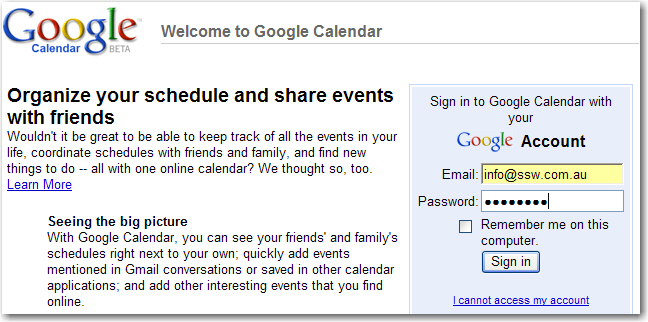
Figure: Sign in to Google Calendar with any email address.
-
Create your first task. Google's functionality for recurrance
mirrors that of Outlook quite closely.
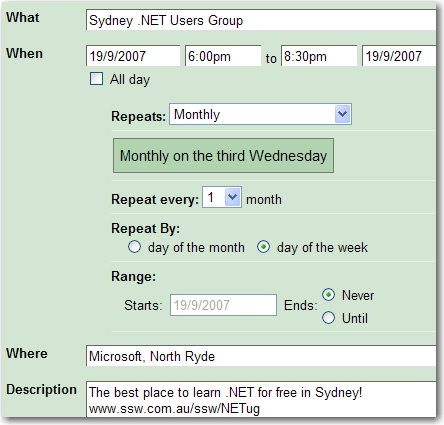
Figure: Create the task and add how often and when it recurs.
- Set who is to receive the task.
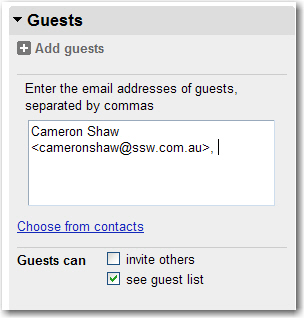
Figure: Select only the person who is to complete the task.
-
The recipient will receive an email/appointment. (The email comes
with an .ics file attached.) NOTE: users should click BOTH the
link in the email as a means of accepting/rejecting/maybe-ing
(that's the only way the Google Server will know what your
response is) and the "Accept/Reject/Tentative" buttons in the
Outlook Reminder.
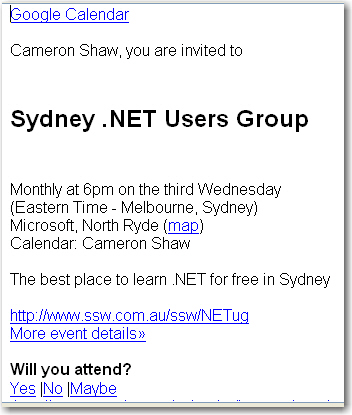
Figure: The user can Accept/Reject/Maybe and the appointment
goes into their calendar. Remember to accept/reject using the
link in the email and the Outlook buttons... The formatting of
the email isn't that great (why is the font so large??)
That's it. Pretty simple.
Managing the Reminder Email
Unfortunately the Google functionality isn't as good as it could be
in this area.
The Event Organizer can specify exactly when, and how many, reminder
emails (or SMS's) are to be sent to themselves. Sadly, those
receiving the invitation will only receive a reminder email
if
they have a Google account
and
they have agreed to receive Reminder Emails
and only when
they have determined to receive them.
When a new user sign's up the default Reminder is a "Pop Up" 10
minutes before the event. You should change this to an email say 15
mins before the event. If you need a lot of reminding you can add
further email reminders to be sent.
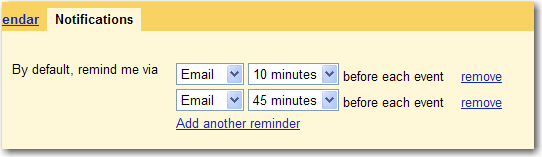
Figure: Change your default Reminder to "Email", and add as many
Reminders as you think you need.
Therefore every user to whom you are going to be sending tasks needs
to create their own Google account.
Administrating the Tasks
Let's say you have a task dedicated to the Junior Network Admin,
George W, which is "fix broken links" on a website. Let's say George
W is promoted to Senior Network Admin and wants to pass on all his
tasks to the new Junior, John H. With Google Calendar it's really
simple.
-
Open the calendar, type the name or email address of the relevant
person in the Search box, and click "Search My Calendars".
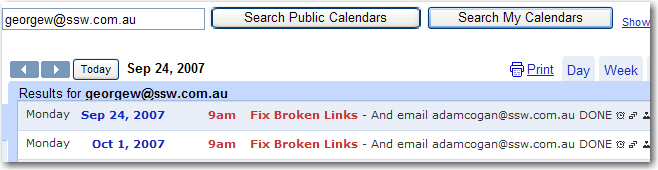
Figure: Enter the full email address of the person.
-
Click the Activity link which exposes the link to "Edit event
details".
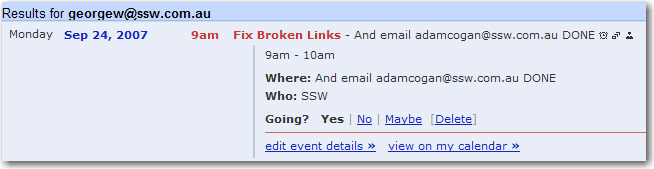
Figure: Click "Edit Event Details"
-
Google Calendar now allows you to add or remove guests to this
activity.
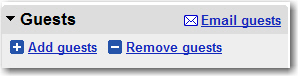
Figure: Easily add or remove guests from the recurring task.
-
Remove the person you wish to remove and add the new person.
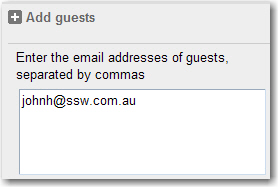
Figure: Add the name of the person who is taking over the
recurring task.
- Click save, and then click "All following".

Figure: Click "All Following". In this case it will show that
George W. did the task until one date, and then John H took over
from there on.
-
Don't forget to send the update which will remove the event from
George W's calendar and add it to John H's calendar.

Figure: Send the update to all the parties associated with the
updated recurring task.
-
John H will now get the reminder emails and do the specified
recurring task as requested. Easy.
Acknowledgements
Adam Cogan
Cameron Shaw