PCAnywhere has remote control, file transfer and networking
capabilities. SSW uses PCAnywhere primarily for remote control which
helps us help our clients. This document explains how to use
PCAnywhere in a normal situation and steps to connect from behind a
firewall, with step by step instuctions.
ADDING REMOTE CONTROL ITEM
BECOMING A HOST
CONNECTING THROUGH FIREWALL
ADVANTAGES OVER NETMEETING
For more details go to Symantec:
http://www.symantec.com/techsupp/index.html
A remote control connection allows a remote PC to connect to a PC
acting as a host and use the host PC as though the user were at the
host site. The PC that has connected to the host now has the ability
to access any file or application on the host PC or the network.
During a "remote control" session with a host you can: Transfer files
between the host and remote PCs. Synchronize and clone files and
folders on the host and remote PC. Electronically 'chat' with the host
user by typing a conversation on the screen. Record the session to a
record file for later playback and diagnostics.
Before you can begin a remote control session you must first create a
remote control connection item and a host connection item. A
connection item is a file containing dialing instructions and other
settings that the remote PC uses to connect to a particular host. The
host PC you are calling must have the pcAnywhere host waiting for a
call.
|
Adding Remote Control Item
|
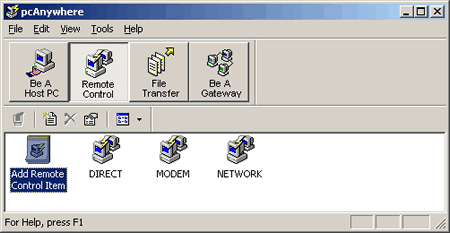
Click on Remote Control and select "Add Remote Control Item".
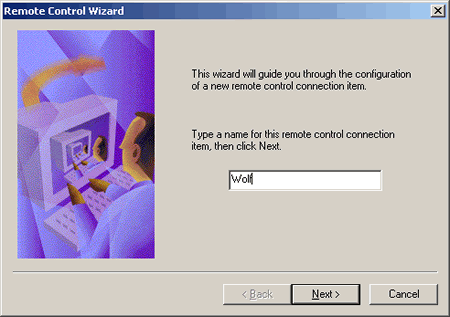
If a host name is not entered here you will be given a list of
available hosts.
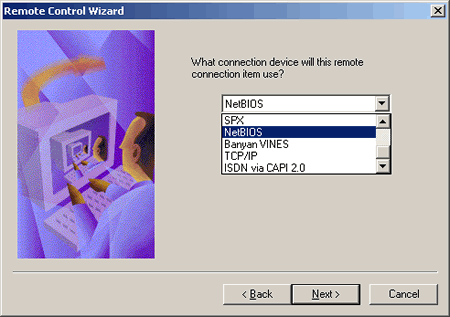
Because this particular connection will be for internal office use, we
will be using NetBIOS.
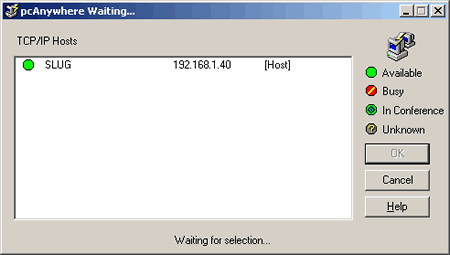
If a host name was not entered earlier you can select one from a list
of available hosts.
A pcAnywhere host PC can be accessed and remotely controlled by one or
more remote users. After connecting to a host PC, the remote user can
access files, folders, and applications as if they were physically
working at the host PC.
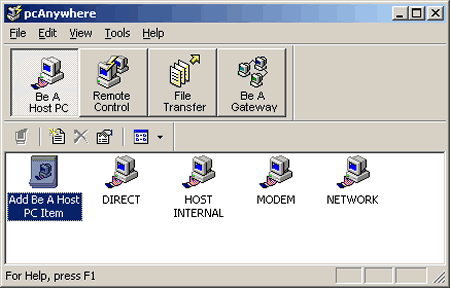
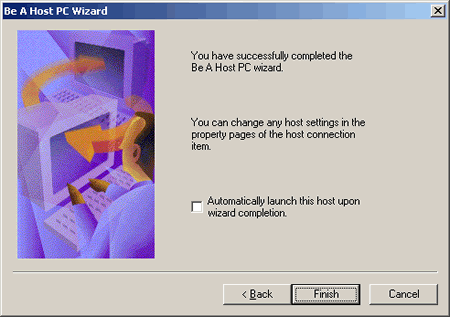
Click on "Add Be A Host PC Item" which will start the "Be A Host PC
Wizard".
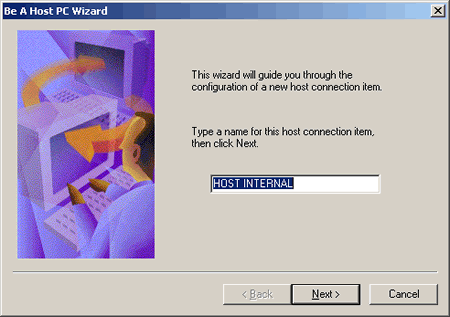
Select the name of the item as it will appear in main window of
PCAnywhere.
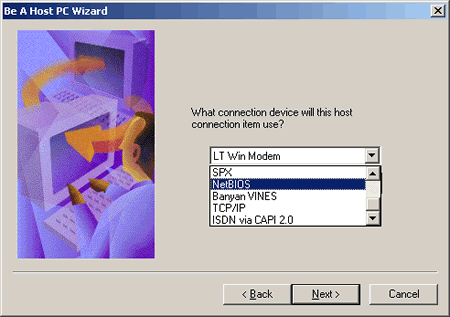
Select the protocol being used depending on who will be connecting to
you.
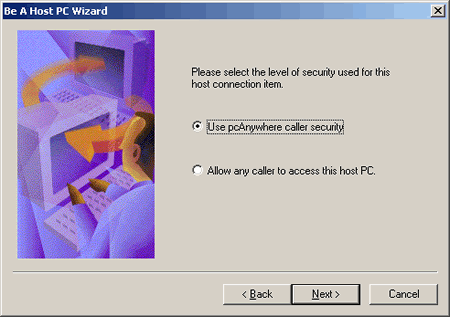
It is recommended that you choose to limit access to the host.
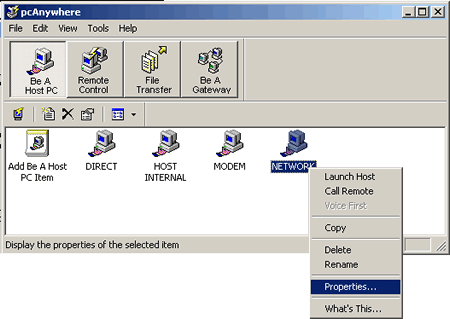
You can right click on a particular Host Item and select properties to
choose the network settings.
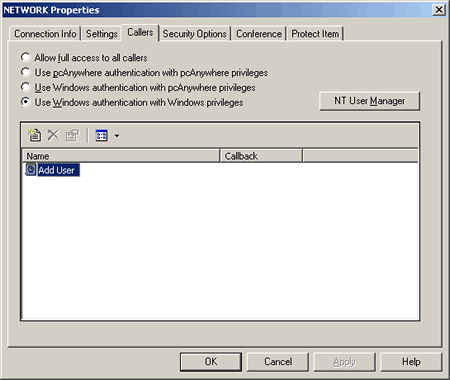
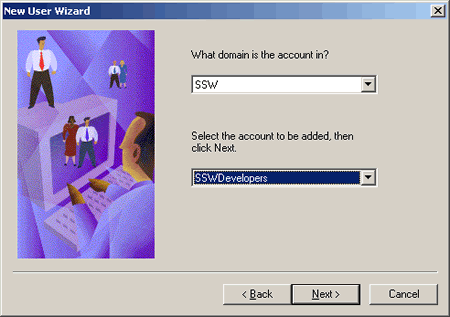
Here we are using Windows authentication, on the Callers tab select
"Add User".
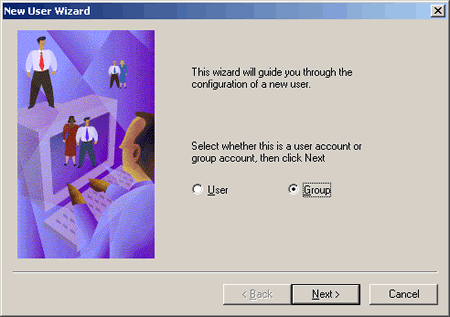
We are adding a particular group of users that have been predefined.
These settings are allowing the "SSWDevelopers" within the SSW domain
to control this host.
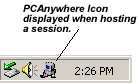 Just double click on the icon to stop being a host.
|
Information on Connecting through a Firewall
|
When a remote PC tries to connect over the Internet to the specified
host it won't connect if the software that manages the port does not
allow the particular ports that PCAnywhere requires be used.
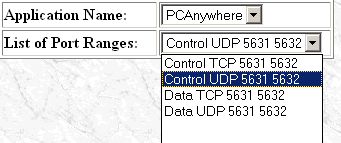
PCAnywhere requires that it be able to use ports 5631(TCP) and
5632(UDP), so the firewall must allow access to these two ports for a
remote PC to be able to see the IP of a host from behind a firewall.
For more technical information concerning the ability to connect over
the Internet go to :
http://service1.symantec.com/support/pca.nsf/9f19833cbd7241aa85256758005492c7
For information on how to change the PCAnywhere ports in the registry
go to :
http://service1.symantec.com/support/pca.nsf/docid/1999110411575512
|
Advantages over NetMeeting
|
We use PCAnywhere because it was made specifically for remote control
i.e. a job specific utility where as with netmeeting it appears to be
an afterthought.
1. Runs quicker than netmeeting
2. Easier to establish connection from behind firewalls.
3. Better visual display from 'Remote Control PC'.
David Klein