Do you canary deploy your new features using a spreadsheet?
Loading last updated info...
Canary deployments allow you to release new features or updates to a small group of users first, gather feedback, and reduce the risks of a full rollout. A structured spreadsheet tracking your canary testers, their onboarding dates, OS, test status, feedback, and environment provides a single source of truth for your deployment process.
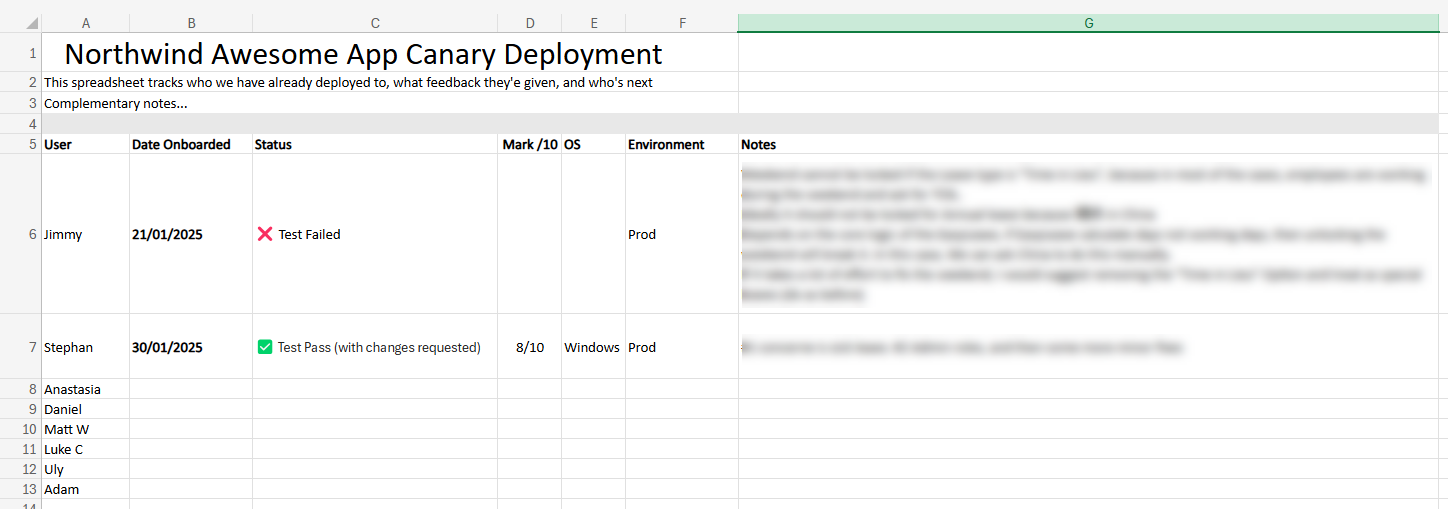
Figure: Example canary deployment spreadsheet - track who is testing, the environment, and their feedback
Using a structured spreadsheet ensures transparency and consistency, so no one is missed and feedback can be actioned quickly.
Practical use case
Scenario: You’ve built a new feature and are eager to roll it out to everyone.
Execution: You ask: “Hi team, is anyone free to test the new feature?”
Outcome: It’s unclear who will test, when they’ll start, and how feedback is documented.
❌ Figure: Bad example - No clear plan, no single source of truth, no tracked outcomes
Execution: You maintain a single spreadsheet detailing:
- User – Who is invited to test and when
- Date Onboarded – The date they started testing
- Status – “Test Passed,” “Test Failed,” or “changes requested”
- Mark /10 – Their rating of the experience (optional but helpful)
- OS – Their operating system (Windows, Mac, etc.)
- Environment – e.g. “Prod (Beta)” or “Prod”
- Notes – Key feedback or suggestions
Outcome: Everyone knows who is next to test, what issues have been found, and what the next steps are.
✅ Figure: Good example - A single, consistently updated spreadsheet for your canary rollouts
Tip: Always include any special instructions or edge cases in the Notes column so they don’t get missed.
Steps to implement a canary spreadsheet
- Create your spreadsheet
- Include columns for User, Date Onboarded, Status, Mark /10, OS, Environment, and Notes
- Store it in a central location (e.g., Microsoft 365, Google Sheets) accessible to all stakeholders, testers, and developers
- Add additional columns as needed for your specific deployment tracking requirements
- Identify your canary testers
- Start with a small, diverse set of users (typically 5-10% of your user base)
- Include at least one "power user" who knows the system deeply and one "fresh perspective" user
- Ensure diversity in operating systems, browsers, and usage patterns
- Onboard each tester
- Give them clear instructions, including any known limitations or environment URLs
- Direct them to fill in or confirm their details in the spreadsheet
- Set clear expectations for testing timelines and feedback format
- Record feedback
- Ask each tester for a rating (Mark /10) and to log outcomes under Status (Test Passed, Test Failed, etc.)
- Document any showstoppers or usability issues in Notes
- Track key metrics like error rates, response times, and user satisfaction
- Iterate quickly
- If someone logs a "Test Failed," address the issue before inviting more testers
- If changes are requested, update the environment or instructions, then retest
- Maintain clear communication with your testers about fixes and updates
- Go wider
- After successful canary feedback, gradually roll out your feature to all users
- Keep the spreadsheet as a living record of the rollout process
- Monitor production metrics closely during the full rollout
Possible statuses
- N/A - Not started or not applicable yet
- ✅ Test Pass (with changes requested) - Feedback is positive, with small tweaks needed
- ❌ Test Failed - Showstopper or critical bug prevents completion
Tip: Keep your spreadsheet pinned in Teams or Slack channels for easy access.
Avoid confusion
A canary deployment spreadsheet is your single source of truth. If a tester isn’t responding or is blocked, assign another tester rather than stalling the rollout. Record these changes so it’s clear who tested and when.