This rule has been archived
SharePoint - Do you know how to create a rule category? (internal only)
Loading last updated info...
Basically, creating a rule category contains two parts of work.
- Create a "rule category" in Term Store (e.g. "Rules to Better xxx")
- Create a "rule summary" page to show all the rule pages belong to this rule category
1. Create a "rule category" in Term Store (e.g. "Rules to Better xxx")
- Open browser, log in to /admin
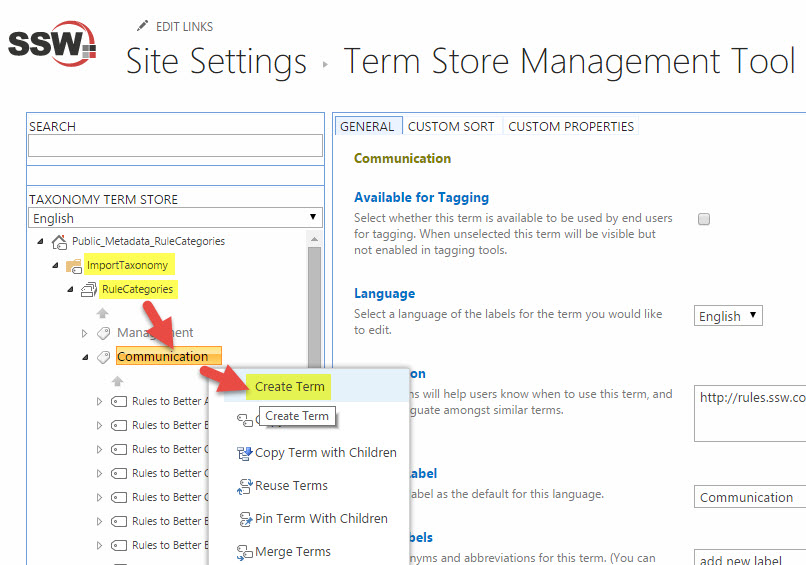
- Open termstoremanager, under "ImportTaxonomy" | "RuleCategories", find the right "parent category" (e.g. "Communication"), click "Create Term":
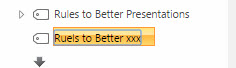
- Type the rule category name, e.g. "Rules to Better xxx":
2. Create a "rule summary" page to show rule pages belong to this rule category
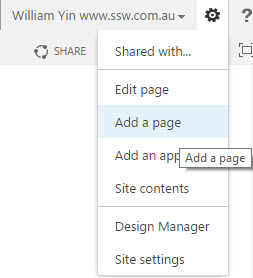
- Go to "Site Setting" | "Add a page" to create a new page:
- Type the rule category name in the popup dialog (same as the rule category name created in term store, e.g. "Rules to Better xxx"), then click "Create" button:
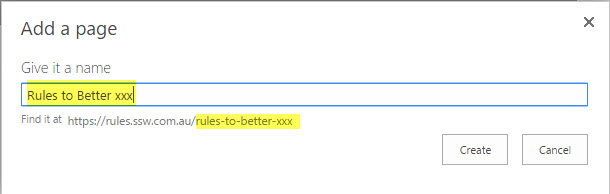
Figure: a friendly url will be automatically generated
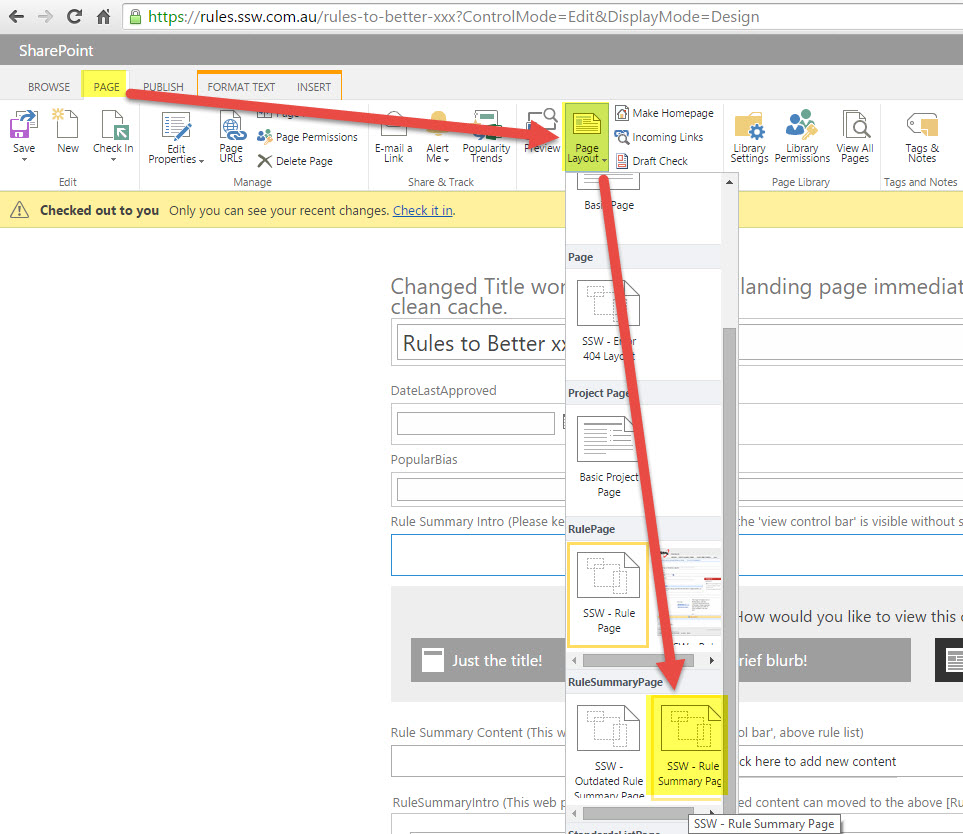
- On the new created page, go to "Ribbon" | "Page" | "Page Layout" to change the new created page layout to be "SSW - Rule Summary Page":
- "Check in" and "Publish" this "Rule Summary" page, then you should have a page like below,
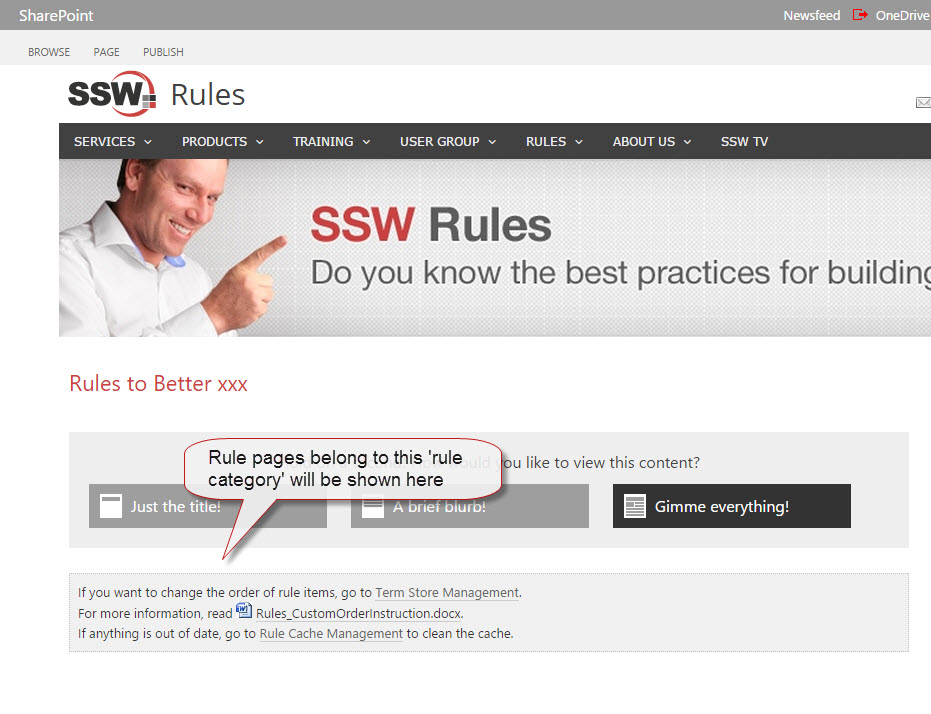
Figure: Any futher created "rule pages" belong to this "rule category" will be listed on this page