Do you Health Check your infrastructure?
Loading last updated info...
Most developers include health checks for their own applications, but modern solutions are often highly dependent on external cloud infrastructure. When critical services go down, your app could become unresponsive or fail entirely. Ensuring your infrastructure is healthy is just as important as your app.

Figure: Infrastructure Health Checks
Your app is only as healthy as its infrastructure
Enterprise applications typically leverage a large number of cloud services; databases, caches, message queues, and more recently LLMs and other cloud-only AI services. These pieces of infrastructure are crucial to the health of your own application, and as such should be given the same care and attention to monitoring as your own code. If any component of your infrastructure fails, your app may not function as expected, potentially leading to outages, performance issues, or degraded user experience.
Monitoring the health of infrastructure services is not just a technical task; it ensures the continuity of business operations and user satisfaction.
Figure: Health Check Infrastructure | Toby Churches | Rules (3 min)
Setting Up Health Checks for App & Infrastructure in .NET
To set up health checks in a .NET application, start by configuring the built-in health checks middleware in your Program.cs (or Startup.cs for older versions). Use AddHealthChecks() to monitor core application behavior, and extend it with specific checks for infrastructure services such as databases, Redis, or external APIs using packages like AspNetCore.HealthChecks.SqlServer or AspNetCore.HealthChecks.Redis. This approach ensures your health endpoint reflects the status of both your app and its critical dependencies.
👉 See detailed implementation steps in the video above, and refer to the official Microsoft documentation for further configuration examples and advanced usage
Alerts and responses
Adding comprehensive health checks is great, but if no-one is told about it - what's the point? There are awesome tools available to notify Site Reliability Engineers (SREs) or SysAdmins when something is offline, so make sure your app is set up to use them! For instance, Azure's Azure Monitor Alerts and AWS' CloudWatch provide a suite of configurable options for who, what, when, and how alerts should be fired.
Health check UIs
Depending on your needs, you may want to bake in a health check UI directly into your app. Packages like AspNetCore.HealthChecks.UI make this a breeze, and can often act as your canary in the coalmine. Cloud providers' native status/health pages can take a while to update, so having your own can be a huge timesaver.

✅ Figure: Good example - AspNetCore.HealthChecks.UI gives you a healthcheck dashboard OOTB
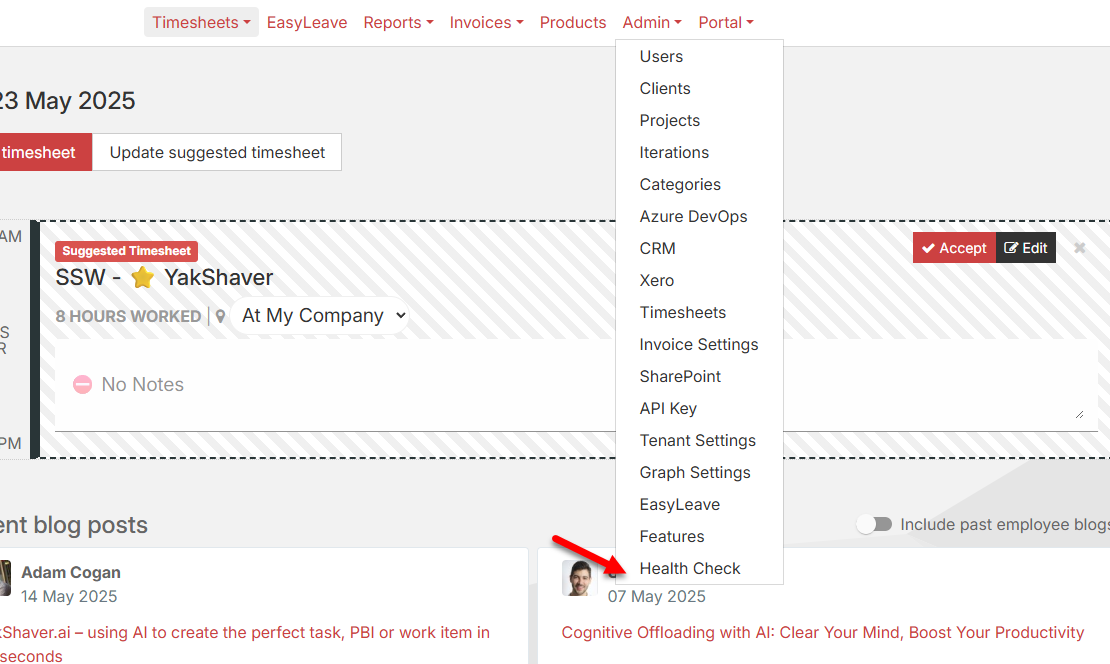
✅ Figure: Good example - SSWTimePro has a Health Check page
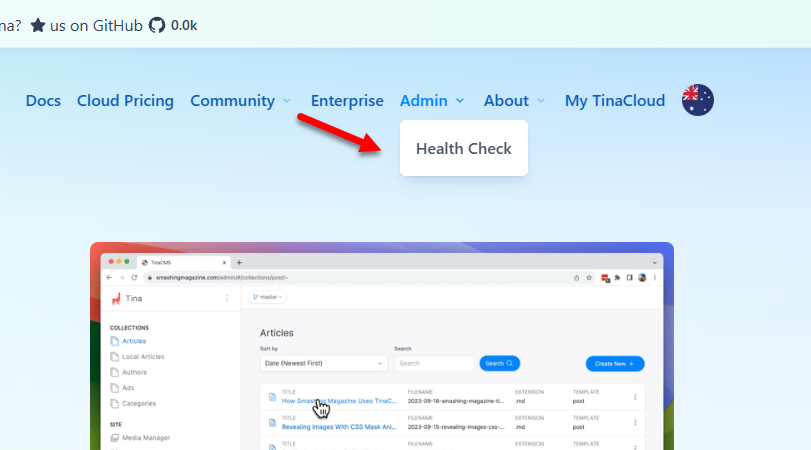
✅ Figure: Good example - Tina.io has a Health Check page
Tips for Securing Your Health check Endpoints
Keep health check endpoints internal by default to avoid exposing sensitive system data.
Health Checks in Azure
When deploying apps in Azure it's good practice to enable health checks within the Azure portal. The Azure portal allows you to perform health checks on specific paths for your app service. Azure pings these paths at 1 minute intervals ensuring the response code is between 200 and 299. If 10 consecutive responses with error codes accumulate the app service will be deemed unhealthy and will be replaced with a new instance.
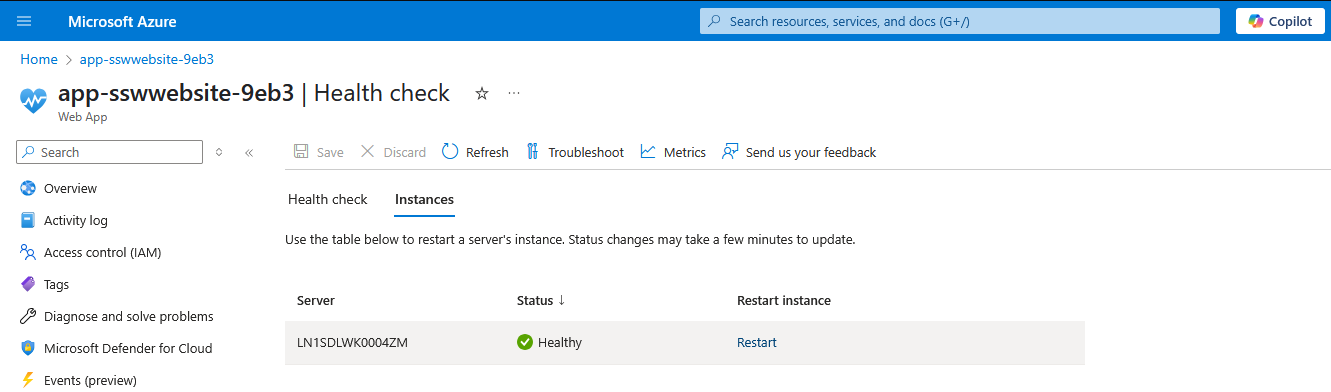
✅ Figure: Good example - Performing a health check on an azure app service
Private Health Check – ✅ Best Practices
- Require authentication (API key, bearer token, etc.)
- (Optional) Restrict access by IP range, VNET, or internal DNS
- Include detailed diagnostics (e.g., database, Redis, third-party services)
- Integrate with internal observability tools like Azure Monitor
- Keep health checks lightweight and fast. Avoid overly complex checks that could increase response times or strain system resources
- Use caching and timeout strategies. To avoid excessive load, health checks can timeout gracefully and cache results to prevent redundant checks under high traffic.
See more details on Microsoft's documentation - Aspire | Fundamentals | Health checks
Handle offline infrastructure gracefully
| Category | Example services |
| Critical | Database, Redis cache, authentication service (e.g., Auth0, Azure AD) |
| Non-Critical | OpenAI API, email/SMS providers, analytics tools |
When using non-critical infrastructure like an LLM-powered chatbot, make sure to implement graceful degradation strategies. Instead of failing completely, this allows your app to respond intelligently to infrastructure outages, whether through fallback logic, informative user messages, or retry mechanisms when the service is back online.

❌ Figure: Bad example - The user is given the chance to interact with a feature that is currently unavailable
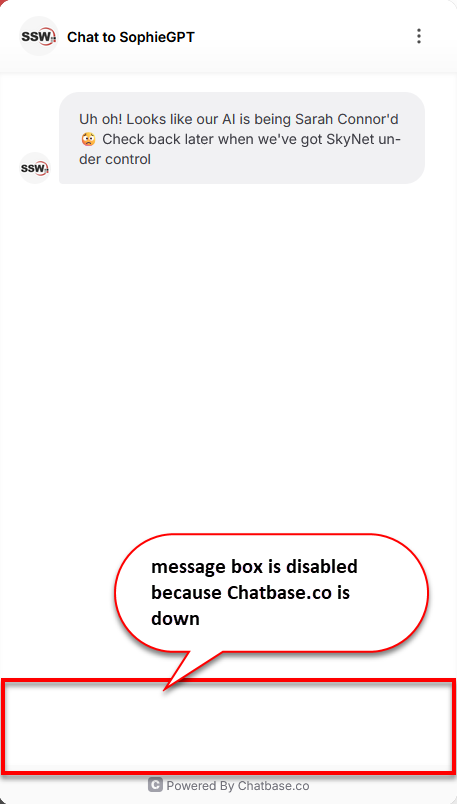
✅ Figure: Good example - The user is pre-emptively shown a message that shows this feature is currently unavailable