This rule has been archived
Replaced by GitHub https://github.com/SSWConsulting/SSW.Rules.Content/wiki/How-to-Rename-Rules
SharePoint - Do you know how to rename a rule URL? (internal only)
Loading last updated info...
Every rule page has two URLs:
- Physical URL - e.g.
https://sharepoint.ssw.com.au/Pages/tweet-rules-you-follow.aspx - Friendly URL - e.g.
https://sharepoint.ssw.com.au/tweet-rules-you-follow
Please follow the below instruction to rename one or both of them.
Rename Friendly URL
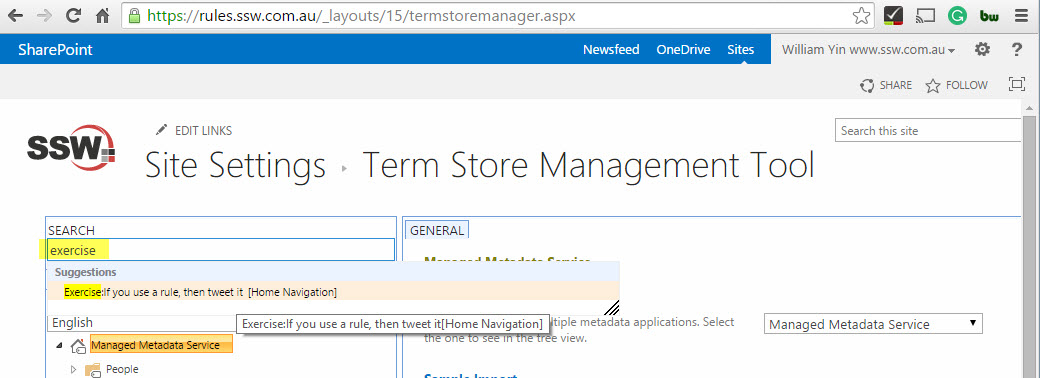
- Go to "Term Store Management Tool", use "search" to find and select the old friendly URL term store item:
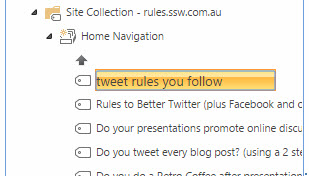
- Double click the term store item label to rename it, SharePoint will automatically convert "white space" to "-". e.g. "tweet rules you follow" will be generated with a friendly URL "tweet-rules-you-follow":
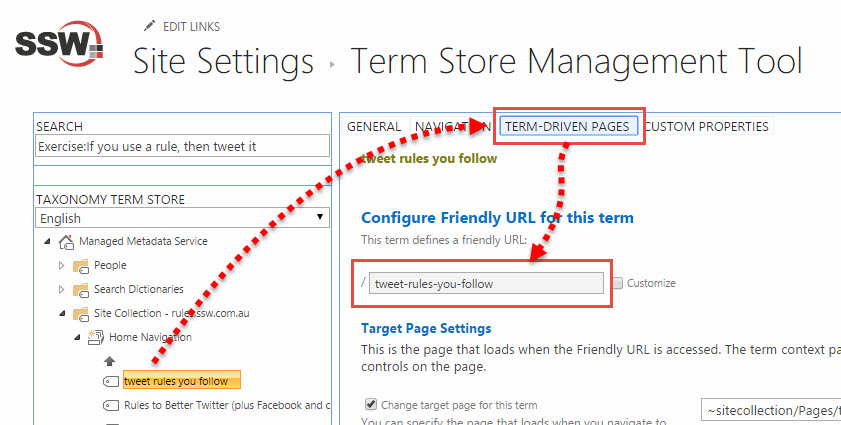
- Click "TERM DRIVEN PAGES" to double check the generated friendly URL is correct:
- Open browser to validate the renamed friendly URL is working well (aka not seeing 404 error):
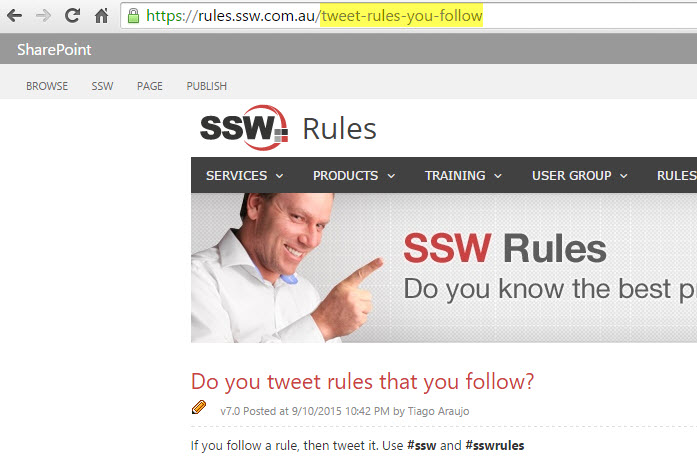
Redirection
The ‘auto redirect’ feature only applies to ‘physical URL’, but not to ‘friendly URL’. When you change a 'friendly URL', you should follow the below steps to make the old friendly URL be redirected to the new friendly URL.
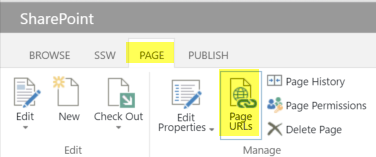
- Go to "Ribbon" | "Page URLs"
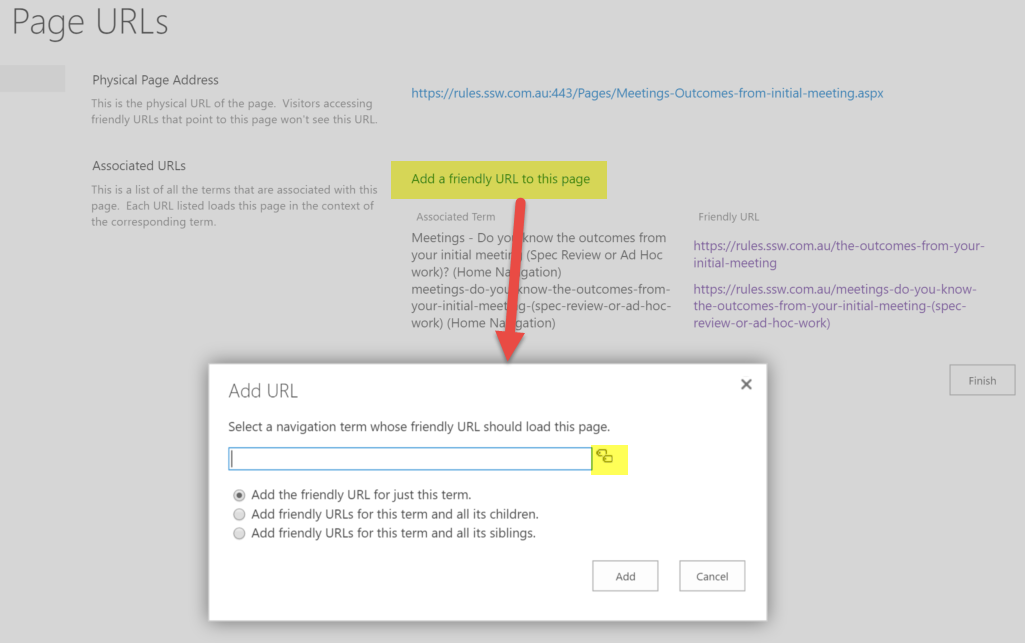
- Click "Add a friendly URL to this page", then click the 'tag' icon
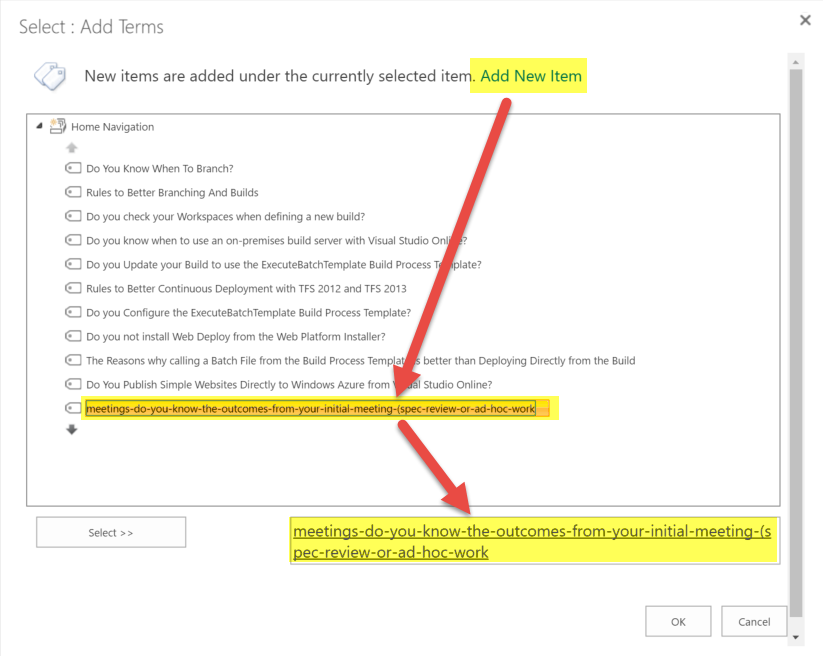
- In the "Select: Add Terms" dialog, click "Add New Item", input the old friendly URL, then double click it to ensure you select it
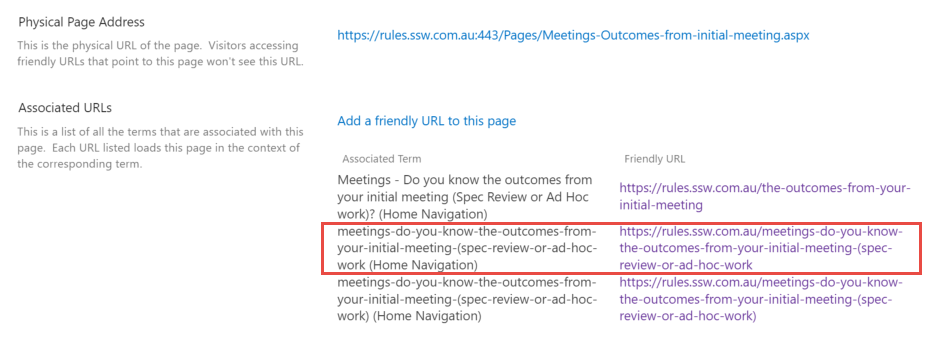
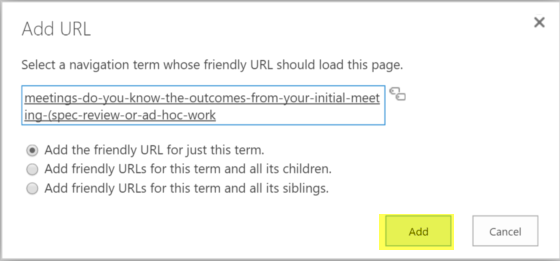
- Click the "Add" button to add the old friendly URL, it will be redirected to the new friendly URL. (TEST: In browser, open the old friendly URL to confirm it's redirected to the new friendly URL)
- On the "Page URLs" page, you should be able to see multiple friendly URLs associated to current page.