Do you test mobile apps in airplane mode?
Loading last updated info...
Developers build and test mobile apps on fast office Wi-Fi, so every request succeeds. Users open the same app in a lift, on a train, on a plane, or at a conference with overloaded Wi-Fi. If the app crashes, shows a blank page, or throws a raw exception at them, it feels broken - and that is what ends up in the app store reviews.
Airplane mode is the quickest, most repeatable way to cut a real device off from the network. It takes one tap, needs no tools, and exposes the bugs that only appear when a request fails: unhandled exceptions, login screens that do nothing, and pages with nothing to show.

❌ Figure: Bad example - Offline, the Activity page shows a generic 'Oops...' error and nothing else
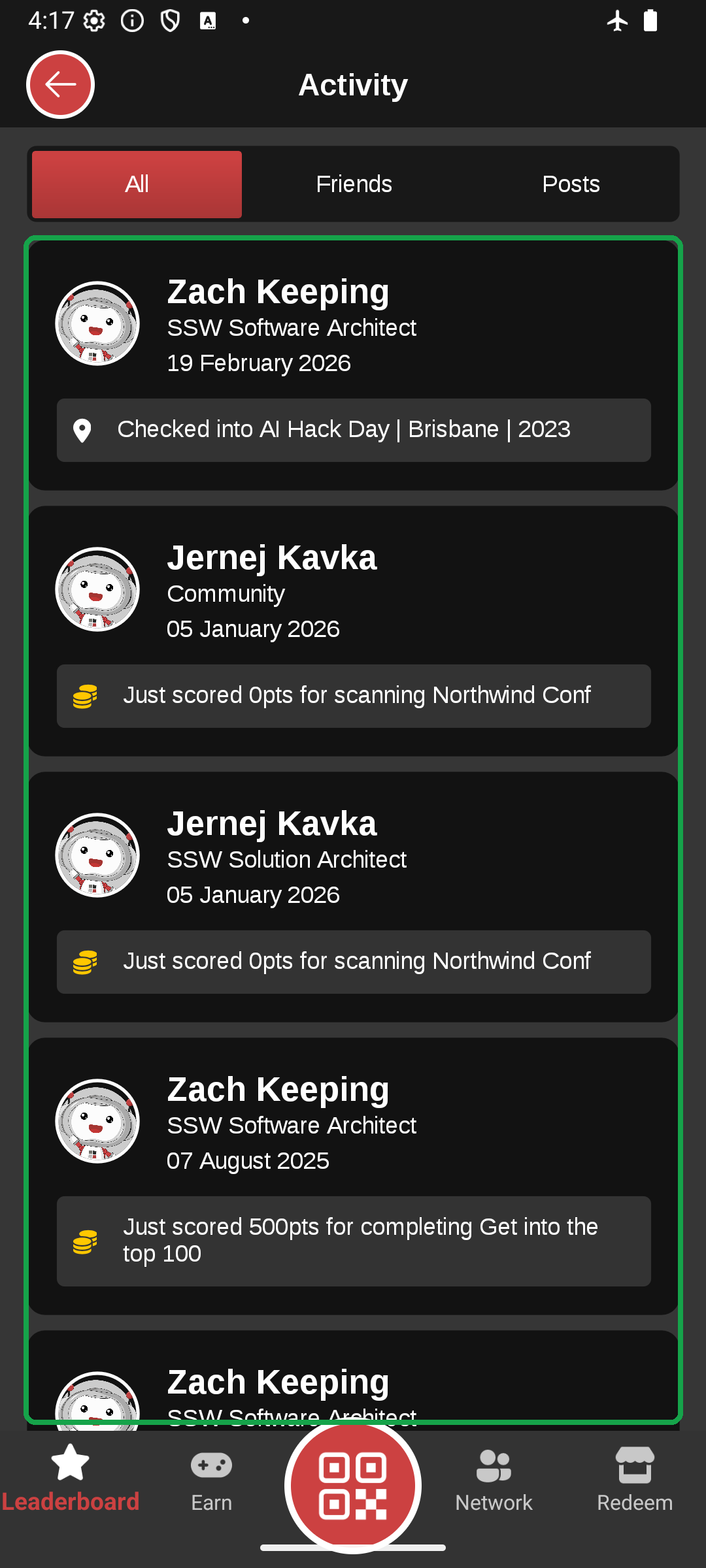
✅ Figure: Good example - Offline, the Activity page shows the last feed it saw, even after the app is closed and reopened
What good offline behaviour looks like
An app does not need to do everything offline, but it must never fall over. In airplane mode, a well-behaved app:
- Never crashes - on any page, on the first visit or the tenth
- Opens without forcing a sign-in - if the user already has a valid session, take them straight in
- Shows the last data it saw - cache read-only content such as lists, profiles, and leaderboards
- Is honest about stale data - show that the user is offline and when the data was last updated
- Explains online-only actions - "Scanning needs an internet connection" beats a generic "Oops..." or a silent failure
- Recovers by itself - refresh automatically when the connection comes back, without a restart
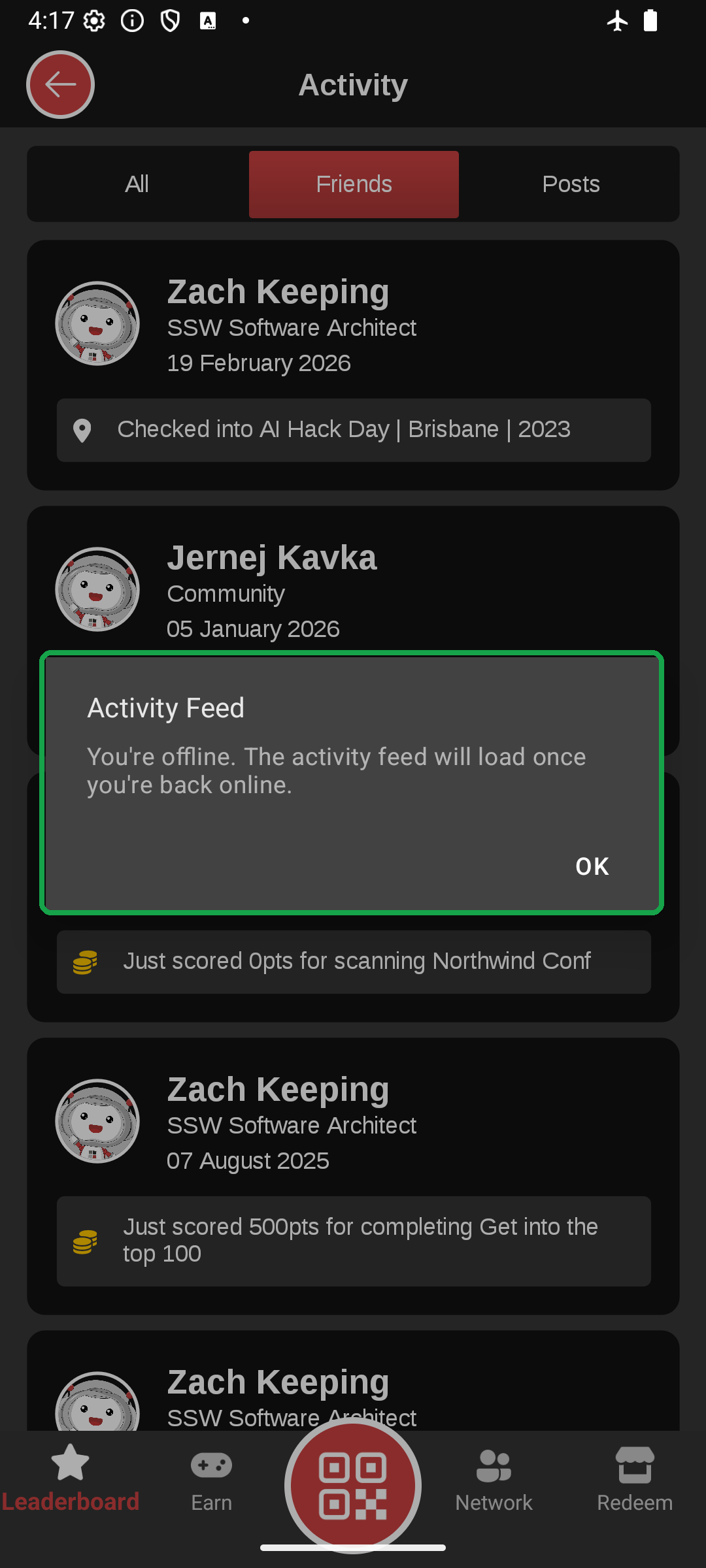
🙂 Figure: OK example - The app says the user is offline instead of showing a generic error
This is better than "Oops...", but it can go further: also show when the feed was last updated, so the user knows how old the cached data on screen is.
Decide which features work offline and which are online-only as part of the design, not after the first crash report.
How to test in airplane mode
Test on a real device, on both iOS and Android, and run through these scenarios:
- Cold start offline - Close the app completely, turn on airplane mode, then open it. Startup and sign-in code often assumes the network is there
- Visit every page - Open every tab and screen while offline
- Visit every page again - Leave each page and come back. Some offline crashes only happen on the second visit, after a failed request has left the page in a bad state
- Lose the connection mid-session - Start online, open a page, then turn on airplane mode and pull to refresh, page through a list, or open a detail page
- Try every online-only action - Sign in, submit a form, scan a code, buy something, upload a photo. Each one should explain why it can't run right now
- Come back online - Turn airplane mode off and check the app recovers and refreshes without being restarted
Tip: Phones remember if you turned Wi-Fi back on while in airplane mode. Check the Wi-Fi icon is off too, or your "offline" test is quietly using the network.
Airplane mode is a clean "no network" test, but real users also see slow or flaky connections. Once the app survives airplane mode, try a Wi-Fi network with no internet access, or throttle the connection with Network Link Conditioner on iOS (see Designing for Adverse Network and Temperature Conditions) or the Android Emulator network settings.
Simulators and emulators are useful for quick checks, but they don't behave exactly like a phone losing signal - see testing on real devices as well as simulators
Report offline bugs with exact steps
Offline bugs are often order-dependent, so a vague "the app crashes offline" is hard to reproduce. Include the device, OS version, and the exact steps.
Environment: iPhone 17, iOS 26.2
Steps to reproduce:
- Turn on airplane mode
- Open the app
- Go to the Network tab
- Go to any other tab
- Go back to the Network tab
Actual: The app closes and returns to the home screen
Expected: The Network tab shows the same content as the first visit
✅ Figure: Good example - An offline bug report that anyone can reproduce in under a minute
Make it part of your Definition of Done
Add airplane mode to your mobile test plan and Definition of Done, so every new page is checked offline before it ships. Otherwise each new feature quietly brings the offline crashes back.
To fix the bugs you find, detect connectivity with your framework's API - such as Connectivity in .NET MAUI or NetInfo for React Native - and load data cache-first, refreshing from the network when it is available.