Do you format date selectors to include the weekday?
Loading last updated info...
When designing date selectors in your UI/UX, it's important to include the weekday next to the standard date format dd/mm/yyyy. This small addition adds context, reduces user error, and speeds up decision-making—especially for bookings, scheduling, or deadline-driven interfaces.
To keep things clean and consistent, use the abbreviated weekday format (e.g., Mon, Tue, Wed). This provides clarity without cluttering the interface.
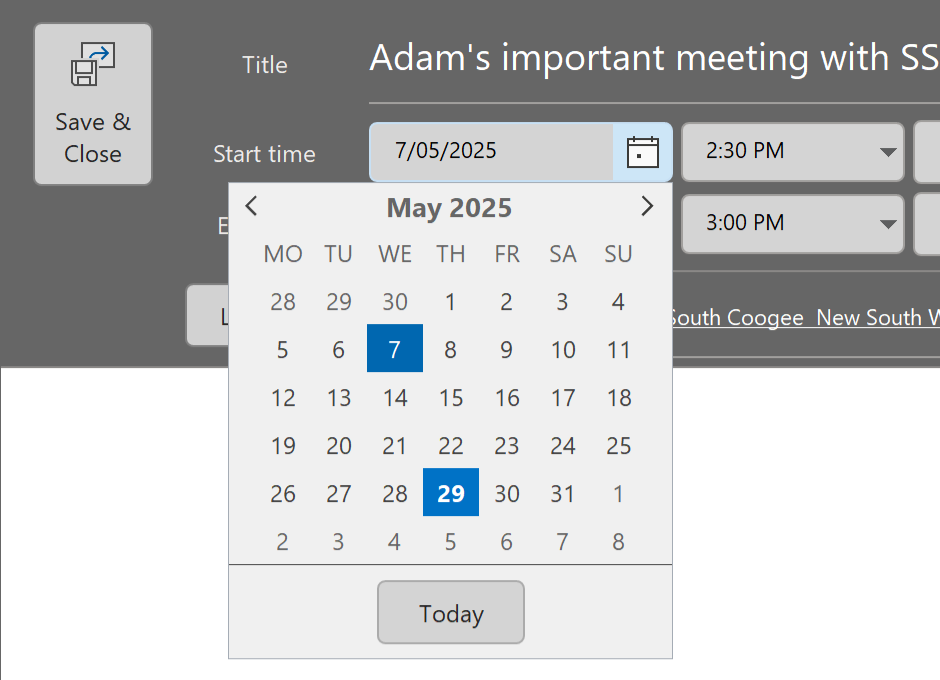
❌ Figure: Bad example - Missing weekday
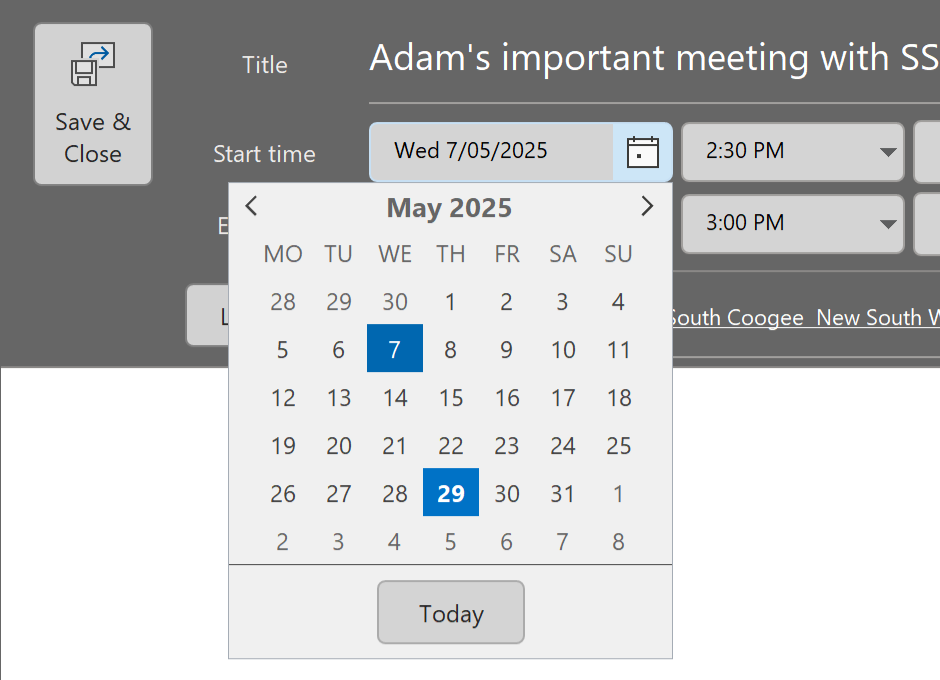
✅ Figure: Good example - Abbreviated weekday
How to do this in SharePoint
You can format dates to include weekdays using calculated columns and formulas in SharePoint.
By default, the date type column only have two format options in SharePoint.

Figure: SharePoint date format option 1
Figure: SharePoint date format option 2
To add the weekday (E.g. Wed) you need to:
- Select List Settings | Columns | Create column | Calculated (calculation based on other columns)
- See the columns of this list in the "Insert Column", add the column you want to change format, and custom the code in "Formula" like below:
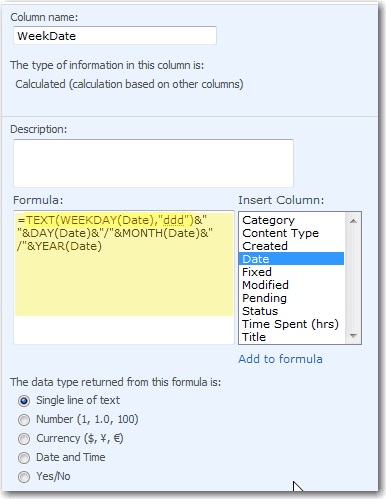
Figure: Calculated column with Formula code
- Change the views of the list to use the new calculated column
WeekDateinstead of the original date columnDate:
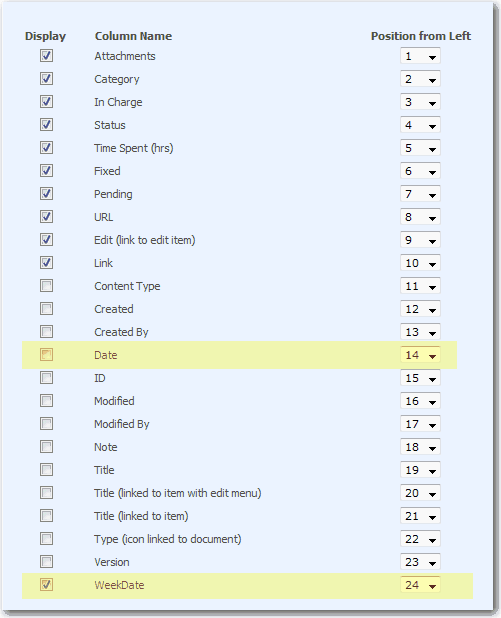
Figure: Replace the old Date column (Date) with new calculated column (WeekDate)