Home
>
Archive
>
StandardsInternal
>
DeveloperGeneral
>
Cleaning Your Mailbox
Cleaning your inbox
Before you leave SSW it is important that you are able to allocate
all unfinished work to other people or move tasks to a folder for
others to access. Please follow the following standard for cleaning
out you emails.
-
Open up Active Directory Users and computers on wolf, you could
physically go to wolf or do it via remote desktop.
-
Double click on the user in question. This will take you to their
properties.
-
Click on the "Exchange Advanced Tab" then "Mailbox Rights"
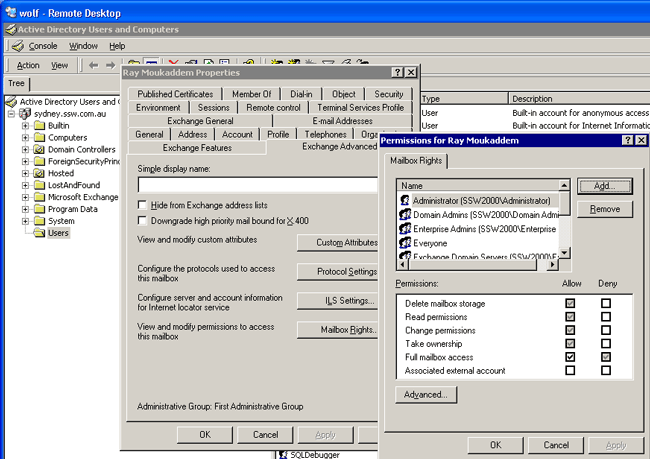
- Click on the button "Add"
- Add yourself to the list and click "OK"
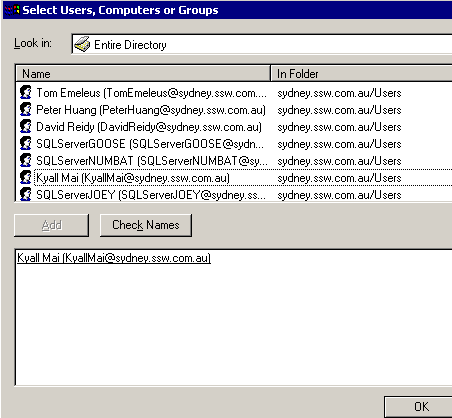
-
Allow yourself Full mailbox access by checking the combo box.
- Open up your Outlook
- You now need to add the users mailbox to your folders list.
-
To do this, go to your main Outlook window click on "Tools" >
"Email Accounts" then check "View or change existing email
accounts"
-
In the Public folders make a new folder under the
SSWExchangeManager using your name
-
Create a 2 subfolder's SentItems and SavedItems. Please see below
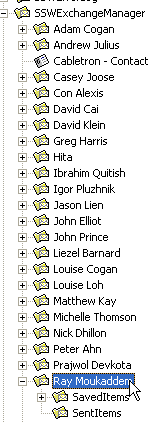
Figure 1.
-
Move all of the user's sent items to the newly created sent items
folder in SSWExchangeManager.
-
Go through the user's inbox and delete any emails that were
non work related and directed to a group e.g those sent to sswall
-
For any emails that remain, forward them to the relevant people as
per
Employee Responsibilities
-
Now that you don't have any emails in any folders in your Outlook
repeat steps 1 and 2
- Click on the "Email Addresses" Tab
-
Select the user's email alias that is like
<yourname>@sydney.ssw.com.au
-
Click on the button "Set as Primary" button to change your default
reply address
-
Makle a note of the email aliases that exist then select and
"Remove" all other email addresses
except for
the <yourname>@sydney.ssw.com.au
and
X400 type email. Please note: before you remove them take a note
of what email addresses they are as you will need them in the next
step after they have been deleted. See Figure 2.
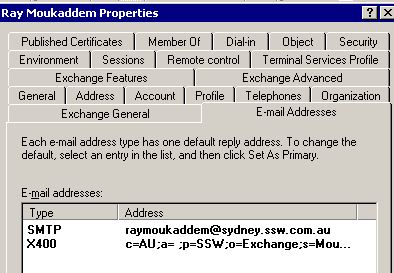
Figure 2.
-
Click on "OK" then go to the user "info" and open up the
properties by double clicking.
- Click on the "Email Addresses" tab the click New
- Highlight "SMTP Addresses" then click "OK"
- Type in the email addresses that you removed in step 16
-
Click "OK" then check the list that they have been registered into
info. From this point onwards any emails that have been directed
to the user's email aliases is now directed to info's inbox.
-
Delete the user's old account by highlighting and pressing
"Delete" on your keyboard.