Home
>
Archive
>
StandardsInternal
>
DeveloperGeneral
>
How to Update Diagnostics Version Data
Introduce
The unrecognized version emails are from SSW Diagnostics users, when
they have some unknown verisons of products in our database, it will
send us unrecognized version mail automatically. All of the
unrecognized version mails in the Unrecognized Version public folder.
How to Update Diagnostics Version Data
Database:
Dragon\SSWDiagnostics
Tables:
FileDefinition, Product, ProductVersion
Unrecognized Version Mail:
-
Filename: C:\Program Files\Microsoft Office\Office10\OUTLOOK.EXE
Comments:
File Version: 10.0.2605
Product Version: 10.0.2605
Product Name: Microsoft Outlook
Original Filename: Outlook.exe
Internal Name: Outlookr
XML File Version: 1.555
Created with SSW Diagnostics 3.89
www.ssw.com.au
- Delete all duplicate items order by subject.
-
Check whether the product is in database. If not, add the product
and update old ones.
- Run below SQL script:
- Select * from Product where ProductName like '%Outlook%'
-
If this product is not in the database, the remember the
GroupID
, than run below script to add it:
-
/*Outlook's group id is 12*/
insert into
product(productname,productdescription,productlatest,groupid,createdby)
values('Outlook 2007','','Yes',12,'Wilson Wu')
-
If the product already in the database, go to next step to update
version data.
-
Check whether the version is in database. If not, add the version
and update old ones.
-
Use the 'Original Filename' value in the Unrecognized version mail
like below:
-
Original Filename:
Outlook.exe
-
Run below SQL script and show all of this product's versions:
-
select * from productversion
where filedefinitionid=
(select top 1 filedefinitionid from filedefinition where
filedefinitionname like '%Outlook.exe%')
-
If the version already in those records, then make it completed
like below:
-
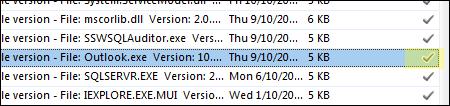
-
If the version not in there, use below script add this version:
-
insert into productversion
(
versionnumber,
versionlatest,
versionfor,
productid,
filedefinitionid,
versionxmladd,
versionupdateurl,
versionname,
versiondescription,
versioncounter,
versionrating,
createdby,
updatedby
)
values(
'12.0.6308',
'Yes',
'All',
44,
17,
'1.526',
'http://office.microsoft.com/en-us/downloads/maincatalog.aspx',
'SP1',
'Microsoft Outlook 2007',
0,
1,
'Wilson Wu',
'Wilson Wu'
)
- Then make it completed.
-
Remember to update 'DateUpdated' and 'UpdatedBy'.
How to publish a Versions.xml file
- Open SSW Diagnostics solution in VS 2008.
- Select SSW.Diagnostics.WebUI project.
- Debug it.
-
Go to XmlGeneration.aspx page, and click the "Rebuild XML" button
-
When it build successfully, upload the Version.xml file to AU and
US, you need upload the file to:
ftp://us.ssw.com.au/httpdocs/ssw/diagnostics/
and
ftp://us.ssw.com.au/httpdocs/ssw/diagnostics/
FUTURE: User will be able to see how many other people have logged
this version on the record in the Diagnostics UI
FUTURE: User will be able to see how many other people have logged
this version on the record in the Unrecognized.aspx
FUTURE: After 20 submittions it will show as "Auto recognized (20)"
Acknowledgements
Wilson Wu