 Validating and Optimising Your SQL Server Reporting
Services Files Using SSW Code Auditor
Validating and Optimising Your SQL Server Reporting
Services Files Using SSW Code Auditor
Microsoft® SQL Server™ Reporting Services is a
new reporting platform that has even more functionality
and flexibility than Microsoft Access and Crystal
developers have become accustomed to. In addition, it
combines the speed, scalability, and manageability of
centrally managed reporting, as reporting has moved from
the client model to the client-server model, which
brings all the advantages of Web-based applications.
This guide shows you how to use
SSW Code Auditor
to validate your Reporting Services Report Definition
Language (RDL) files against a set of rules. These rules
check your RDL files for:
- Shared data connection strings
- Optimised data queries
- Build warnings
Building Regular Expressions
Because RDL files are simply plain text files, SSW Code
Auditor can be run with certain regular expressions to
ensure reports follow your company standards. Regular
expressions are a very powerful set of rules used to
check for such things as valid phone numbers or the
presence or absence of a string within another string.
For example, to ensure all reports are using a shared
data source and do not have the connection string behind
the report, you could run a regular expression like
this:
<ConnectString>.*</ConnectString>
The following example shows how you would define the
above regular expression and run it on your RDL files.
User Guide
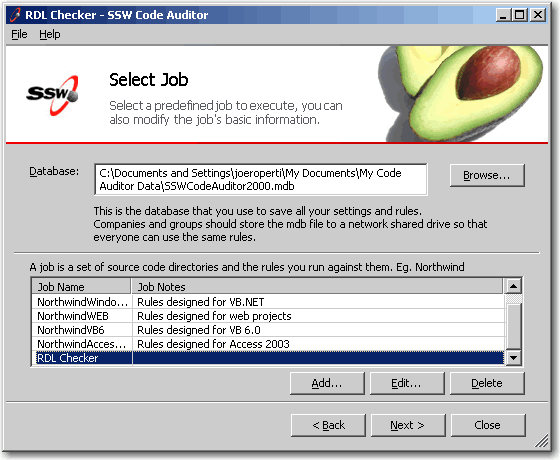
Proceed to the "Select Job" screen in SSW Code Auditor.
Click "Add" to create a new job. Call the job "RDL
Checker" as shown
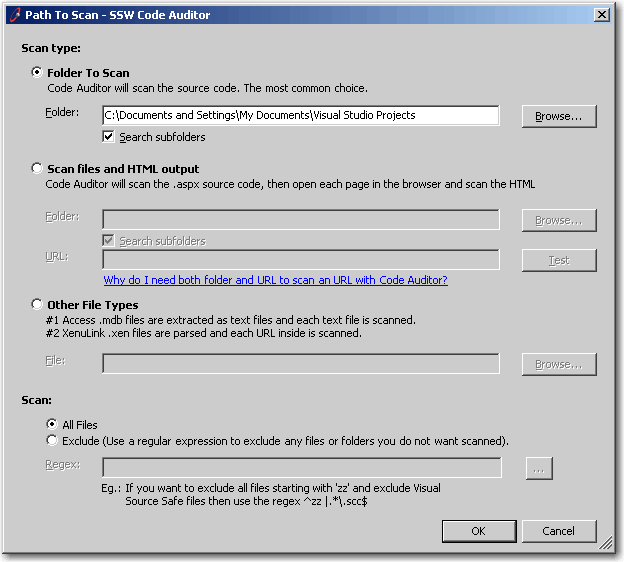
Proceed to the next screen, and click the "Add..."
button to browse for the folder containing the RDL files
as shown below. The location will usually be in "My
Documents/Visual Studio Projects", under the folder name
of the report project you created.
Click
OK
then
Next
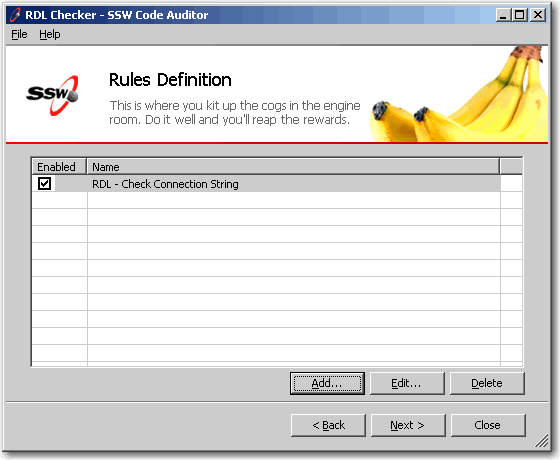
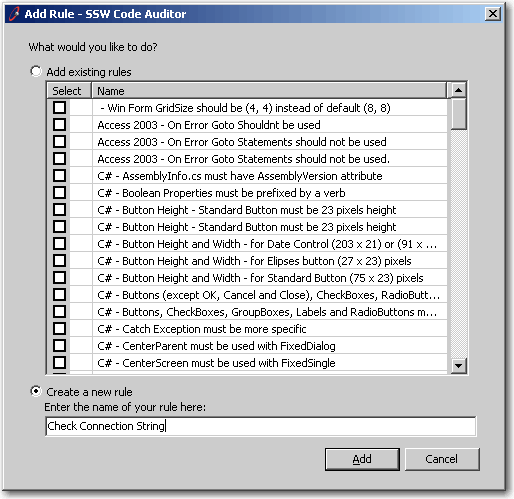
on the following screen to show the "Rule Definition"
screen. Click
Add
to add a new rule, then choose the "Create a new rule"
option button. Call it "Check Connection String", then
click
Add
as shown below.
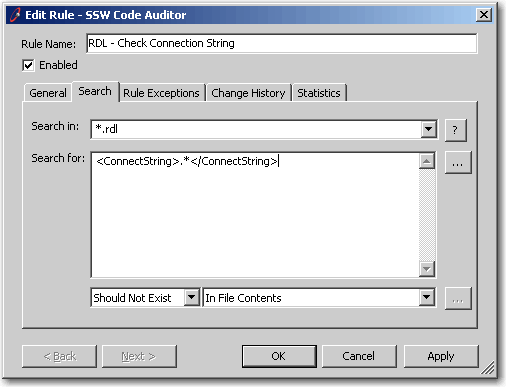
Enter "*.rdl" into the "Search in" box to specify which
files to check, because you do not want to check files
other than the RDL report files which may exist in the
specified folder. To check for the existence of a
connection string in the RDL file, enter the regular
expression
"<ConnectString>.*</ConnectString>". Then
choose "Should Not Exist" from the dropdown list,
because you want to ensure that the connection string
tag
does not
exist in the report files, i.e. a shared data source is
being used.
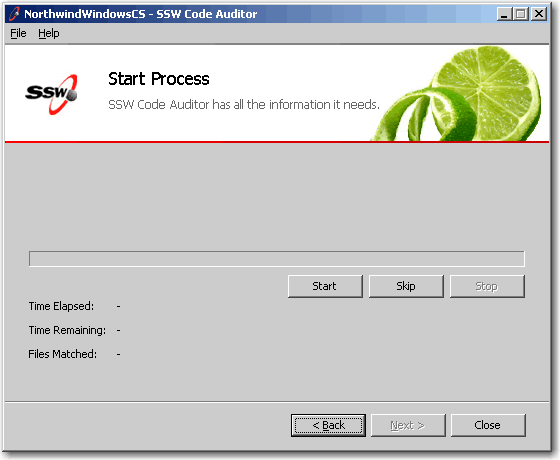
Click
Next
twice to show the Start Process screen. Click
Start
to begin scanning your report files.
Click
View Report
on the resulting page to see which files were OK and
which did not conform to the rules you specified.
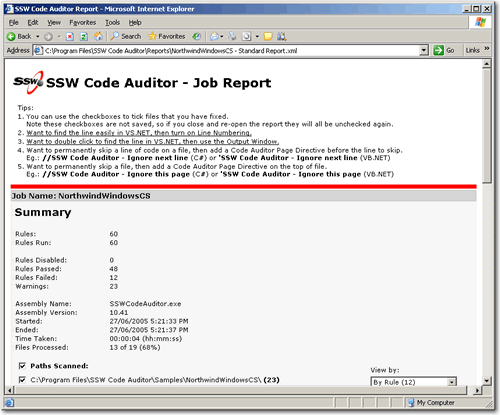
The report shows all files that
did not
pass the validation rules you specified. These files now
need to be fixed. In the case of this example, the
reports need to be modified to use a shared data source.
You can also create rules for the following conditions
to validate your RDL files:
| Rule |
Regular Expression |
|
A connection string was found in the report. All
data connection information should be removed from
every report and moved to a Shared Data Source
Item in the Report Project.
|
<ConnectString>.*</ConnectString>
|
|
The SQL query used for the report data should not
contain "SELECT *", because it is an inefficient
method of selecting data. Only the fields required
for the report should be retrieved, e.g. "SELECT
ID, FirstName, LastName, PhoneNumber"
|
(?i:SELECT) \* |
|
Build warnings should not exist in the report.
These warnings are typically caused when importing
unsupported report items from Access into
Reporting Services, and appear as XML comments in
the RDL file.
|
lt;!-- (?i:Warning).*--> |
For more information on writing regular expressions,
please see
SSW Code Auditor links
.