In this quick walkthrough we configure SQL Deploy for
the existing "AdventureWorks" sample database for
future changes..
Step 1: Script your existing database to a
"00000_create_database.sql" script file
-
-
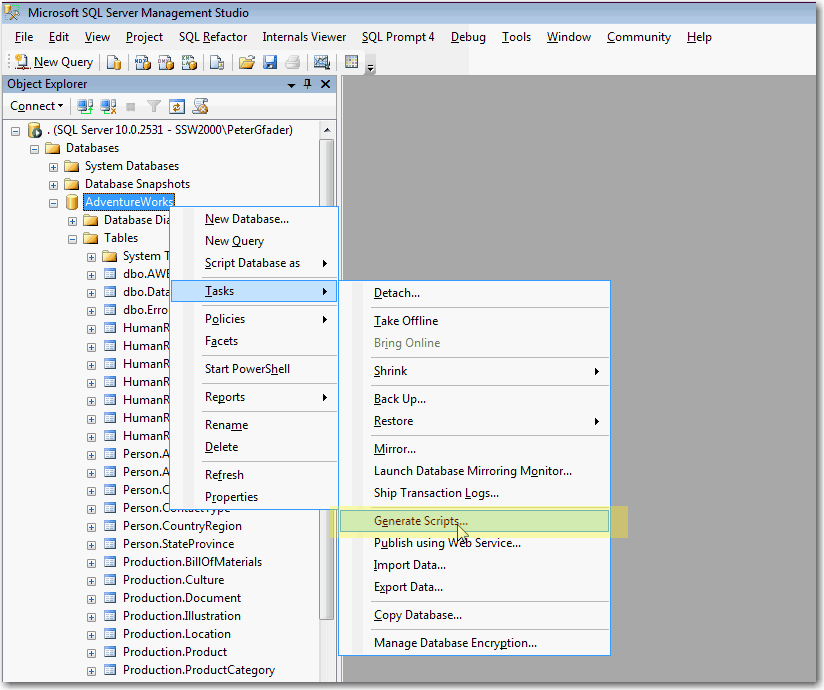
Figure: Use SQL Server Management Studio (SSMS) to
generate scripts to create your whole database
-
-
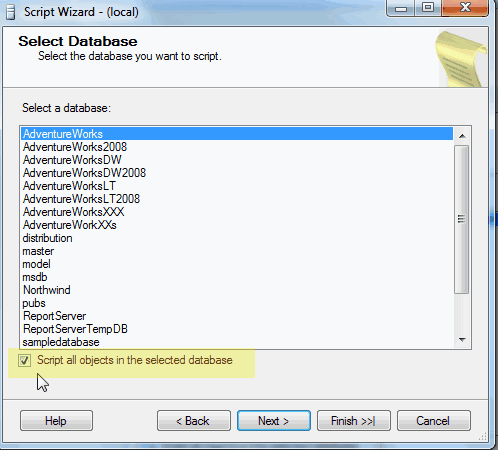
Figure:Check the "script all objects in the
selected database" box
Let SSMS create the "00000_create_database.sql" for
you
-
-
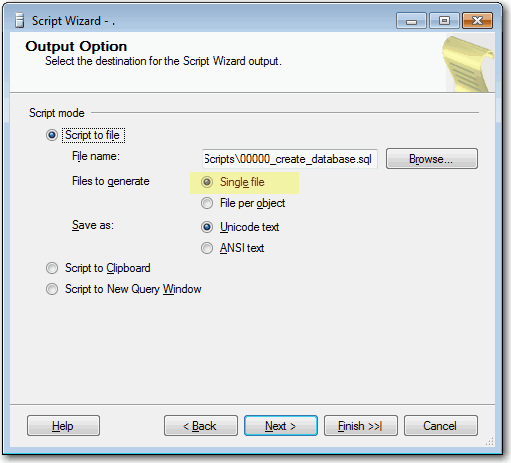
Figure:Make sure to create 1 single file in your
project folder
-
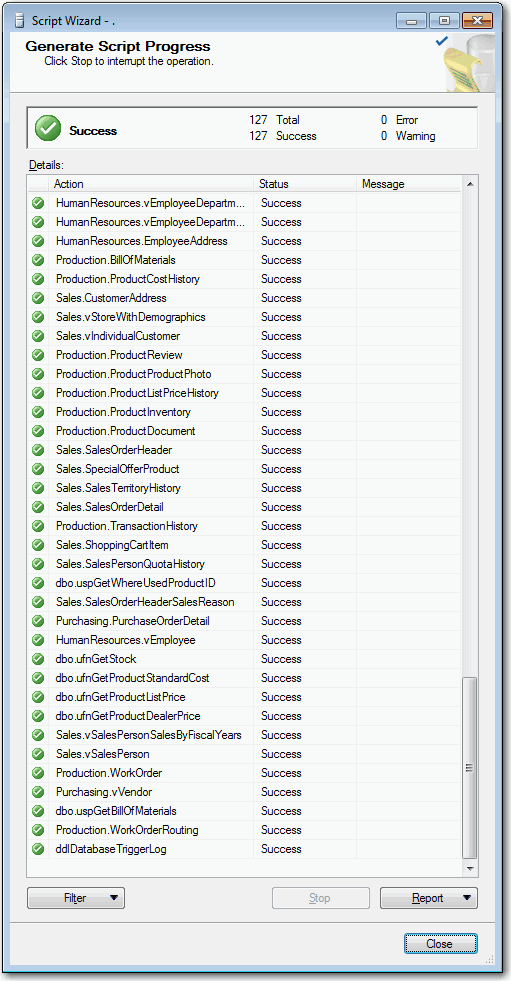
- Figure:Generation of scripts was successful
Add this 2 lines at the start of the script:
CREATE DATABASE [AdventureWorks]
GO
Note: This script is special because it creates a
new database. We identify this by these lines.
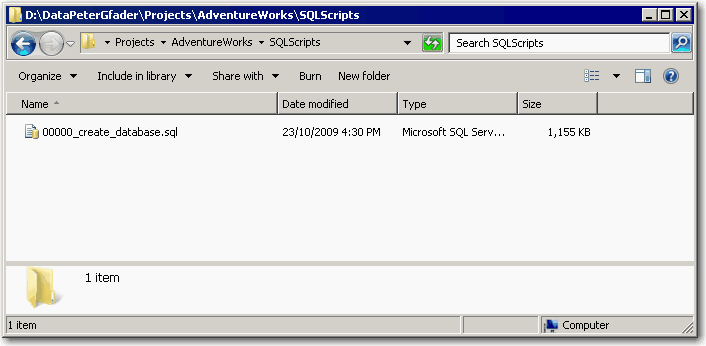
Final result of step 1
-
-
Figure:One "create database script" file in your
project "SQLScripts" folder
Step 2: Tell SQL Deploy that you have run already
the "create database script"
Since you have already an existing database, you
have to tell SQL Deploy about that.
Copy and paste this script into SQL Server
Management Studio and run it on the AdventureWorks
database.
This will tell SQL Deploy that this script has been
run already
USE ADVENTUREWORKS
GO
INSERT INTO [dbo].[_zsDataVersion](
[DateCreated]
, [EmpUpdated]
, [ScriptPath]
, [ScriptFile]
, [Note]
, [SQLDeployVersion]
)
SELECT
getdate() -- current time on insert
, suser_sname() + ' as ' + user_name() -- system
user name
,
N'D:\DataPeterGfader\ProjectsTFS\AdventureWorks\SqlScripts'
-- the folder where the script was located, just for
tracing purposes
, N'00000_create_database.sql' -- the name of the
script file
, N'SSWSQLDeploy: Database created manually, don''t
delete this record' -- Note
, N'12.22' -- SQL Deploy version
This step is not necessary if you start with a new
database from scratch.
If you wish that SQL Deploy creates a new database
for you run the wizard as described on
SSW SQL Deploy-Create new database in EXE mode
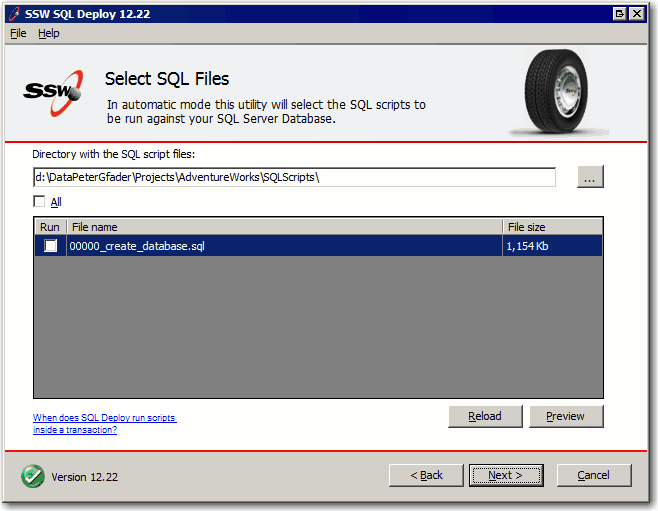
Final result of step 2
1. Run through the wizard to update your database
-
-
Figure: SQL Deploy sees that
"00000_create_database.sql" has been run already
2. Run "Compare database" and see that your database
matches up with the SQL scripts
Your database is ready and you can start using SQL
Deploy
-

Remember: Make sure to script out your changes as
described on the
sql deploy exe mode page