-
Is your Setup.exe real user friendly with just Next, Next, Next?
Ideally the setup.exe should not be complicated. Its only
purpose is to allow the user to install the required software so
that it can be run or tested.
Simple meaningful screens for every dialog of the installation
will help the user only click "Next, Next, Next" until the
application has been installed correctly.
See
http://www.ssw.com.au/ssw/Standards/WiseSetup/UserGuide.aspx
for an example of appropriate dialogs used for the setup.exe.
-
Do you avoid deploying a separate application for users to check
for update?
We used to include the built-in Wise Update in our applications
for users to check and update to the latest version easily.
However the problem is that users dont check for updates
manually.
-
-
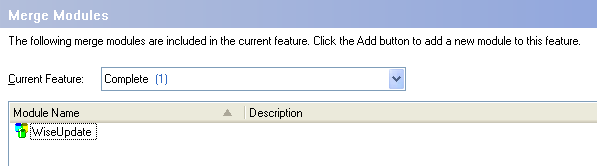
Figure: Wise installer provides a version checker as a merge
module for easy integration.
-
-
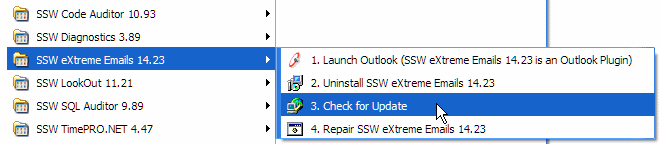
Figure: A separate application to check for update, how often
will you check for update manually? (Bad)
Wise updater will never work because the WiseUpdt.exe is being
called from the application - so it can't fully uninstall itself
when it is open - so it asks for a reboot.
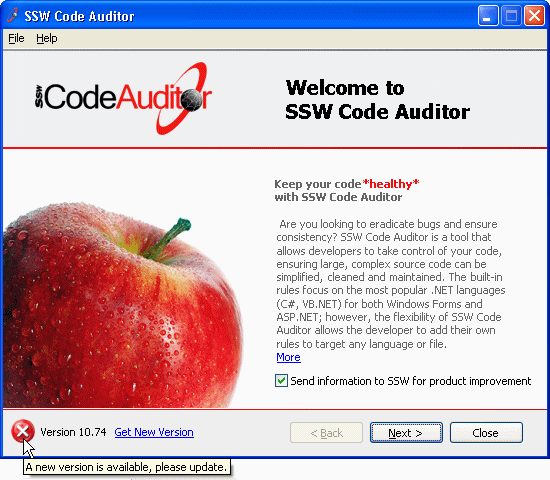
The better way to check for updates is to do it automatically
whenever the application launches. We implement a version
checker on the first wizard screen or applications main screen,
this way the users will know that we have a newer version
available.
E.g.:
-
-
Figure: Users know that a new version is available, and they
can click the link to download new version. (Good)
See
http://rules.ssw.com.au/Management/RulesToSuccessfulProjects/Pages/AllowUsersToCheckNewVersionEasily.aspx
to see how to implement.
-
Do you keep your setup source files in a standard location?
For consistency, always keep the <Application>.bld and
<Application>.wsi in <Application Folder>\Setup.
-
Do you build a new version every day there are changes (a.k.a.
Continuous Integration)?
Each time changes have been made to an application, a new
version should be built at the end of the day (as a minimum).
This enables testers to test the latest version, and gives
clients the ability to check progress made on their application.
The easiest way to achieve this is to have a continuous
integration server (we use Team Foundation Build Server). The
continuous integration server automates a build and unit test
run for an application and reports on success/failure of the
build and tests.
At the end of a successful auotmated build process the install
files produced are available for testers and clients to use.
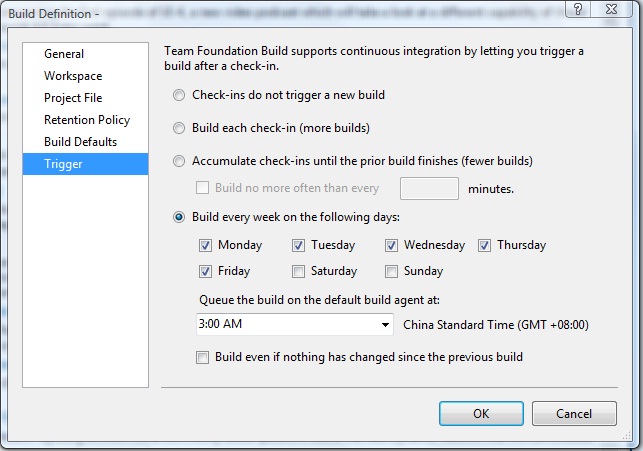
This process can be automated to run at specific times during
the day and/or after each check in to source control.
-
-
Figure: Configure in TFS to build a new version every day
-
Do you display the version number publicly?
Displaying the version number publicly allows easier access to
version number for both testers and clients.
There should be 2 specific ways of displaying the version
number:
-
A 3 part version number to be displayed throughout the
application made up of the Major, Minor and Patch numbers
-
A 4 part version number (including the build number) and date
for display on the Help, About screen
The version number should be
meaningful
.
-
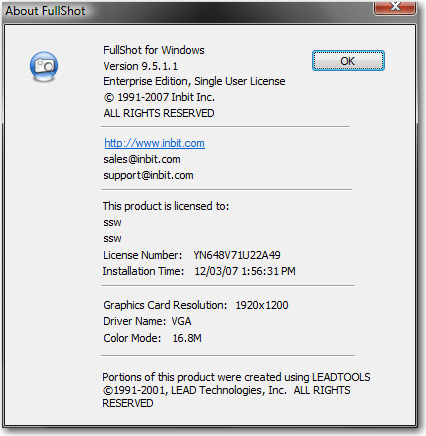
-
Figure: 4 part version number with no date / build number
(Bad)
-
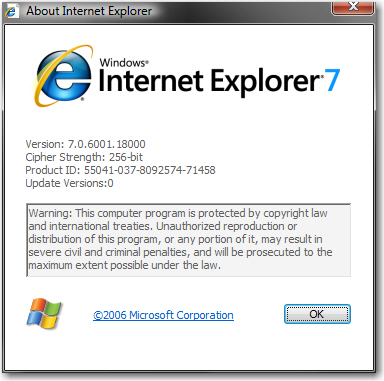
-
Figure: 4 part version number with no date / build number -
not meaningful to the user (Bad)
-
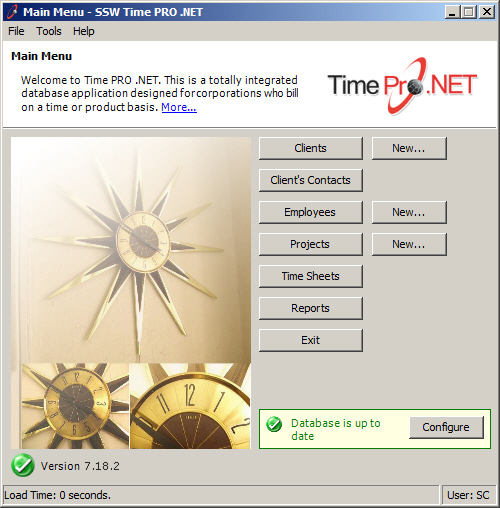
-
Figure: Proper display of 3 part version number on main screen
(Good)
-
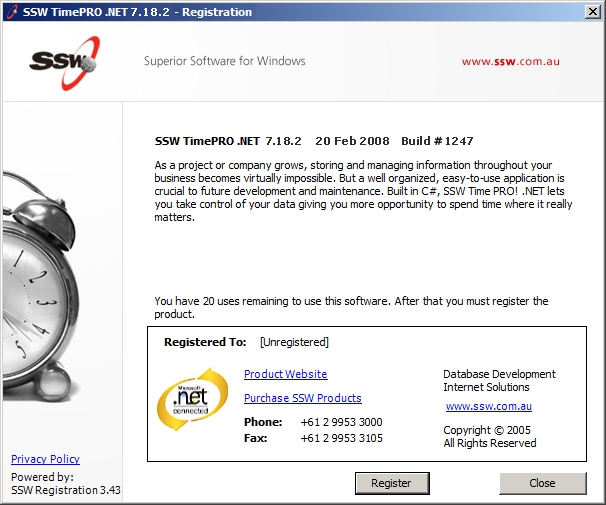
-
Figure: Proper display of 3 part version number, date and
build number on Help, About screen (Good)
-
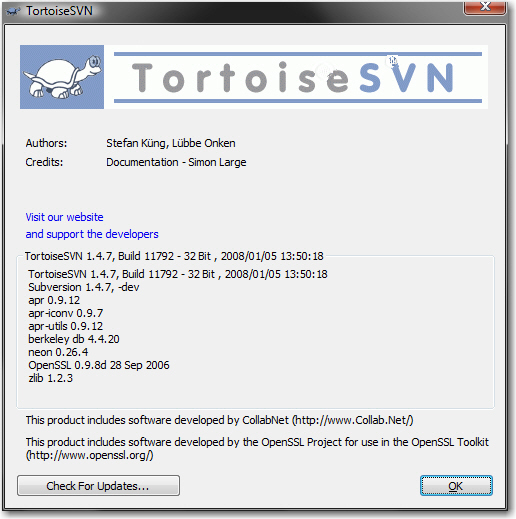
-
Figure: Proper display of 3 part version number, date and
build number on Help, About screen (Good)
This is how we follow our version conventions for .NET
projects
-
Is your version number meaningful?
A version number is only good if it conveys useful information.
We use a 4 part version number which is made up of the
following:
- Major version number
- Minor version number
- Patch number
- Build / Changeset number
Each part of the version number has specific meaning:
-
The Major version number should only be changed at the
discretion of the product owner. This is usually due to
addition of completely new areas of functionality for the
application.
-
The Minor version number should be incremented for each
release and resets to zero for a new major version.
-
The Patch number should be incremented for each hotfix applied
in between releases and resets to zero each new release.
-
The Build number should match the TFS changeset number and
this increases non-sequentially over time.
See the reason for
making the build number match the TFS changeset number, and
why it increases non-sequentially
.
-
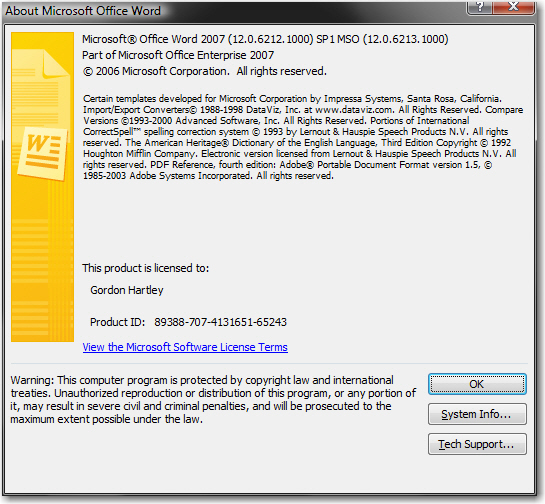
-
Figure: 4 part version number - not meaningful to the user
(Bad)
-
-
Figure: Version number is more meaningful to users and testers
(Good)
-
Do you make a setup.exe before development?
The setup.exe should be in the first release. Many developers
leave it to the end and all sorts of problems start happening
when we realize that it would be better if the application
creates the virtual directory, rather than the setup.exe Nothing
good can happen when you leave the setup.exe to the end.
-
Can you make a setup.exe in one step?
Making a setup.exe should be simple. As I have do to it every
day I want to make it as painless as possible. If it takes too
long to package up your software, you're going to run into
troubles.
Regardless of the size of the project, if there are many steps
involved in creating a build, then chances are you will run into
problems.
My recommendation is to aim for a
one-step
build. A single program (or script) that gets all the latest
required files, adds a version number, compiles them, generates
a setup executable and places it on the correct media - CD ROM,
FTP Site, etc.
On our .NET software development projects, look at all the steps
we need to do to make a setup.exe
-
-
Add a version number to the AssemblyInfo.vb or
AssemblyInfo.cs
-
Build Solution
-
Open wise and change the Version number
e.g. Updating Version number 2.24 to:
- Product Details,
- General Information,
- Shortcut Names,
- Wise Update .ini file information,
- Product Summary,
-
Any Many more places in wise where eg "2.23" would be
found.
-
Change the Source Paths in Wise for files
-
All WiseSourcePaths need to be made generic
i.e.
from
"C:\Data\SSWCodeAuditor\References\TaskScheduler.dll"
to
"..\References\TaskScheduler.dll")
-
Rename the executable file to have version number
-
SSWCodeAuditor_2-24.exe (or SSWCodeAuditor_2-24.msi)
-
Copy to a specified location
-
Q:\ Would you like to make this version live??
- If "yes" then
- Copy to ftp location
-
Update database table
- Now the product can be installed.
-
Figure: Bad - The common way to update version number and
build solution
Now you can automate this using the following methods:
We have chosen Visual Build Pro to automate our Version numbers
in our .msi files. This lessens the steps significantly. For
future projects we will use MS Build as we see this as the way
forward with automating builds. MS Build provides several
advantages including, customizable build tasks, integration with
a continuous build server, source controlled build scripts.
-
-
Add a version number to the AssemblyInfo.vb or
AssemblyInfo.cs
-
Check-in all files and folders and close the solution.
-
Right-click the VBPAutoBuild.bld file in the Setup folder
and select "build"
-
If all the steps are "skipped" you must make sure
everything is checked in
-
After the build is complete, the product can be installed.
- Figure: Good - The better way to create a setup.exe
Note: Wise or Installshield? Well not that much between them,
but we use Wise Install Master most of the time, because it is
simpler than InstallShield.
Here you can find
our standards
of how to use Wise
-
Do you always update the version number whenever a new build is
made?
By using a
meaningful
version number we can easily identify exactly which version of
an application someone is using. If the version number is not
changed for each build, we can never be sure which version of an
application is being used or what source was used to compile it.
The best way to ensure the build number is always updated is to
update it during the build process. We use Team Foundation
Server's changeset number instead of an incrementing build
number. This can be achieved by using
MSBuild Community Tasks
.
By using the changeset number as the build number this means
anyone can go into source control and retrieve the exact source
used to build a particular version of an application. By
definition this number is always increasing (it increments any
time someone commits a change to the repository). It also means
we're implicitly 'tagging' each build. If explicit tags aren't
set on the repository for a build/release in other versioning
conventions it can be very difficult to identify which version
of the source was used to produce that build/release.
It is very common for an application to still require minor
fixes before the approval to release it. Developers tend to
ignore incrementing the version number for the product even when
making a minor change, and do not consider it to be important
(perhaps hoping that no one has yet installed the version that
has been packaged).
However if the version number has not been increased then the
installation package will not prompt the user to upgrade it,
rather it will ask the user to repair the product which gives
the impression that there has been no updates.
-
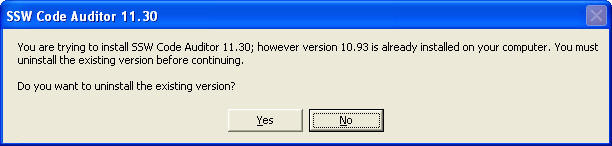
-
Figure: The setup package will always pop up a dialog box to
automate the upgrade of the product as long as the version
number has been changed.
-
Do you put the minimal amount of intelligence in the setup.exe?
The setup.exe should really just do an xcopy. Avoid putting any
intelligence (like creating databases or virtual directories)
into the Wise/InstallShield Setup. It is much cheaper and better
to put this logic into the actual app.
As an example sees the three choices you have for creating a
database - see the KB about
how to create a SQL Server database
as part of a script.
Exceptions do exist. We do put intelligence into the setup.exe
if we need a clean uninstall. Examples where we put intelligence
in the setup.exe instead of the Windows/Web Application:
-
Adding a VS.NET Toolbar - SSW Health Auditor adds a Toolbar -
we would prefer to do that inside the UI of the
CodeAuditor.exe however if they uninstalled that, the toolbar
would still be there.
-
Adding a Outlook Toolbar - SSW Lookout and SSW eXtreme Emails
have the same situation, installing Toolbars in Outlook
-
Installing MSDE - but the uninstall should tell them they have
to delete the database first as per
RulestoBetterInterfaces.aspx
-
Creating a Virtual Directory - SSW Access Reporter has ASP.Net
Samples that require a virtual directory to be created. We
would like to be able to uninstall it.
Note: If you use one of the exceptions like the above, you
should add a text file documenting this.
e.g. C:\Program Files\SSW Code Auditor\_Instruction.txt
-
Do you know that the installer should only install files to the
program files folder?
For your applications the user settings should not stored in
C:\Program Files - if you do you can be assured that they wont
work in Vista!
Instead you need to store the user's settings in the application
data folder. A common mistake is that the installer is used to
copy the installer to copy the settings files to the application
data folder.
-
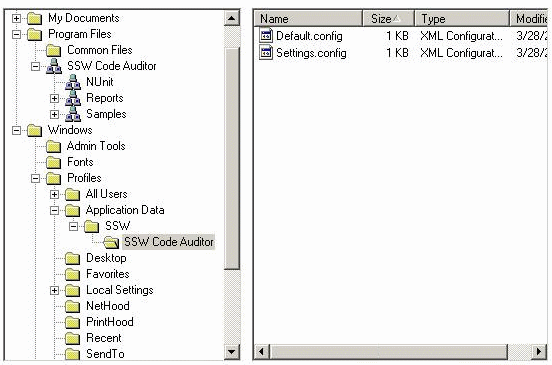
-
Figure: Bad - The installer copies the settings files to the
user's application data folder.
Therefore the installer should only copy files to the
installation folder (eg: C:\Program Files\SSW Code Auditor),
because if the settings files are copied to the application data
folder by the installer, they will get removed on
un-installation. This is bad as they contain the user's
settings.
The better way of doing this is keeping the default settings
file in the installation folder, and when the application starts
up, if no settings file is found in the user's application data
folder, then copy the default settings file into the application
data folder.
-
Do you skip setup installers for web project packages ?
If you want lots of people to use your Windows App, then you
always need an installer. Does the same rule apply for Web apps?
Web applications generally only need to be setup in three
locations. That is, the development machine, the test server,
and the web (production) server. Therefore there is no need to
make a setup package for these projects as they will never need
to be installed on a mass scale which means that it's not worth
the money to attempt to have a more complicated setup package.
Option 1:
If you have access then simply use FTP to transfer synchronise
files between servers
Option 2:
For most of our web projects we will commonly just use a zip
file for distributing the project for someone else to install at
a remote location. This zip file includes:
- The layout files (.aspx)
- The resource files (.jpg, .css, .js, etc)
- The bin directory with the .dll files
-
a _Instructions.doc with screen captures and detailed
documentation on how to configure the file system, IIS, and
directory security.
This way our network administrators can be kept happy by
having full control over where in the file-system the websites
live (which might be important for the backup strategy) and
allow us to make full use of webserver features within our
application.
-
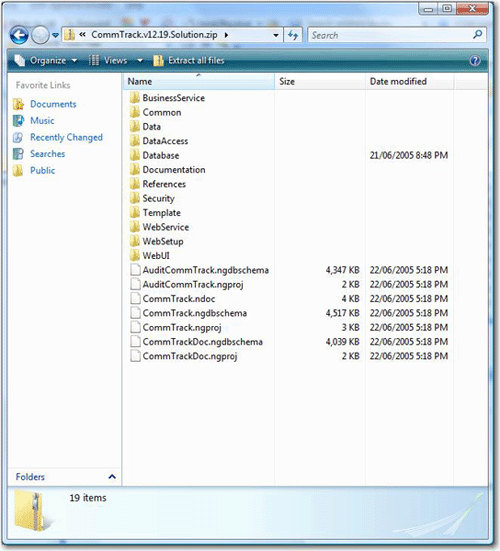
- Figure: Shows the folder of a website as a Zip File.
Need more reasons:
The reasons we do not make an .exe or .msi for a web project are
many. As detailed above it mainly development the development
cost that only a couple of people will use. There are other
difficulties developing .exe's and .msi's like:
-
creating virtual directories. Wise will only allow you to
install to the Default Website
-
configuring the directory and IIS security options, for
example granting the local ASPNET user account access to your
physical directory
-
handling important settings in the web.config file (remember
the normal implementation of a website has this read-only)
- support of other web server platforms (other than IIS)
Note: There is one obvious exception to the rule, and that is
when you need to create a sample web project as part of some
other application. For example, a website would be included in
your .msi when installing a web control component with samples.
-
Do you have an "Installation Prerequisites" screen during
installation?
There is no point to allow the user to install your software and
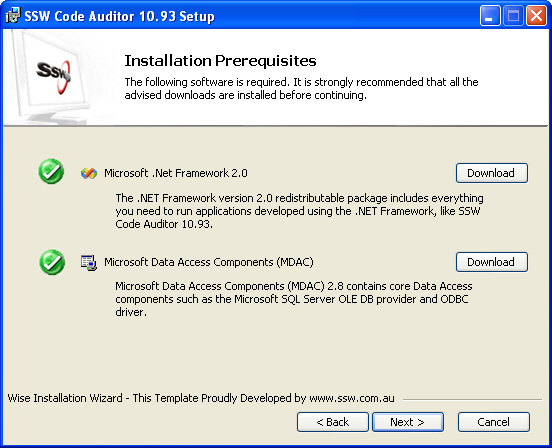
find out they cannot use it. Therefore, the setup.exe should
always have an "Installation Prerequisites" screen in your
installation, after the first welcome screen.
Furthermore, you should detect if your user's computer meets all
these requirements and give them the link to download the
required software if possible.
-
-
Figure: Detect installation prerequisites and give download
buttons
Sometime, it's not possible to detect the required software
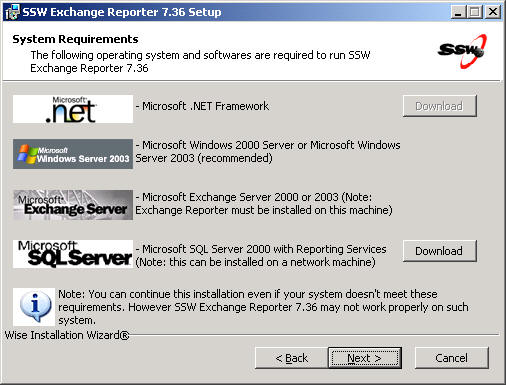
during the installation. An example would be if you require your
users to have SQL Server installed, but this can be on a
networked computer. If you have this case then your setup.exe
should have an "Other Requirements" form in your installation.
-
-
Figure: In this case SQL Server 2000 or SQL Server 2005
Reporting Services can be installed on a networked machine, so
the user is only given the information and the application
will worry about checking and setting up this.
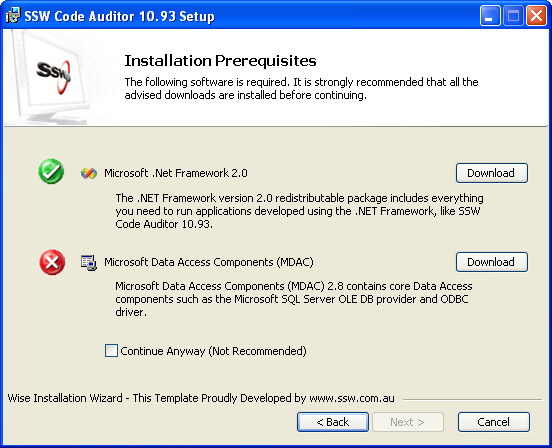
Warning: Too many times the 'Continue Anyway' approach is not
taken, and the developers add validation but with no flexibility
to continue. An example of this can be found in an installation
package that requires a user to have a certain version of SQL
Server, or SQL Server Reporting Services, or Exchange Server, or
.NET Framework on his computer. The disabled button stops the
user just clicking "Next" without noticing the problem and the
checkbox gives the user to ignore it when they know it is OK,
for example if a newer version of the .NET Frameword is released
that supports .NET 2.0 apps but the registry key that the
setup.exe is looking for has changed.
-
-
Figure: 'Continue Anyway' checkbox allows user to continue
even when conditions are not met (Good)
-
Do you always use the same name for virtual directory and its
physical location?
(* This feature has been fixed in Wise 7)
There is a common issue with installing a virtual directory in
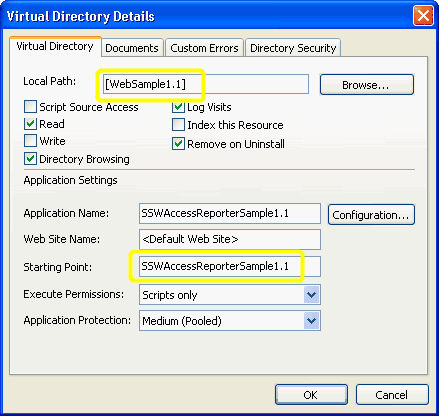
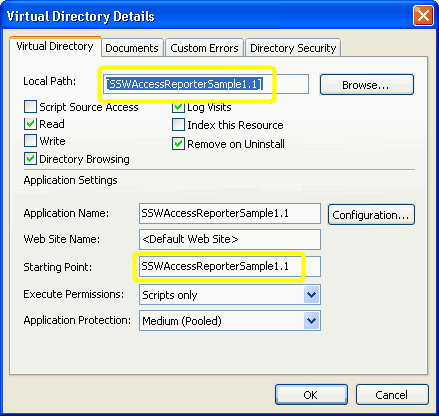
Wise 5.2. The "Remove on Uninstall" does not actually work
when the Local Path name differs from the "Starting Point"
name.
-
-
Figure: The virtual directory will not be uninstalled with
inconsistent name .
-
-
Figure: To resolve this issue the names must be consistent
with each other.
-
Have your installer educate with a screen capture?
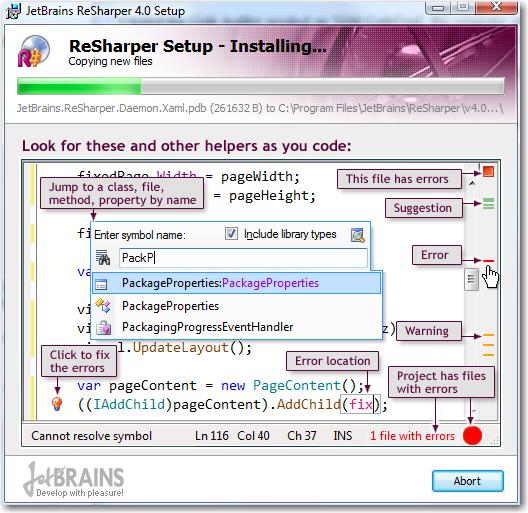
In your Installer need include a screen capture like below:
-
-
Figure: While installing Resharper, then teach you 8 things
about the product. Awesome.
-
Do you include version numbers in your setup filename?
I'm always downloading my favourite 3rd party software utilities
from the web. But I find it very frustrating if the developer
has not made it easy to check whether I've already got the
latest version. It is not OK to expect a user to run the
setup.exe in order to find out what version it is.
The easy solution is to include the version number in the name
of the setup file. We use [productname]_ver[major
version]-[minor version].exe E.g. SSWCodeAuditor_Ver1-89.exe
In .NET, however, you strike a problem. .NET removes any 0 in
the prefix and so e.g. _v1-02 becomes _v1-2. The rather
contrived solution is to start minor versions at 11. Therefore
_v1-11.exe is your first version.
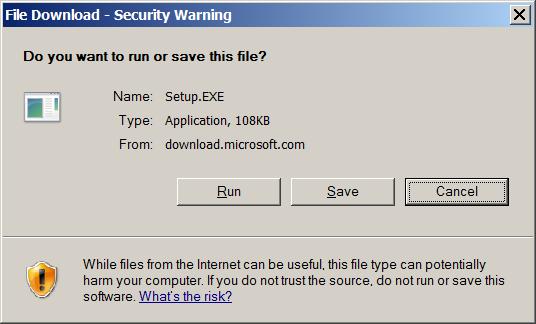
To deal with those naughty developers who don't include version
numbers, rename the file after you download it...
-
-
Figure: Download the software then rename it with version.
-
setup.exe
ExtremeEmailsSetup.exe
- Bad setup file name
- ExtremeEmails_Ver1-12.exe
- Good setup file name
-
Do you have an "unattended installation" screen in your
installer?
The installer should include a screen showing how to do an
unattended installation.
-
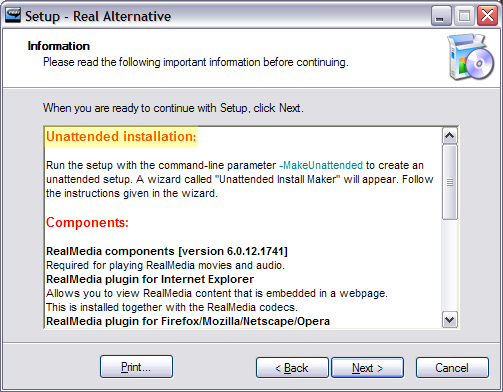
- Figure: Including unattended installation information