-
Do you ensure you have a computer with the recommended
specifications before upgrading to Windows Vista?
Windows Vista is much more resource dependant (about 25% slower)
than Windows XP. Therefore it is essential for PCs, which are
being upgraded to Windows Vista, to meet the minimum recommended
specifications. There is the
Windows Vista Upgrade Advisor
, but unfortunately it didn't support proxies when we attempted
usage.
For now, in order to check your hardware you can use:
-
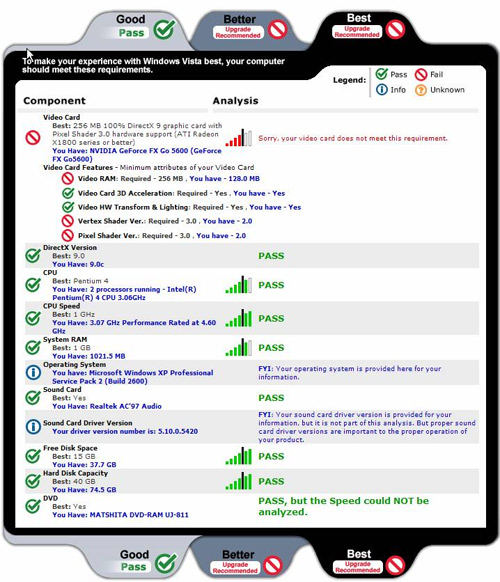
-
Figure: The Browser will open the results of the ATI test.
-
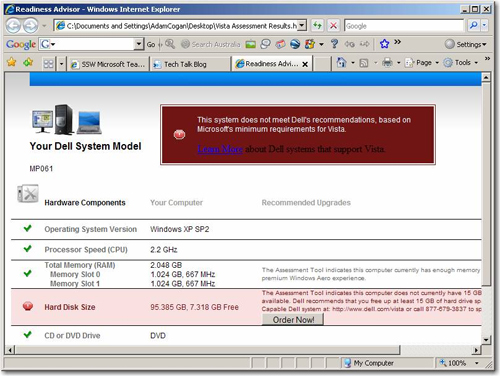
- Figure: Results from DELL's Vista Readiness.
-
Efficient way to check if you can do a RAM upgrade
Although the minimum operating requirements of Vista state 512MB
of memory, we would suggest for practical reasons that you will
need at least 1.5 GB of RAM - although 2 GB is ideal.
An easy way to check the maximum RAM you can upgrade to and the
number of slots you have is by using
PCMark05
. On some older machines, the motherboard specifications may be
the limiting factor. It is sometimes common for an older
notebook to support up to 2GB of memory.
If you're not sure what type of RAM your notebook needs, use an
online memory finder.
-
Install and launch
PCMark05
-
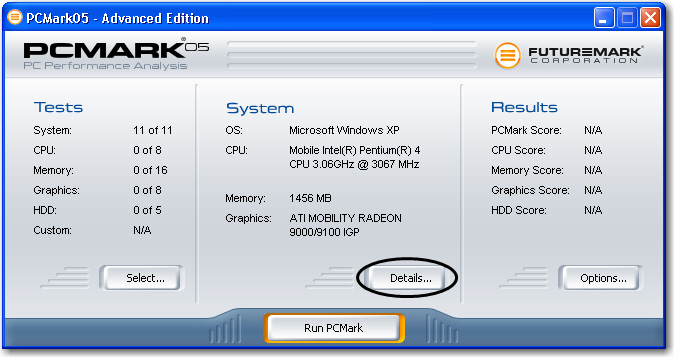
Click
"Details"
-
-
Figure: Click "Details..." to see if you have a free slot
for more RAM
-
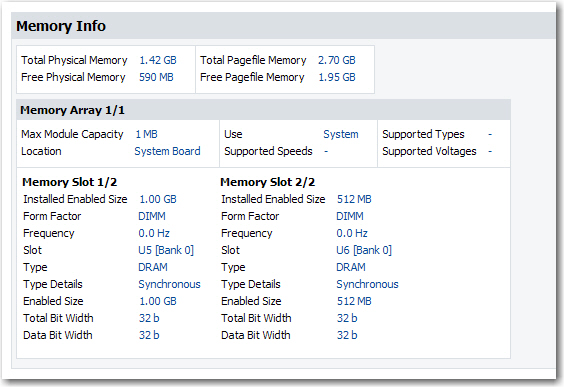
Scroll down to the
memory info
-
-
Figure: Then you will see detailed memory information - in
this case both slots are used - Now you need to visit the
manufactures site to see if it can take anymore RAM
-
Do you know whether to upgrade or reformat?
When you're installing a new OS on your PC it's always a dilemma
as to whether to go the whole hog and reformat your hard drive
or take the upgrade path into the new system. Upgrading is nice
because there is no need to install all your programs again. The
problem is all the old junk stays around.
At SSW always go for a fresh start. We've already found a number
of programs (including Visual Studio 2003) will not work in
Vista. Besides, a nice, clean C: drive to go with your new,
nice, clean operating system is always a big plus. Just be sure
to follow your organization's backup standards carefully!
Note: For individuals looking to upgrade to Windows Vista, the
upgrade process is exactly the same as that for Windows XP.
Note: If you intend to follow an
automated deployment
then you will be forced to reformat.
-
Do you know the best way to deploy Windows Vista across your
organization?
With Windows XP we commonly see situations where a system
rebuild takes a day or more. With Windows Vista we have got that
down to 45 minutes.
Windows Vista has deployment tools which you can download, which
make it significantly easier for organizations ranging from
small to large sizes to migrate to Windows Vista.
Here are you deployment choices:
-
Individuals - Standard Installation using Windows Vista CD
(not recommended as you then need to install all your
programs)
-
Small Organizations (less than 100 computers) - Business
Desktop Deployment 2007 (not recommended)
-
Small Organizations (less than 100 computers) - Windows
Automated Installation Kit (recommended)

-
Large Organizations (100 computers or more) - Windows
Deployment Services (WDS)
At SSW, we use option 3, which means that you need the new
deployment tool which utilizes Image Based Setups (IBS). When
you use IBS you install all the programs you you create a large
.WIM file. Once the custom image is created you deployed
individually to each PC as detailed below:
Note, for option 4, you use the same IBS method described for
creation of your image. Windows Deployment Services is the
equivalent of Remote Installation Services on Windows Server
2003. For this deployment process, a dedicated server is
required.
In order to use IBS you will need to:
-
Step 1: Create a CD with the tools needed to deploy the Image
- Step 2: Creating a custom image of a Vista Installation
- Step 3: Get your new PC and Deploy this custom image
Step 1: Create a CD with the tools needed to deploy the Image
-
Install
Windows Automated Installation Kit
-
Open Command Prompt and change from the current location to
the PETools directory.
Type
CD C:\Program Files\Windows AIK\Tools\PETools
-
Copy the PE Tools into a directory on your C: drive.
Type
Copype.cmd [arch] [destination]
Where arch is the arhitecture of the computer on which Vista
is being deployed, either x86, amd64 or ia64 and destination
is the path to the local directory, for example, type:
Copype.cmd x86 C:\WinPE_x86
-
Copy ImageX into the same folder.
Type
copy "C:\Program Files\Windows AIK\Tools\x86\imagex.exe"
C:\WinPE_x86\iso
-
Using Notepad, create a configuration file with the following
text and save it as
wimscript.ini
.
[Exclusion List]
ntfs.log
hiberfil.sys
pagefile.sys
"System Volume Information"
RECYCLER
Windows\CSC
[CompressionExclusionList]
*.mp3
*.zip
*.cab
\WINDOWS\inf\*.pnf
Save the configuration file to the same location as the
ImageX:
C:\WinPE_x86\iso
-
Create an image file (.iso) of the folder you just created.
Type
cd C:\Program Files\Windows AIK\Tools\PETools
Oscdimg -n -bc:\winpe_x86\etfsboot.com c:\winpe_x86\iso
c:\winpe_x86\winpe_x86.iso
-
Burn
the image onto a blank CD ROM.
PS: You may skip Step 1 because the CD labeled
WIN PE and Image X
is kept in n the SSW Sydney boardroom.
Step 2: Creating a custom image of a Vista Installation
Warning:
If you're using a VPC or VMWare then it is best to create a
"Clone" before you generialize so that you can revert back to
it after the image has been created.
Now that we have all the tools on a CD, we now need Vista and
all the programs.
- Using a master computer, install Windows Vista.
- Install all your applications.
-
Prepare the computer for imaging by running the Sysprep tools
and cleaning up User settings.
In Command Prompt, type
C:\Windows\System32\Sysprep\Sysprep.exe /oobe /generalize
/shutdown
-
Caution: Do not forget to execute the above command before
capturing the image. Not performing the above step may
cause Boot Failure error message when you try to boot the
installed image on your PC.
-
Note:
You can only generalize your installation 3 times. After
that you'll received an error when trying to generalize the
installation.
-
Boot up
from the Windows PE CD that you created previously.
-
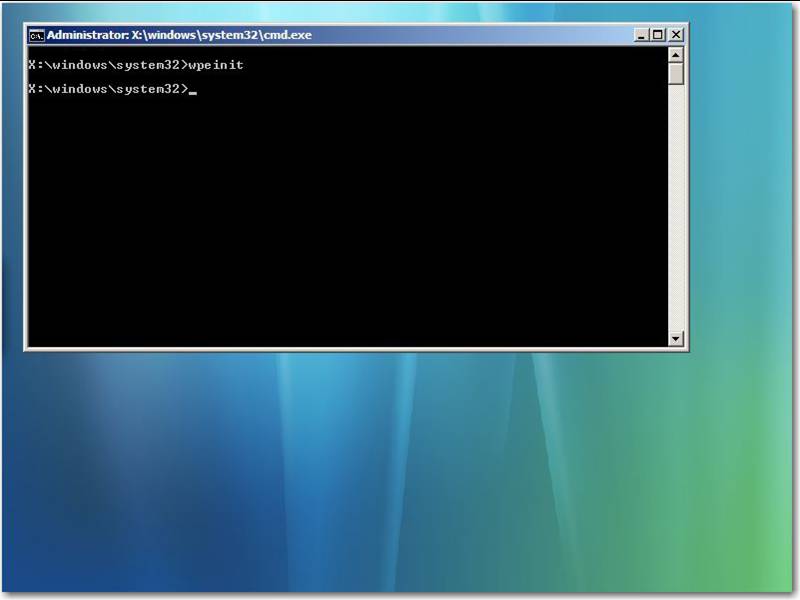
-
Figure: This is what it looks like the first time you boot
off the CD C it is the Windows Pre-Installation
Environment 2.0 - now you capture the image
-
In the command prompt, capture the image.
Type
D:\ImageX.exe /capture C: C:\MyImage.wim "My Vista Install"
/verify
(Where MyImage.wim is the image name, you can give any
name you wish).
-
Option A (Not Recommended)
:
Copy the image to a network location. (
Note:
This will not work in VMWare as the network drivers aren't
supported without VMWare Tools, instead boot up the Vista
install and copy the image to the network drive from within
Vista)
Type:
net use \\[network share]
Where network_share is the location to which the Image will be
saved on the network.
Type your
username
and
password
Type
copy C:\MyImage.wim \\[network_share]
Now the image is on the network and all the guys can get their
Vista image from here
Warning: It may take 8 to 10 hours to copy the file to
network location. Instead try copying the file to any
external drive.
-
Option B (Recommended):
Note: If your are building the image on a virtual machine,
then
Step 3: Get your new PC and deploy this custom image
-
On the PC, to which the Image is to be deployed,
back up
all your data.
-
Boot up
using the Windows PE CD you created previously.
-
Format
the hard drive and create partitions by typing these commands
in order:
diskpart
select disk 0
clean
create partition primary size=<size of hard disk>
(For example 'create partition primary size=20000' where 20000
equals 20 GB.
select partition 1
active
format (format quick)
exit
-
Option A (Not Recommended):
Copy the image from the network share onto the local hard
drive.
Type
net use \\<network share>
Type your
username
and
password
Type
copy \\<network share> C:
Warning: It may take 8 to 10 hours to copy the file to
network location. Instead try copying the file to any
external drive.
Option B (Recommended):
If you have followed the recommended steps to copy the .wim
file to external hard drive, then type the following command
to apply the image to your local hard drive:
Apply the image to the C: drive.
Type
D:\ImageX.exe /apply X:\Myimage.wim 1 C:
(Where X = External hard drive).
-
Reboot
once the above process is complete.
-
Follow the on-screen instructions to complete the
installation.
-
Run
Windows Update
to get all necessary drivers and software updates.
You are now ready to work ( it has taken about 45 mins)
-
Do you run all your incompatible applications in a Virtual PC?
When upgrading to Windows Vista, you will find that many of your
important applications will not install or give errors.
Examples are:
- Visual Studio .NET 2003
-
Visual Studio .NET 2005 - some live with the crashes in Vista
- most don't
- SQL Server 2005 Reporting Services
- FullShot 9
- Windows Desktop Search (you don't need anymore)
- AVG Antivirus (you don't need anymore)
- (tell us any others)
-
-
Figure: Inside your image, make sure you keep track of all
the installed applications (along with whom added them, and
when). We keep a word document on the desktop.
Developers are going to have to get used to running in a VPC -
and Vista will force you to get used to it - in that respect it
may be a blessing in disguise. To ensure a smooth migration
process, your image should include a shortcut on the desktop to
a Virtual PC so you can continue with all of these incompatible
applications.
Tip: VPCs are a bit slow, so you will want your VPC to be as
fast as possible so please see
Rules to Better Virtual PC's
for an extensive guide to creating an efficient development
environment.
-
Do you know your options with respect to developing and
maintaining your .NET 1.1 applications?
Visual Studio .NET 2003 is incompatible in Windows Vista. This
poses a significant problem for developers looking to maintain
their .NET 1.1 applications. A simple solution is to create a
Virtual PC using Virtual PC 2007 of all the necessary
development tools on the Windows XP platform.
To debug your applications in Windows Vista, you can use Remote
Debugging where the application is running on the Vista machine,
but it being debugged by the Virtual PC. Please see the
whitepaper "Taking Advantage of Microsoft Virtual PC 2007 for
Developing and Maintaining .NET 1.1 and 2.0 Applications in
Microsoft Windows Vista" for a guide to developing both .NET 1.1
and 2.0 applications in Windows Vista as well as remote
debugging.
Please also see
Rules to Better Virtual PC's
for an extensive guide to creating an efficient development
environment.
-
Do you use default gateway on remote network?
VPN is a wonderful tool for users to remotely control the other
PCs via network. If we control the PC located in Sydney and use
default gateway on remote network, some of the bandwidth in
Sydney will be occupied by us. In order to avoid that, we need
to configure the VPN as following:
-
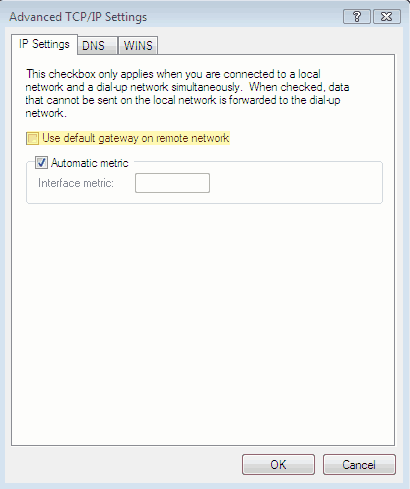
-
Figure: Uncheck "Use default gateway on remote network".
Furthermore, the Microsoft Firewall Client for ISA Server, which
connects with the remote server, should be disabled as well.
After that we can detect our settings by accessing
http://www.dnsstuff.com/tools/aboutyou.ch
. The result will show Your IP, Your country and Proxy Server
etc.
-
Do you make sure all non essential services are set to manual
The vista image should work fast, even on slow PCs. So only have
a service running if people use it the majority of the time
-
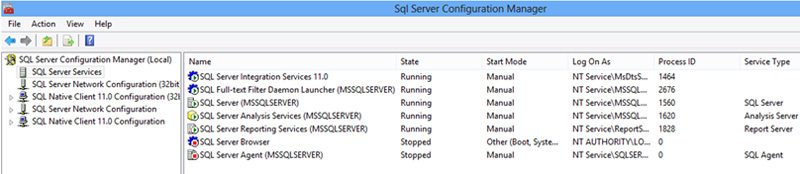
-
Figure: See the ‘Start Mode’ are all set to
Manual.
-
Do you add your Windows Vista Image's version into C:\?
-
-
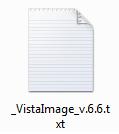
Figure: Vista Image Versioning File Image Versioning File
It will be much easier for user to know the version of the
Windows Vista Image installed in their machines if you put the
versioning information in a text file, for example:
C:\_VistaImageVersion.txt.
NOTE: When you build the image you need to update
C:\_VistaImageVersion.txt.
-
Do you remove the Windows Vista Sidebar?
It is a waste of time and resources to have Windows Vista
Sidebar activated.
-
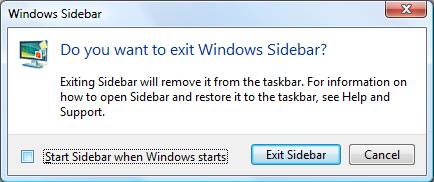
- Figure: Disabling Windows Vista Sidebar