Do you meet text styling requirements for accessibility?
Loading last updated info...
Poorly formatted text can make otherwise great content difficult to read. Long lines, tight spacing, and justified text often create barriers for people with cognitive disabilities, dyslexia, or low vision. Even users without disabilities may struggle with dense blocks of text that are visually hard to scan.
Following the WCAG 2.1 Visual Presentation recommendations ensures that text remains readable and adaptable to user preferences.
1. Limit line length
Long lines of text make it harder for readers to track where the next line begins. This is particularly challenging for users with dyslexia or cognitive impairments.
WCAG recommends:
- Maximum 80 characters per line
- Maximum 40 characters for CJK languages (Chinese, Japanese, Korean)
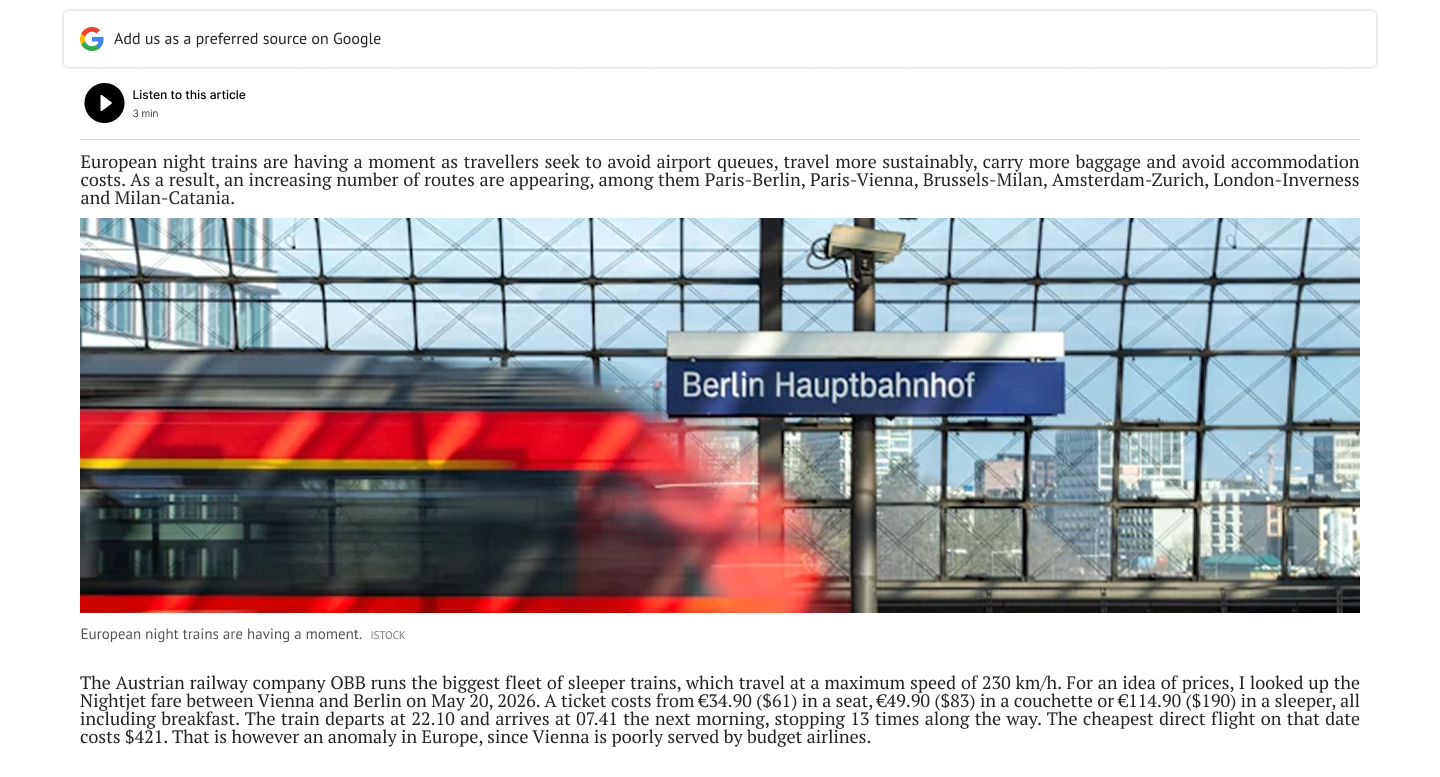
❌ Figure: Bad example - An article with full-width line length (~139 characters)
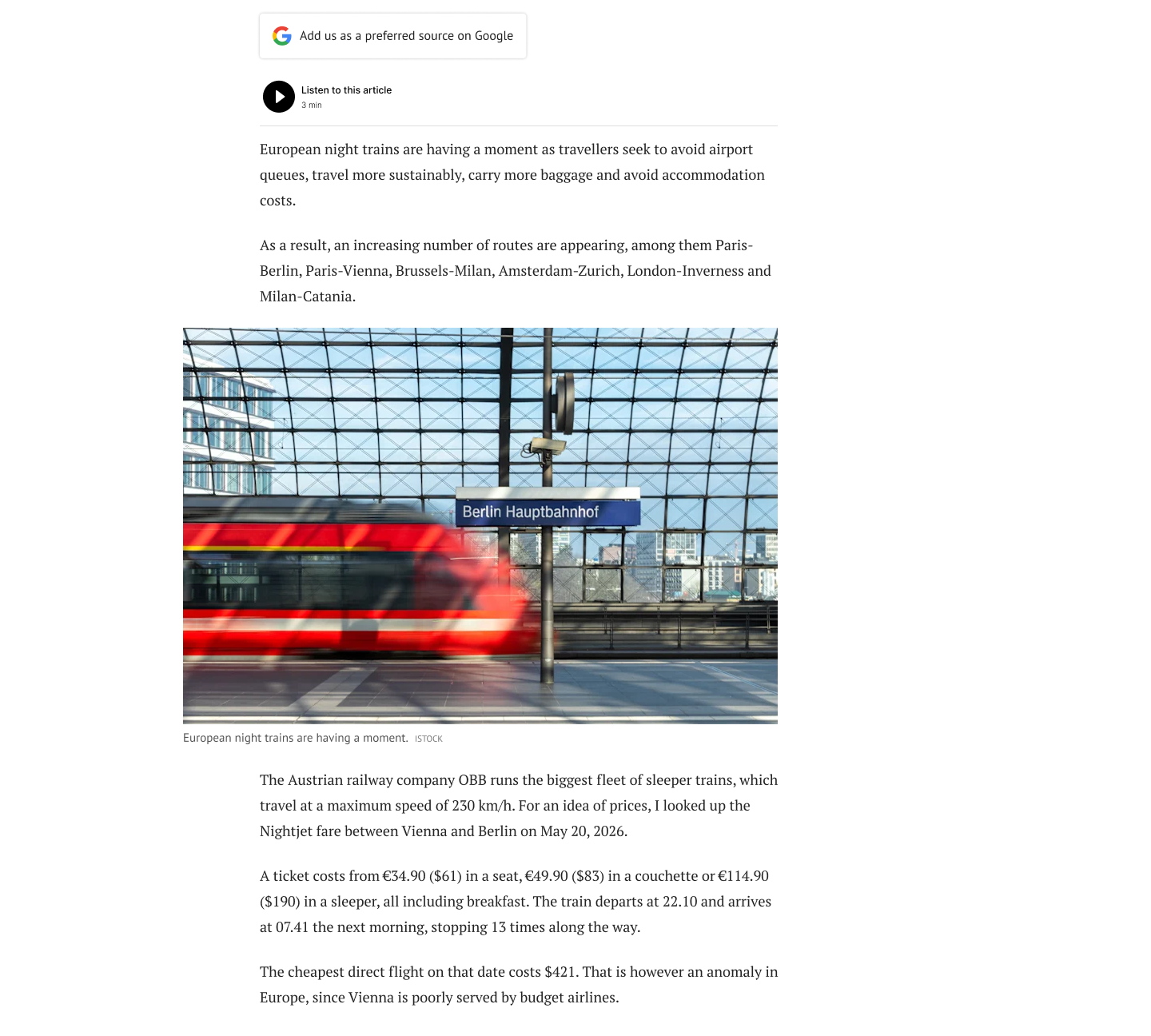
✅ Figure: Good example - The same article with a line length of 80 characters
How does this look in code?
A common way to implement this is by setting the max-width of text containers.
/* The div width is set in ch in the stylesheet: */#main_content {max-width: 80ch;}/* And the text block would be placed inside the div in the content. */<div id="main_content"><p>Lorem ipsum dolor sit amet, consectetur adipisicing ...</p></div>
Figure: ✅ Good example - Limiting line length improves readability and reduces eye strain
2. Avoid justified text
Fully justified text aligns content on both the left and right edges, which can create irregular spacing between words. This uneven spacing makes reading more difficult, especially for users with dyslexia.
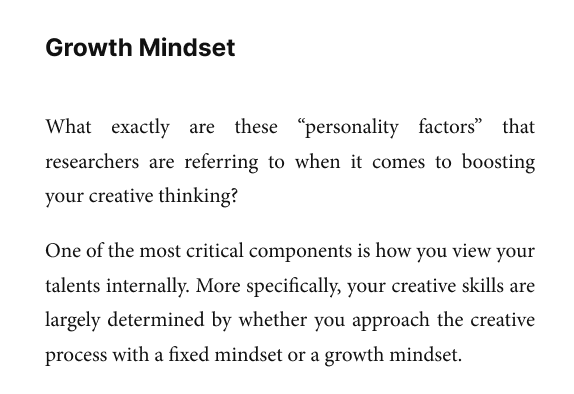
❌ Figure: Bad example - Blog content with justified text creates irregular spacing between words
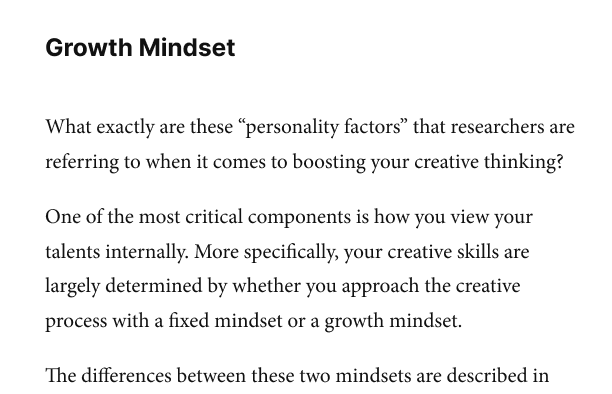
✅ Figure: Good example - The same content with left-aligned text keeps spacing predicatable
How does this look in code?
Align blocks of text either left or right by setting the CSS text-align property.
/* In the style sheet, define the class: */p.left {text-align: left;}/* In the content call up the class. */<p class="left"> Lorem ipsum dolor sit …</p>
Figure: ✅ Good example - Left-aligned text provides consistent spacing between words
3. Provide sufficient line and paragraph spacing
Crowded text blocks are harder to read. Increasing spacing between lines and paragraphs improves readability and helps users track their place in the text.
WCAG recommends:
- Line spacing at least 1.5× within paragraphs
- Paragraph spacing at least 1.5× the line spacing
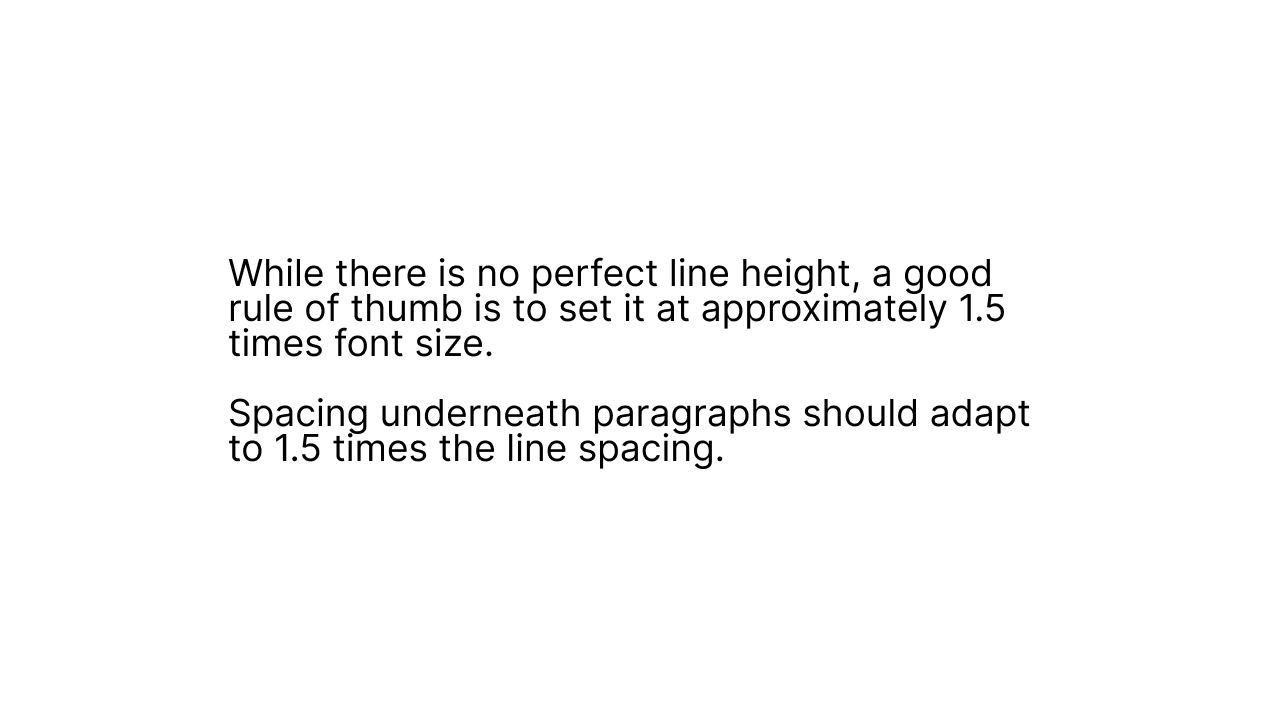
❌ Figure: Bad example - Don't use standard line height
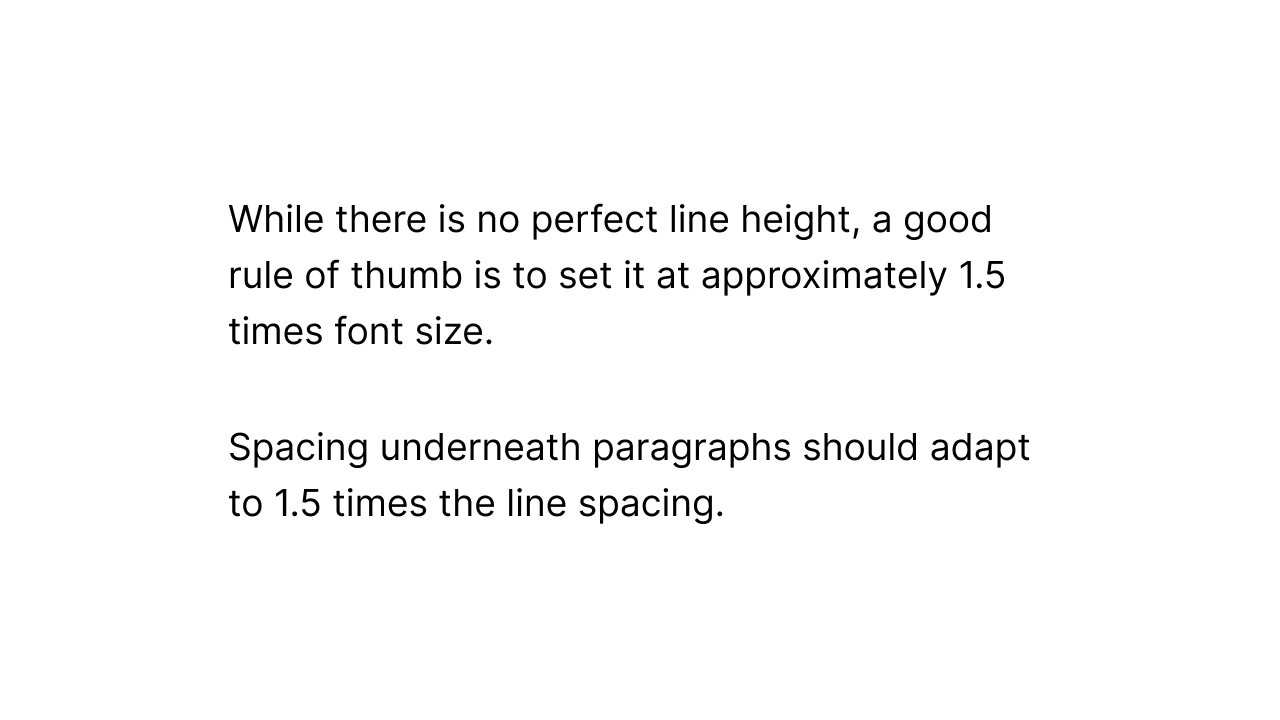
✅ Figure: Good example - Set line height at approximately 150% of font size
How does this look in code?
Help users track lines of text more easily by setting the line-height between 1.5 to 2.
/* In the style sheet set the characteristics of the element. */p {line-height: 1.5;margin-bottom: 1.5lh;}/* In the content the paragraphs will now have increased line spacingand clear spacing between paragraphs throughout the document. */<p>Lorem ipsum dolor sit amet, consectetur adipiscing elit...</p><p>Vestibulum ante ipsum primis in faucibus orci luctus et ultrices posuere cubilia curae...</p>
Figure: ✅ Good example - Adequate spacing improves readability and content scanning
4. Allow text resizing up to 200%
Users should be able to increase text size up to 200% without assistive technology and without losing content or functionality.
When text is enlarged:
- Content should not overlap
- Layout should not break
- Users should not need to scroll horizontally to read a line of text in a full-screen window
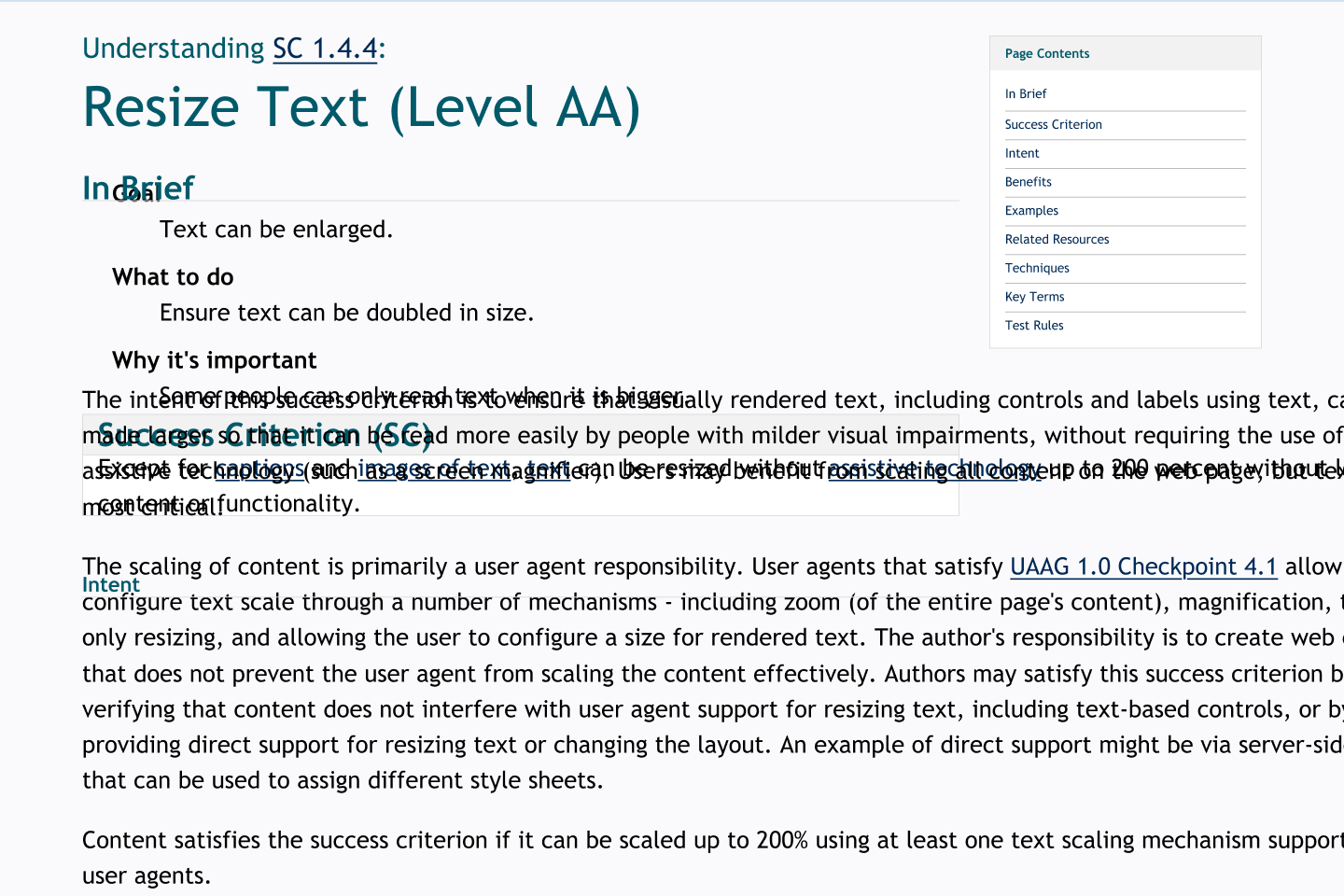
❌ Figure: Bad example - When text is resized to 200%, the layout breaks and users must scroll horizontally to read the content
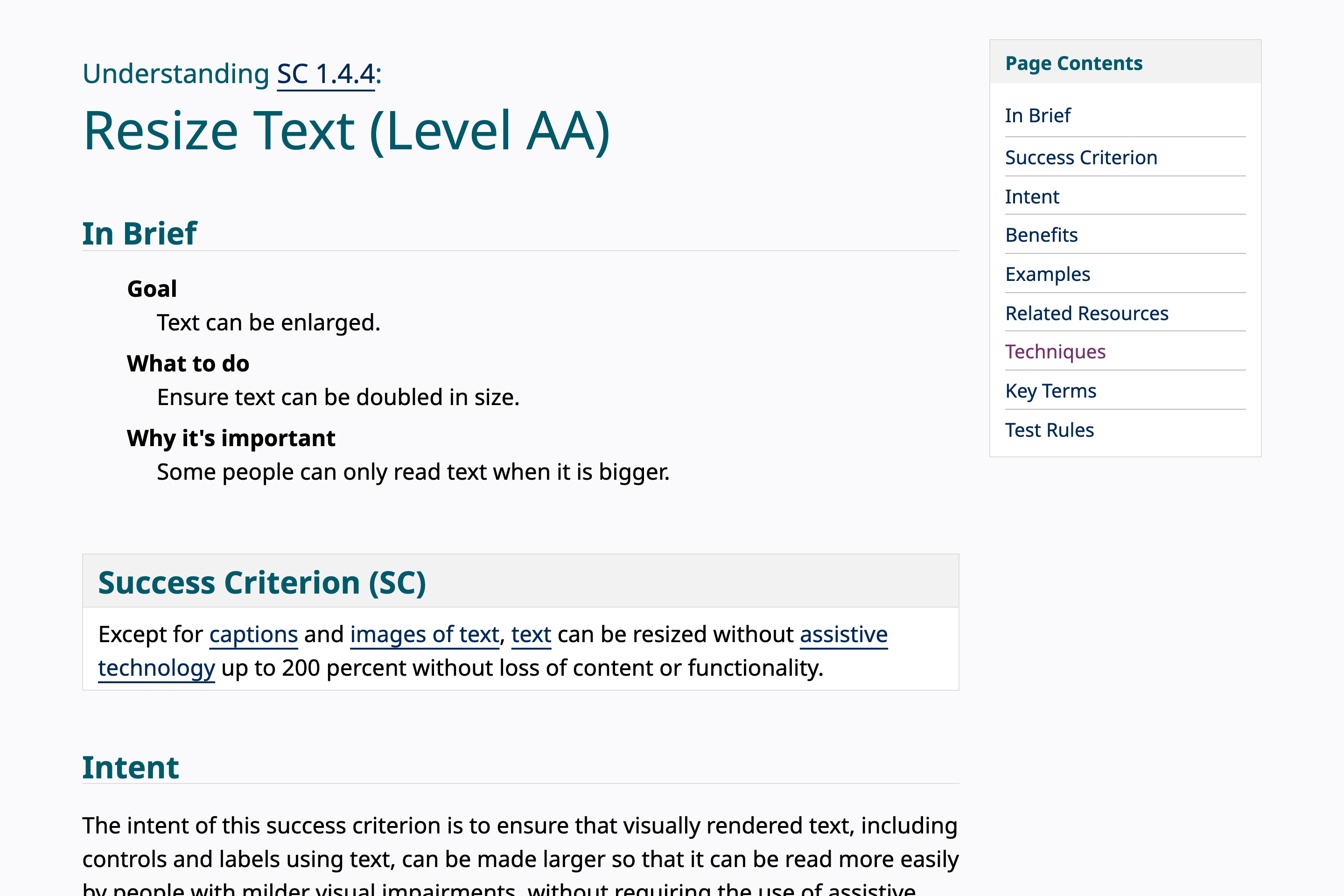
✅ Figure: Good example - Text can be resized up to 200% without breaking the layout or requiring horizontal scrolling
How does this look in code?
A responsive layout allows text to scale to 200% while keeping content readable and fully accessible.
/* Font size uses relative units so text can scale when users zoom */body {font-size: 1rem;}h1 {font-size: 3rem;}/* Limit the width of text containers to prevent long line lengthsand add padding so content has breathing room at larger zoom levels */.text-container {max-width: 80ch;padding: 1rem;}
Figure: ✅ Good example - Using relative units allows text to scale properly when users zoom
So why does this matter?
Improving text presentation benefits many users, including:
- People with dyslexia
- Users with cognitive disabilities
- People with low vision
- Anyone reading large amounts of text
Better visual presentation also improves usability for everyone by making content easier to scan and digest.