Pre-event - Do you know how to allocate Brainstorming teams?
Loading last updated info...
Dividing participants into teams on the day of the brainstorming session can be time-consuming. It is better to form teams in advance. This approach ensures consistent team sizes and allows for early communication of team assignments to participants.
Form - Vote on ideas
Send out a Microsoft Form to the entire company to vote on which ideas they want to work on. It should have the following questions
- Are you attending the Brainstorming Day? (2 options - Yes/No)
- For each idea (1 question per idea) - Do you want to work on {{IDEA NAME}}? {{LINK TO DISCUSSION}} (1 option - Yes)
- Indicate that people should pick 3 or more ideas
Having a separate question for each idea is important to get the data in a good format to allocate teams with minimal data transformation.
Team allocation
Ensure everyone has completed the voting form before allocating teams.
Typically, the form responses exported to Excel will be in a format like this.
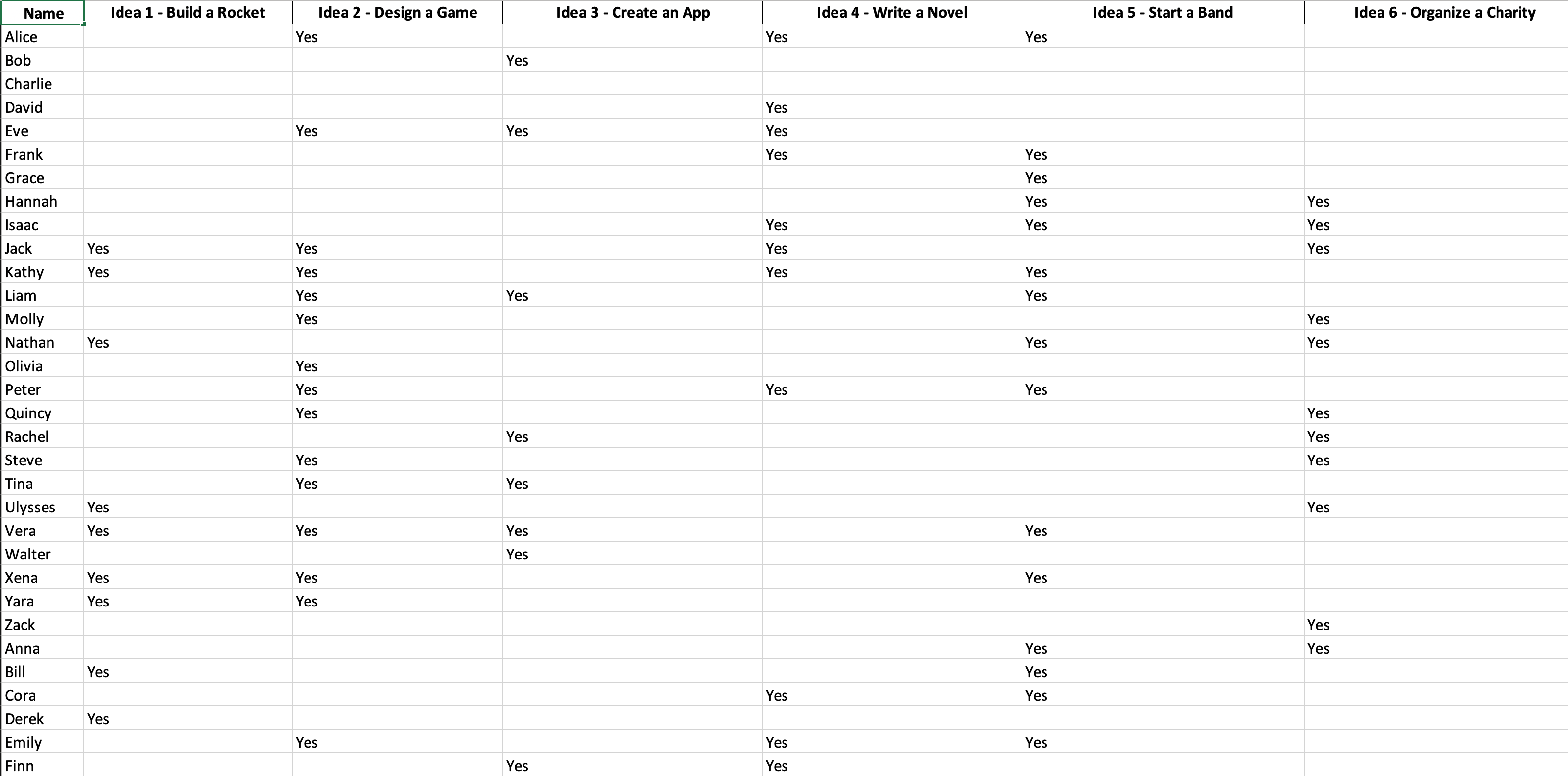
Figure: Data from the form responses
This data format makes it hard to assign teams, you can use ChatGPT Advanced Data Analysis to transform data into a better format.
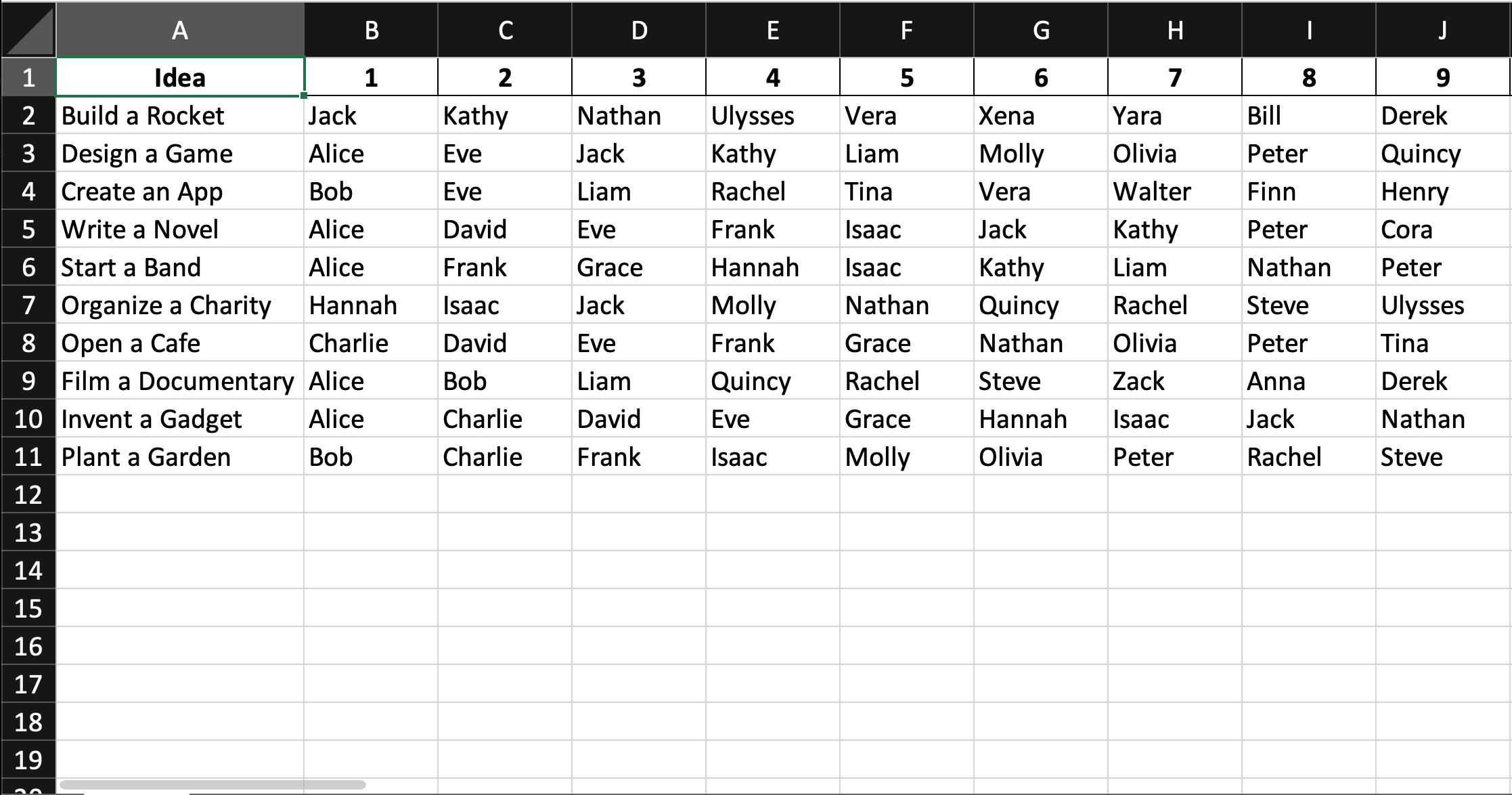
Figure: Transformed data makes it easy to allocate teams
Upload the Excel file to ChatGPT and use this prompt
I need this data in a format to allocate teams, I want each idea as a row and then each person who voted for that idea as a column after it.
- To assign teams, start by assigning the most capable people to each team as a Idea Champion
- After each team has an Idea Champion, assign the remaining people based on their preferences, skillset, and interests
- Aim for team sizes of 3-5 people
- Any larger than this is, it is too hard to manage and get everyone involved.
- Try to encourage inter-office communication by putting people from different offices on the same team.
- Each team also needs to be assigned an Idea Product Owner person to test the presentation and give feedback.
- Once everyone is allocated a team, share the result with the group.
Team location allocation
It is also a good idea to pre-allocate the team locations in cases where there are many teams, or a specific team placement is required (e.g., several teams need access to the same stakeholder). Doing this ahead of the Brainstorming Day minimizes the time spent on self-organization by the teams on the day itself, which can be quite time-consuming.
To make the allocation process smoother, write down the team's specific requirements, such as the need for access to a developer workspace with multiple monitors or if the team needs access to a specific stakeholder.
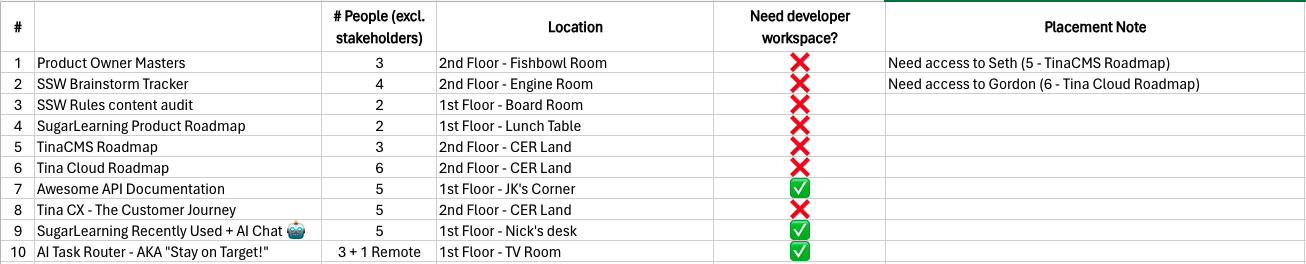
Figure: Pre-allocate teams's location
Team setup
In order to make the Brainstorming Day as productive as possible, set up the PowerPoints using a template.
- Create a new Teams team for the Brainstorming Day E.g. Sydney Brainstorming 2023
- For each team, create a folder in the Files tab
- Use a Brainstorming PowerPoint template to create a PowerPoint for each team. See Do you know how to structure a Brainstorming presentation?
Having all the presentations in one location (Teams team) makes it easy to collaborate and ensures they won't be lost. It also means all the presentations can happen on a single device, instead of switching laptops every presentation which can be slow and lead to AV issues.
Share the teams with the company
Once the teams have been allocated, create a new GitHub Discussion with all the ideas and the teams with a link to the original idea Discussion. Share the Discussion in an email to the entire company.
Putting the team allocations in a Discussion allows updates if attendees change or if the teams need to be updated.
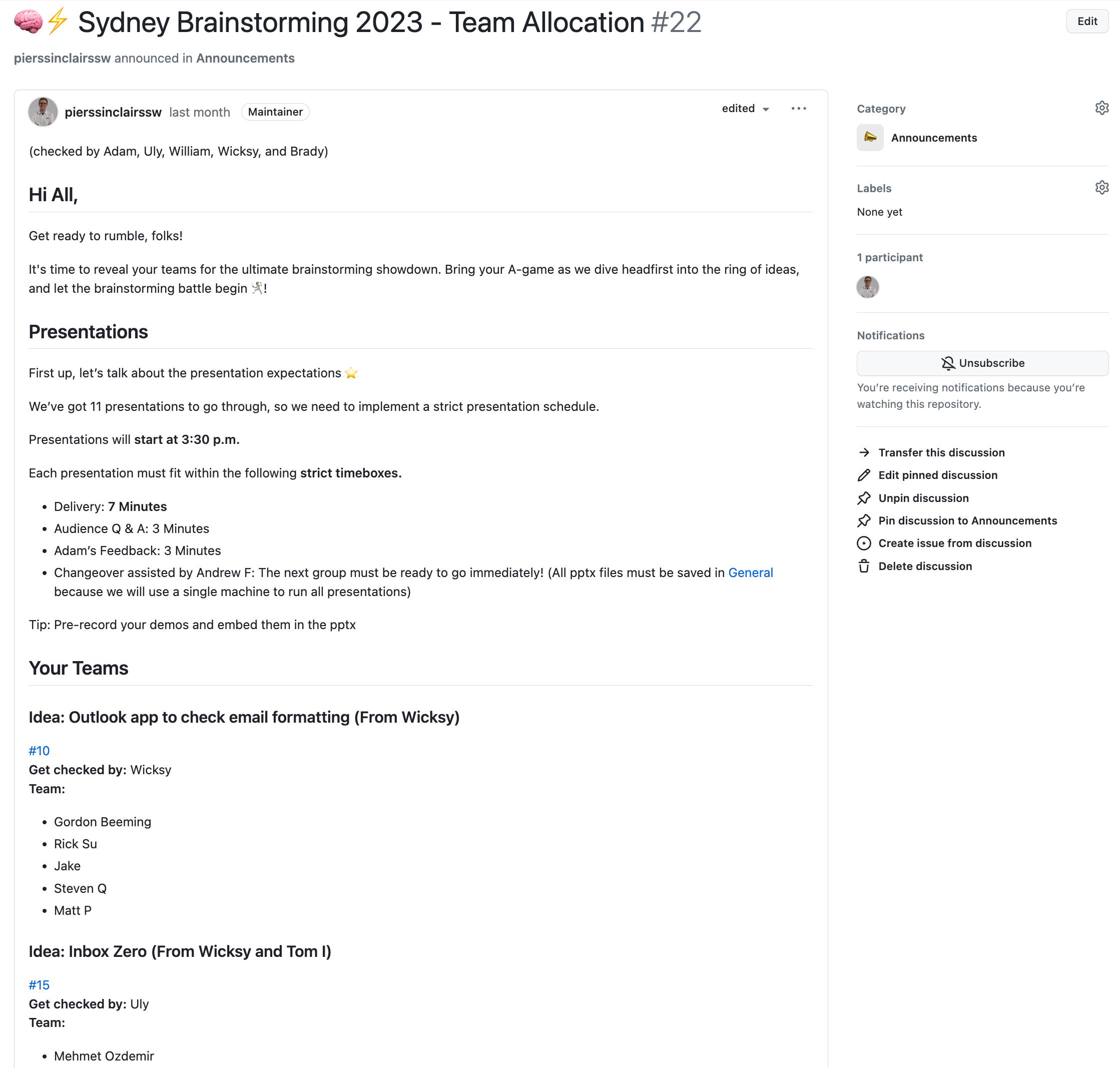
Figure: GitHub Discussion - Team allocations
Tip: For extra visibility, also pin it on the repo.