This rule has been archived
Outdated - See https://www.ssw.com.au/rules/rules-to-better-unit-tests/
Do you Add SSW Code Auditor, NUnit and Microsoft FxCop project files to your Solution
Loading last updated info...
SSW Code Auditor, NUnit and Microsoft FxCop are tools to keep your code "healthy". That is why they should be easily accessible in every solution so that they can be run with a double click of a mouse button.
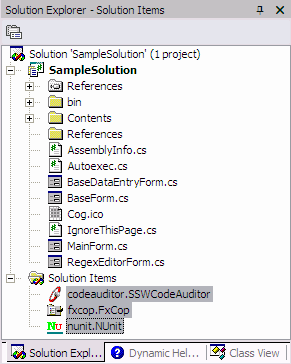
✅ Figure: Good example - CodeAuditorProjectFile
To add a SSW Code Auditor file to your solution:
- Start up SSW Code Auditor
- Add a new Job
- Add a the solution file to be scanned
- Select the rules to be run
- Configure email (not required)
- Select File > Save As (into the solution's folder as "c odeauditor.SSWCodeAuditor ")
- Open your Solution in Visual Studio
- Right click and add existing file
- Select the SSW Code Auditor project file
- Right click the newly added file and select " Open With "
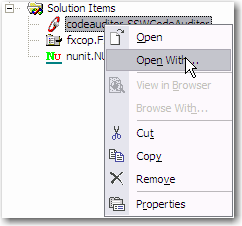
✅ Figure: Good example - OpenWith
- Point it to the SSW Code Auditor executable
See Do you run SSW Code Auditor? See Do you check your code by Code Auditor before check-in? To add a Microsoft FxCopfile to your solution:
- Stat up Microsoft FxC
- op
- Create a New Project
- Right click the project and Add Target
- Select the Assembly (DLL/EXE) for the project
- Select File > Save Project As (into the solution's folder as " fxc op.FxCop ")
- Open your Solution in Visual Studio
- Right click and add existing file
- Select the Microsoft FxCop project file
- Right click the newly added file and select " Open With "
- Point it to the Microsoft FxCop executable
To add a NUnitfile to your solution:
- Stat up NUn
- it
- Create a New Project by selecting File > New Project and save it to your solution directory as " nun it.NUnit "
- From the Project menu select Add Assembly
- Select the Assembly (DLL/EXE) for the project that contains unit tests
- Select File > Save Project
- Open your Solution in Visual Studio
- Right click and add existing file
- Select the NUnit project file
- Right click the newly added file and select " Open With "
- Point it to the NUnit executable
Now you can simply double click these project files to run the corresponding applications.
| We have a program called SSW Code Auditor that implements this rule. |
|---|