Do you know how to create a link to a URL in SharePoint?
Loading last updated info...
You may need a link in a SharePoint document to help you navigate to a different URL (like shortcut in Windows), there are different ways to implement this.
❌ A. Create a shortcut in windows, then upload the shortcut file (.url) to the document library.
✅ B. Use "Link to a document" content type in SharePoint.
Details on how you to create a link to a document in a SharePoint library.
A. Create a shortcut in windows, then upload the shortcut file (.url) to the document library.
To do this, you need to remove .url file type from your blocked file types in your web application. This will bring some security risk, which is not recommended, and I won't show the step details here.
B. Use "Link to a document" content type in SharePoint.
- Enable "Content Type management" in your document library.
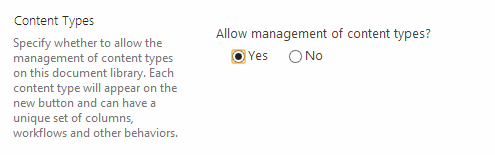
Figure: Enable Content Type management in library setting
- Add "Link to a Document" content type into the library.
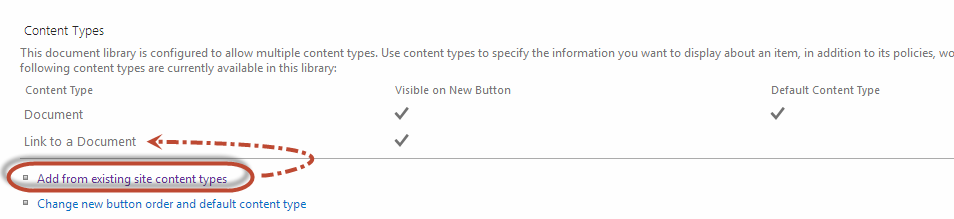
Figure: Add from existing site content type
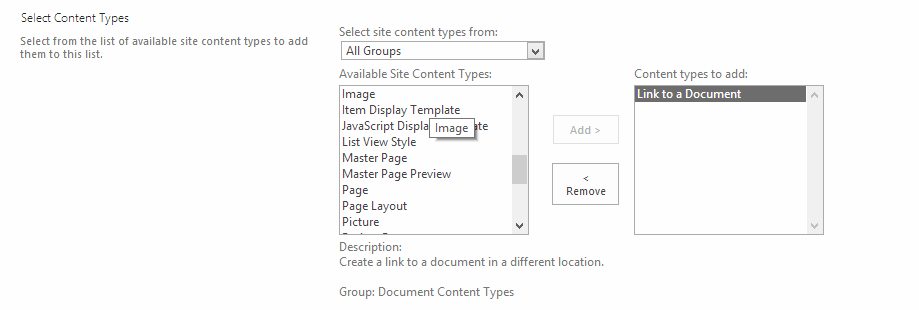
Figure: Select "Link to a Document" content type
- Create a "Link to a document" instance
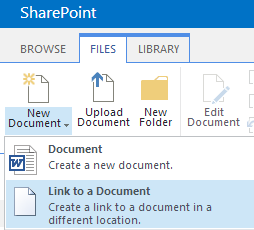
Figure: select "File | New Document (dropdown) | Link to a document"
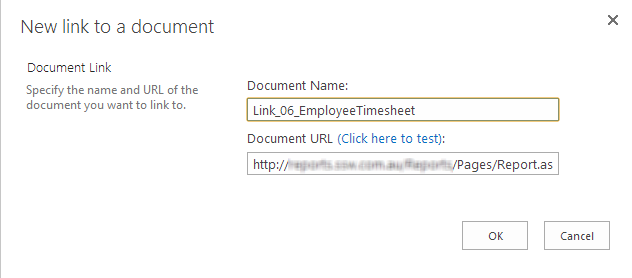
Figure: Input "Name" and "URL"
- Done
You should be able to see the link type document in your library:

Figure: Link type documents with the lovely shortcut icon