Security - Do you use Microsoft Entra Privileged Identity Management?
Loading last updated info...
Microsoft Entra Privileged Identity Management (PIM) - formerly Azure Active Directory PIM enables a more secure, manageable and monitorable approach to assigning privileged permissions in your organization.
PIM enables just-in-time privileged access for users that are eligible for it, reducing the chance of privileged actions being done by malicious (or unaware) actors.
Things that we can do with PIM (taken from What is Microsoft Entra Privileged Identity Management?):
- Provide just-in-time privileged access to Entra ID and Azure resources
- Assign time-bound access to resources using start and end dates
- Require approval to activate privileged roles
- Enforce multi-factor authentication to activate any role
- Use justification to understand why users activate
- Get notifications when privileged roles are activated
- Conduct access reviews to ensure users still need roles
- Download audit history for internal or external audit
- Prevents removal of the last active Global Administrator and Privileged Role Administrator role assignments
Adding assignments in PIM
As best practice, your company should use PIM to give access to new SysAdmins.
Do the following:
- Go to Assignments | Add Assignment:
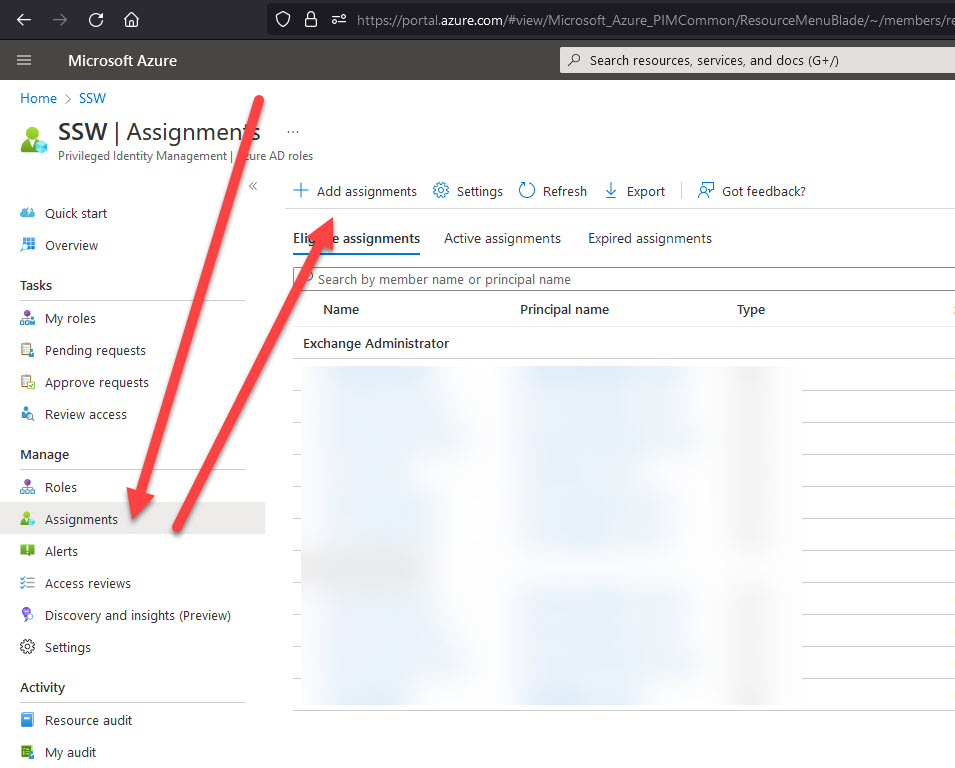
✅ Figure: Good example - Assigning roles in PIM
- Select Role | Select members | Next
- Here, you have 2 options:
- Eligible: The member is eligible for activating the permissions, permanently or for a set period of time. Every time they activate, they will have the permissions for up to 8 hours, then they will lose it and will need to activate again. Activating is a manual process of going to PIM and clicking "Activate"
- Active: The member has the permissions active, forever or for a set period of time. They don't need to perform any manual steps to activate anything
- Select the correct one | Add a justification | Assign:
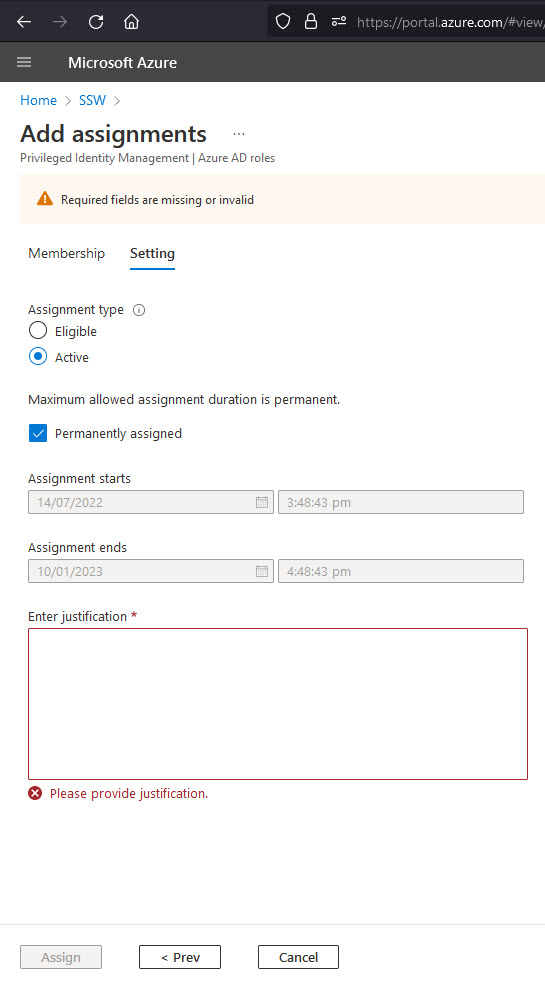
✅ Figure: Good example - Having the option of Eligible and Active makes PIM flexible
You are now assigned roles in PIM.
Activating assignments in PIM
If you are eligible for assignments, you can activate them by doing the following:
- Click on My Roles | Role | Activate:
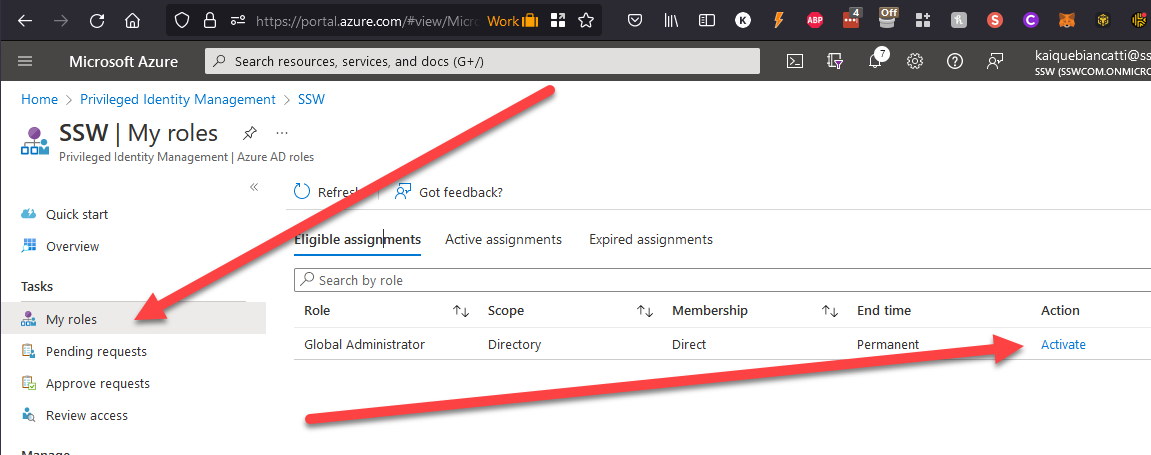
✅ Figure: Good example - Activate just-in-time roles only when you need it
- Go through the steps to add a justification and time you need that access for.
You now have that role active for you, for up to 8 hours.
Receiving PIM alerts on your email
PIM has built-in alerts that will send an email when assignments are activated, together with its justification, who activated it, the role activated, and extra information:
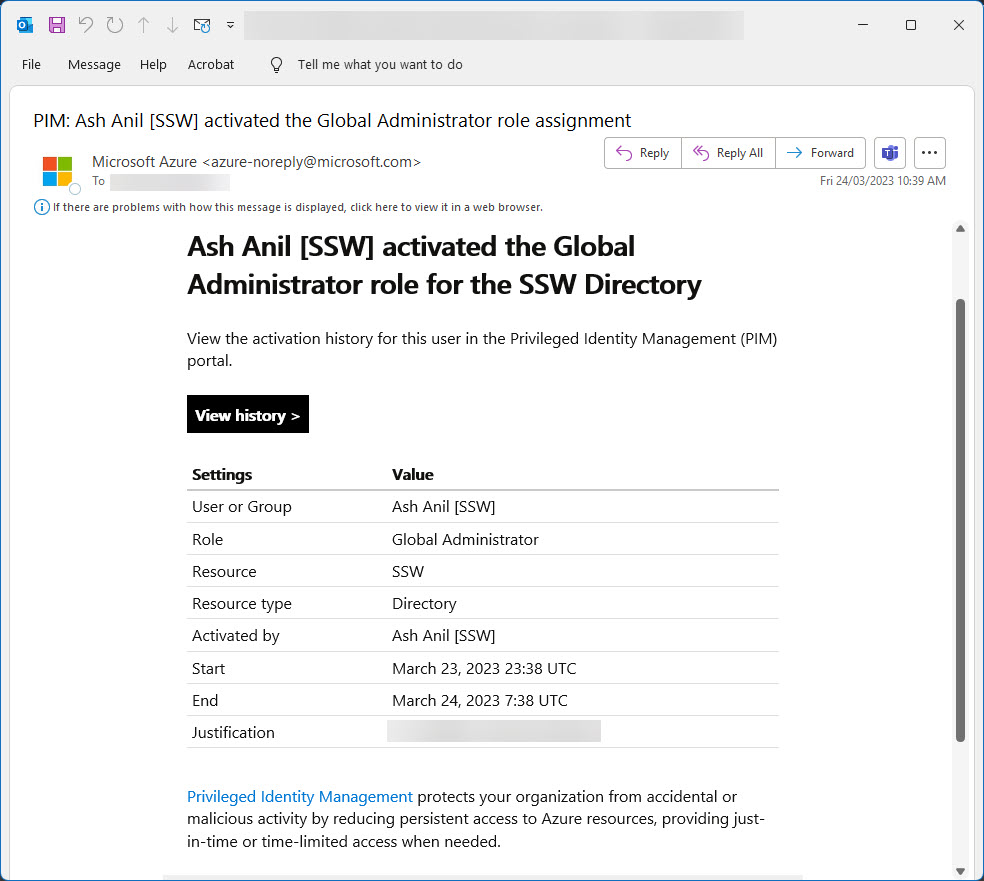
✅ Figure: Good example - PIM emails you when assignments and roles are activated, you can see straight away if something's wrong!