Do you safely develop and deploy Power BI report changes?
Loading last updated info...
The ideal development workflow is to clone the repository, make changes in Power BI Desktop, and follow the standard feature-branch and pull-request process.
However, when an administrator needs to make a small Power BI report change without waiting for a developer, a Git-connected Development workspace provides a simple editing experience.
What is a Power BI workspace?
A Power BI workspace is a shared location where users can view, edit, and manage reports, semantic models, and other Power BI items. Use the workspaces as follows:
- Development – used by administrators to edit and test reports on a feature branch
- Staging – connected to main and used to validate approved changes
- Production – contains approved reports used by end users and is updated only through the deployment pipeline
How does a workspace work with Git
A workspace connects to one Git repository, one branch, and one repository folder at a time. Changes made in the workspace are compared with its connected branch:
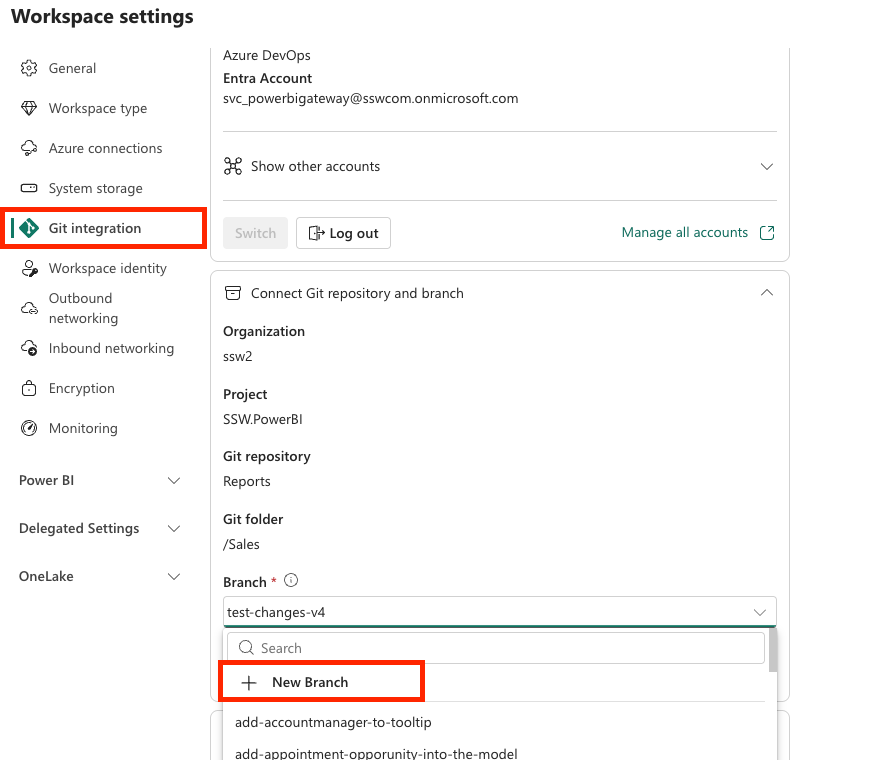
Figure: Create and connect branch to the workspace
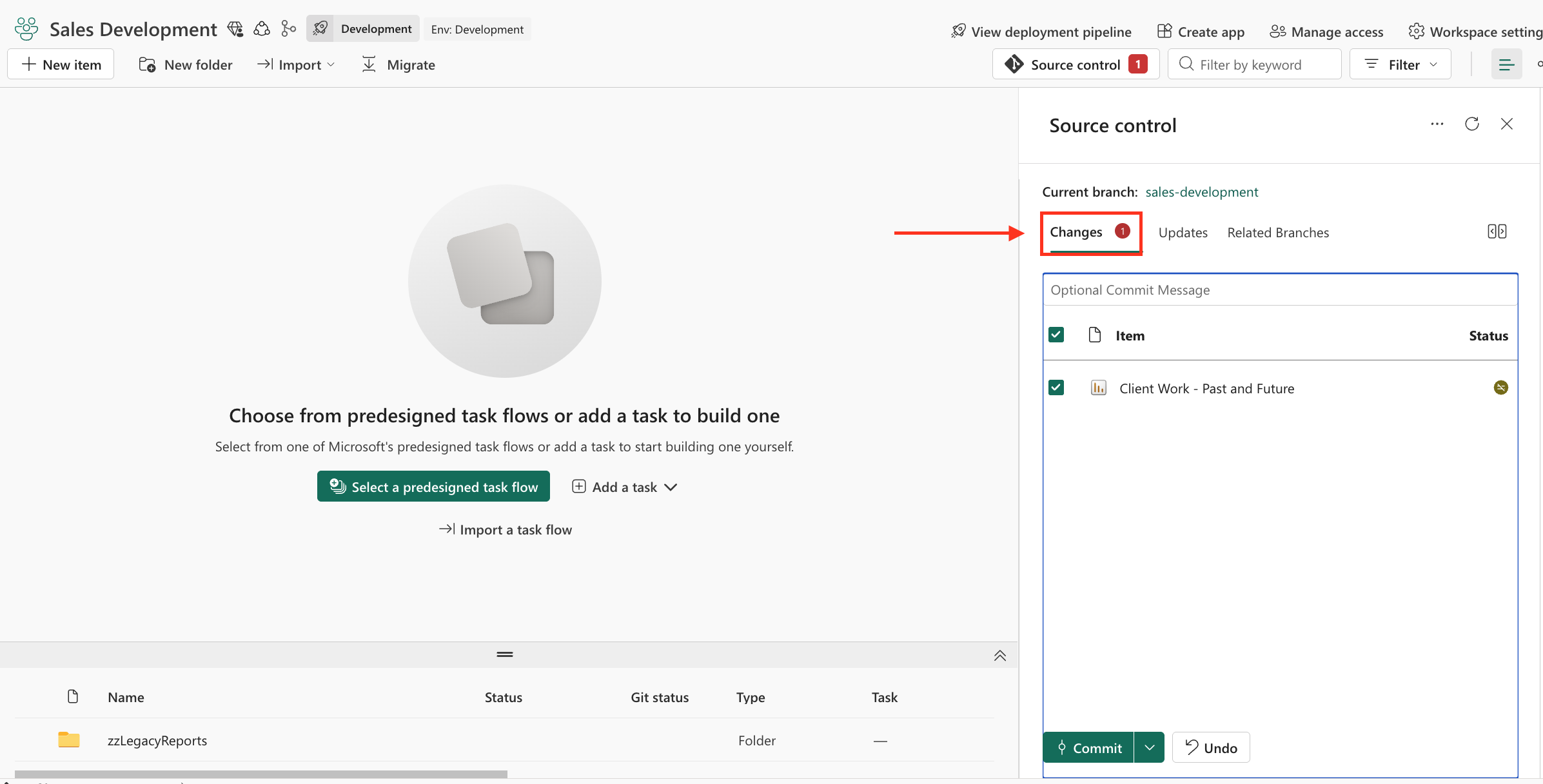
Figure: Changes – workspace edits that have not been committed to Git
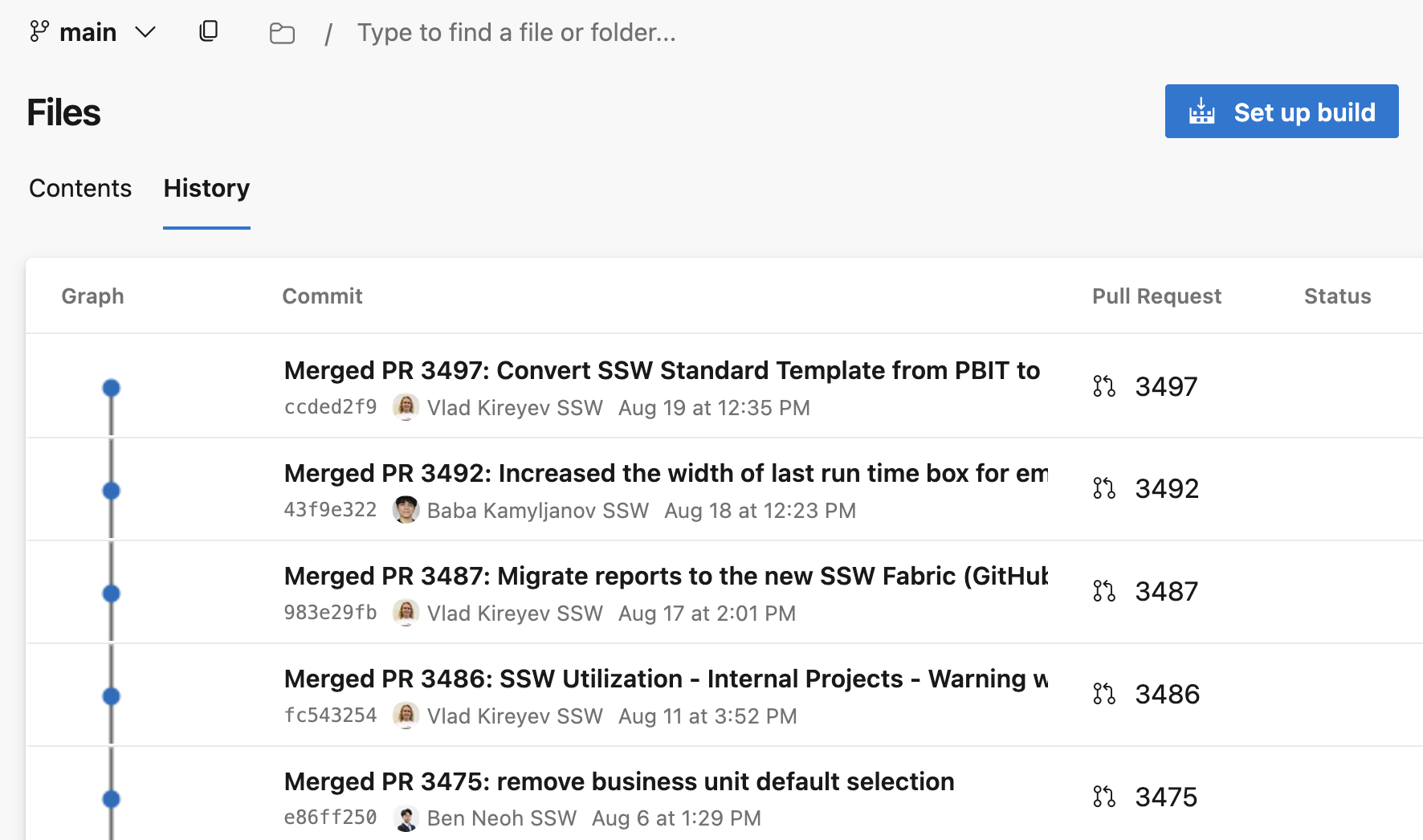
✅ Figure: Good example - Git history for Power Bi report
How to commit changes from workspace
1. Open the Development workspace.
2. Create a feature branch from the latest main branch, switch the Sales Development workspace to the new feature branch.
3. Edit, save, and test the report.
4. Open Source control (see image above)
5. Review the changed items.
6. Enter a clear commit message, and commit the changes
7. Create a PR from the branch and ask for review
How are Power BI changes deployed?
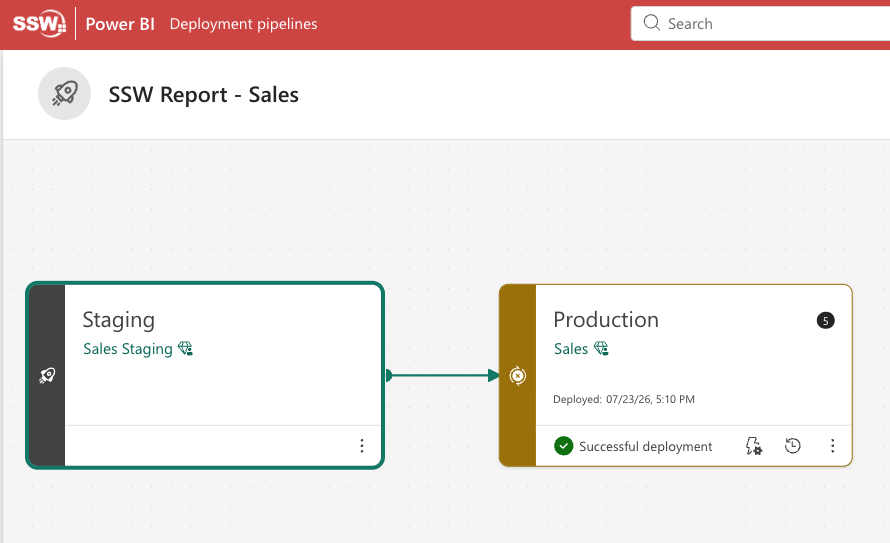
Figure: Power BI deployment pipeline example
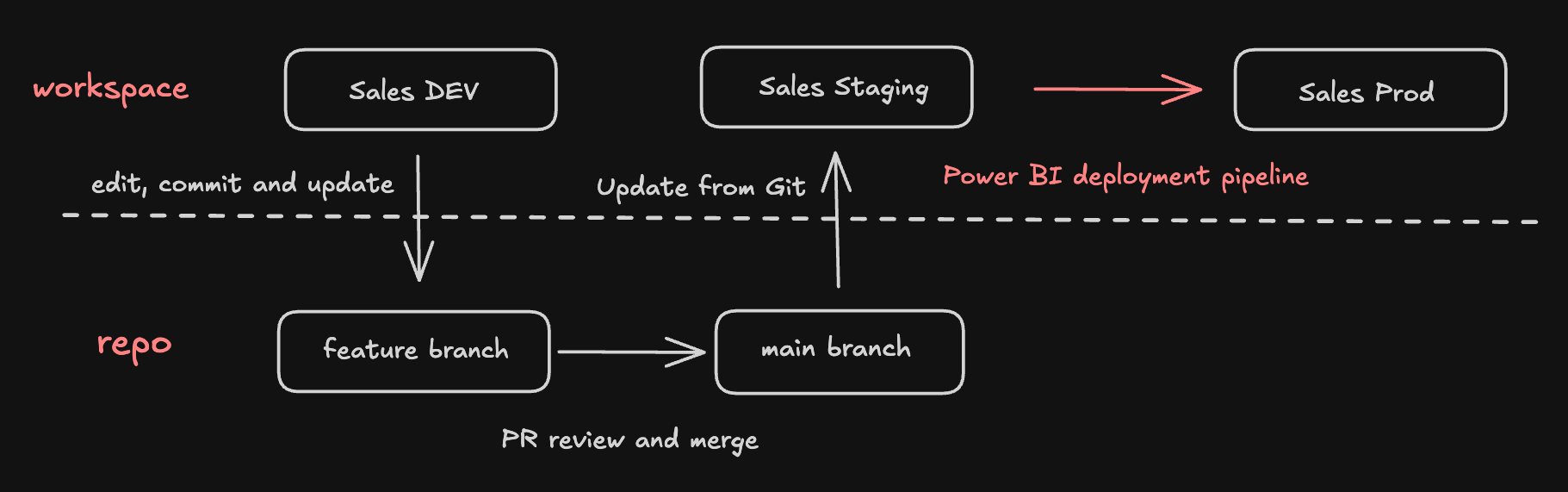
✅ Figure: Good example - Figure: Power BI deployment pipeline
- Review and merge the approved pull request into main
- Sync the Staging workspace with the latest changes from main.
- Test the updated reports in Staging.
- Open the Power BI deployment pipeline.
- Compare the Staging and Production workspaces.
- Deploy the approved changes to Production.
Your changes are now live 🎉
Solution adapted from Microsoft Fabric’s official CI/CD workflow documentation. See details