Do you add captions (aka subtitles) to your videos?
Loading last updated info...
Captions make videos accessible to people who are deaf or hard of hearing, viewers watching without sound, and people who find the spoken language difficult to follow. They also make unclear audio easier to understand.
YouTube can generate captions automatically, but speech recognition can get names, technical terms, acronyms, punctuation, and timing wrong. Treat auto-generated captions as a starting point, not the finished result. Always review and correct them.
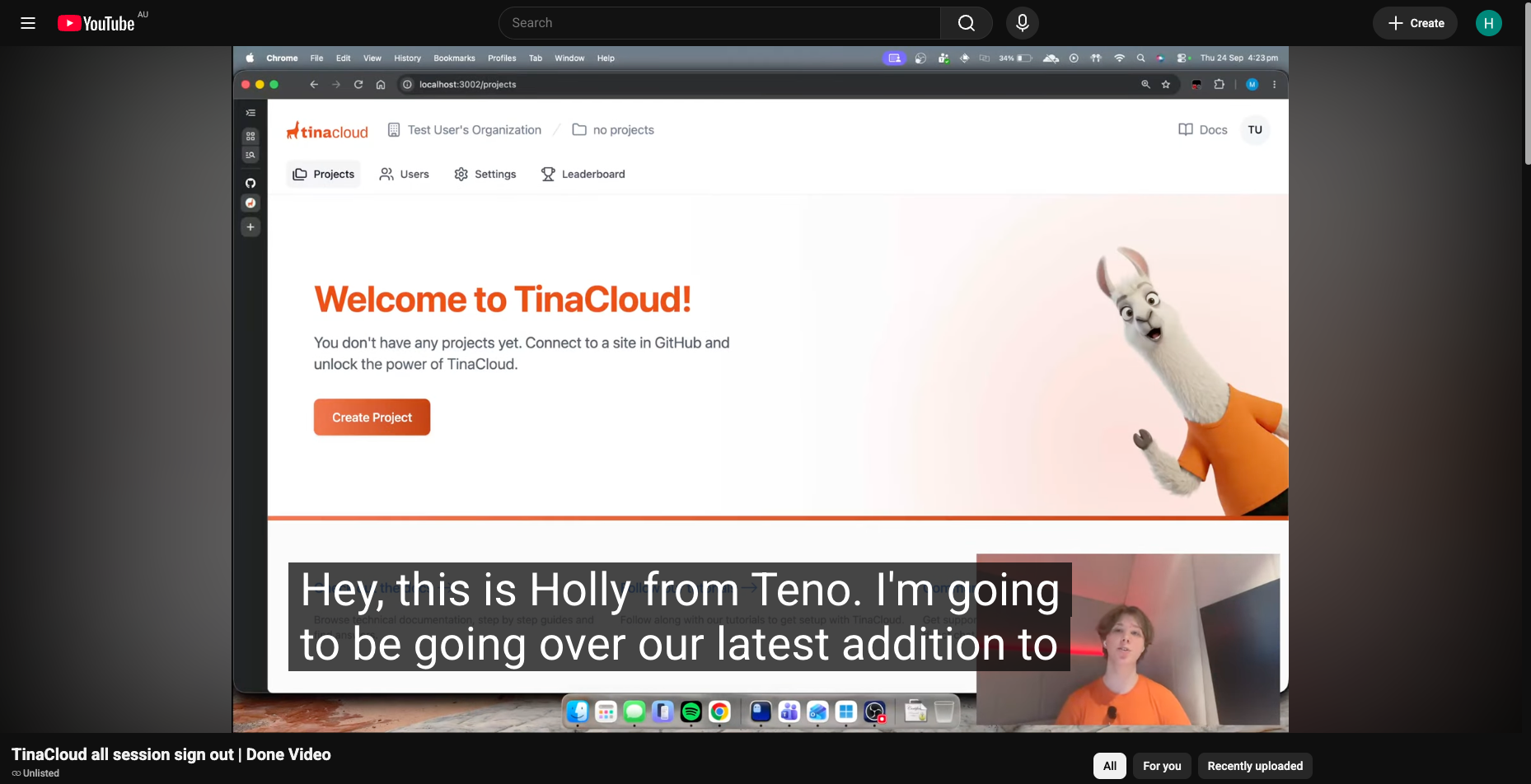
❌ Figure: Bad example - Captions are auto-generated and hard to read
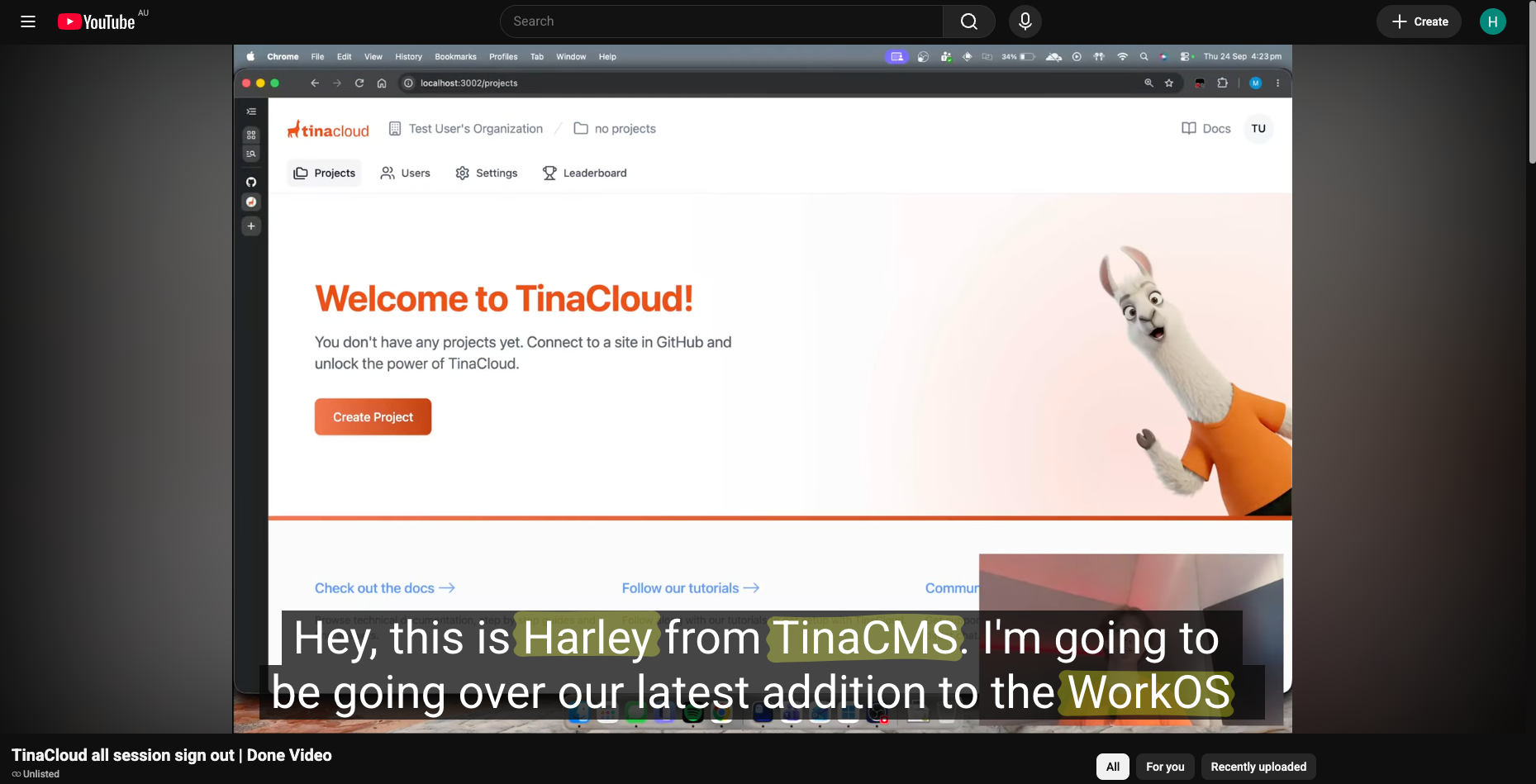
✅ Figure: Good example - Captions edited to reflect correct grammar and spelling
How to correct YouTube's auto-generated captions
Once YouTube has finished generating the automatic caption track:
- Sign in to YouTube Studio
- In the content section, select your video
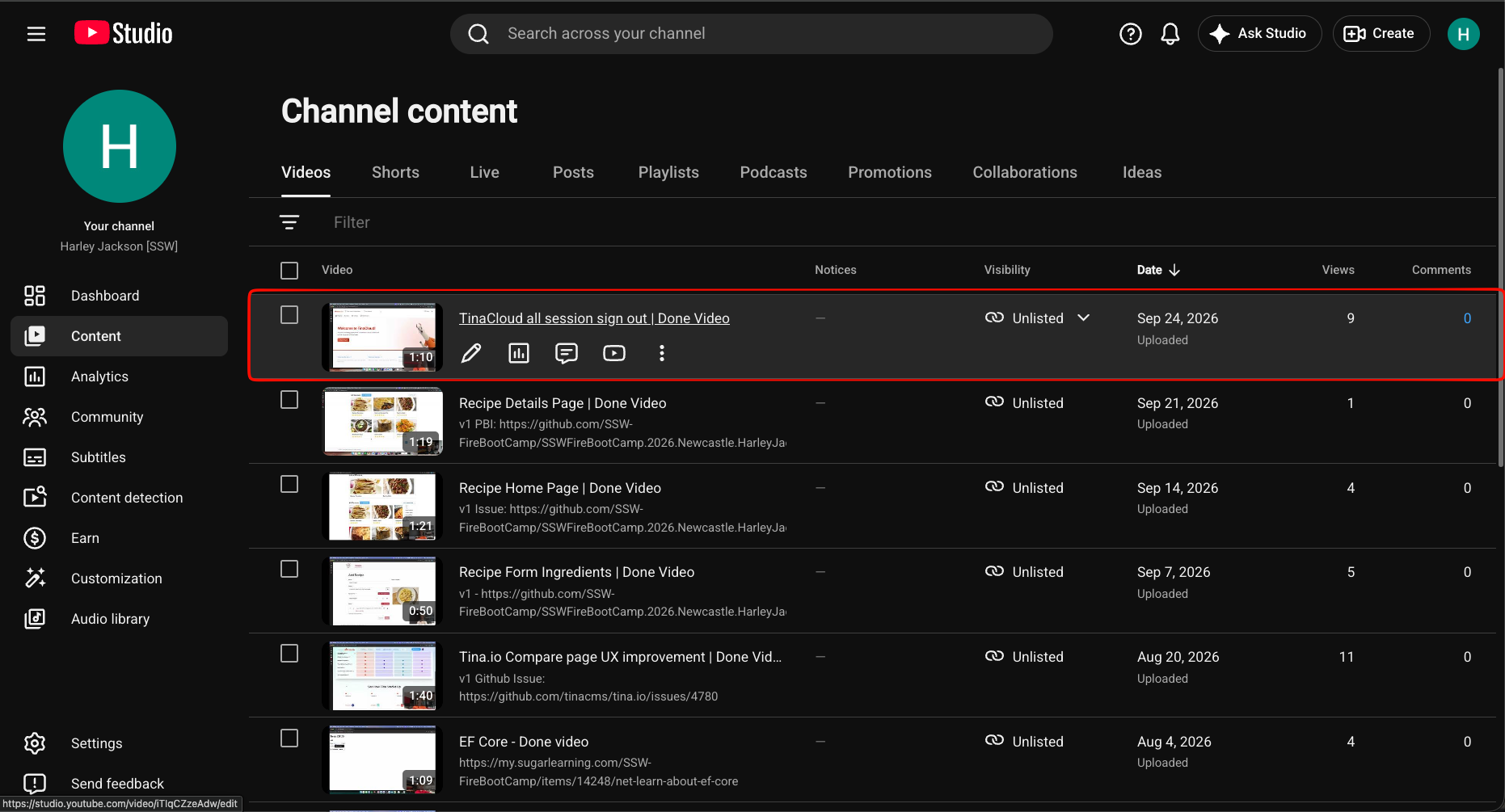
Figure: Selecting video in Content Section
3. Find the video's language and, in the Subtitles column, select Edit
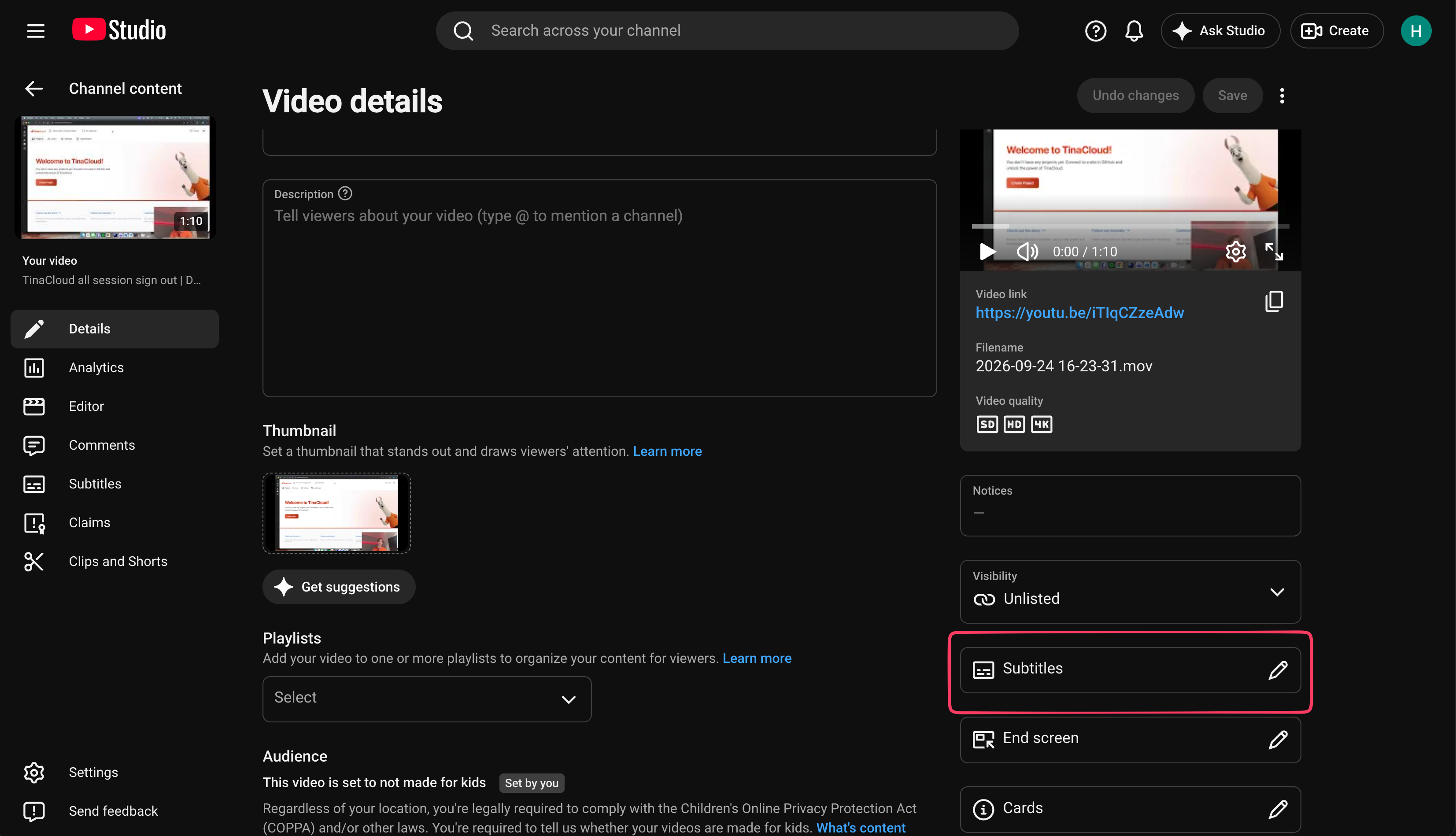
Figure: Selecting video language
5. Play the entire video and correct the caption text
6. Check the timing (with the edit timings button) and adjust the timestamps when captions appear too early or late
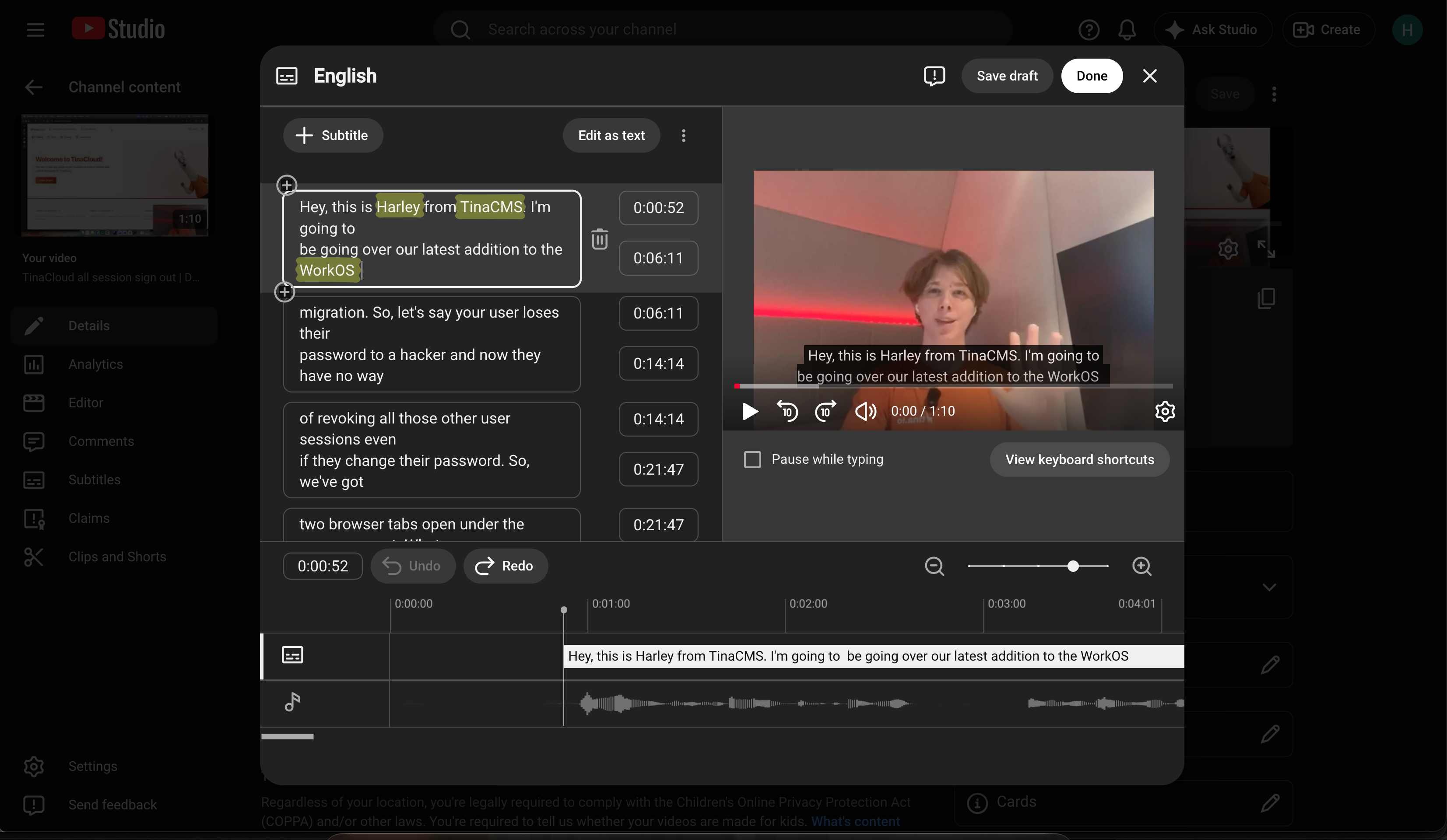
Figure: Editing the subtitles
7. Select Publish
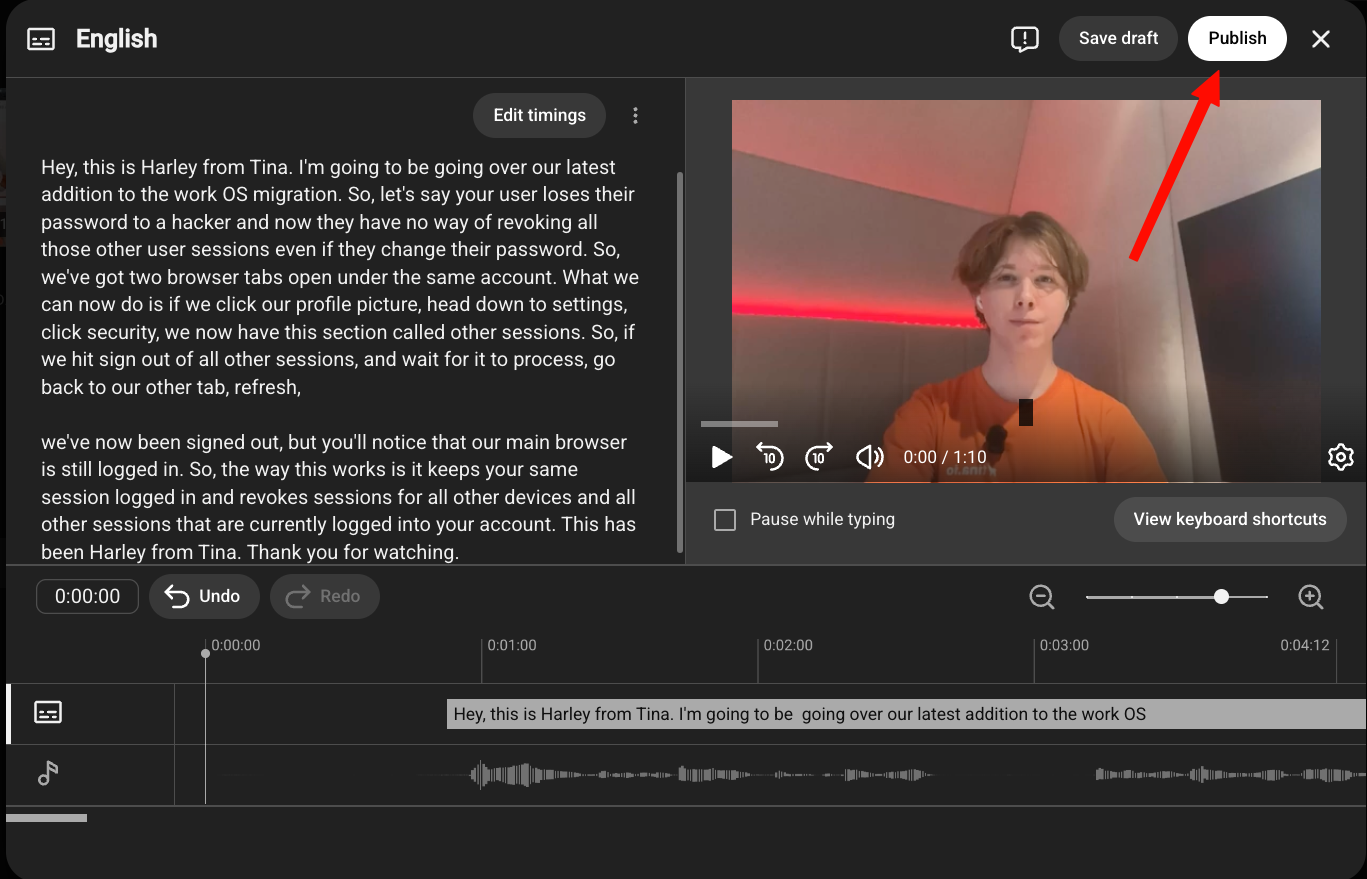
Figure: Publish button
8. Watch the published video with the sound off and captions on to complete a final check
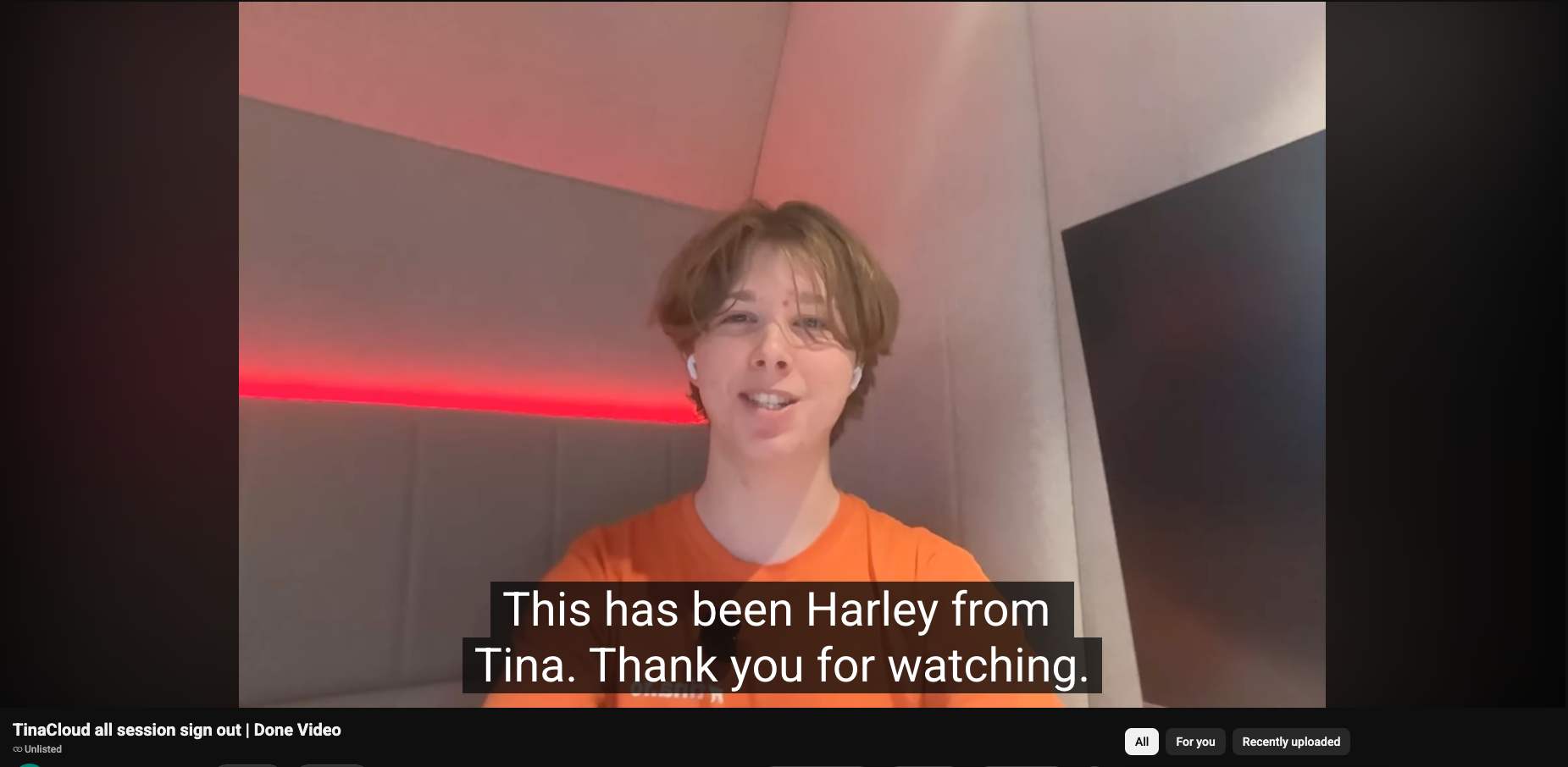
Figure: Watching the final video
Pay particular attention to:
- People's names, company names, and product names
- Technical terms, acronyms, URLs, and code
- Punctuation and capitalization
- Missing or incorrect words
- Caption timing and readable line breaks
- Speaker changes and important non-speech audio
Editing YouTube's automatic captions creates a new caption track containing your corrections. For a long video or extensive changes, you can download the subtitle file, edit it in a text editor or captioning tool, and upload it again.
For more information, see YouTube Help - Edit or remove captions.