Do you know the best boardroom AV solution?
Loading last updated info...
There are several ways you can set up your boardroom AV for effective and efficient conferencing. The best and recommended solution today is Microsoft Teams Rooms with a Logitech setup.
Microsoft Teams Rooms (Recommended)
The easiest and most reliable way to run hybrid meetings is to use a Teams-certified Logitech bundle.
This includes the camera, microphones, speakers, and a Teams Room console – all purpose-built for different room sizes (Huddle, Medium, or Boardroom).
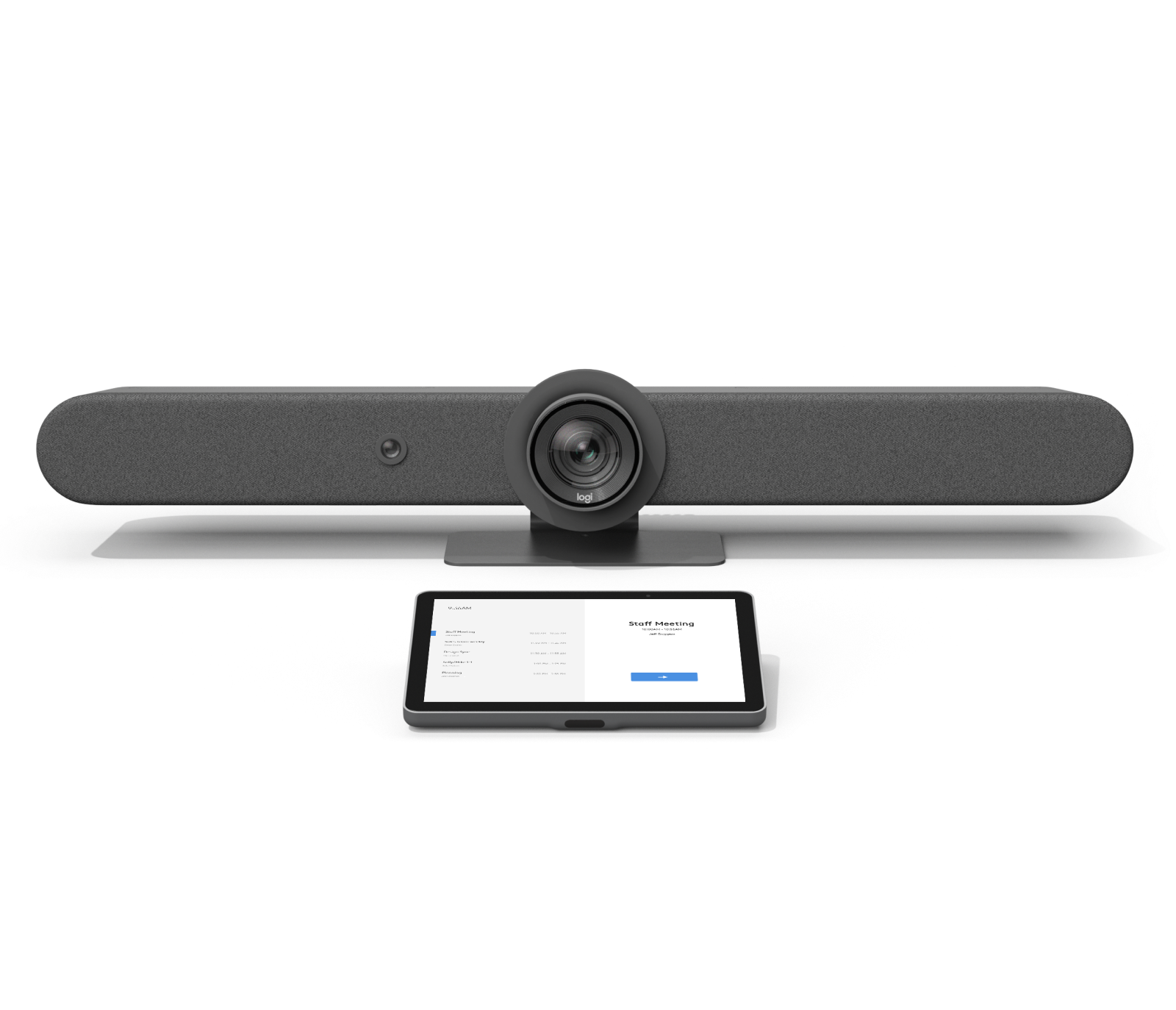
Figure: Microsoft Teams Rooms with Logitech setup
✅ Pros:
- One-touch join from the Teams Room console – no cable chaos
- Seamless integration with Microsoft 365 and Outlook
- Logitech hardware bundles are designed for Teams, providing excellent camera and audio quality
- IT-friendly – secure, managed, and built for corporate networking
- Works with both internal staff and guests (via Teams invites)
- Can still present wired (HDMI) or wirelessly using Logitech Swytch
❌ Cons:
- Higher upfront cost compared to consumer solutions
- Tied to Microsoft Teams (limited if your company standardises on other platforms)
Apple TV
A popular way to connect devices wirelessly to the boardroom TV is to use an Apple TV.
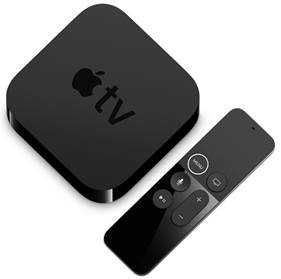
Figure: Apple TV with remote
✅ Pros:
- It allows you to connect any Apple device including iOS.
- Easy to use for Apple users
- Can be easily added to an AV automation system, e.g. Control4, Savant, etc. which allows you to display on any other display connected to the same AV system
- Inexpensive way of adding wireless connectivity to an existing system
❌ Cons:
- Only works with Apple devices
- Not designed for corporate networking (can’t have both guest access and secured network at the same time)
- Guest need to be on a corporate network to connect
Smart TV’s with built-in AirPlay, Google Cast and Miracast
A newer way to connect wirelessly is to use Smart TV’s built-in features.
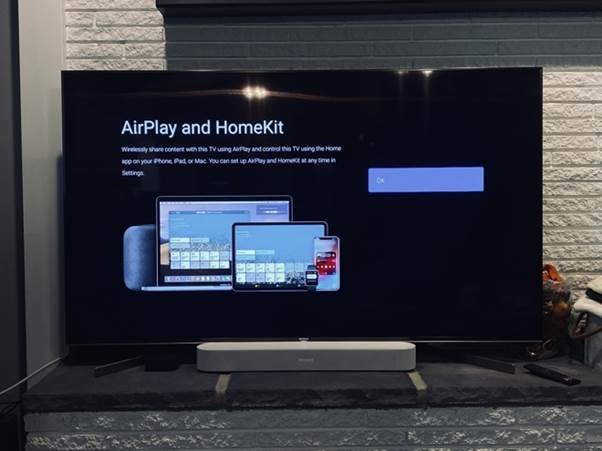
Figure: Samsung Smart TV with built-in AirPlay
✅ Pros:
- Allows you to wirelessly connect any Apple device including laptop and IOS
- Can connect Windows laptops through Miracast
- Can also connect Android devices through Google Home
❌ Cons:
- Not all Windows laptops have Miracast capability
- Not designed for corporate networking (can’t have both guest access and secured network at the same time)
- Guest need to be on a corporate network to connect
- Display cannot be shared across multiple screens in an automated AV setup, e.g through Control4
Extron
For a more robust AV solution, you can install an Extron system. We recommend the ShareLink Pro.
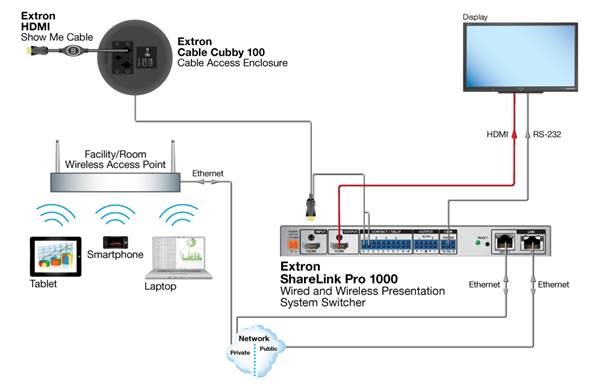
Figure: Extron ShareLink Pro 1000 diagram
✅ Pros:
- Allows you to wirelessly connect any device
- Also has an HDMI through connection for wired fallback
- IT-friendly with monitoring tools and dual networking options, allowing for guests to connect without hassle
- Can integrate as part of an AV automation system, e.g. Control4 or even Extron’s own
- Extron support and reliability is highly rated
❌ Cons:
- Requires an app – users can’t just connect natively
- Expensive
Barco Clickshare
A more advanced wireless solution, Barco Clickshare allows you to use any laptop device without installing software by connecting a small USB dongle. The Clickshare 'brain' is connected to your TV or AV hub via HDMI.
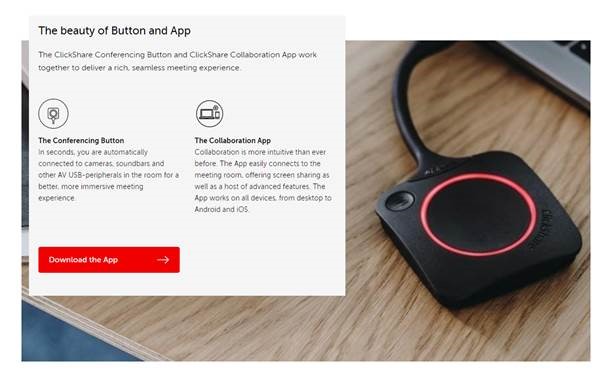
Figure: Barco USB dongle for the laptop, or an app for your smartphone
✅ Pros:
- Allows you to wirelessly connect any smartphone via an app
- Both windows and apple laptops can connect via the included USB dongle
- Multiple users can connect and switch presentations easily
- IT-friendly with lots of controls and security features
❌ Cons:
- Compared to a wired HDMI signal, the video will not play super smoothly all the time (bad if you’re playing back videos for review)
- Dongles can easily be lost
- Most expensive option (can be around 8K AUD for the 4k version)