Do you avoid logging out and logging in?
Loading last updated info...
Imagine this... a client calls you in a panic when you are working at another client. You need to login to their DevOps portal to see the problem and so you sign out of your current clients DevOps portal ...wait... wait... get a 2-factor SMS... wait... and then finally get in! But then you notice it also knocked you out of the Azure Portal and your Office 365 email that you were previously signed into. Annoying!
Microsoft Edge & Google Chrome Profiles allow you to use different credentials
Tips:
- Never log out
- Never use Incognito (where you need to login)
- Install your cool extensions in each of your Edge or Chrome profiles
- Remove clutter from the new tab experience to increase focus
- Set a different image for your new tab page for each of your browser profiles
Consultants usually work on different client projects and use different client credentials eg. Azure DevOps, Azure Portal and sometimes an email account with the client’s branding. Password managers are great, but going from client to client you have to continually switch between accounts by logging out and logging in with different credentials.
Q: Is this only for developers? A: No, my PA uses this (in her case, her "client" is Adam 😉)
Many people have an Office 365 account, and a personal Office 365 account. If you want to avoid keeping logging in and out to switch between them, try setting up a separate "person profile" for each in Edge or Chrome.
Make use of Edge or Chrome Profiles to separate your bookmarks, history, passwords and other browser settings for different clients and that means that the frequent log out and log in overhead is eliminated. Simply switch to a client specific Edge or Chrome Profile and all the credentials are automatically restored.
Creating a new profile
- Open your Edge or Chrome browser
- Click on you profile button
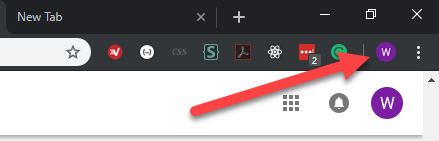
Figure: Click on your Edge or Chrome profile button
- Select Manage People to create a new person/profile
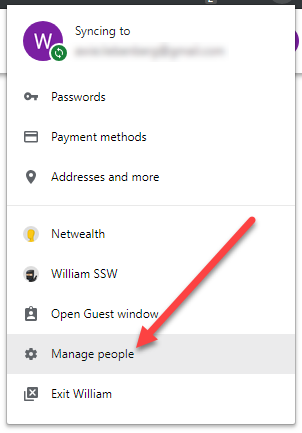
Figure: Select Manage people to create a new person/profile
- Click Add Person
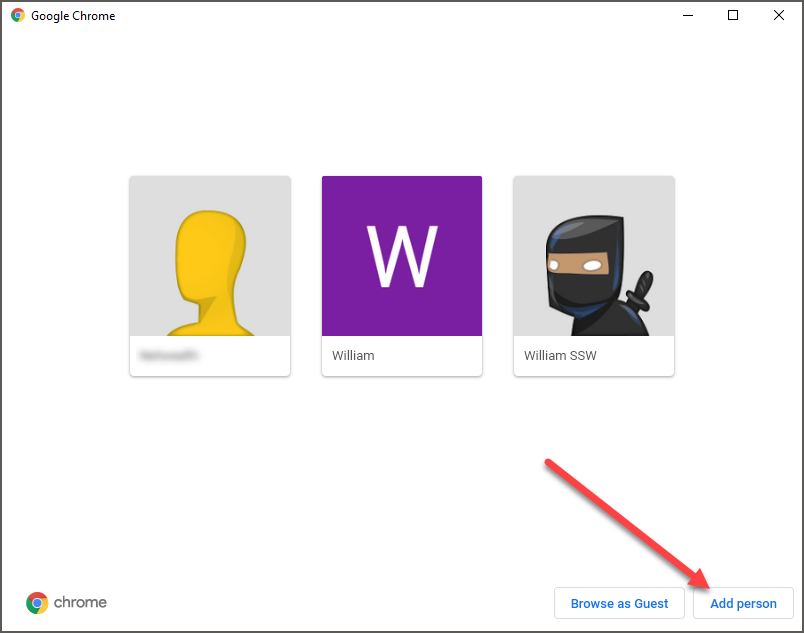
Figure: To add a new person/profile, click on the Add Person button
- Fill in the person/client name and select an icon
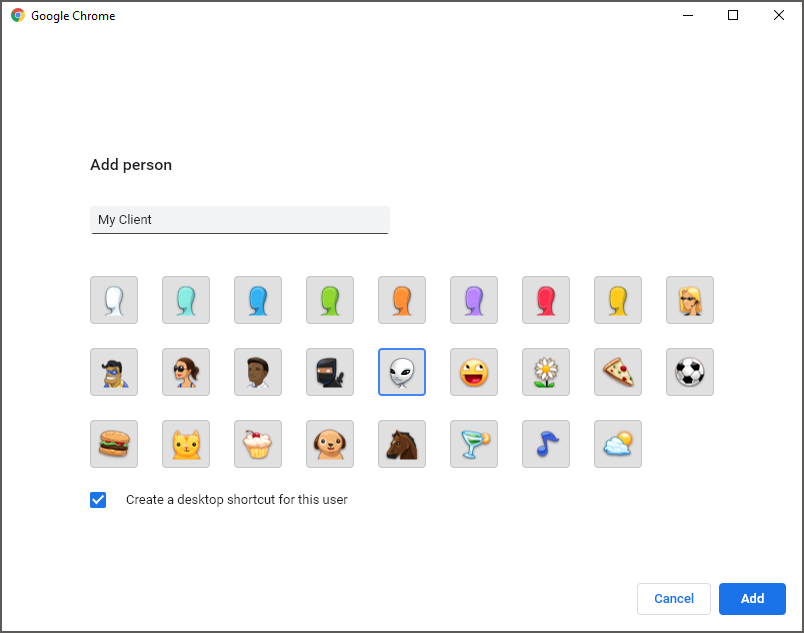
Figure: Fill in the name of the new person/profile and select an icon
Switching profiles
- Open your Edge or Chrome browser
- Click on you profile button
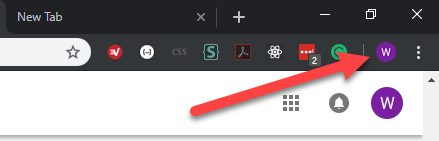
Figure: Click on your profile button to switch profiles
- Select the person/profile you want to switch to
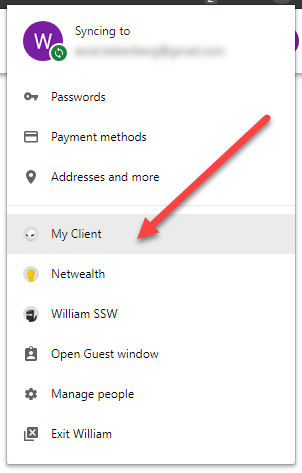
Figure: Select the person/profile you want to switch to
How to add or remove a person profile?
Please have a look at Use Edge or Chrome with multiple profiles.
Firefox Multi-Account Containers
Firefox Multi-Account Containers is an innovative feature that lets you separate your browsing sessions into isolated containers. Each container can be logged into a different account simultaneously.
Tips:
- Separate Sessions: Keep your personal, work, shopping, and other activities separate without logging out.
- Enhanced Privacy: Each container functions independently, restricting tracking across containers.
Setting Up Containers
- Install the Firefox Multi-Account Containers extension.
- Click the Containers icon and choose 'Add Container'.
- Name the container (e.g., Client A, Personal, etc.) and select a color and icon.
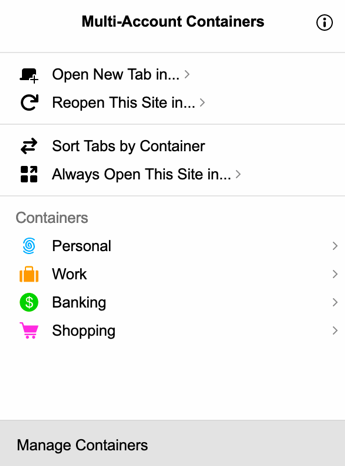
Figure: Add and manage containers in Firefox
- Open tabs in specific containers to maintain separate sessions.

Figure: Containers in action - tabs with different colors showing which container they belong to