Do you use Windows Hello?
Loading last updated info...
Windows Hello allows users to sign into their devices using facial recognition, fingerprint, or a PIN, instead of traditional passwords to authenticate quickly, accurately, and securely.
Windows Hello for Secure Authentication
Users have the option to set up a PIN, facial recognition, or a fingerprint for easy sign-in on their devices. This is specific to the device on which it is configured and may use a password hash based on the user's account type.
Here are some of the benefits of using Windows Hello:
- Stronger Security: Strong biometric authentication that is difficult to fake or duplicate, making it more secure than traditional password-based authentication.
- Convenient Sign-in: Users can sign in to their devices and accounts with a simple biometric gesture, such as a fingerprint or facial recognition, eliminating the need to remember complex passwords.
- Faster Access: Authentication is faster than typing in a password, enabling users to access their devices and accounts quickly and easily.
- Wide Compatibility: Works with a wide range of devices, including laptops, tablets, and smartphones.
- Local Storage: Biometric data is stored securely on the local device, so users can rest assured that their data is safe and not being sent to external devices or servers.
Windows Hello for Business
Windows Hello for Business is a Passwordless authentication method that allows users to sign in to their enterprise devices using biometric authentication, such as facial recognition or fingerprint scanning. It is configured by group policy or Intune, and always uses key-based or certificate-based authentication.
Before using Windows Hello for Business, you must ensure that the following requirements are met:
- The device must be running Windows 10 version 1607 or later.
- The device must have a compatible camera or fingerprint reader.
- The device must support the Windows Hello for Business feature.
- The user must have an Azure AD account and be registered for Windows Hello for Business.
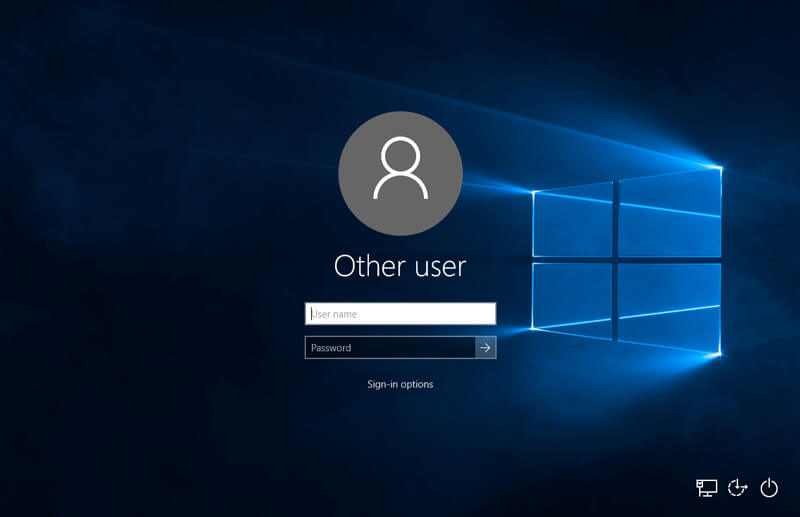
❌ Figure: Bad example - Type in the Password to Login
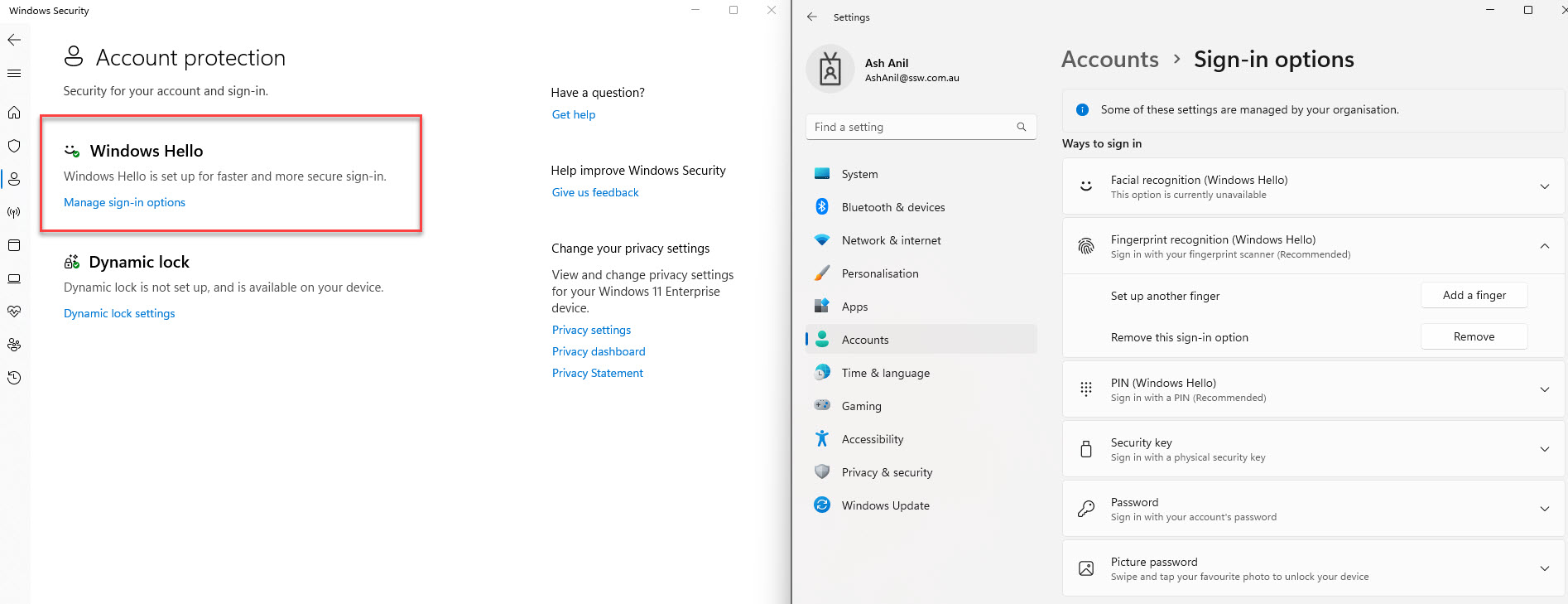
✅ Figure: Good example - Windows Hello for Business setup
Checking Usage
You can check Windows Hello for Business usage in the Microsoft Entra admin center - go to Microsoft Entra admin center | Identity | Monitoring & health | Workbooks | Authentication Prompts Analysis. From there, you can filter the report to only show Windows Hello authentication.
Filter the report to AuthMethod: Password and AppDisplayName: Windows Sign In to see who is not using Windows Hello to sign in.
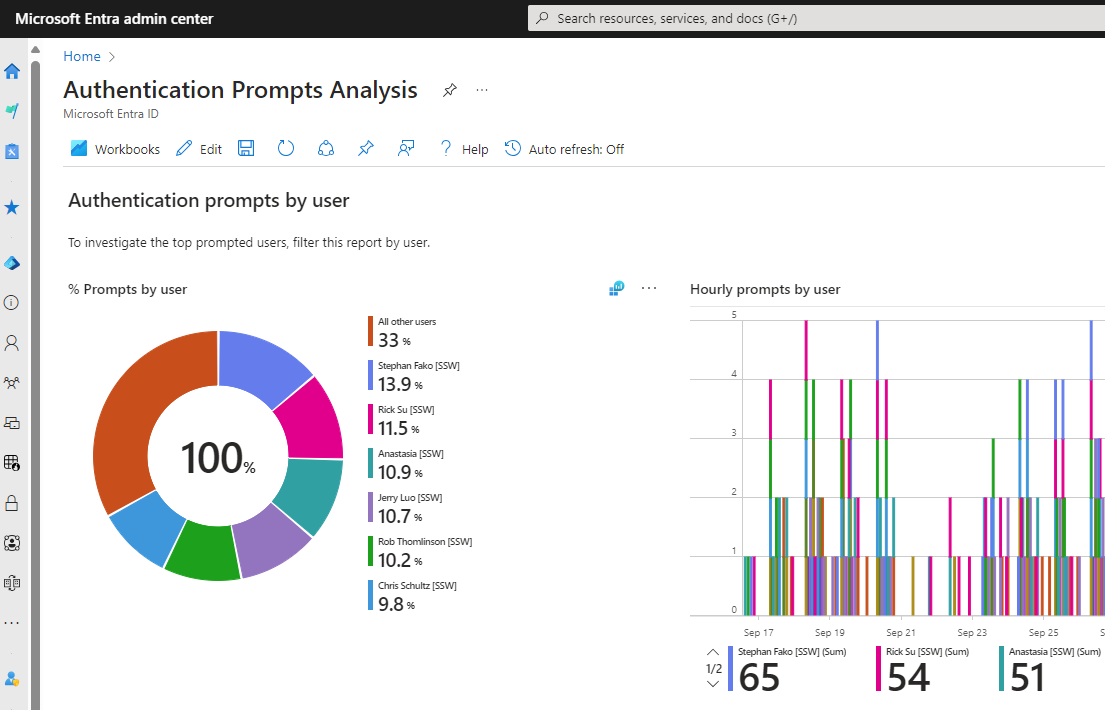
Figure: Example - Authentication Prompts Analysis filtered to Windows Hello
You can also check Windows Hello Registration stats in Entra - go to Microsoft Entra admin center | Identity | Monitoring & health | Usage & insights | Authentication methods activity.