SSW .NET Toolkit
>
User Guide

The SSW Standard Version Checker Control
The green tick at the bottom left on below form is what
this control looks like. The idea of this control came
from one of our rule
Do you allow users to check for a new version easily?
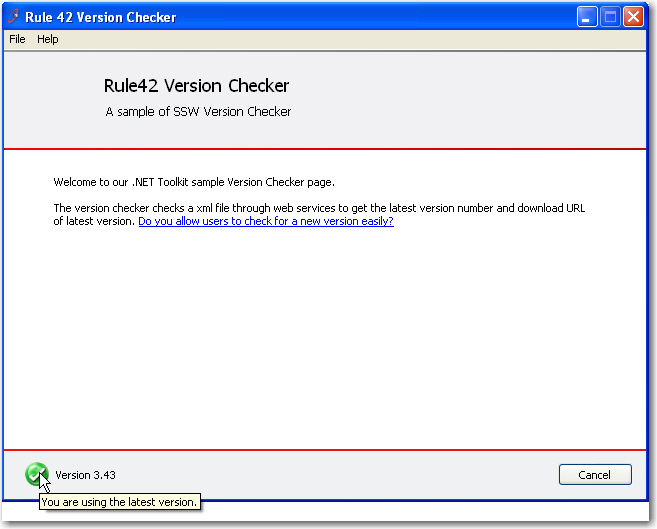
Figure: SSW Standard Version Checker Control -
latest version
This control calls a Web Service and then shows as a
green tick or red cross based on the latest version
infomation returned from the Web Service.
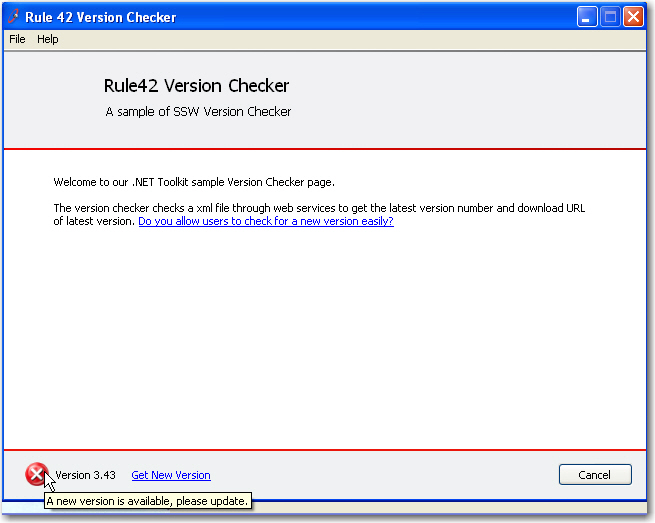
Figure: SSW Standard Version Checker Control - need
upgrade

Figure: SSW Standard Version Checker Control -
properties
The URL of Web Service used in .NETToolkit for demo is
http://webservices.ssw.com.au/ssw/NETToolkit/VersionChecker.asmx
How do I use the SSW Standard Version Checker Control in
my project?
You can use the SSW Standard Version Checker in your
applications by following the steps listed below. You will
need a website to host the webservice and the product
update page.
-
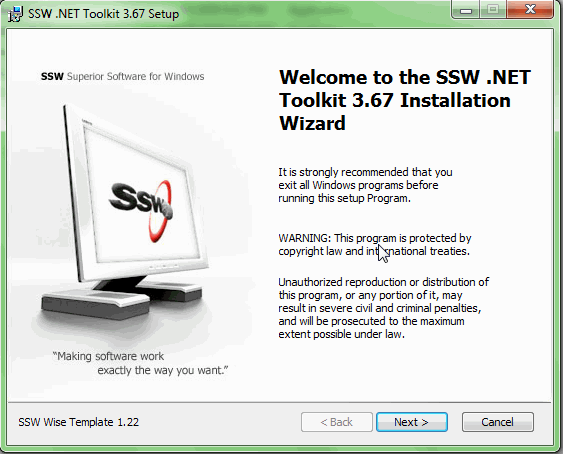
Install SSW .Net Toolkit
-
-
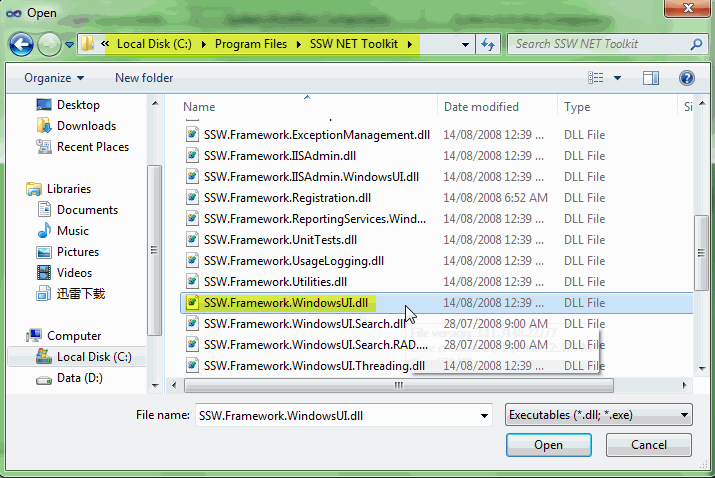
Add reference to SSW.Framework.WindowsUI.dll in your
porject
-
-
Figure: You can get the assembly in the installed
folder of SSW .Net Toolkit
-
Add the VersionStatus control to your form
You can create it dynamically or just drag it from the
toolbox.
-
-
-
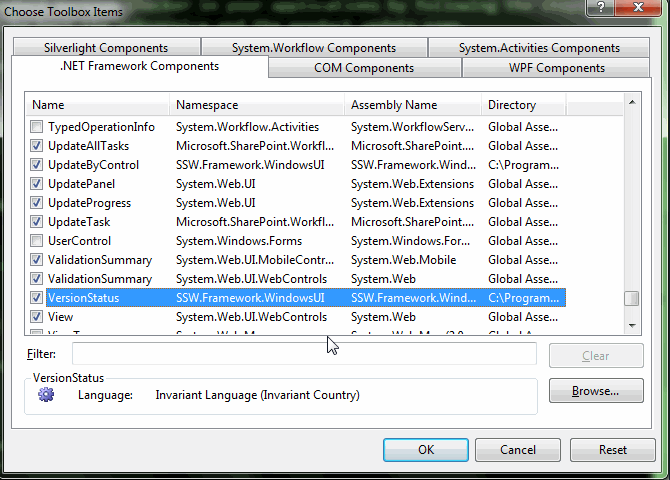
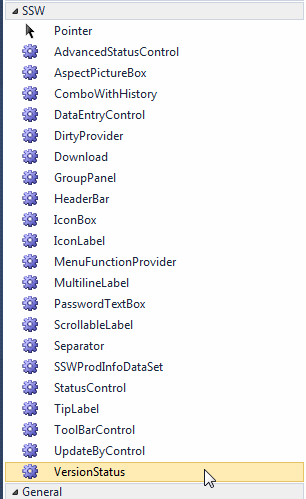
Figure: Add SSW standard controls to your toolbox
-
-
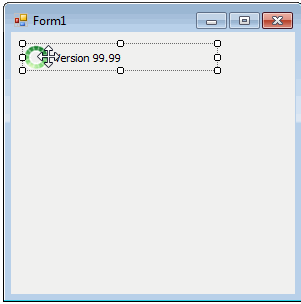
Figure: Drag VersionStatus control to your form
-
Create a webservice in your web project
The SSW Standard Version Checker control needs a
webservice to get the version number of the specific
product.
The webservice must contains a method called
GetLatestVersionAndUpdateUrl
like below:
-
        [WebMethod]
        public string[] GetLatestVersionAndUpdateUrl(string ProductDownloadID)
        {
           return new string[] { "1.1.1.1", "http://www.ssw.com.au/ssw" };
        }
The method returns a string array, which contains the
latest version number and the URL of update page.
-
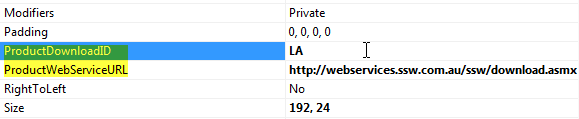
Set the properties of the control
-
-
Figure: Set the webservice URL and product ID
- Run the application