SSW eXtremeEmails
>Screenshots

Turn your Inbox into a task-tracking system with SSW
eXtreme Emails!
Dont let your Inbox get out of control. More than a bug
tracking software for Outlook, SSW eXtreme Emails manage
your email effectively. Allocate tasks, set priorities,
assign due dates and get Progress Reports without
re-entering any data and working in the familiar
Microsoft Outlook environment. Written in .NET, this
Outlook COM Add-In let’s you take control of your
email.
Prerequisites
SSW eXtreme Emails! User Guide
-
Install SSW eXtreme Emails! on your client machine.
-
Open Microsoft Outlook, you will see a new Toolbar
appear.
- Click on 'Incident' to create a new incident.
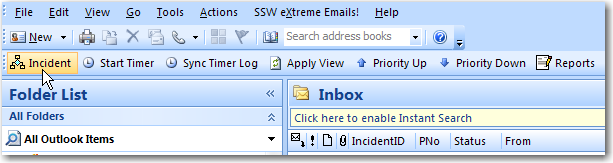
Figure: Create a new incident
-
The Incident form will appear once the incident button
is clicked. It will allow you to set priorities, set
times to complete an Incident and select the project
folder.
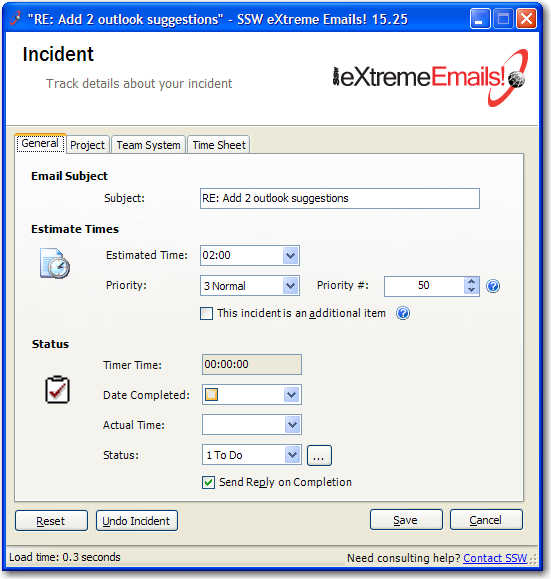
Figure: Beginning a new incident
-
By Selecting the Project tab it will allow you to
Allocate the task to a person.
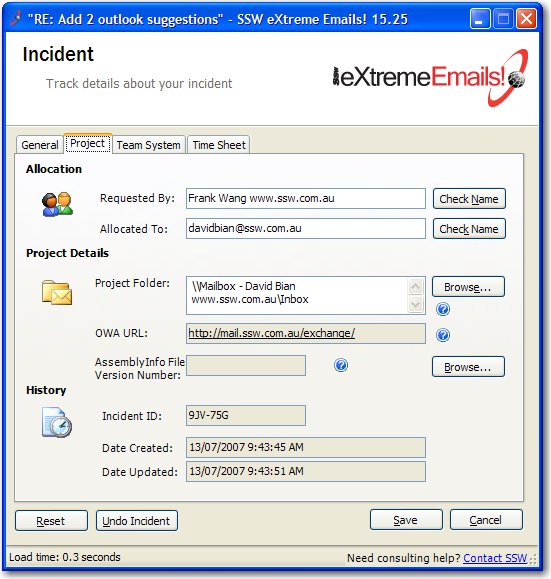
Figure: Scheduling a new incident
-
Click 'Save' to attach the incident properties to the
email message.
-
On completion the incident will be moved into a sub
folder called zsCompleted within the project
directory.
Developer Notes
-
To create developer notes click 'Add Developer
Notes' on the SSW eXtreme Emails! toolbar.

Figure: The 'Developer Notes' button on the SSW
eXtreme Emails! toolbar
-
Enter the notes in the developer notes text box that
you want to include.
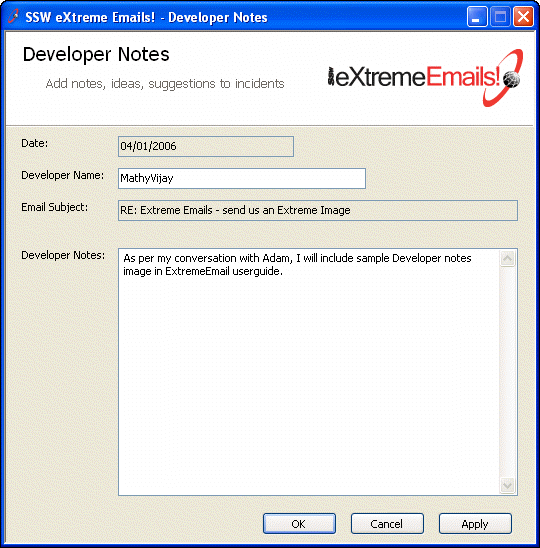
Figure: Use the 'Developer Notes' to add
additional notes to yourself when an email is not
clear
-
Click 'Apply' button to enter multiple notes
continuously and click 'OK' button to Exit after
finished.
-
Sample Developer Notes appended to the email.
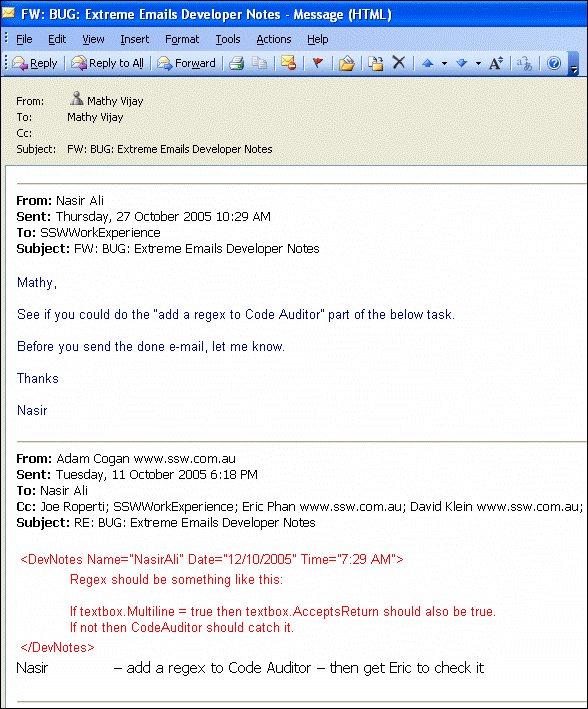
Figure: Sample Developer Notes
Reports
With SSW eXtreme Emails! generating reports has never
been easier. To generate a report you simply:
-
Click 'Reports' on the SSW eXtreme Emails! toolbar.
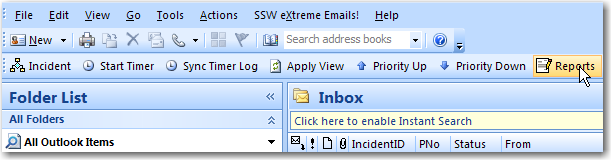
Figure: The 'Reports' button on the SSW eXtreme
Emails! toolbar
- Select the report you would like to generate.
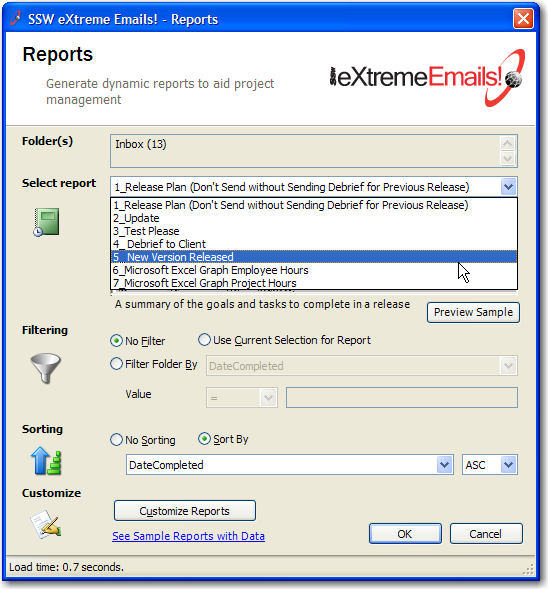
Figure: Selecting a report
- Click 'OK' to generate the report.
Report Customization
With SSW eXtreme Emails!, you are not stuck with the
reports that SSW provides.
SSW eXtreme Emails allows customization of its
built-in reports - they are all stored in the Reports
subfolder of the eXtreme Emails program directory. You
can click the "Customize Reports" button on the
reports form to get there.
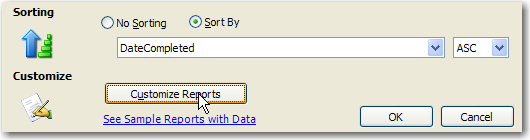
Figure: Customizing a report
The reports are defined in the industry standard
transform language XSL. This is human readable, and
can be modified with notepad or more advanced XML/XSL
utilities such as
XML Spy
.
There are several standard fields that are in the XML
file. These can be used in your customized XSL
reports. These fields include:
|
Field Name
|
Description
|
Data Type
|
|
IncidentID
|
Incident Unique Identifier
|
String
|
|
PNo
|
Priority Number
|
Number (1-100). Priority 1 is the highest
|
|
EstimatedHours
|
Estimate of How long the Incident will take in
hours and minutes
|
String
|
|
ActualHours
|
Actual time the Incident took in hours and
minutes
|
String
|
|
From
|
Sender of Email
|
String
|
|
Subject
|
Subject of Outlook Item
|
String
|
|
URL
|
URL to online OWA version of the Incident
(properties dont show in OWA though)
|
String
|
|
Status
|
The Status of the Incident
|
String
|
View sample reports
Using Exchange Server with SSW
eXtreme Emails
For operation with Exchange Public
folders, we recommend that you
have "Publishing Editor"
permissions on the folders you are
dealing with. This is because you
potentially need to do the
following
-
Edit, Create and Delete Items
(because a move includes a read,
create and a delete)
-
Create subfolders (as the
zsCompleted folder will be
created if it does not already
exist)
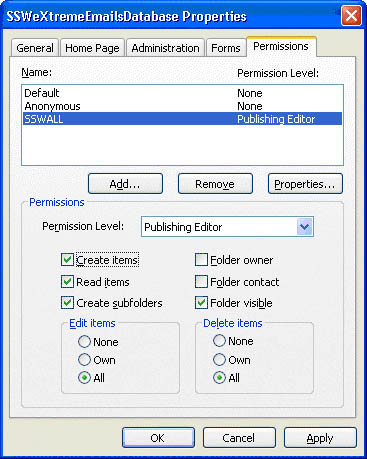
Figure: Required folder
permissions for Exchange
Public Folders. Right-click on
the folder in outlook and
click permissions to get this
dialog.
Team Foundation Server (TFS)
Integration
With TFS Integration, you can
manage your project progress
easily by emails.
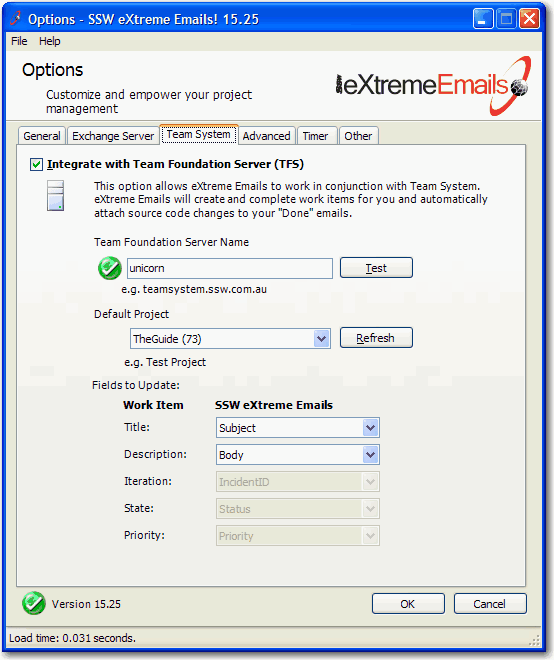
Figure: Enable TFS support in
your eXtreme Emails
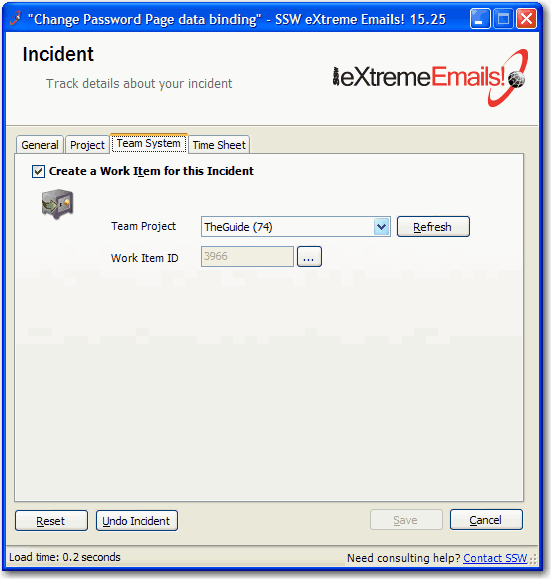
Figure: Create a Work Item
when you make an email an
incident
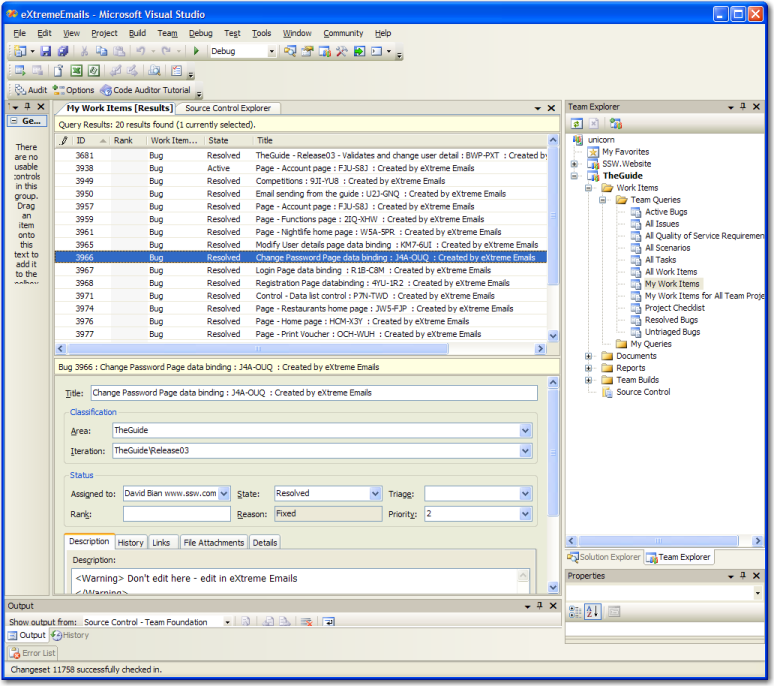
Figure: The new work item you
created in TFS
Tools | Options
With SSW eXtreme Emails, you can
easily customize and empower your
project management.
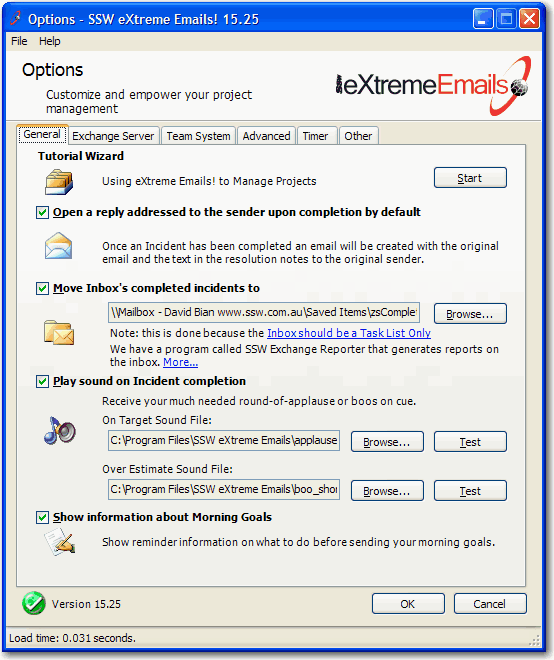
Figure: eXtreme Emails!
Settings to Manage Projects
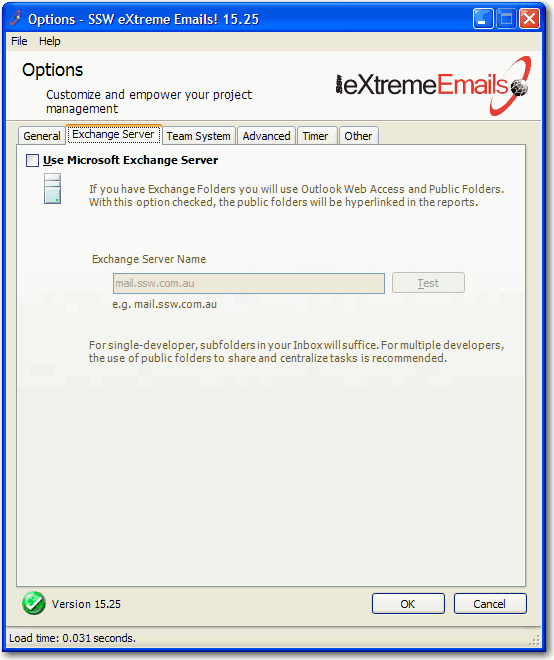
Figure: eXtreme Emails!
Settings for Microsoft
Exchange Server
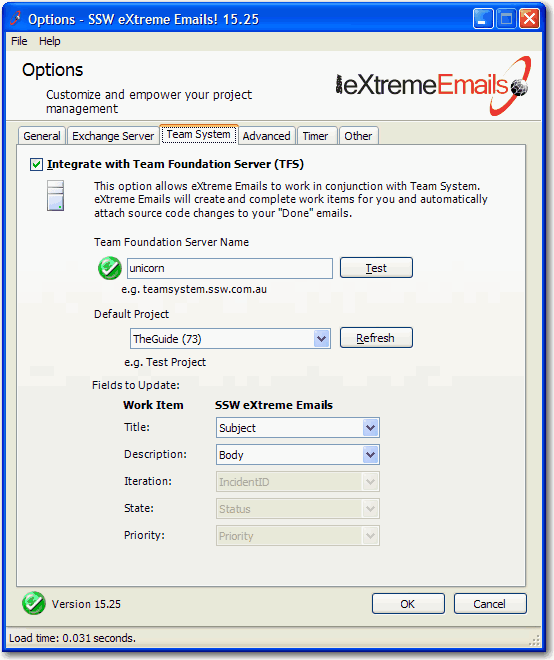
Figure: eXtreme Emails!
Settings for Integrating
with Team Foundation
Server (TFS)
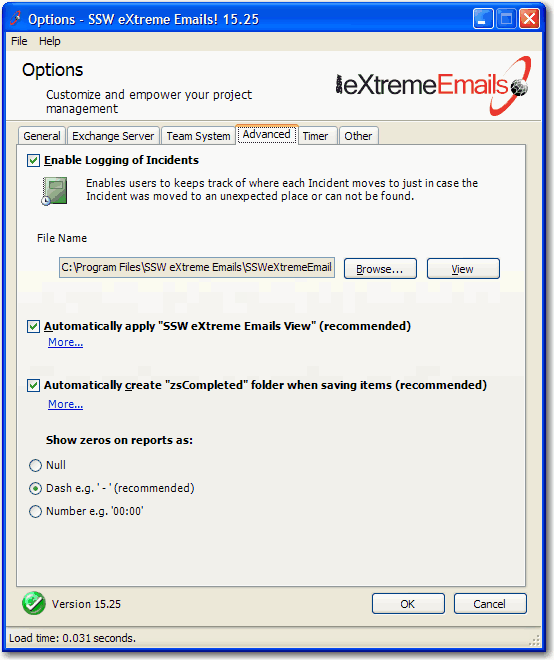
Figure: eXtreme Emails!
Settings for Advanced
options
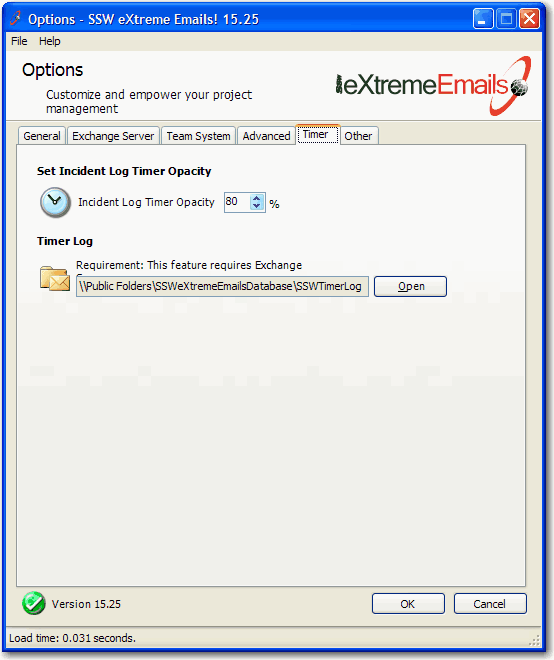
Figure: eXtreme
Emails! Settings for
Incident Log Timer
Opacity
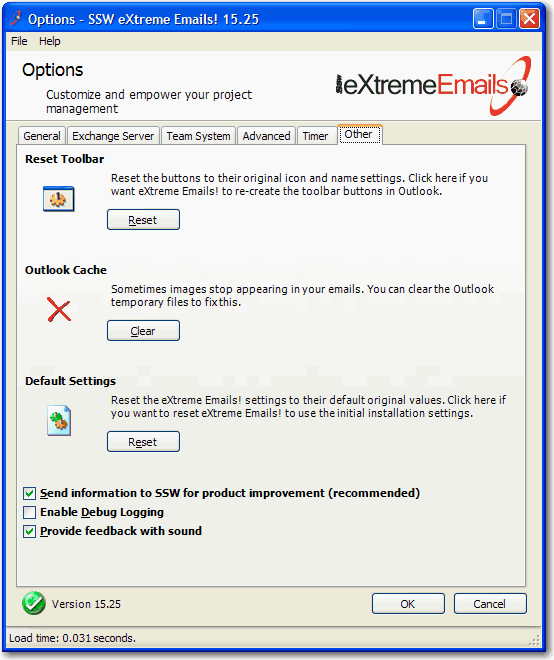
Figure: eXtreme
Emails! Settings for
other things like
resetting toolbars
and settings back to
the default