This product is no longer supported.
SSW Property and Event PRO! allows you to set values for
properties and events across your whole database with an
easy-to-use interface. You can also apply conditions
based on any property to alter the affect of your
changes. Anything that you can do in Access application
development, SSW Property and Event PRO! can do across
your whole database.
SSW Property and Event PRO User Guide
1.
Prerequisites
2.
About this User Guide
3.
Important Notice
4.
Example 1: Setting the Back Color of all Text
Boxes
5.
Example 2: Changing the SpecialEffect properties
using conditions
6.
Example 3: Dealing with Events
|
Prerequisites
About this User Guide
This user guide is designed to show you how to quickly
and easily make changes across your access database
using SSW Property and Event PRO!
In this tutorial you will see several examples of SSW
Property And Event PRO! in action. These examples will
be performed on a copy of Northwind97.mdb, a sample
database included with Access, so you can't do any harm
if you follow the instructions.
A large amount of your development time in Access is
performing repetitive tasks. Most of what you do in
developing an Access application is saved as a value for
a property or an event.
With SSW Property and Event PRO!, it is possible to set
most properties for an object type across the whole
database in one go. You can make every combo box sunken,
change the color of a group of forms, standardise the
position of a common command button to list just a few
examples.
Basically, nearly anything you can implement manually in
one place, this utility can implement automatically
wherever you specify.
Important Notice
SSW Property And Event PRO! can change the appearance of
an object type wherever it occurs in your database. This
means that if you specify a change you don't want by
mistake, the mistake will be everywhere. Back up your
database before using this utility.
Example 1: Setting the Back Color of all Text Boxes
In this example we are going to change the back color of
every textbox in our copy of Northwind to yellow.
Run the SSW Property and Event PRO! program and select
the sample database that was installed. By default this
file is located at C:\Program Files\SSW Property and
Event PRO\Samples\Northwind97.mdb
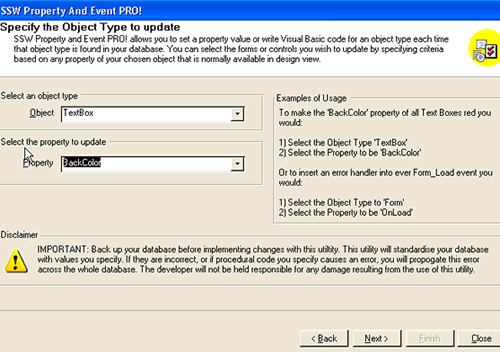
Figure: Select the Object to be a 'Text Box' and set
the Property to be 'BackColor'
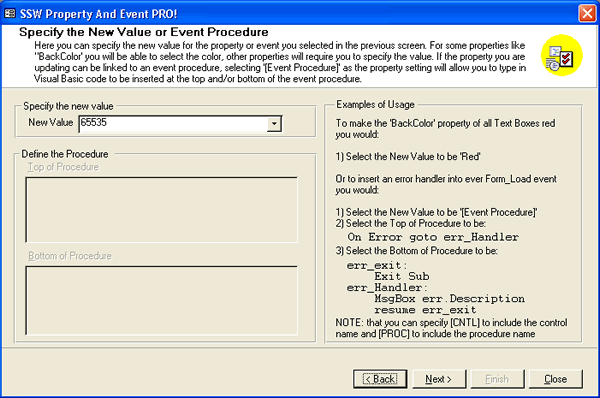
Figure: Specify the new 'BackColor' property value to
be yellow
Because we do not need any conditions we will skip that
screen for now and can review the changes we are going
to make.
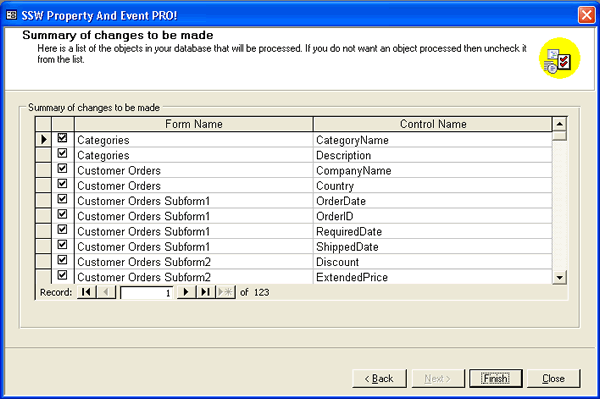
Figure: Once we are happy with the changes we can
proceed by clicking 'Finish'
Example 2: Changing the SpecialEffect properties using
conditions
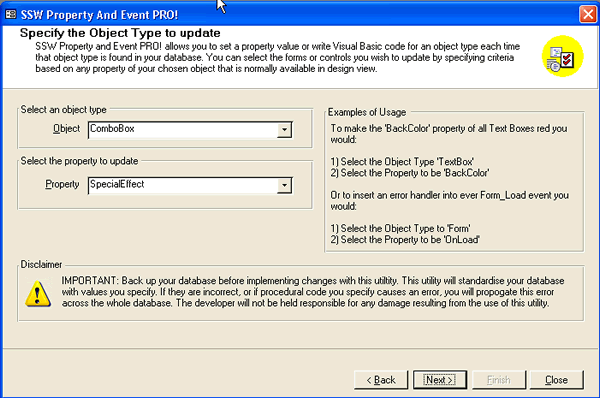
In this example we are going to change the SpecialEffect
property of a group of combo boxes to raised.
In the Object and Property selection screen, set the
object to 'Combo Box' and the property to
'SpecialEffect'.
In the New Value combo box, you will see a list of all
the allowable values for the SpeciallEffect property of
a combobox. Access stores a number for this value, but
each value has a name such as "sunken" and "shadowed".
To make it easy for you, SSW Property And Event PRO!
shows you the names of allowable values wherever
possible. You can still enter the number directly if you
so choose.
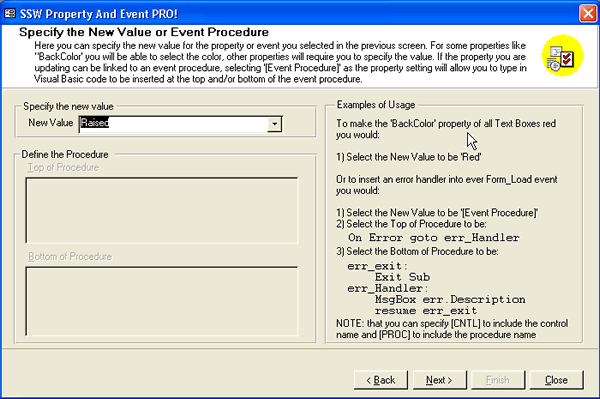
Figure: Set the new value to be 'Raised'
In this example we will set a condition. We will change
all combo boxes whose name starts with 'C'.
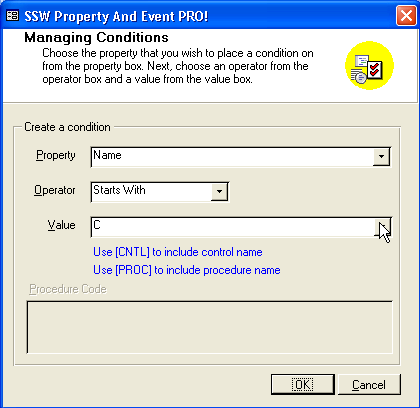
Figure: Set up the condition similar to this
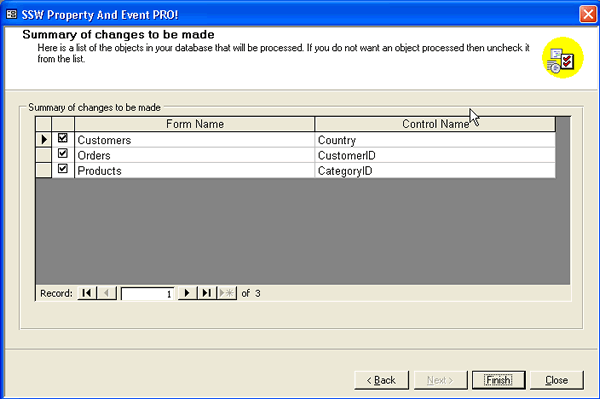
Figure: As you can see, only the combo boxes whose
name starts with C appear in the TO BE Change Items
list
Example 3: Dealing with Events
In this example we are going to use Property And Event
Manager's ability to read and write the visual basic
code that Access uses for event handling.
If you are not familiar with VBA in Access we recommend
you do not use this functionality in SSW Property And
Event PRO! as it has the greatest potential to make
errors throughout your database if you specify incorrect
code. Once again, always remember to back up your
database before implementing changes with this utility.
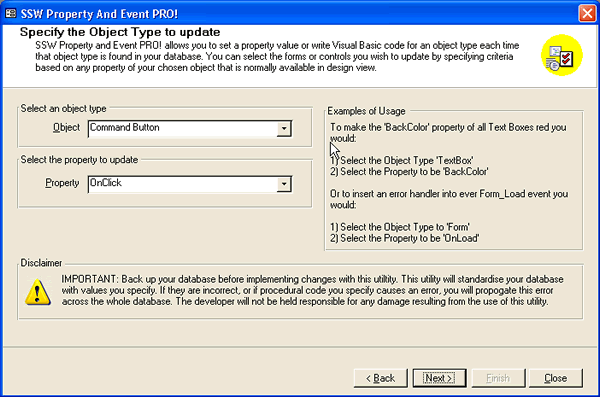
Figure: In the Object and Property selection screen,
set the object to 'CommandButton' and the property to
'OnClick'
In the New Value box choose "[Event Procedure]". Access
can cause an event to run a Macro, call a saved Function
or run an Event Procedure that is stored in the module
attached to the form. Macro names and saved Functions
are simply saved as a string value for the OnClick
property. For an Event Procedure the string "[Event
Procedure]" is saved for the property and a procedure is
added to the module.
Choosing "[Event Procedure]" causes SSW Property And
Event PRO! to enable the two lower boxes. You can enter
Access Visual Basic code in either or both of these,
depending on where you want the code inserted. If the
procedure does not already exist, it makes no difference
where you put it. In the top box type:
msgbox "SSW Property And Event PRO! inserted this
message"
In the bottom box type:
msgbox "You have just run the [PROC] " & "
procedure for the [CNTL] command button."
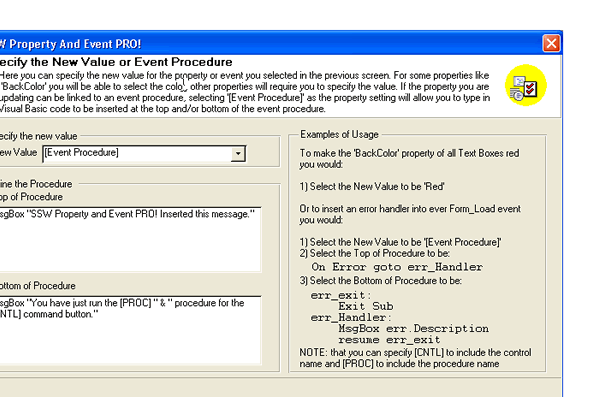
Figure: Specify the new value for the property of
event you selected in the previous screen
Any code you type will be inserted exactly as you type
it, except for the 6 characters [PROC] or [CNTL]. These
will cause SSW Property And Event PRO! to automatically
substitute the procedure name and the control name at
each instance. This is particularly useful if you want
to write generic code that refers to the local control -
eg for a text box control you could determine whether or
not a value has been entered by the user with
"isnull(me.[CNTL])". To return the value you can simply
refer to the control eg "msgbox [CNTL]".
Now we will set up a condition so that only controls
without an OnClick event for their CommandButtons will
be affected.
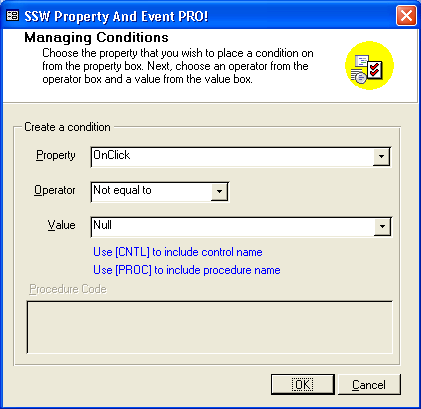
Figure: Set up a condition so that only controls
without an OnClick event for their CommandButtons will
be affected
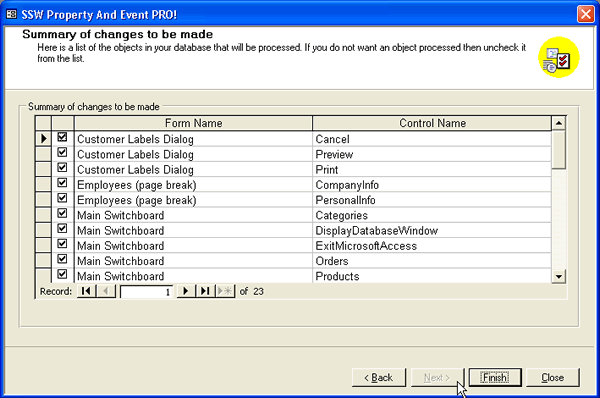
Figure: As you can see, only the combo boxes whose
OnClick event is missing is in the TO BE Changed Items
List