SSW TeamCalendar
> Screenshots
SSW Team Calendar for Exchange 2000 & 2003 -
Screenshots

Share your Calendar with SSW Team Calendar for
Exchange 2000
SSW Team Calendar for Exchange 2000 extracts calendar
information stored on your Microsoft Exchange Server and
makes it available on the web. Managers and staff have
an an up-to-date schedule of appointments for all
mailboxes on Exchange simply by using their web browser.
SSW TeamCalendar User Guide
1.
Installation Guide
2.
Loading Team Calendar
3.
Settings
4.
Using SSW Team Calendar
5.
Bookmark Team Calendar Pages
|
Installation Guide
Installation Guide
Loading Team Calendar
To start Team Calendar load up your Internet Browser and
enter in
http://localhost/TeamCalendar (this assumes that you
have Team Calendar loaded on the computer you are
on)
By default the login credentials are:
User:
admin
Password:
admin
There are 2 users that you can configure. The Admin
Login allows you to modify settings and add/edit users
items. The Users Login is there for people to view the
information but not add or modify any data.
Settings
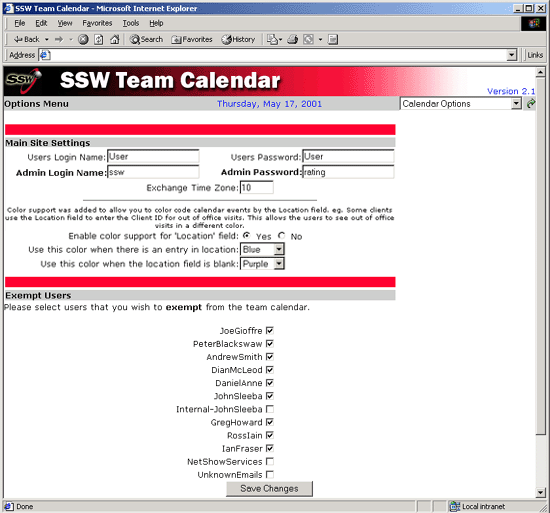
Figure: Team Calendar is configured through the
options page
In here you can configure site settings and also select
the users that will not be shown on Team Calendar. You
can access this by clicking on Calendar Options in the
drop down menu at the top of every page.
Using SSW Team Calendar
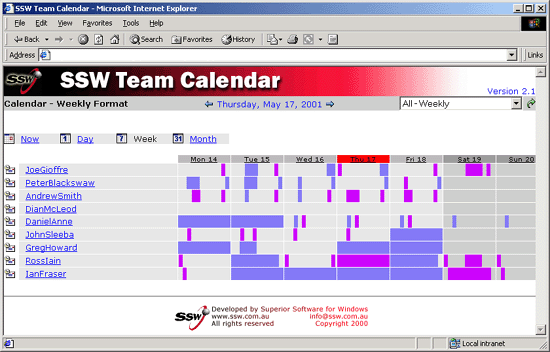
Figure: The weekly view lists users and displays the
times they are busy during that day (Indicated by the
Blue images). The current day is always highlighted in
RED
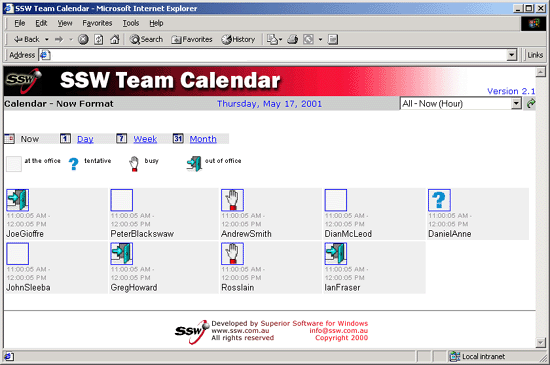
Figure: You can quickly and easily review the status
of your employees over a 30 min period

Figure: You can select a particular user and see the
tasks the user has for that day or week...
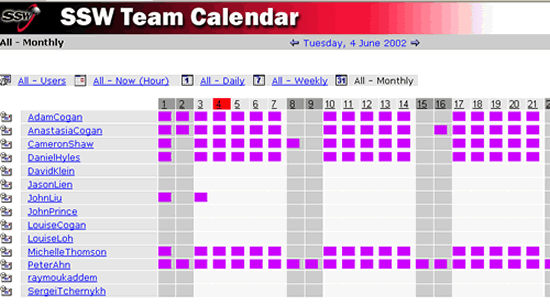
Figure: Or Month.
Bookmark Team Calendar Pages
Team Calendar includes the current date in the default
URL (e.g. CalendarDay.asp). This means you can bookmark
Team Calendar, and always have the current day returned
when you open the bookmark.
In addition you can specify a time period in the query
string to give you future information if required:
- DAY=today
- DAY=nextday
- DAY=previousday
- MONTH=nextmonth
- MONTH=previousmonth
- YEAR=nextyear
- YEAR=previousyear
A typical query string is like:
http://YOURMAILSERVER/teamcalendar/CalendarDay.asp?DAY=1&MONTH=1&YEAR=2005&USER=
So you can change your query string to be like:
http://YOURMAILSERVER/teamcalendar/CalendarDay.asp?DAY=
nextday
&USER=