Scheduling - Do you know how to book developers for a project?
Loading last updated info...
It is the responsibility of Account Managers to book developers for known client work, however anyone can book a developer, including the developer themselves. Also if a developer notices they should be booked, but there's nothing in their calendar, and they can't figure out the below, as a minimum they should ask the Account Manager to book them.
The Rule of the 3 T's
Before booking developers, make sure you talk to them and check that they are cool with:
- The Time - How long is the project?
- The Tech - What skills are required?
- The Team - Who will they be working with?
Tip: If you're 90% sure a booking will continue, book it in. It's better to have a small chance that the client might stop, than showing someone as free when they're likely not.
To see which developers are available for booking:
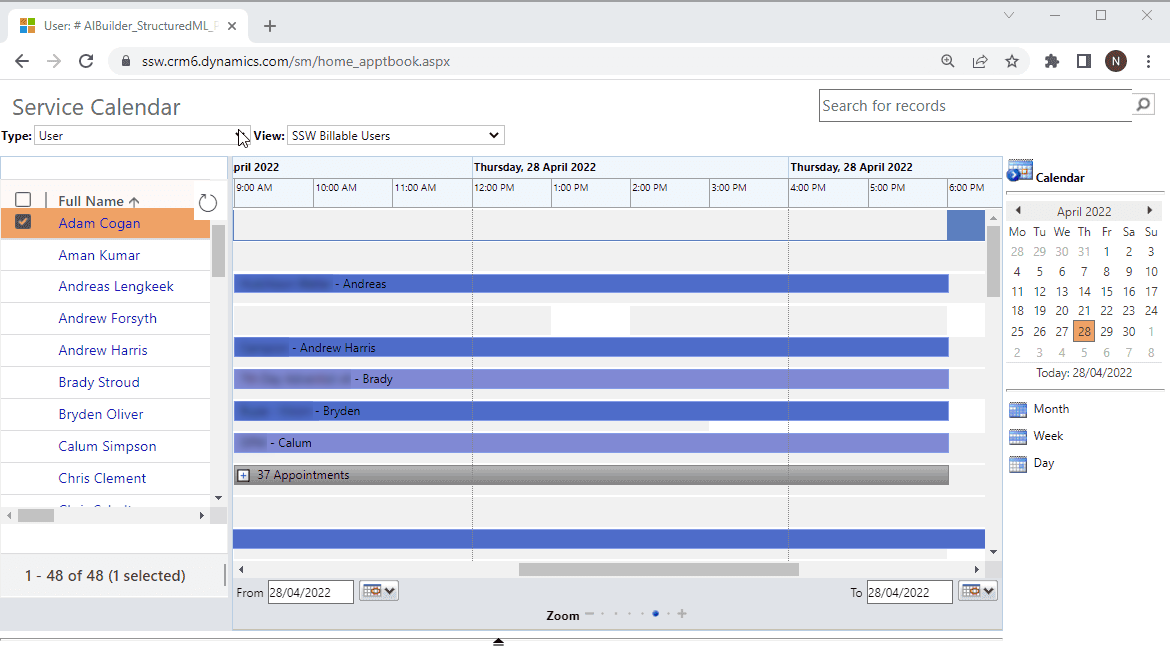
🙂 Figure: OK example - Using the Service Calendar, you can see who is and is not available at a given time
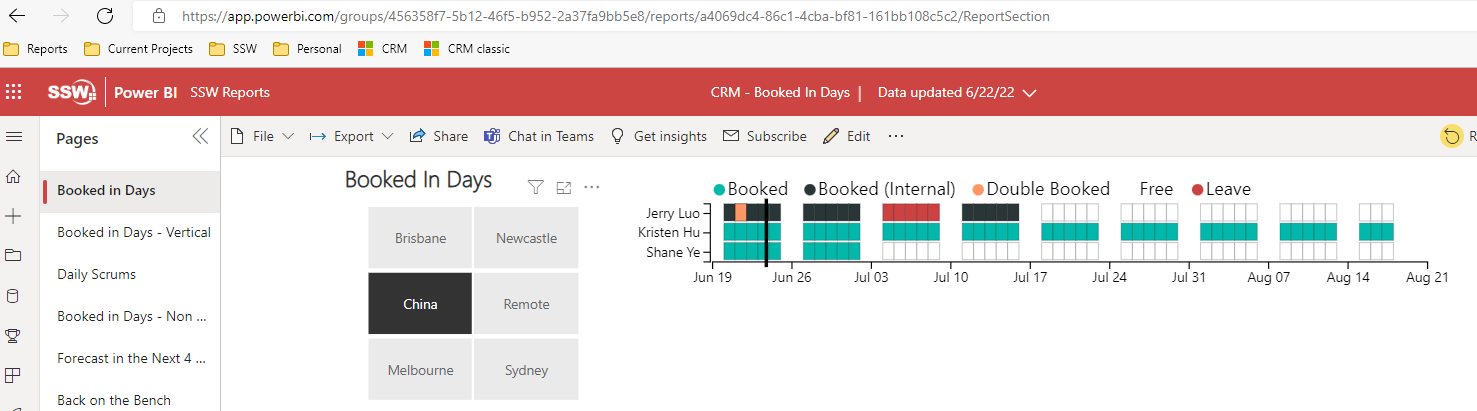
✅ Figure: Good example - Build a Power BI report to show the CRM data more succinctly
You can book developers through BookingPro in ChatGPT or Claude, or manually through Outlook or Dynamics 365.
Option 1: BookingPro in ChatGPT or Claude (Recommended)
At SSW, BookingPro lets you create, change and delete developer bookings using natural language. It uses a local Model Context Protocol (MCP) server, accessible from ChatGPT or Claude, to make those changes in Dynamics 365 and Outlook.
How do you use BookingPro?
- Open ChatGPT or Claude with the local BookingPro MCP connected
- Describe the booking you want to create, change or delete. Include the developer, client, dates, working hours, time zone and location. For recurring bookings, specify the recurrence and whether a change applies to one occurrence or the whole series
- Check the details returned by BookingPro and clarify anything missing or incorrect
- Verify the result in Dynamics 365 and Outlook. For a new or changed booking, check the developer, client, dates and times. For a deleted booking, check that it has been removed from both systems
For example, you can ask:
- Create a booking - "Book Brendan for Northwind on Mon 12 Oct 2026, from 9 am to 5 pm Sydney time, working remotely"
- Change a booking - "Move Brendan's Northwind booking on Mon 12 Oct 2026 to Tue 13 Oct 2026. Keep the same hours and location"
- Delete a booking - "Delete Brendan's Northwind booking on Tue 13 Oct 2026 only"
The Rule of the 3 T's still applies. Talk to the developer before booking their time.
If you don't have BookingPro connected, use one of the manual options below.
Option 2: Outlook Calendar and "Set Regarding"
Prerequisite: Do you install the Dynamics 365 App?
This is a manual option for developers who use Outlook with the Dynamics 365 App.
- Create a new Outlook appointment (in the Desktop or Web client) and give it a relevant subject
- Invite required resources if there are other people working with you or if you're booking for someone else
Note: If you're booking for someone else, just have them in the "To:" field of the appointment. If you're booking yourself AND someone else, have both of you in the To box - If the booking requires the client (like a Spec Review), invite them as optional. If you do this, also make it a Teams Meeting and add your email signature
- Set the time and location for your appointment
- Set "Show As" to "Free" (so their Teams Status will not show them as "In a Meeting" all day
- Set "Reminder" to "None" so you and they don't get spammed by unnecessary reminders
- Set the recurrence if it’s more than 1 day of work
- Click "Dynamics 365" on the ribbon which will open a side panel and click on "Set Regarding" then search for the company that you want to book the developers to work on (this is the step that syncs it with CRM)
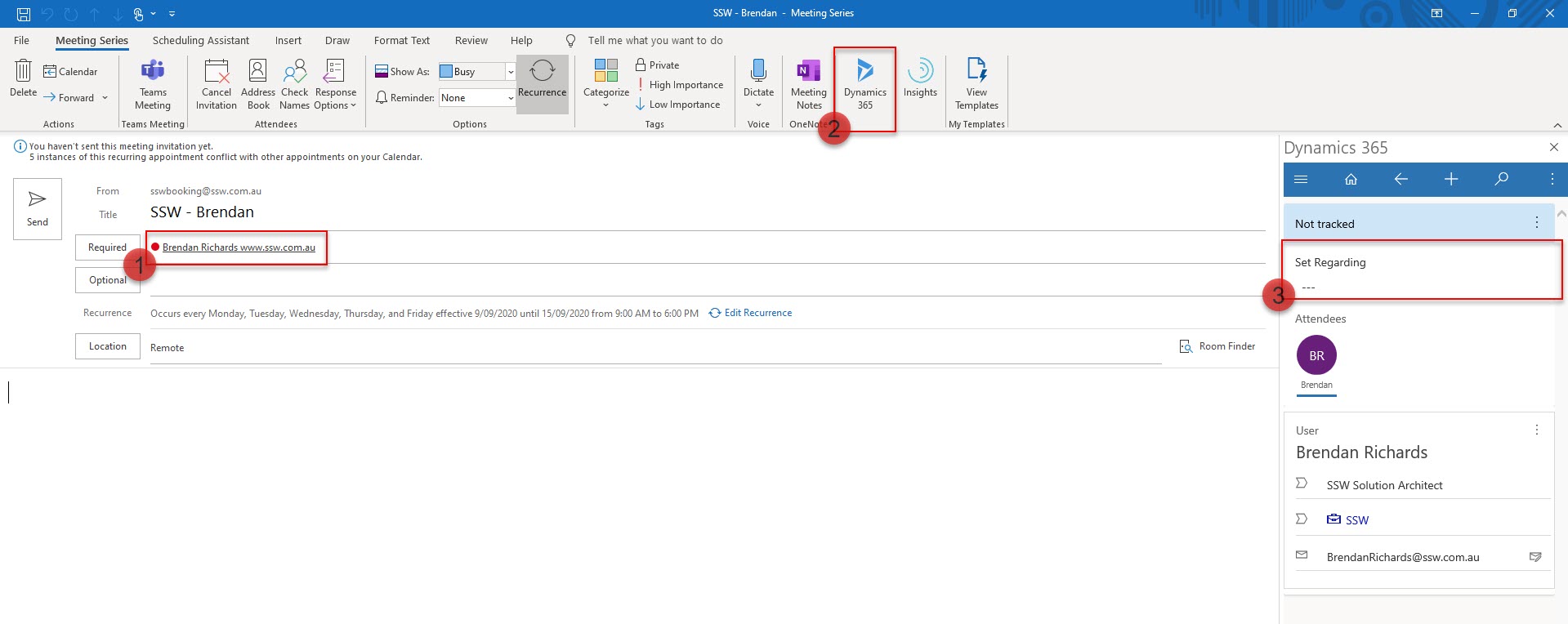
Figure: A complete appointment booking Brendan to work for SSW for 5 days
Option 3: CRM Activity Appointments
This is a backup option for anyone who doesn't have access to Outlook with the CRM add-in.
- Create a new appointment in Dynamics 365 Online
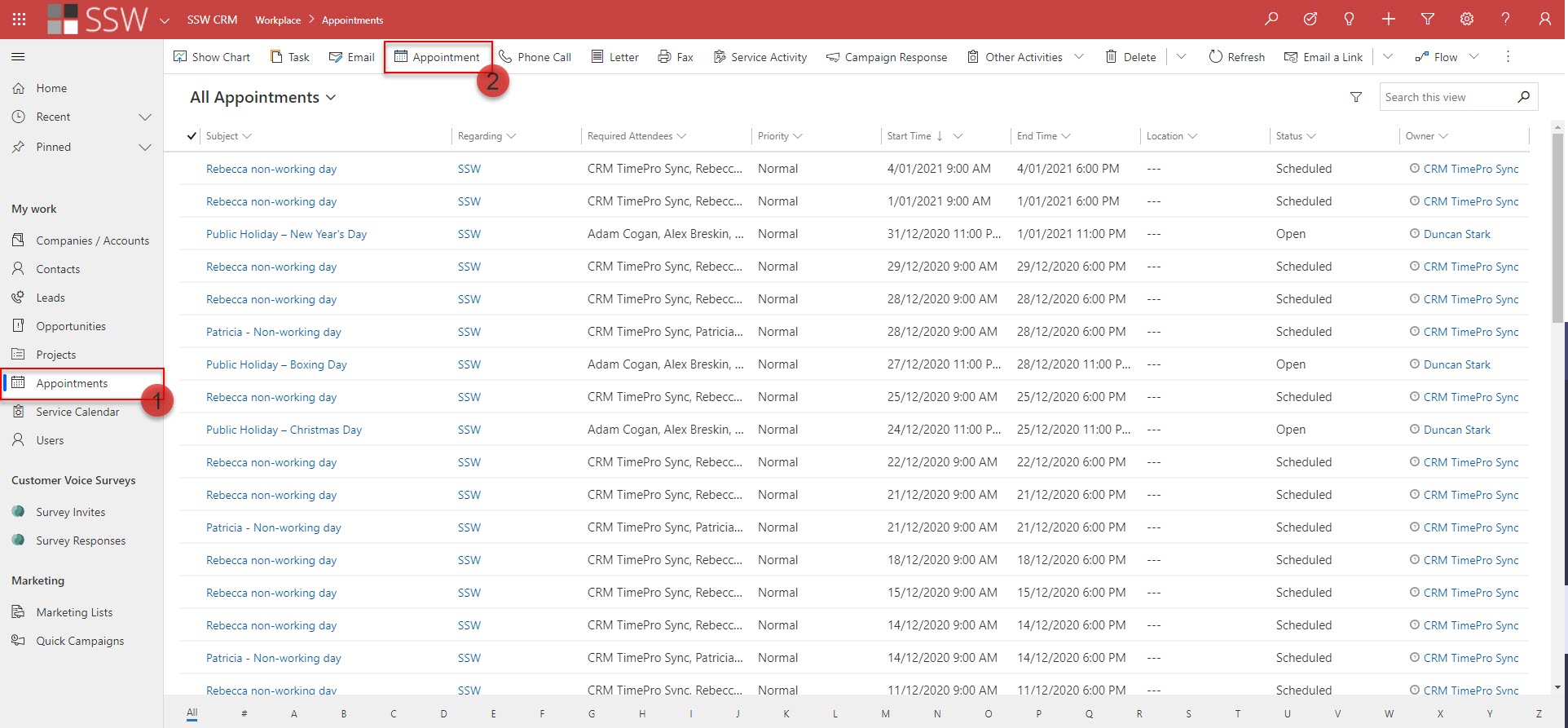
Figure: Click Appointment to create a new appointment in CRM
- Set the Subject
- Select the resources that you want to book
- Select the client that you want to book the developers to work on
- Set the location
- Set the Start and End times
- If the booking is for more than 1 day, click “Recurrence” and set the frequency
Tip: If you do not want them to block your calendar, you can change the organizer and owner to the developer you are booking. It will still track to the Service Calendar, but won't add it to your personal calendar, only the developers.
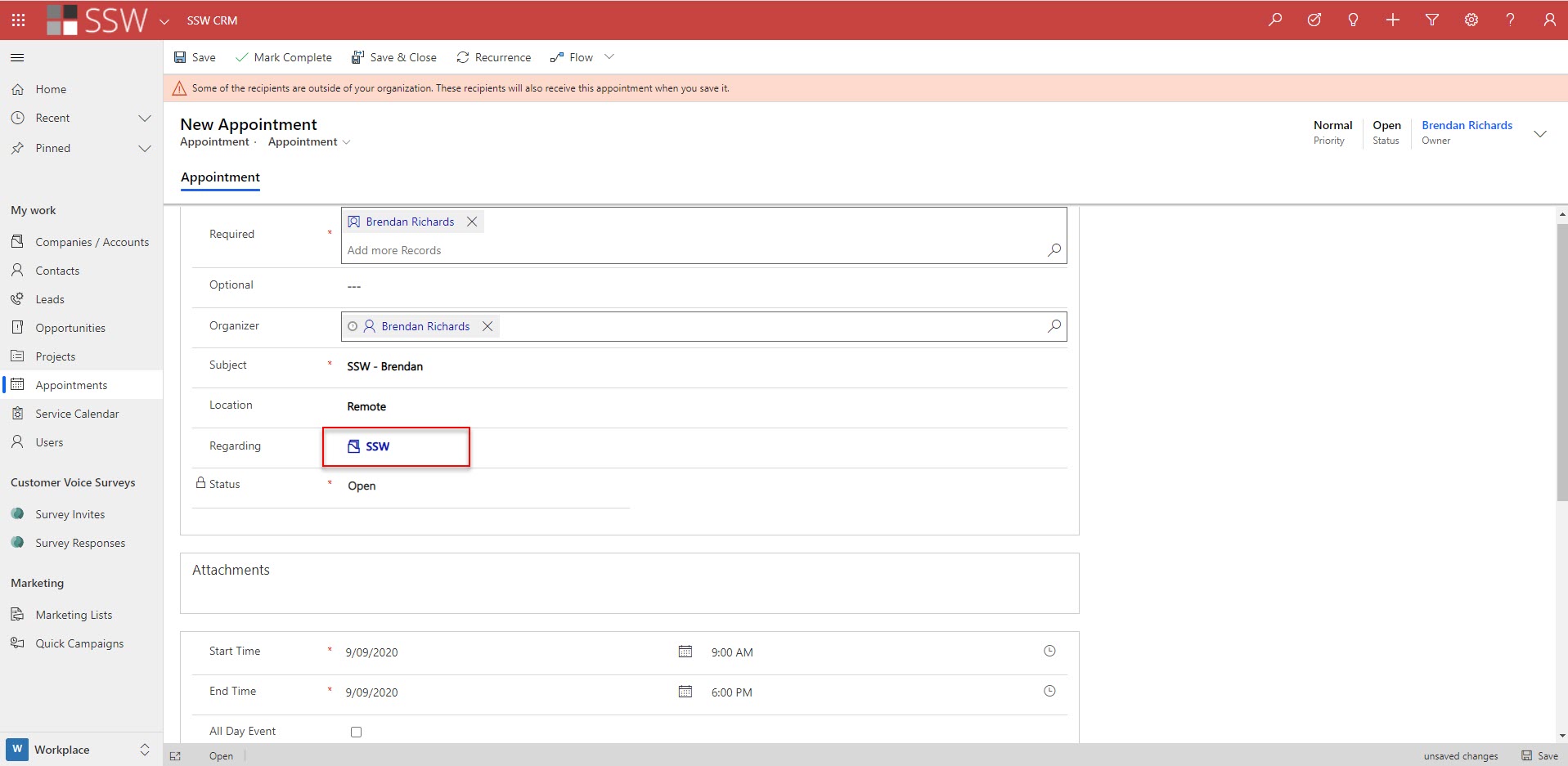
Figure: A complete CRM Appointment for a 1-day booking
Adding Tentative Bookings
Sometimes you may want to reserve a consultant for an appointment but are not able to confirm with the client immediately. In this case, create a Tentative Booking which reserves the consultant for the period of the booking without assigning them to the client account. The purpose of a Tentative Booking is to reserve a consultant and trigger a conversation between Account Managers if the consultant is required on confirmed client work over the same period.
To create a Tentative Booking:
- Follow the same steps above to create the Appointment
- Instead of choosing a client account for 'Set Regarding', create and use a pre-defined account for the purpose of tentative bookings (E.g.SSW.PencilledIn)
Tip: Create a "Booked In Days" Report and make the Tentative Bookings display obviously (E.g. a grey color), so Account Managers can easily see it if they need to use that time.
Adding Internal Bookings
If a developer is needed for non-billable work (e.g. urgent internal work) or travelling to teach public training events, their time should be blocked out so it shows as unavailable for client work.
To book someone for internal work:
- Follow the same steps as above to create the Appointment
- Instead of choosing a client account for "Set Regarding", choose your own company (e.g. "SSW").
- Mention which internal project the developer is working on in brackets (e.g. "SSW - Brady (Rules)")
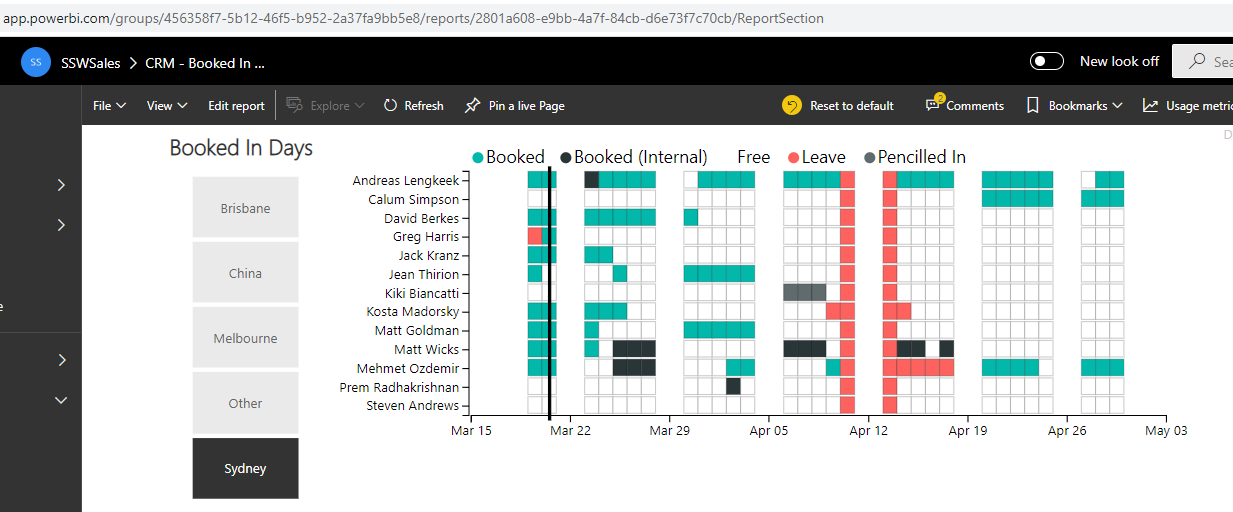
Figure: Internally 'Booked' days show as black and 'Pencilled In' days show as grey
Deleting Bookings
You can ask BookingPro to delete a booking from Dynamics 365 and Outlook, as shown in Option 1.
If you're deleting a booking manually, cancelling an appointment in Outlook will not delete it from Dynamics 365. Follow these steps:
- In the appointment, open the Dynamics 365 App
- Click on the menu next to Tracked regarding
- Click Untrack, then Delete
- Wait about a minute for Dynamics 365 to sync, then cancel the appointment
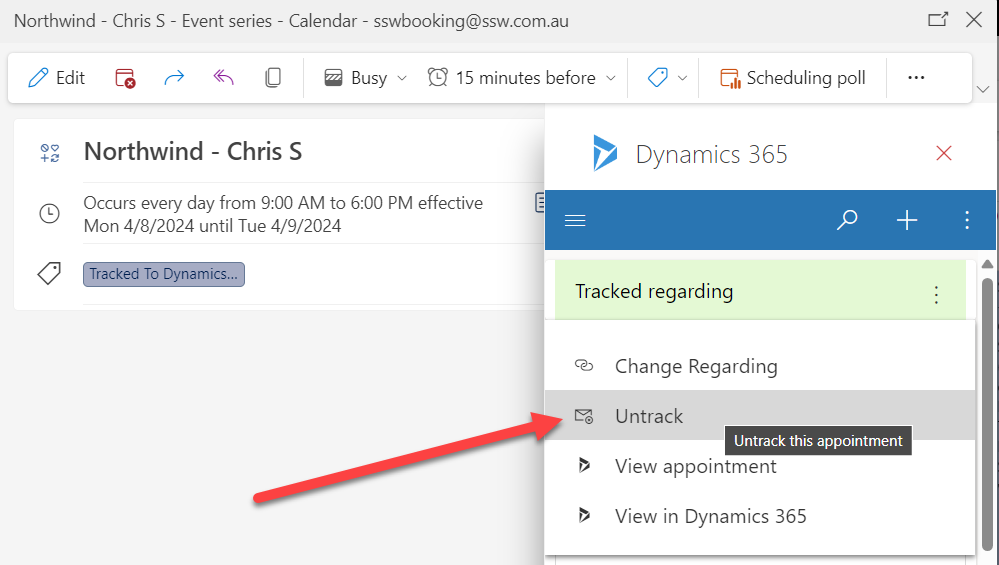
Figure: Outlook | Dynamics 365 App | Click Untrack and then Delete
You can't untrack a single occurrence of a series of appointments - instead, you need to cancel the occurrence and delete the appointment from Dynamics 365 manually.
Using a separate Outlook calendar to book appointments
If you have a lot of staff, it can be useful to use a separate calendar to make your bookings - this stops them from covering your everyday calendar and making it hard to read.
Unfortunately, you cannot use a sub-folder to track appointments in Outlook. You need to create a whole new email account and then add it to your Outlook folder.
Using the example of SSW's crmtimeprosync@ account, this account is used to add appointments to the Service Calendar, and these are then added through the SSWBookings calendar in Outlook:
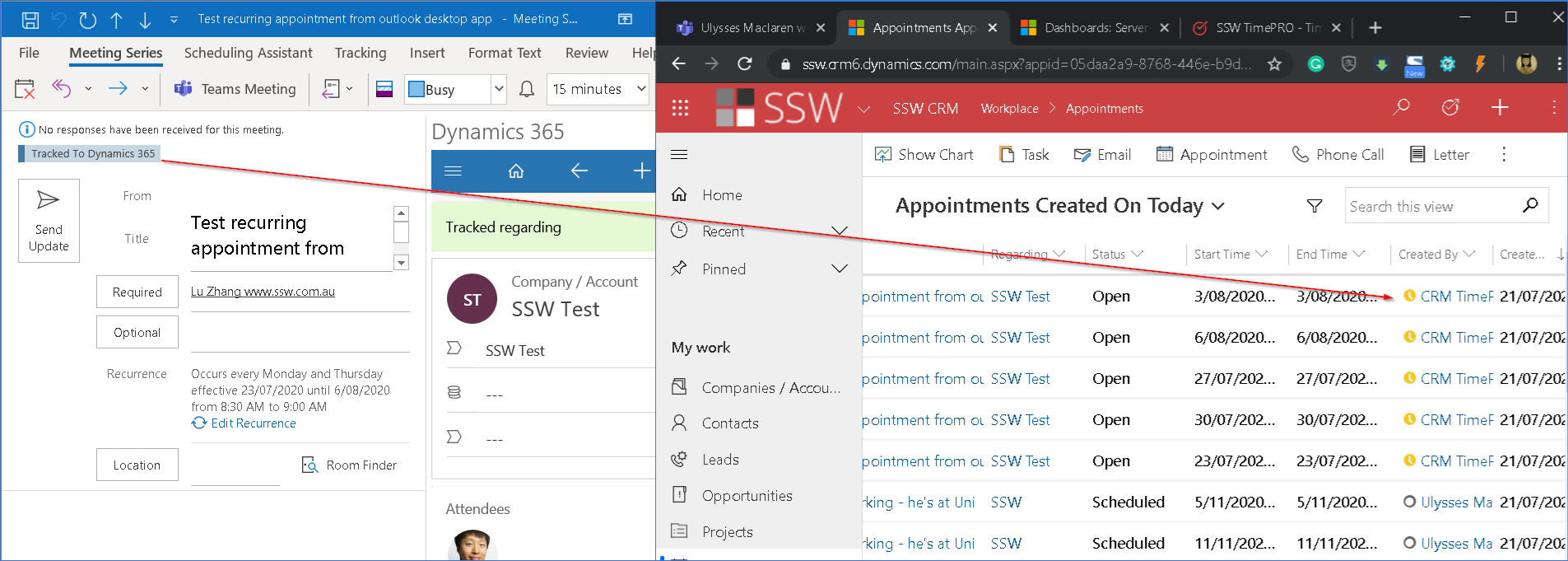
Figure: Appointments tracked from with Outlook desktop
Note: If using a separate Exchange calendar, it's highly recommended to login via Outlook Web Access (OWA) rather than loading it up as a shared calendar in your Outlook Desktop client. This is because it handles multiple users much better this way, and will avoid syncing issues.
How to set it up
For OWA
Open browser’s incognito mode | go to outlook.office.com | logon with the crmtimeprosync@ account
For Outlook Desktop
Go to Files | Add an account | Restart Outlook once it completes
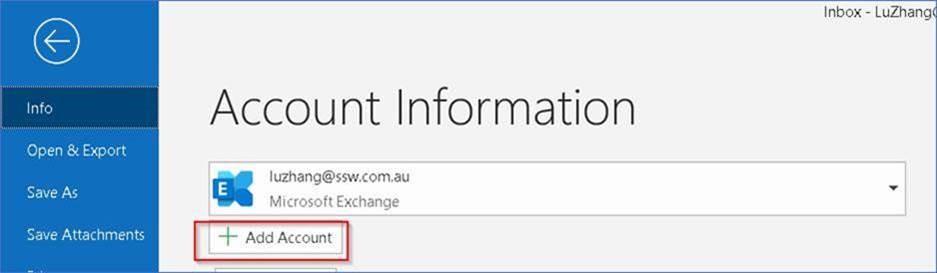
Figure: Add account to your Outlook
Please note you will need to get the password from your enterprise password manager.