Do you track important emails in CRM?
Loading last updated info...
Whenever you email a client with a correspondence that relates to an existing CRM opportunity (i.e. an "as per our conversation" about when you think the project would get going etc.) you should track it in CRM so it is centralized and can be seen by anyone else who tries to follow up that opportunity.
The simplest way is when writing or receiving the email in Outlook, click the Dynamics 365 button and then "Track without Regarding".
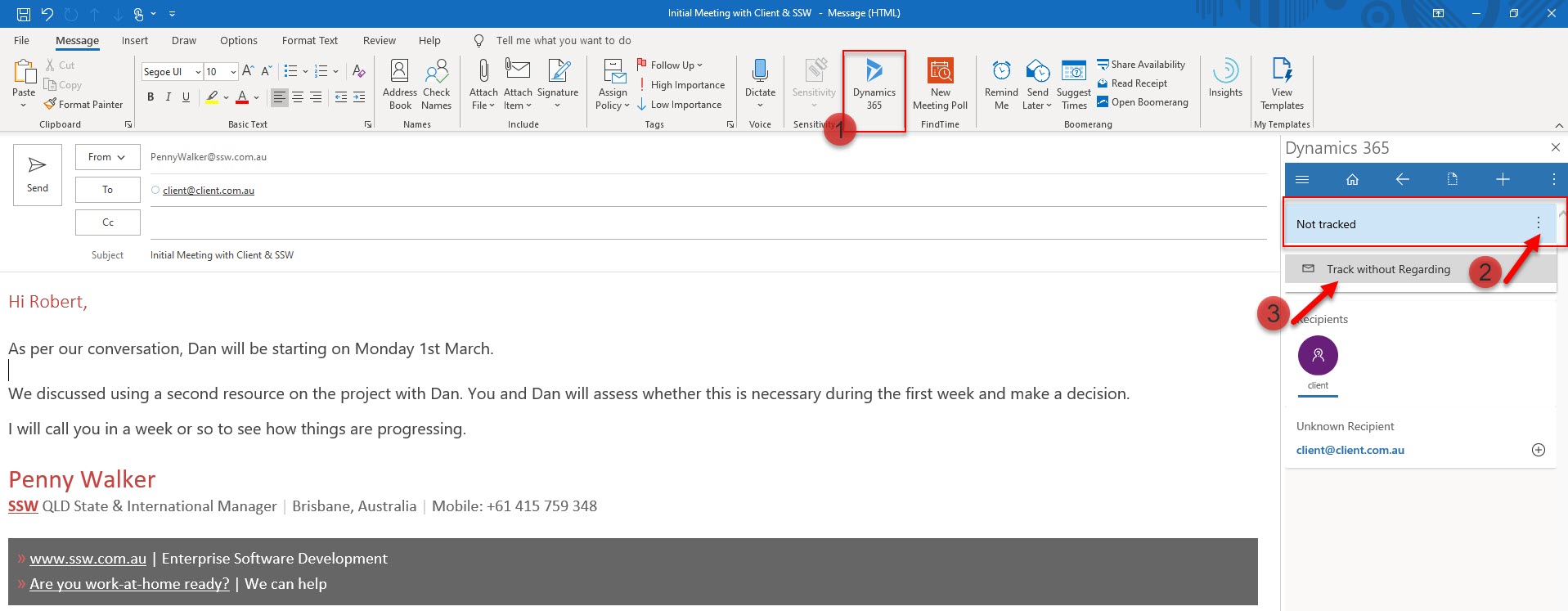
Figure: Tracking an email in Outlook
Tracking emails in the Dynamics 365 web interface
If you're working directly in the Dynamics 365 web interface, you can also track emails through the auto capture feature. When auto capture is enabled, the system will collect untracked emails for up to 3 days, allowing you to review and track them without returning to Outlook.
To track emails using auto capture:
- Go to the entity record which the email is related to (e.g. a contact, company or opportunity)
- Find the "Timeline" section
- Click the "Track" button (see screenshot below)
This feature is particularly useful when you've missed tracking important emails initially or when reviewing correspondence from your browser.
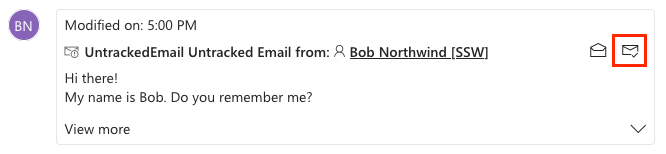
Figure: Look for the "Track" button in the Timeline section of Dynamics 365 web interface to track emails (highlighted in red)
Understanding UntrackedEmail in Dynamics 365
In Dynamics 365, you may notice items labeled as "UntrackedEmail" in your timeline or activities. These are emails that:
- Have been detected by the system's auto capture functionality
- Are potentially relevant to your CRM records
- Have not yet been formally tracked in the CRM system
- Will only remain in the system for a limited time (typically 3 days)
UntrackedEmails appear as suggestions for you to review and decide whether they should be permanently tracked in CRM. This feature helps prevent important communications from falling through the cracks while giving you control over what gets stored in your CRM database.
When you see UntrackedEmails:
- Review them to determine if they contain valuable information
- Use the "Track" or "Track and Set Regarding" options to convert important ones into permanent CRM records
- Ignore irrelevant emails, which will automatically disappear after the retention period
Track all in a thread or just one?
Track all in a thread - except if they're irrelevant (no useful information for anyone), but that's quite unlikely... so basically it is "all tracked"
Note: with the old CRM COM add-in, this was automatic once you tracked the 1st email on the thread, the rest would be auto-tracked. That is no longer the case so you now have to track every email manually
Now you know the general principle, the next step is to determine what activities are worth tracking: Sales - Do you track all sales related activities in CRM?