This product is no longer supported.
SSW EmailMergePRO
> Screenshots

Mail merge HTML emails simply with SSW Email Merge
PRO!
SSW Email Merge PRO! makes sending bulk email a breeze.
Especially useful for periodical email newsletters, it
provides real time tracking information and reports on
bounced emails, enabling you to keep your subscribers
list clean and up-to-date.
SSW EmailMergePRO User Guide
1.
Prerequisites
2.
User Guide
3.
Other Screens
4.
FAQ
|
Prerequisites
User Guide
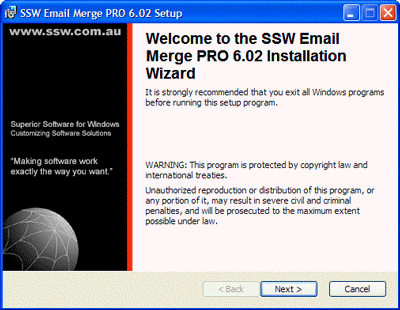
When you run the install exe there is a simple wizard
interface to guide you thru the setup process.
When you run the SSW Email Merge PRO there wil be a step
by step wizard to guide you thru the Email process.
-
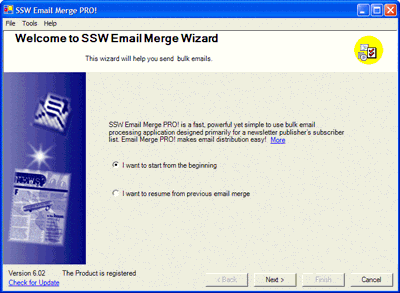
Run SSW Email Merge PRO - Welcome screen - Select
Start from the begining.
Note: If you want to resume from the last sent log,
select Resume.
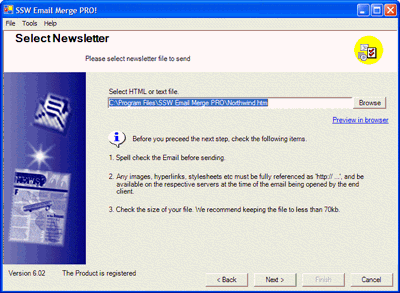
- Select the html file you wish to use
- Hints on creating HTM files:
- Front Page is a perfect tool
- Use full URLs, not relative paths
- Ensure there is no scripting in the page
-
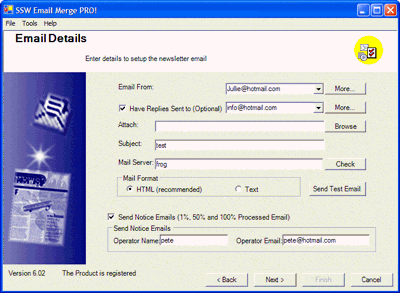
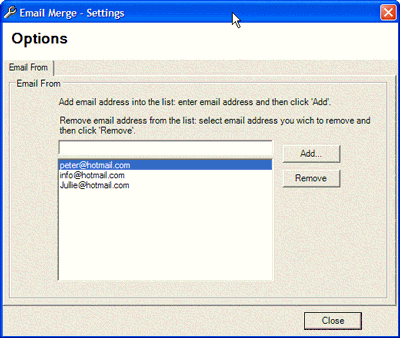
Select the address you wish to send from, any required
attachments, the Subject and the mail server
-
If the "From" address is not in the list, you can add
a new address
- Send a test email to selected recipients
-
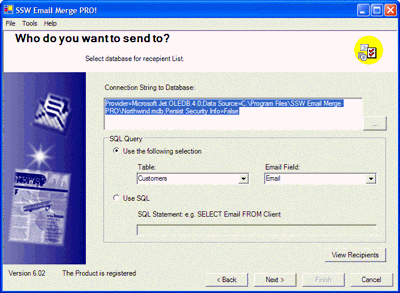
Generate subscriber list
- Use custom database to generate the list
-
Select the database where your subscribers
reside, select the table and field which
contains the email addresses.
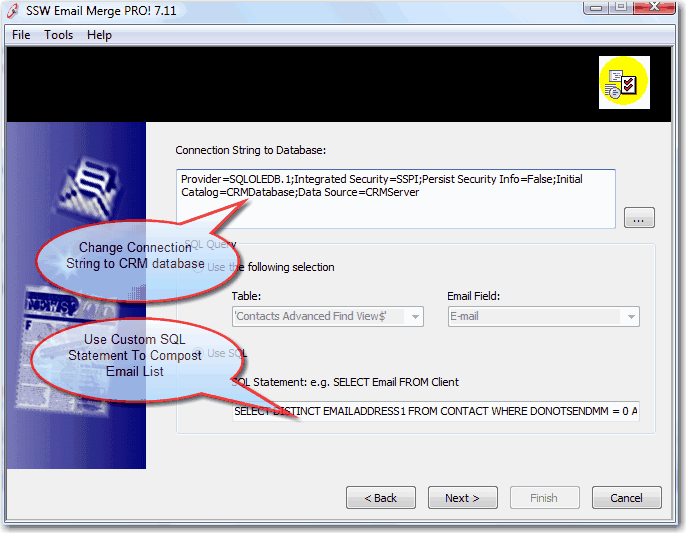
- Use Microsoft CRM data to generate the list
-
Change connection string to point to CRM
Database and use custom SQL statement to
generate your list, e.g:
SELECT DISTINCT emailaddress1 FROM Contact
WHERE donotsendmm = 0 AND emailaddress1 is
not null AND emailaddress1 LIKE '%@%'
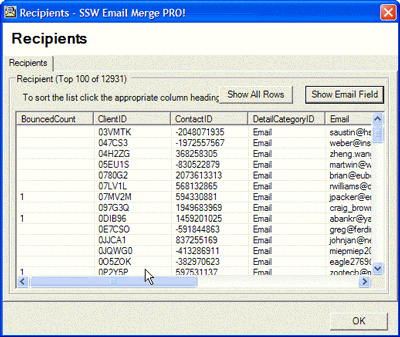
- View the recipients if required
- Send the Mail Merge
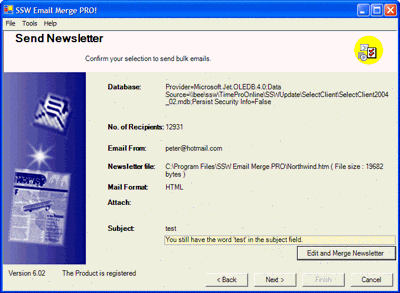
- SSW Email Merge PRO! informs you of progress
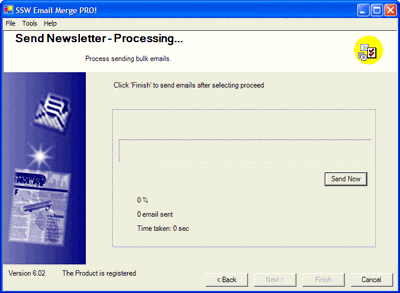
-
SSW Email Merge PRO! reports on how many emails were
send, and how long it took to send them
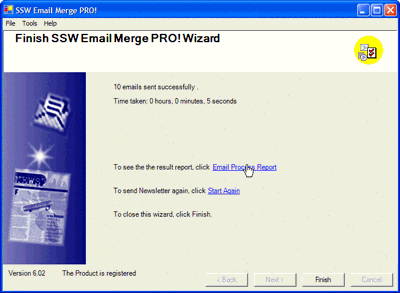
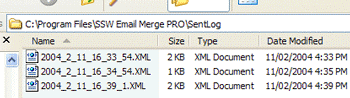
-
Using sent email log you can view the history of sent
emails.
Other Screens
-
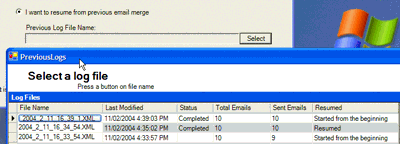
You can resume the process by selecing any sent log
from the list on step 1.
-
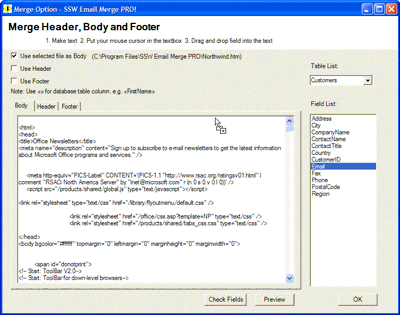
You can mail merge into your newsletter using database
field on step 5.
-
You will have the report for the result of your email
process.

FAQ
1.
What is the difference between using Email Merge PRO!
and the email merge within Microsoft Word?
