This product is no longer supported.
SSW SQL Auditor
> Screenshots

This is FxCop for your SQL database - Keep your
SQL Server database free from design flaws with
SSW SQL Auditor.
Maintaining quality code across a large team is
difficult. Even when standards are in place
developers can make mistakes that will slip
through Quality Assurance. SSW SQL Auditor,
built in VB .NET, allows a developer to set SQL
Server design rules and then check the database
for code or design elements that ignores those
rules.
-
Prerequisites
-
Overview
When you run the SSW SQL Auditor there will
be a step by step wizard to guide you
through the audit process.
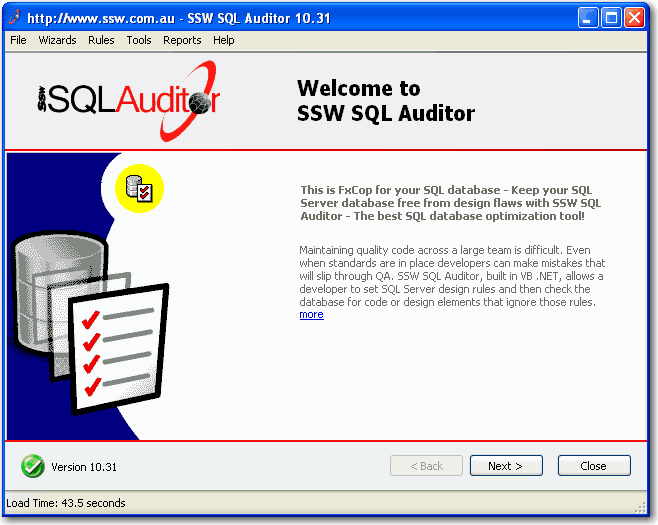
Figure: The welcome page
-
Configure a Data Source and refresh the
schema
Before you can start auditing your database,
you need to tell the application which
database it should connect to. You can
either create a sample database, connect to
your own database or simply run this
application without a database.
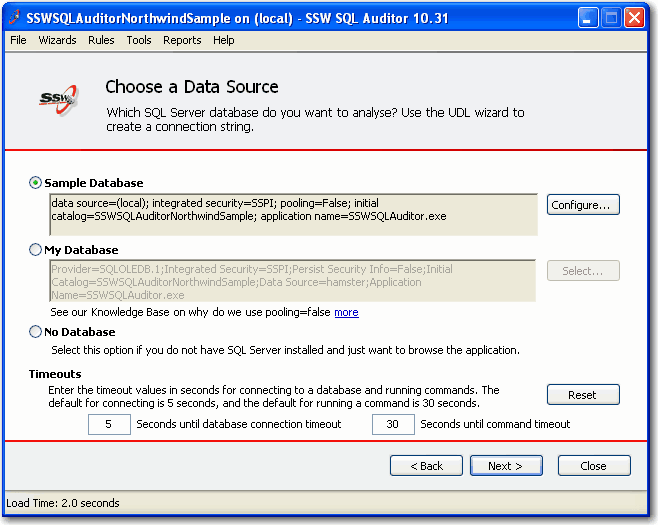
Figure: Choose a data source -
Configure sample database
or
Select my database
-
Configure sample database
SQL Auditor comes with a sample database
which contains many typical database
design flaws; you can
deploy such a database and evaluate the
auditing process.
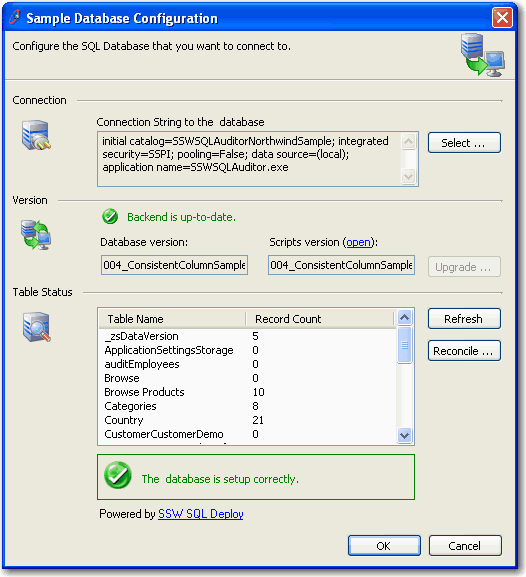 Figure: SSW database setup control for
configuring sample databases
Figure: SSW database setup control for
configuring sample databases
Click 'Select ... ' to create a new sample
database or specify an existing one.
Before doing this, please make sure your
account has enough privileges to access
your database server and is able to create
and drop databases. Normally, a
'Database Creator' will be enough.
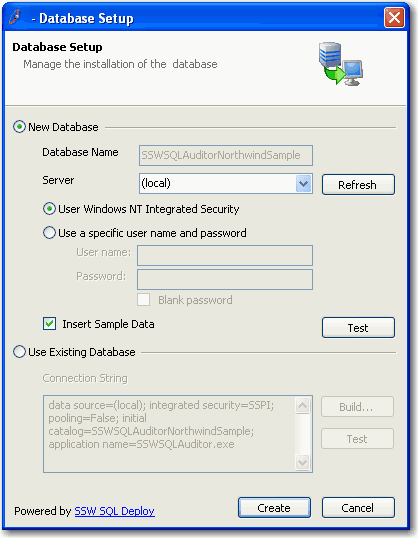 Figure: SSW database setup control -
configure sample database
Figure: SSW database setup control -
configure sample database
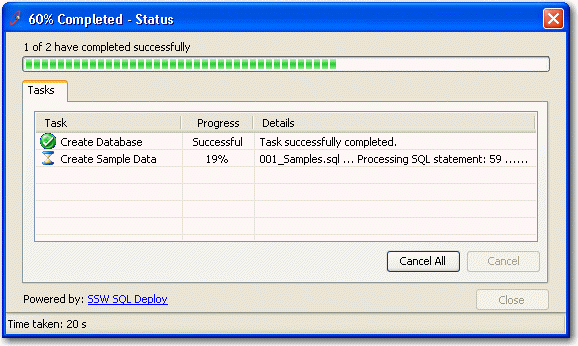 Figure: SSW database setup control -
creating sample database
Figure: SSW database setup control -
creating sample database
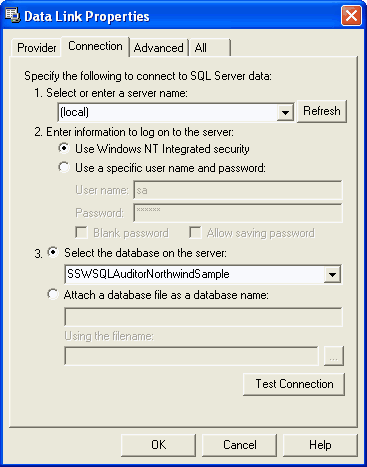 Figure: Select an exist database
Note: Please remember to check the "Allow
saving password" option if you
specified a user name/password pair.
When you configure your connection
successfully, you can click "Next" to navigate
to the following screen which will help you to
load schema from your database into SQL
Auditor for analyses.
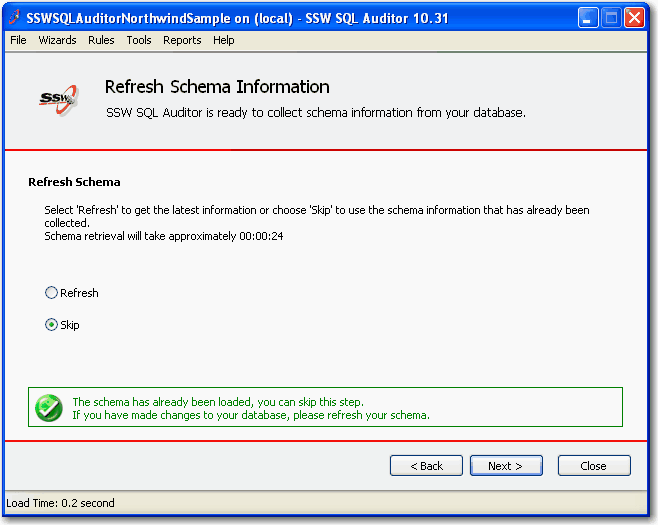
Figure: Process the Database
-
Select the rules - Database Optimization
SQL Auditor includes many rules that help
you to improve your database, we know you
may not
agree with every single one of them, so you
can review the rules in the following screen
and decide
which ones you want to implement. Remember
you can always click 'more' to help you
understand these rules.
Tip: Click on the Column to sort it
ascending or descending and you will learn
what other DBA's believe/are doing:
-
Rule Agreement - the rules everyone agrees
(or disagrees) with
-
Rule Implementation - the rules that
developers are actually implementing (or
not)
-
Time Taken for scanning of each rule - the
slowest/fastest rules
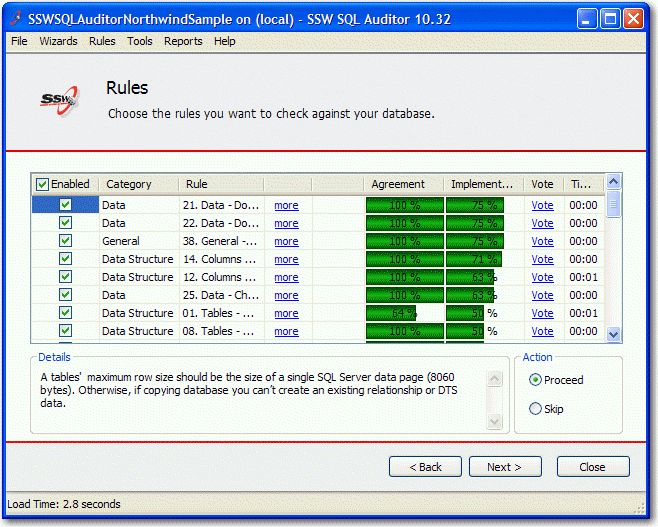
Figure: Select the rules that you'd like to
implement, You can also click the "Options"
link to configure the rule as per your own
database policies
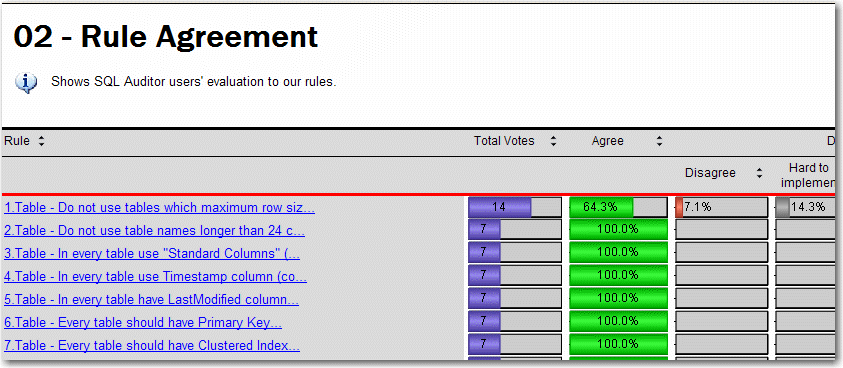
Figure: Want to see what others are doing -
see the live report for the
Rule Agreement Report
When you pick all the rules, click "Next",
SQL Auditor will start processing.
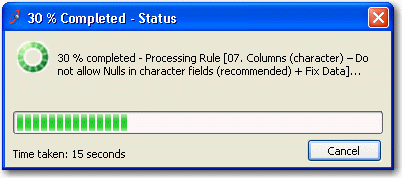
Figure: Processing rules
SQL Auditor will display a detailed report
about each of the rules; depends on the rule
specifications,
you will have different options to implement
the rules against your database.
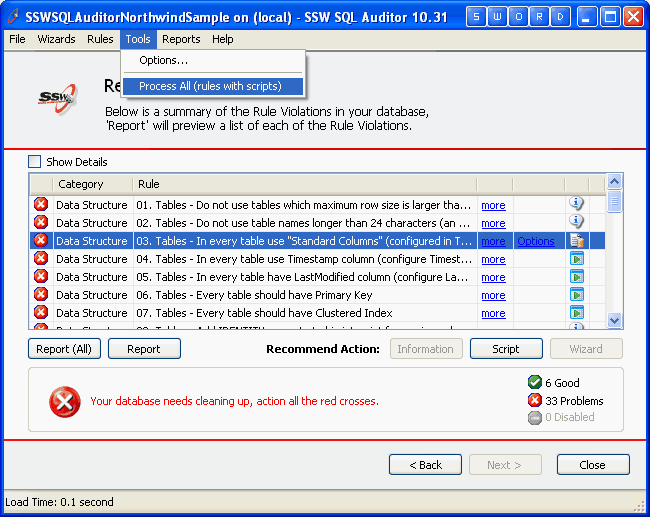
Figure: This page shows the result of rule
processing, you can choose the following
actions:
-
"Report" button - view the summary of
violations for each rule;
-
"Report (All)" button - view all rules;
-
"Information" button - view details about
rule violation, you can also print this
out.
-
"Script" button - take you to the screen
with automatically generated SQL script to
fix rule violations.
-
"Wizard" button - open relevant wizard
that will guide you through a few steps to
create an SQL script.
-
"Tools -> Process All" - run all
scripts all together to fix all the
violations.
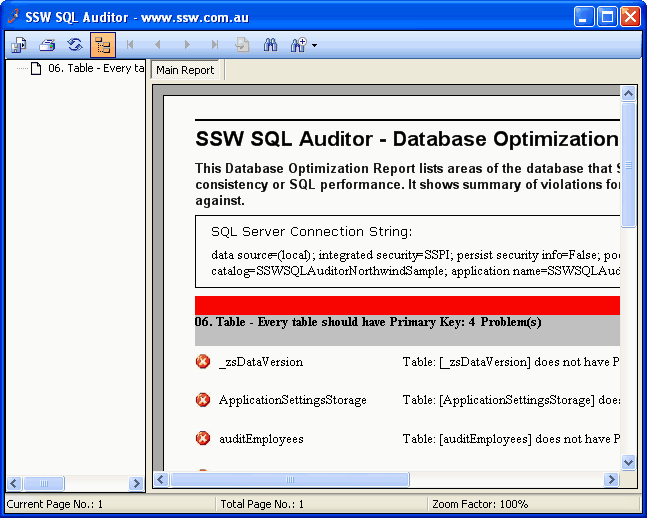
Figure: Rule violation report
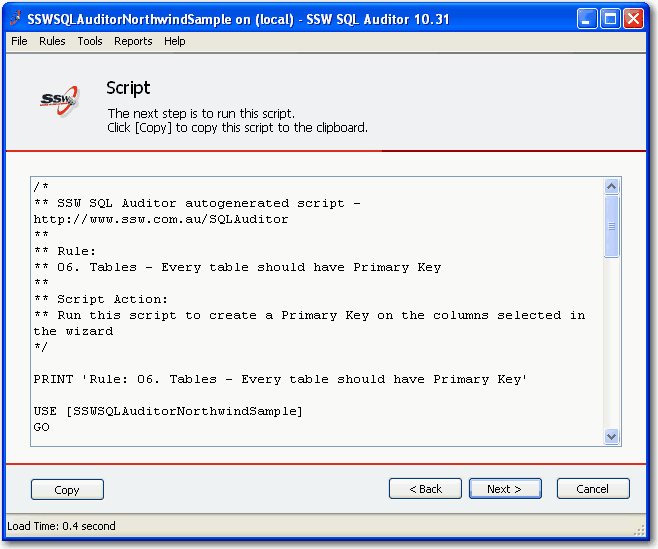
Figure: Optimization script generated by SQL
Auditor
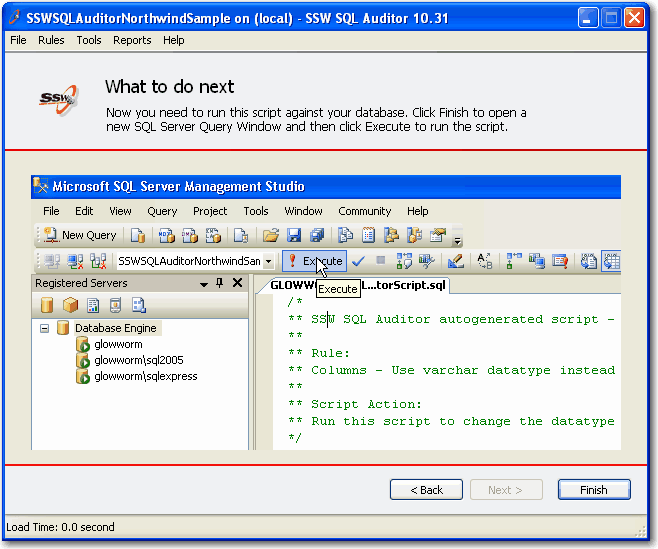
Figure: Click "Finish" to start the Query
Analyzer to execute the script
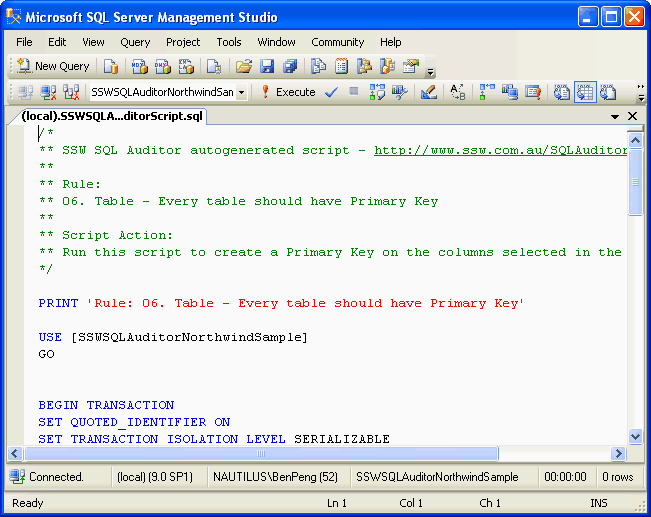
Figure: SQL Server 2005 Management Studio
with the script loaded
-
Tools | Options
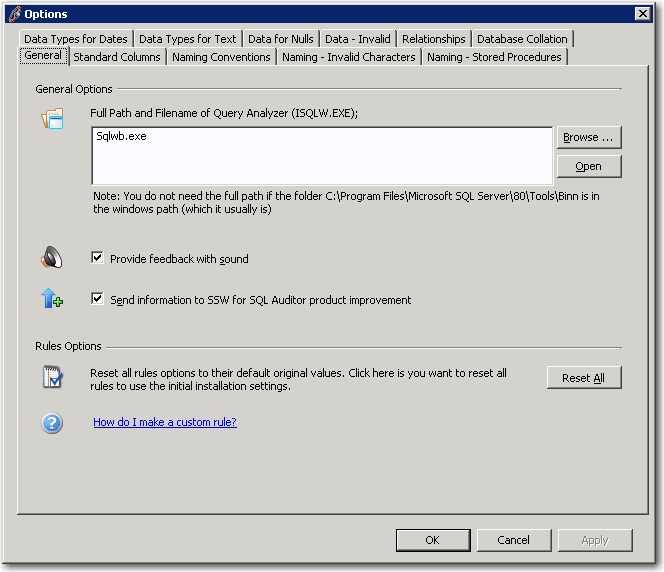
Figure: SSW SQL Auditor settings for General
Options
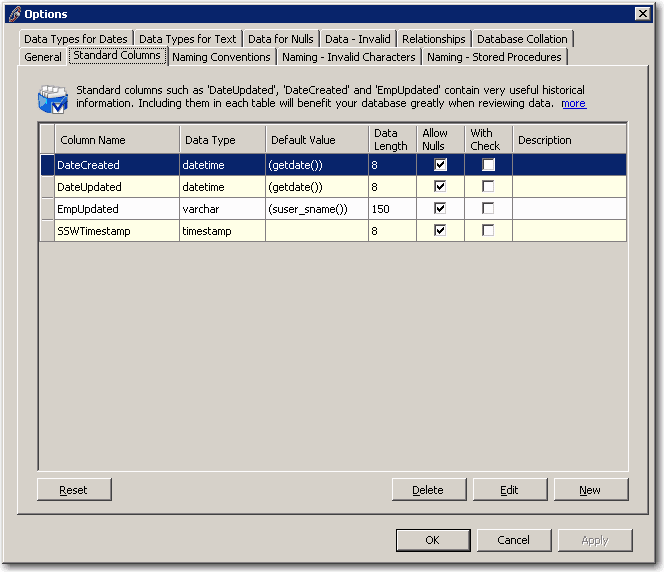
Figure: SSW SQL Auditor settings for
Standard columns
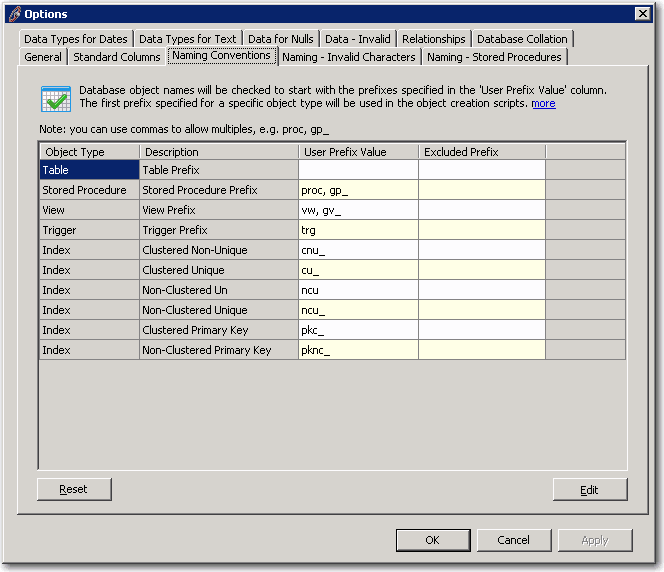
Figure: SSW SQL Auditor settings for Naming
Conventions
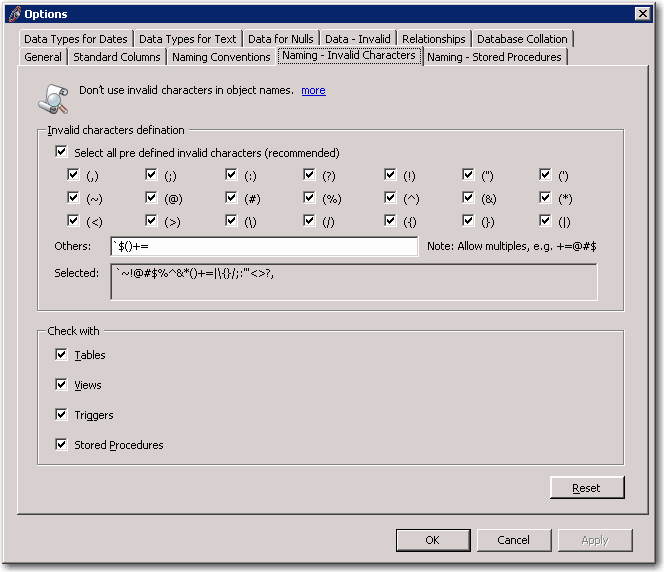
Figure: SSW SQL Auditor settings for invalid
characters in object names
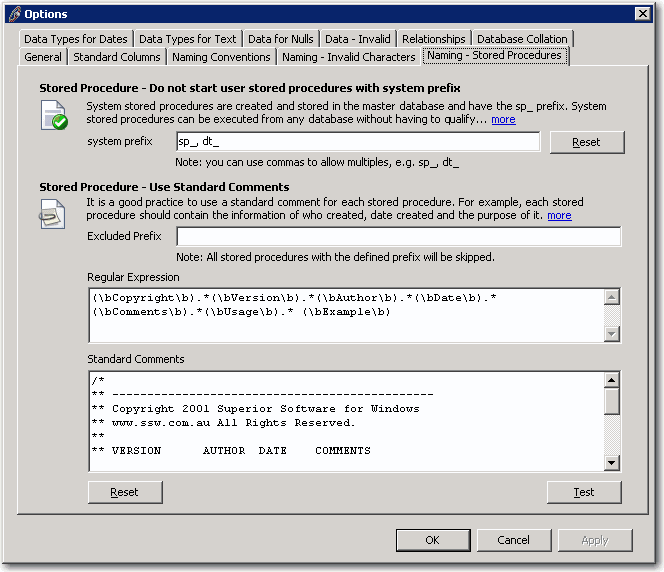
Figure: SSW SQL Auditor settings for stored
procedures
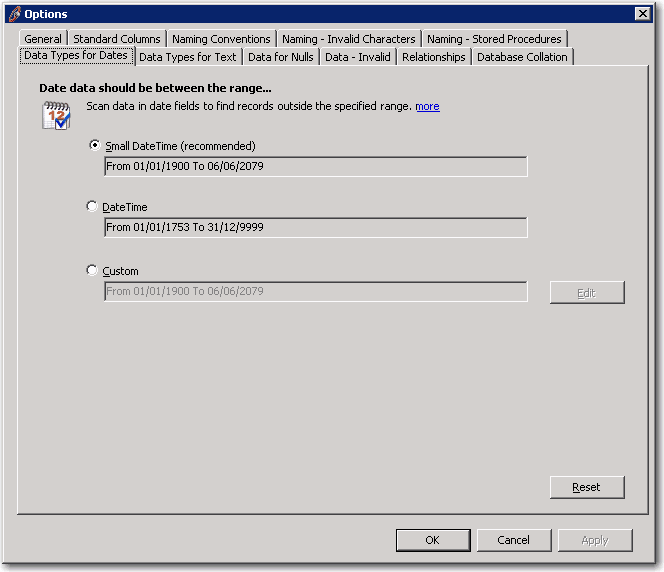
Figure: SSW SQL Auditor settings for Data
Types for Dates
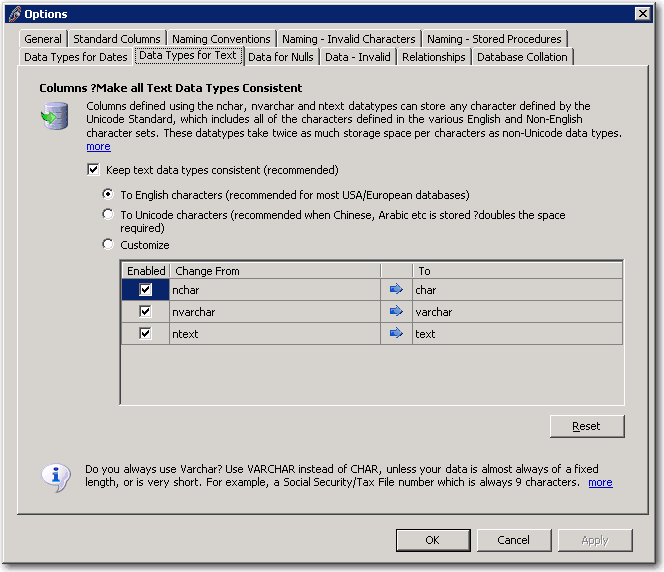
Figure: SSW SQL Auditor settings for keeping
text Data Types Consistent
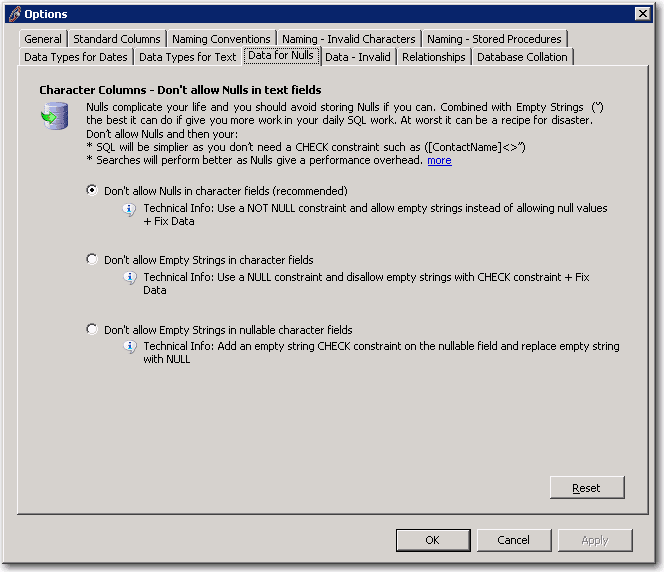
Figure: SSW SQL Auditor settings for Nulls
in text fields
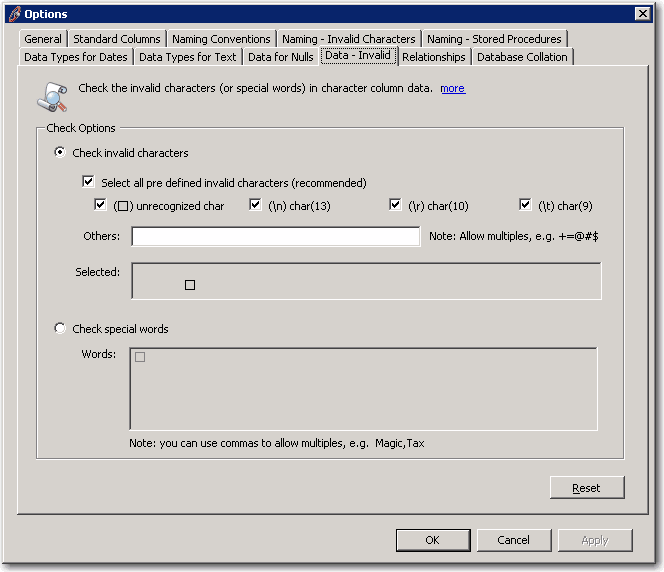
Figure: SSW SQL Auditor settings for invalid
characters
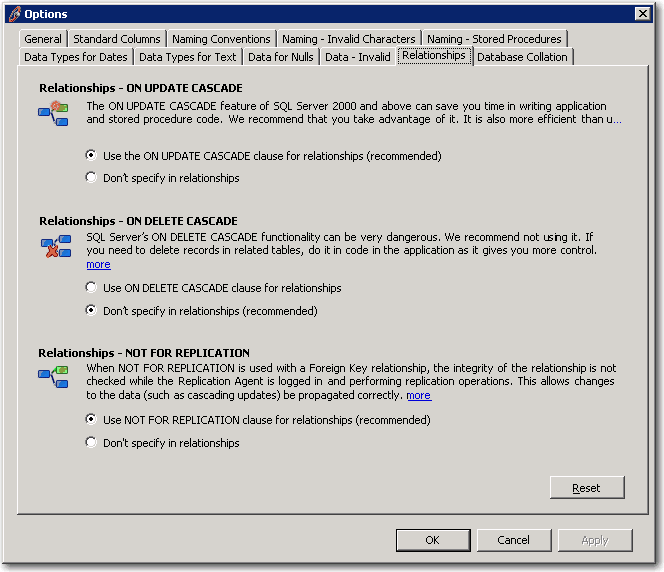
Figure: SSW SQL Auditor settings for
Relationships
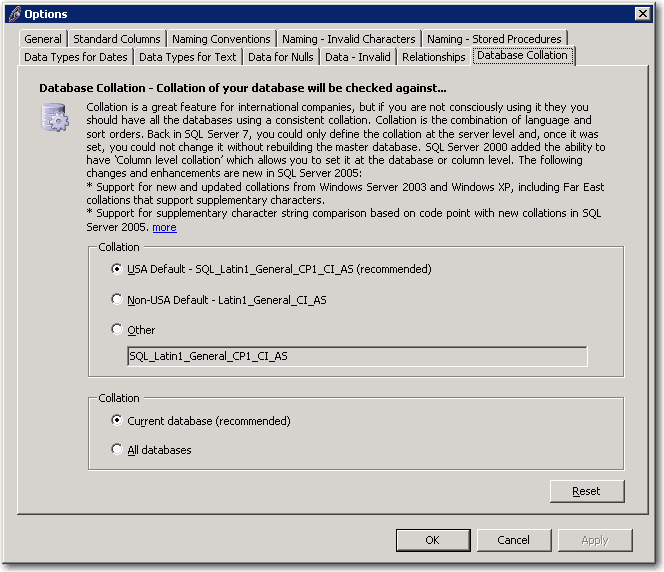
Figure: SSW SQL Auditor settings for
Database Collation
|