This product is no longer supported.
SSW SQLTotalCompare
> Screenshots

Manage SQL Server Replication simply with SSW SQL
Total Compare
SQL Server replication is a fantastic piece of
functionality but can lead to a database administration
nightmare. Data conflicts are a common occurrence and
require constant attention. SSW SQL Total Compare
reports the differences between the Publisher and
Subscribers databases and makes the changes necessary to
fully synchronize the data.
SSW Total Compare User Guide
1.
Prerequisites
2.
SSW Total Compare User Guide
|
Prerequisites
SSW Total Compare User Guide
-
Install SSW SQL Total Compare on the server on which
the subscriber database resides and merge replication
was configured.
-
Specify the Publisher database and the subscriber
database
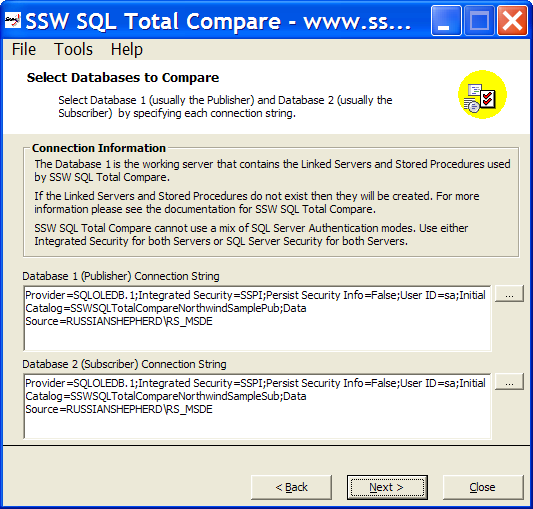
Figure: Specify the Publisher database and the
subscriber database
-
Create the Stored Procedures and Linked Servers.
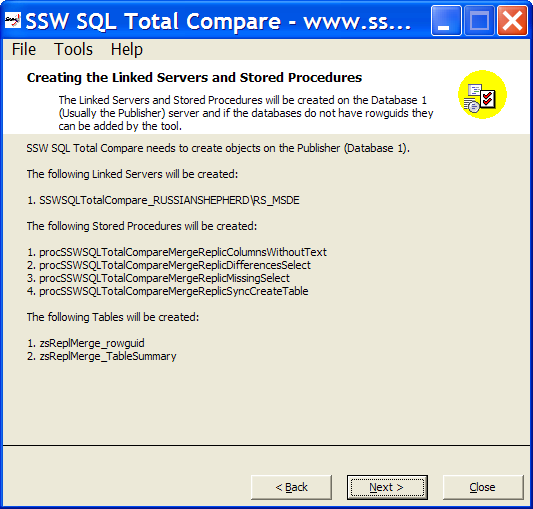
Figure: Create the Stored Procedures and Linked
Servers
-
Compare the databases. This process may take some time
depending on the size and quantity of tables in the
databases. The tables with data not in sync will then
be displayed. Note: A period (.) is used to indicate a
NULL value in SSW SQL Total Compare.
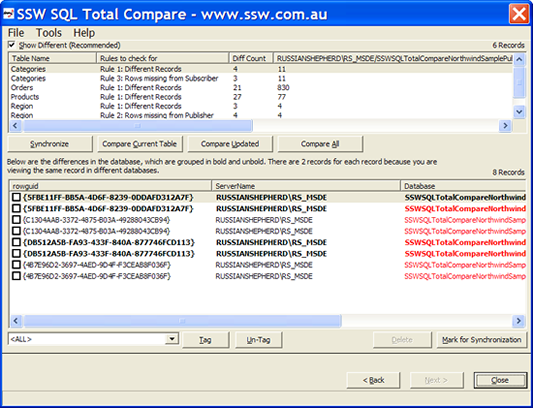
Figure: Compare the databases
-
Determine the best course of action to resolve
conflicts:
-
Add missing records. Any missing records detected
in your tables from either the Publisher or the
Subscriber database servers can be added by
selecting the records required and clicking on the
'Update' button. Then synchronize the data.
-
Modifying records that are different. Examine the
data from the two database servers and select the
one which has the correct data and click 'Update'.
(This actions the sp_dummyupdate Stored
Procedure). Then synchronize the data.
-
Deleting records that are no longer required.
Select the record you wish to delete from the list
of records. Then click on the 'Delete' button
which will display the form. There are two queries
options. The first query will select the record
and display its details in the results section.
Once you are sure that this is the record you wish
to delete you can delete the record by running the
second query.
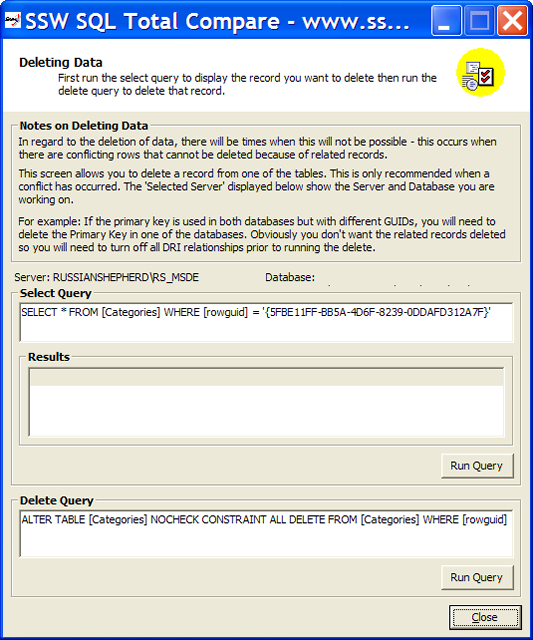
Figure: Determine the best course of action to
resolve conflicts
-
Synchronizing the Data. SSW SQL Total Compare has this
functionality inbuilt utilising the Synchronize and
Conflict Viewer tools. Click on the 'Synchronize'
button.
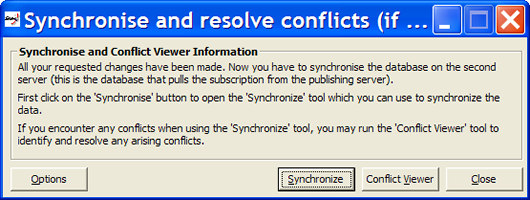
Figure: Synchronizing the Data
-
Select one of the four options:
-
Options - configure the path and parameters for the
Synchronize and Conflict Viewer tools.
- Synchronise - runs the Synchronize tool.
-
Conflict Viewer - runs the Conflict Viewer tool.
- Close - closes the form.
-
Check the options page for the correct configuration
of paths and parameters for the Synchronize and
Conflict Viewer tools. Specify the path to the
Conflict Viewer tool, the Server Name and Database
Name of the first database (or publisher) and the path
to the Synchronize tool. Note: If you do not have
these tools on your system, do not worry as the tools
have been installed in the Install Directory of SSW
SQL Total Compare.
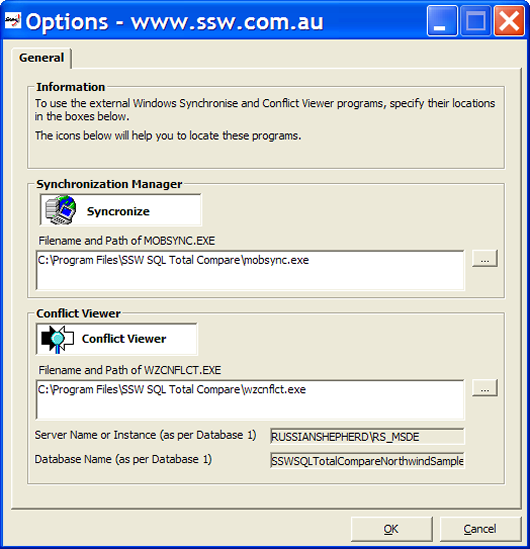
Figure: Check the options page
-
Click on the 'Synchronize' button on the displayed
form.
-
Resolve conflicts using the Conflict Viewer. You will
be notified in the Synchronize tool if there are any
conflicts. If there are conflicts, click on the 'View'
button and read the description for each conflict and
choose either to take the winning change or select the
losing change to keep its data.
-
Compare the data again to make sure that the data has
been correctly synchronised.
-
Finished - thanks for using SSW Total Compare