SSW Web Pager
> Screenshots

Deliver the web to your inbox with SSW Web Pager
SSW Web Pager is a utility that sends any web page to
your inbox. This utility has many applications - from
emailing you the latest news daily to emailing daily and
monthly HTML reports to your administrator. Everything
you need will be in one centralized location - the
Inbox, saving you from opening many web pages to view
all the pages you visit daily.
SSW Web Pager Screenshots
1.
Prerequisites
2.
Running SSW Web Pager Wizard
3.
Step 1 - Record Events
4.
Step 2 - Save the XML Communication Transcript
5.
Step 3 - Configure the Scheduler
6.
The WebPager Command Line Utility
|
-
Prerequisites
-
Running SSW Web Pager Wizard
When you run the SSW Web Pager there will be a step
by step wizard to guide you through the web pager
process.
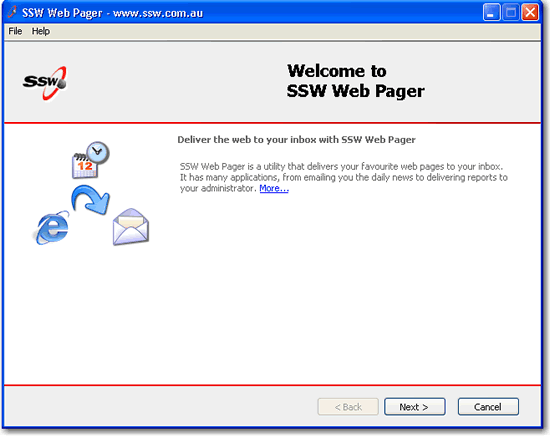
Figure: Welcome Screen
-
Step 1 - Record Events
The first step of this process is to start
"Recording" events, whereby a browser will be
spawned for the user to go to the website which they
want mailed. Once the desired page has loaded, the
user should close the browser.
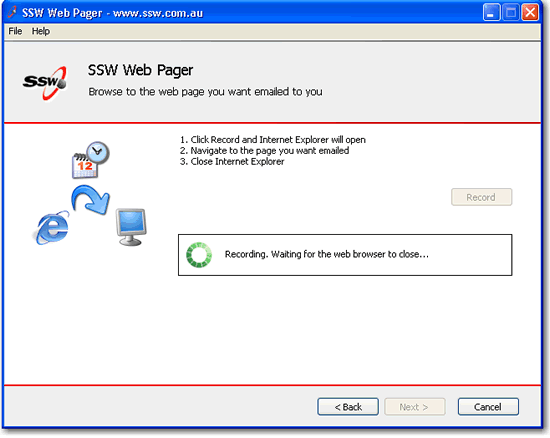
Figure: Click the Record button to start
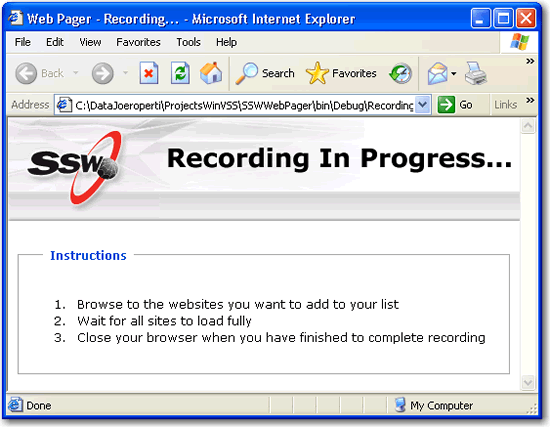
Figure: Recording Pop-up Browser
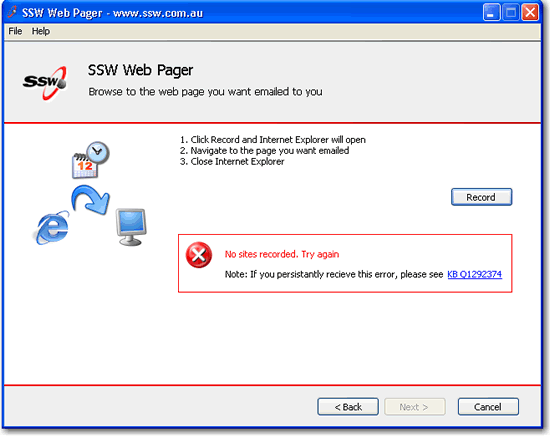
Figure: Unable to Record websites
If you encounter an error, please see this
KB Q1292374
-
Step 2 - Save the XML Communication Transcript
Once the browser window is closed, the application
stores the communication events as XML (as shown
below). The user will need to save the XML file as
it will be used in the scheduler process.
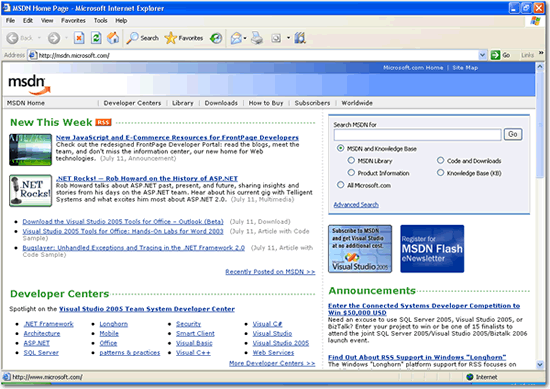
Figure: Close the browser on your selected website
|
<Session>
<Operation
Path="msdn.microsoft.com/Default.aspx/"
ContentType="text/html;>
<Header
Name="accept">image/gif, image/x-xbitmap,
image/jpeg, image/pjpeg,
application/x-shockwave-flash,
application/vnd.ms-excel,
application/vnd.ms-powerpoint,
application/msword, */*</Header>
<Header
Name="host">msdn.microsoft.com</Header>
<Header
Name="user-agent">Mozilla/4.0(compatible;
MSIE 6.0; Windows NT 5.1; .NET CLR 1.1.4322;
.NET CLR 1.0.3705)</Header>
<Header
Name="accept-language">en-au</Header>
<Header
Name="cookie">MSNADS=UM=;
MC1=GUID=223f8803fb897e45b66a055a6cedf7ac&HASH=0388&LV=20057&V=3</Header>
<Header
Name="referer">http://msdn.microsoft.com/</Header>
<Header
Name="proxy-connection">Keep-Alive</Header>
</Operation>
</Session>>
|
Figure: Example of XML file saved
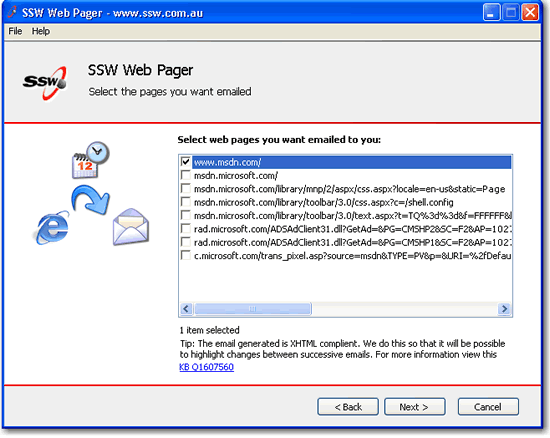
Figure: Select the pages you want to Emailed
To learn more about XHTML view this
KB Q1607560
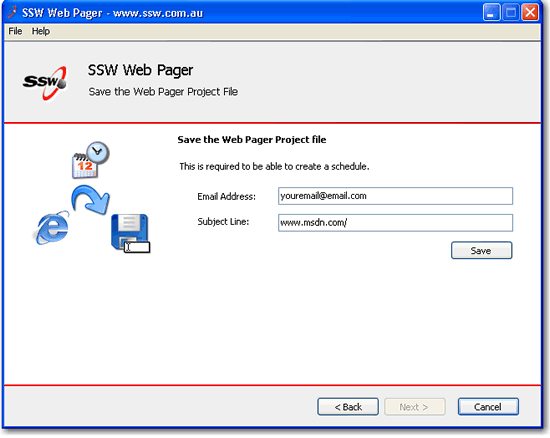
Figure: Enter your email address
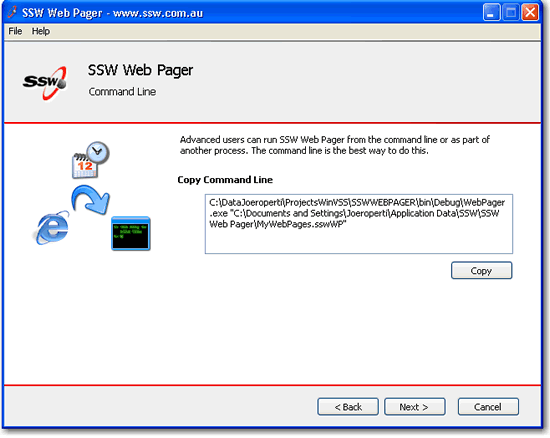
Figure: Command Line Option for Advanced Users
-
Step 3 - Configure the Scheduler
The final step is to configure the Scheduler. The
user can specify, how often the page will be mailed.
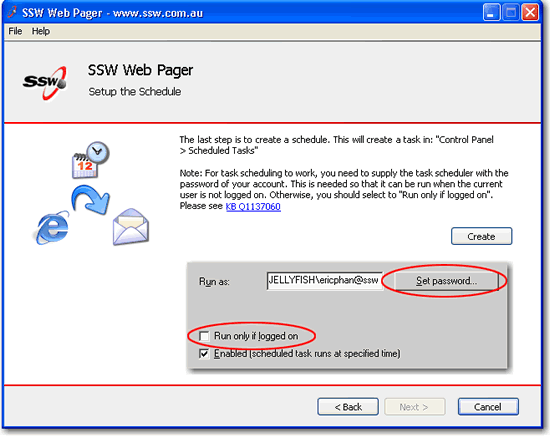
Figure: Click on create to configure scheduler
If you encounter an error, please see this
KB Q1137060
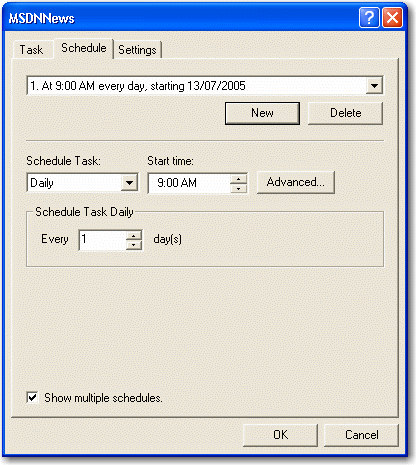
Figure: Select the date and how frequently you want
the page mailed.
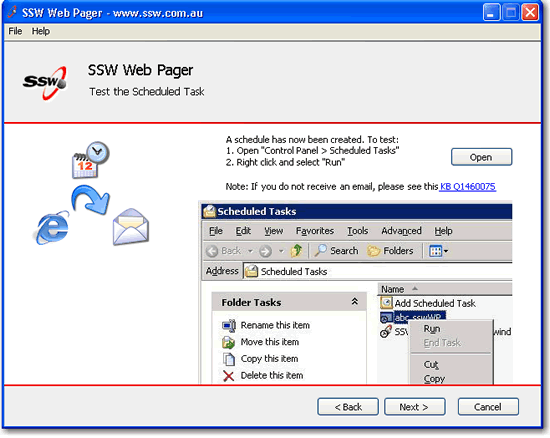
Figure: Test your created Schedule
If you do not receive an email, please see this
KB Q1460075
Figure: Schedule has been created
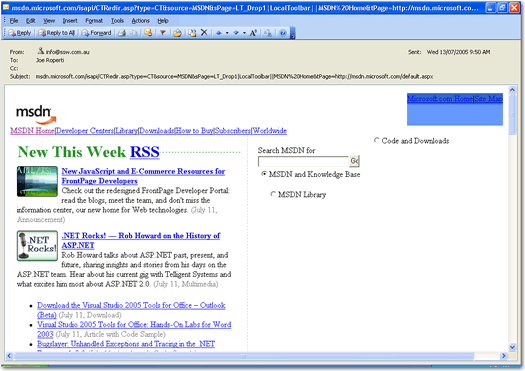
Figure: An Example of a mailed website
If you have problems with viewing images, refer to
KB Q1708792
-
The WebPager Command Line Utility
The WebPager is a separate executable
("WebPager.exe") that takes as its argument an email
address and an XML communication file. What the
WebPager does is replay the communication events
stored in the XML file to retrieve the latest web
page. Once that is done, it emails the user
specified in the command line argument.
As such, one can setup a Scheduled Task running this
executable to schedule the deliver of web pages to
your inbox.
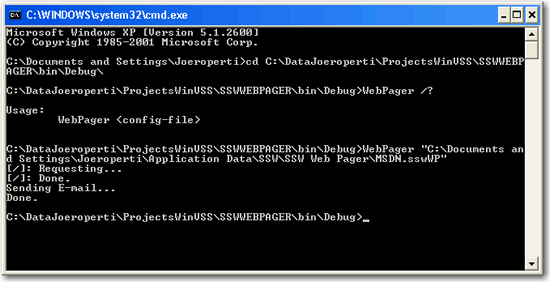
Figure: Using the WebPager Command Line Utility