-
Do you know the 5 user experiences of Reporting Services:
Vanilla, Website, Email, Windows and SharePoint?
The 5 user experiences of Reporting services are...
- Vanilla
-
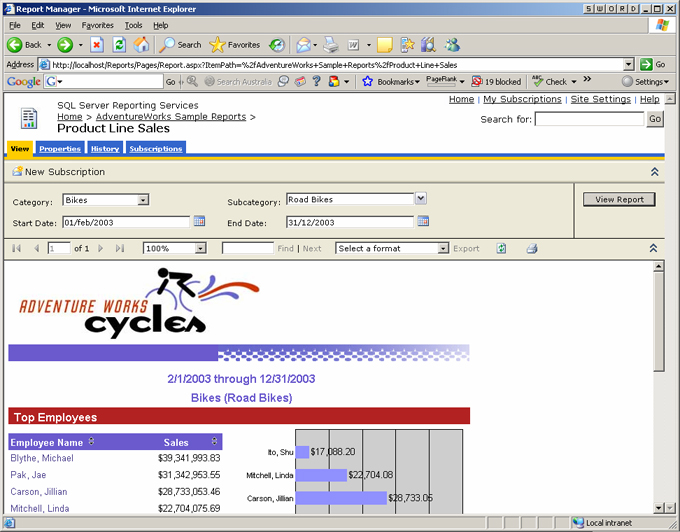
- Figure: Example of Vanilla user experience
- Website
-
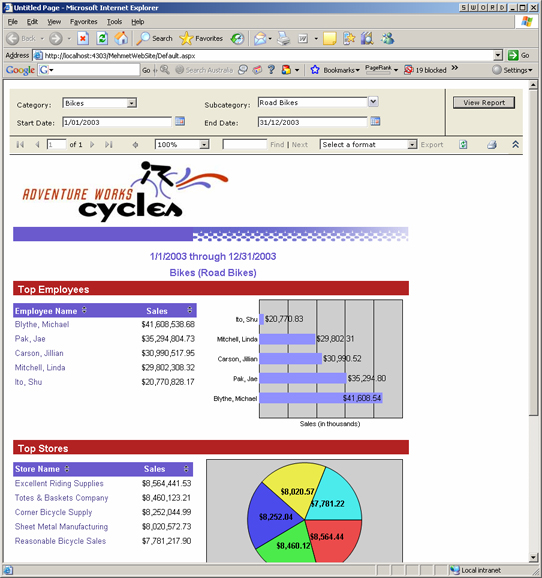
- Figure: Example of Website user experience
- Email
-
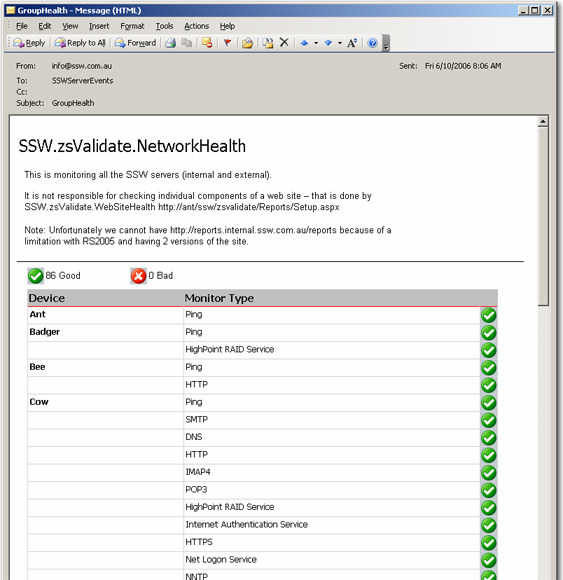
- Figure: Example of Email user experience
- Windows
-
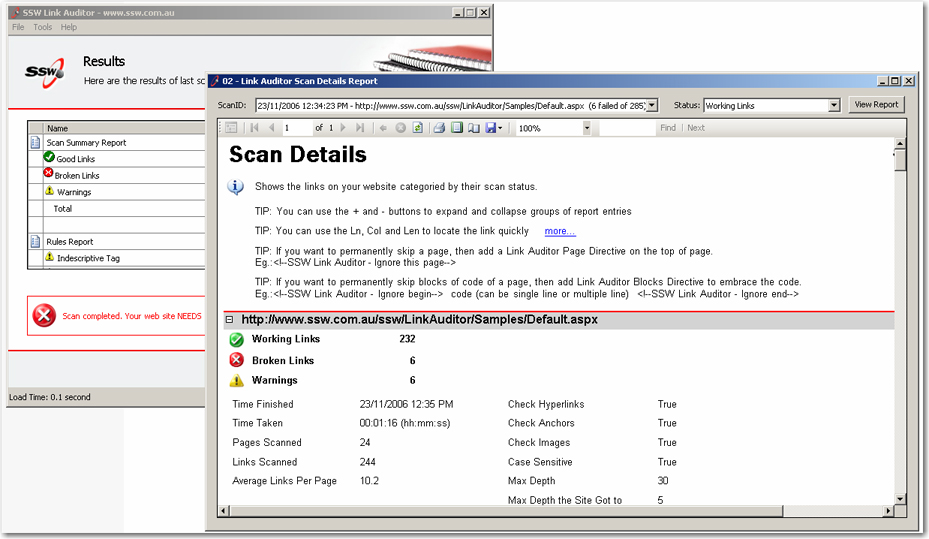
- Figure: Example of Wndows user experience
- SharePoint
-
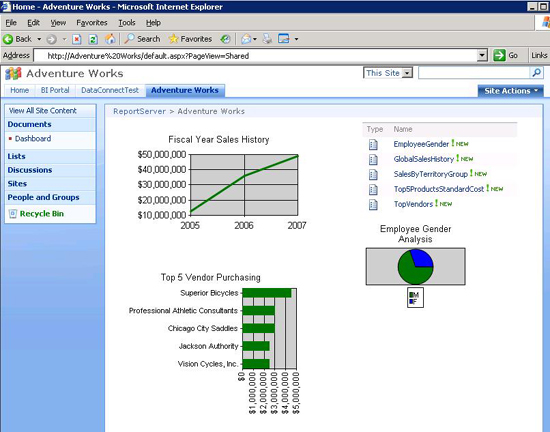
- Figure: Example of SharePoint user experience
-
Do you know when to use Reporting Services?
Like any solution, Reporting Services has its pros and cons.
From our experience, we have discovered these things about
Reporting Services:
Cons
- Parameters - you are forced to use built-in controls
-
Query string - when you change the parameters and refresh a
report, the values do not appear directly in the query string,
making it hard to copy/paste URLs
-
Can't separate SQL into a strongly-typed dataset or
middle-tier object like in ASP.NET
-
There are potential difficulties with the deployment of RS
reports and the exposing of them. However, once we have the
infrastructure...
Pros
-
You can develop
read only
reports faster in Reporting Services than ASP.NET
-
Maintenance with RS is easier than ASP .NET, as with most
cases you don't have to write any code
-
Flexibility with groupings and totals is easier. In ASP.NET
you would need to iterate through the DataSet, keeping
variables with the totals
- Parameters are built-in. In ASP.NET there is code
-
Drilldown interactivity. In ASP.NET you need to code up a
treeview
-
Users can have reports automatically emailed to them on a
schedule
-
Users can export natively to PDF and XLS, plus a variety of
other popular formats
So in conclusion, if you will only ever need 1 report, go with
ASP.NET - it is easier to get up and running. If you plan to
have more than one report, use Reporting Services - it's worth
the time to configure.
For a more detailed comparison between reporting solutions, take
a look at our
Guidelines for Report Solutions - Web Clients
.
-
-
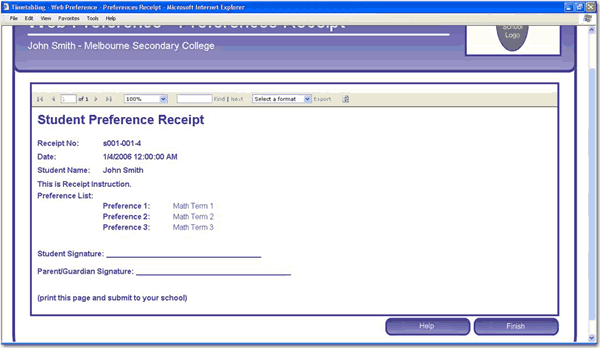
Figure: Reporting Services has built-in support for PDF/XLS
export and can be embedded in your ASP.NET pages
-
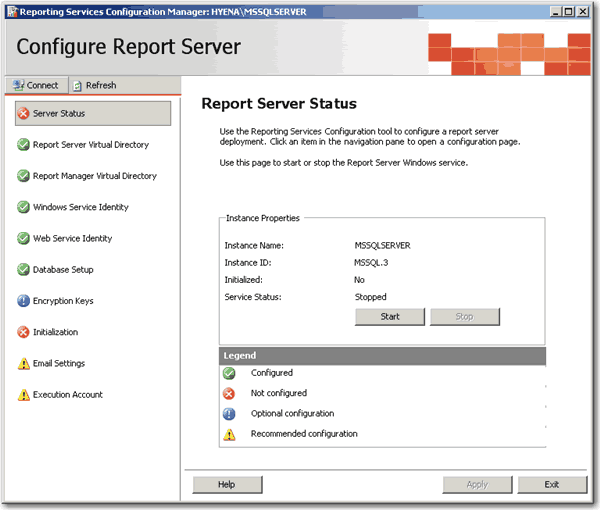
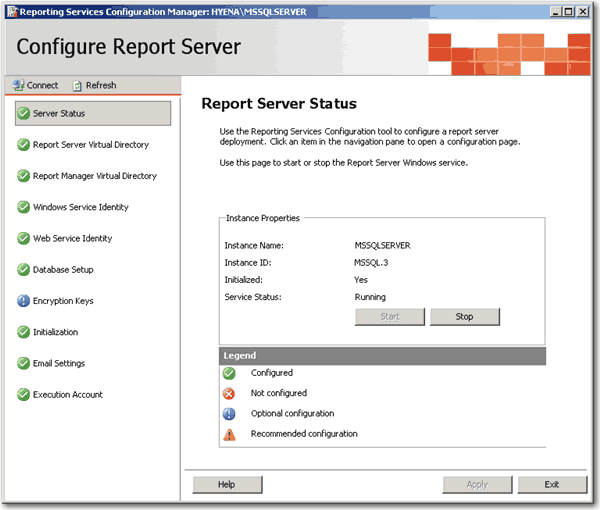
Do you check that "Report Server Configuration Manager" is all
green ticks?
To ensure your Reporting Services is running in a healthy state,
you need to check if you have all the green ticks in your
"Report Server Configuration Manager".
-
-
Bad Example - Reporting Services is not running in a healthy
state
-
-
Good Example - Reporting Services is configured correctly
Note: "Report Server Configuration Manager" is only available in
SQL Server 2005.
-
Do you check out the built-in samples?
SQL Server 2008 R2 Reporting Services comes with some great
samples that will help get you started. Unfortunately, they
aren't installed by default.
These samples include:
-
Report Project based on the Adventure Works 2008 R2 database
-
Report Builder Model based on the Adventure Works 2008 R2
database
Upon installing the samples successfully, you should see 3
folders (shown below) in your Report Manager.
-
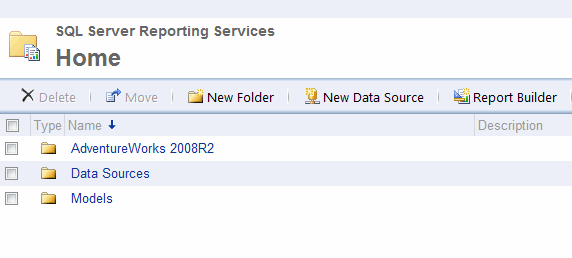
- Figure: A proper installation of the samples
To install previous version of Adventure Works sample reports,
see our knowledge base article:
How do I install SQL Server 2005 with the Adventure Works
Samples?
AdventureWorks Reports Sample

-
Do you know your 2 migration options to show your Access reports
on the web?
The greatest advantage for Access Developers is that with
Reporting Services your reports can become available on the web.
If you have a heap of Access reports, what are the choices for
getting them on the web?
-
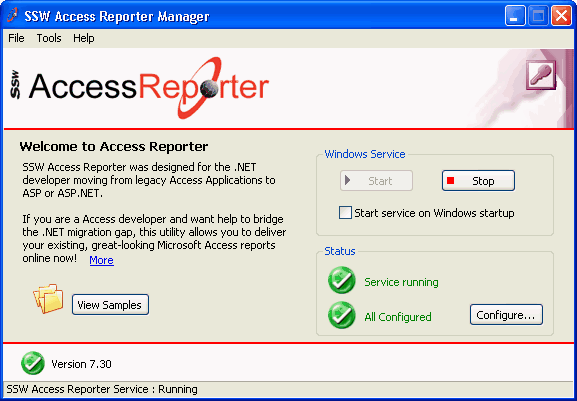
Keep the existing reports in Access and expose them on the web
with
SSW Access Reporter
. This is the least amount of work, as SSW Access Reporter is
a utility that delivers existing Access reports online with
minimal re-coding.
Download a free trial
today and try it out for yourself.
-
-
Good Example - If you want to avoid migrating then SSW
Access Reporter delivers your Access reports online so you
can view them anywhere
-
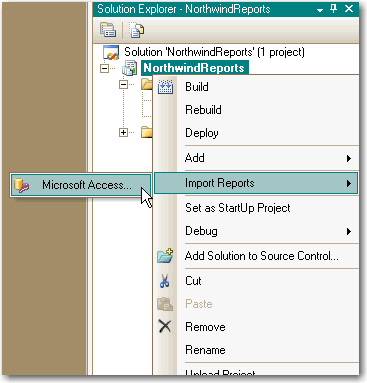
Import the reports into Reporting Services. Reporting Services
has built-in support for importing and converting reports from
Access. We have had plenty of success with it, but you will
need to re-code things like conditional formatting and any
code behind.
-
-
Good Example - Reporting Services has built-in support for
importing your Access reports
-
Layout - Does your report print and display on the web
correctly?
A lot of the time, you will want a hard copy of your reports.
Obviously reports are different sizes on screen and on paper, so
you need to format your report so it exports to PDF and prints
properly. Here's how.
-
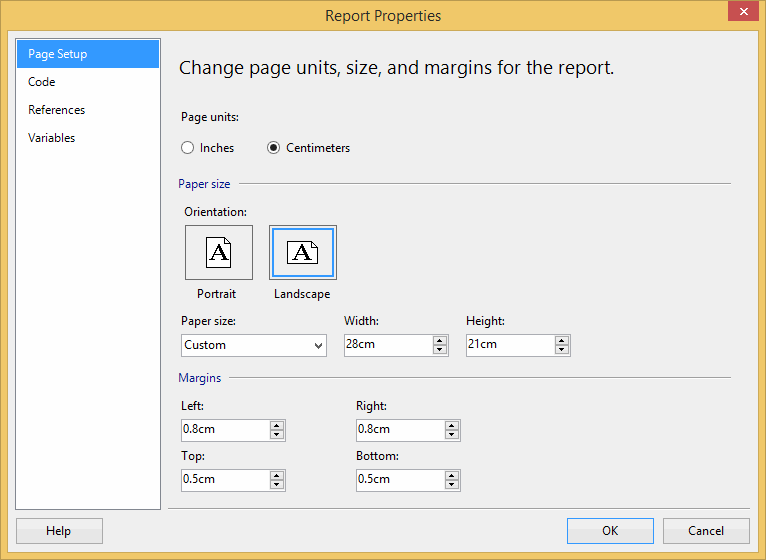
Change the report's page width to 28cm (or 11in) and top
and bottom margins to 0.5cm.
-
-
Good Example - For proper printing, first change the
Report's Page Width to 28cm (or 11in)
and top and bottom margins to 0.5cm
-
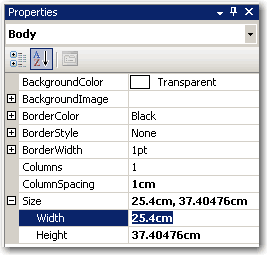
Change the Body width to 25.4cm (or 10in)
-
-
Good Example - Then change the Report's Body Width to
25.4cm (or 10in)
-
-
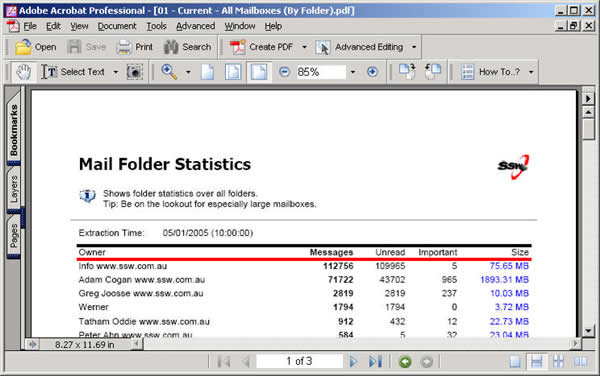
Bad Example - PDF page with 1cm margin (wasted much space
on top and bottom)
-
-
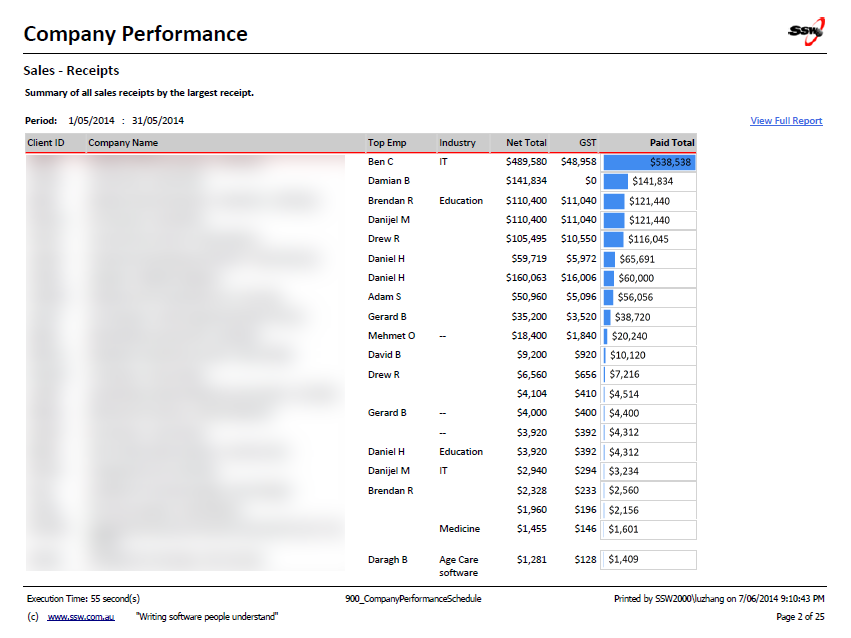
Good Example - PDF page with 0.5cm margin (you have more
room for content)
You can see the 0.5cm margin looks much better than 1cm, and
you have more space to organize your content, especailly for
a landscape print view.
-
Resize report items (tables and charts) to fit the page.
The easiest way to do this is to select (Ctrl+click) all
report items that should span the whole width of the page, and
set their
Width
property to
25.4cm
(or 10in).
Tip:
Export your report to PDF and do a print preview, so you don't
have to print a lot of testing pages to find out the best page
settings.
Tip:
Remove top and bottom paddings in header and footer text can
also give you more space.
Note: Reporting Services reports accept both inches and cm, so
you can use either.
-
Layout - Do you include a useful footer at the bottom of your
reports?
You should always include a useful and informative footer at the
bottom of your reports. Include:
-
Date and Time Printed and User who printed it - see warning
below (e.g.
Printed by SSW2000\JatinValabjee on 3/1/2006 3:16:30 PM
)
-
Execution Time (e.g.
Execution time: 1 minute, 10 seconds
)
-
Page x of y (e.g.
Page 3 of 10
)
-
Link to company website + slogan (e.g.
www.ssw.com.au
- Writing software people understand
)
-
-
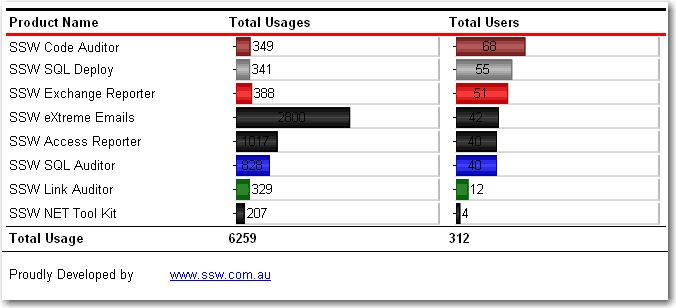
Bad Example - This footer doesn't provide any useful
information
-
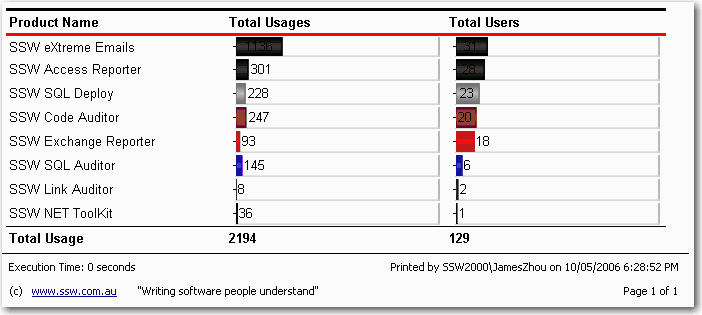
-
Good Example - Useful and informative information should be
displayed in your report footer
Use these handy report expressions to show the above
information.
| Footer Item |
Expression |
Sample Output |
| Date and Time Printed / User ID |
="Printed by " + User!UserID + " on " +
Globals!ExecutionTime.ToString()
|
Printed by SSW2000\JatinValabjee on 3/1/2006 3:16:30 PM
|
| Execution Time |
="Execution Time: " +
IIf(System.DateTime.Now.Subtract(Globals!ExecutionTime).TotalSeconds
< 1, "0 seconds",
(
IIf(System.DateTime.Now.Subtract(Globals!ExecutionTime).Hours
> 0,
System.DateTime.Now.Subtract(Globals!ExecutionTime).Hours
& " hour(s), ", "") +
IIf(System.DateTime.Now.Subtract(Globals!ExecutionTime).Minutes
> 0,
System.DateTime.Now.Subtract(Globals!ExecutionTime).Minutes
& " minute(s), ", "") +
IIf(System.DateTime.Now.Subtract(Globals!ExecutionTime).Seconds
> 0,
System.DateTime.Now.Subtract(Globals!ExecutionTime).Seconds
& " second(s)", ""))
)
|
Execution time: 1 minute, 10 seconds |
| Page x of y |
="Page " + Globals!PageNumber.ToString() + " of " +
Globals!TotalPages.ToString()
|
Page 3 of 10 |
-
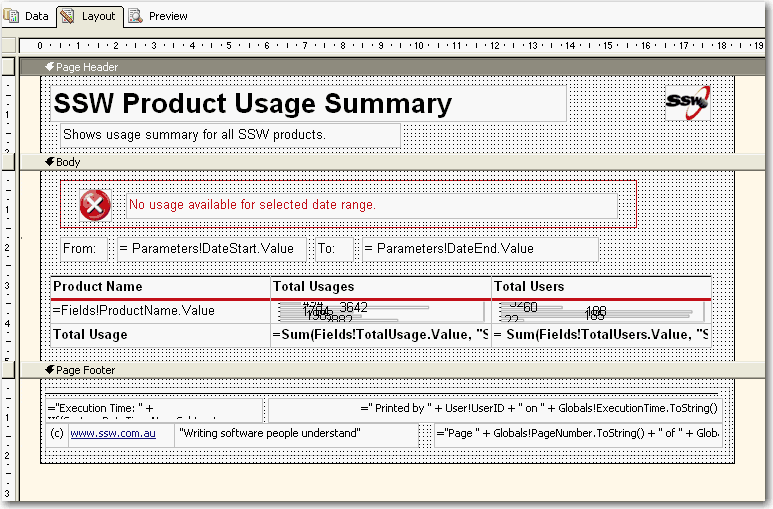
- Good Example - Footer in visual studio designer
Tip: Copy and Paste this XML into the <PageFooter> for the
recommended footer of all your *.rdl files.
	                <PageFooter>

                                   Paste here

                          </PageFooter>
Warning: Adding the User who printed it stops all data-driven
subscriptions
When you try to add the User your data-driven subscriptions will
fail with the following error:
'The '/GroupHealth' report has user profile dependencies and
cannot be run unattended. (rsHasUserProfileDependencies)'.
A quick workaround is to add a user function to fallback the
error to a nice message, like: "SYSTEM",
-
    Public Function UserName()
    Try
    Return Report.User!UserID
    Catch
    Return "System"
    End Try
    End Function
Use above function to replace your reference to Report.User!UserID
will allow the subscription to work correctly.
-
Layout - Do you avoid using word 'Report' in your reports?
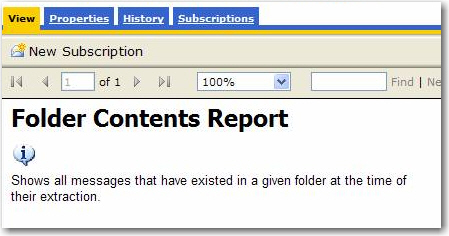
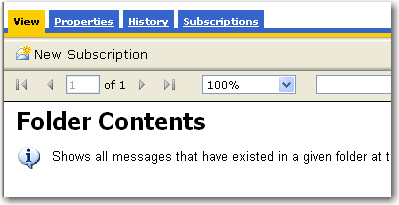
We believe the word 'Report' is redundant in a report, so we
avoid using this word in our reports.
-
-
Bad Example - redundant use of the word 'report' in a report
-
-
Good Example - avoidance of the word 'report' in a report
-
Layout - Do you underline items with Hyperlink Action?
The Hyperlink Action allows users to navigate between reports
smoothly, but users may ignore the navigation functionality in
your reports.
-
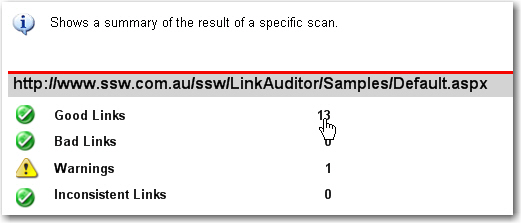
- Bad Example - No underline for hyperlink item
-
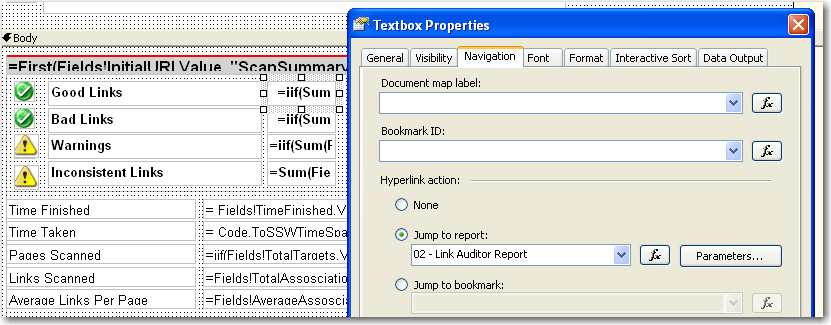
-
Bad Example - No underline for the textbox with hyperlink
action
With the underline effect on your hyperlink items, it will be
easy for users to find the navigation on your reports.
-
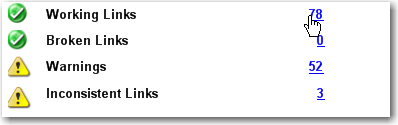
- Good Example - Underline for hyperlink item
-
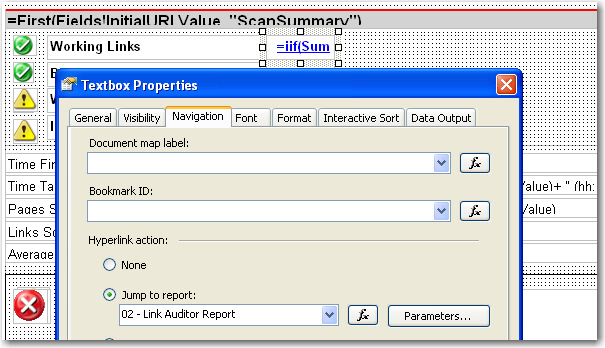
-
Good Example - Underline for textbox with hyperlink action
-
Layout - Do you show errors in
Red
?
Errors on reports should not occur but when they do it is best
to make it clear to the reader that they have just experienced
an error.
How evident are the error messages on the 1st report below?
-
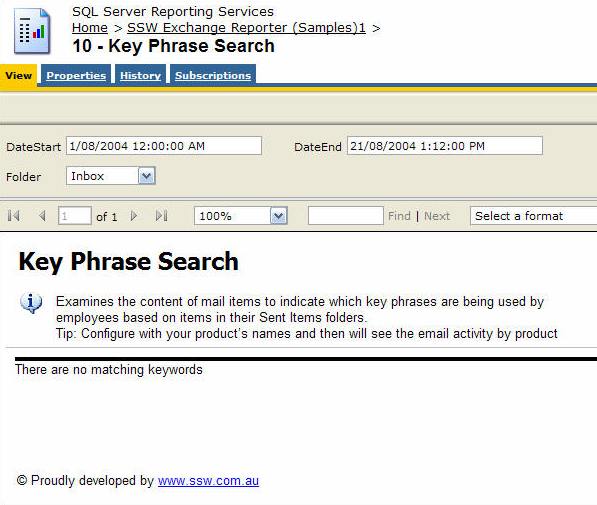
-
Bad Example - Using the default NoRows property of the table
control - error message is not clear enough
-
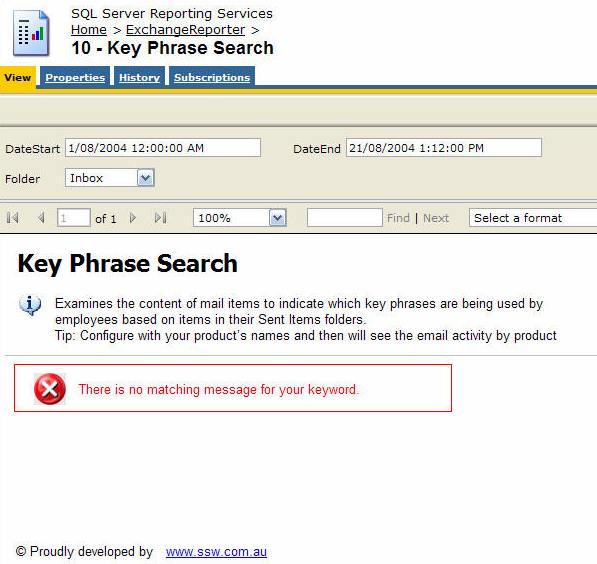
-
Good Example - Use a customized textbox and icon to show the
error message in red
Reporting Services allows you to set the 'NoRows' property of a
table control to warn your user when there is no data available.
This is similar to handle the 'NoData event' in Access report
but there is no advanced control on this message, not even a
Color property - this has not been improved in RS2005, see our
Better Software Suggestions page
.
-
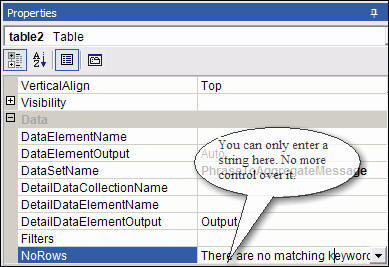
-
Figure: NoRow property of Table control only allow simple
string
Here's how to add a custom "NoData" textbox with a red icon to
your report:
-
Add a rectangle to the top of your report, above any report
items in the body. Set its
BorderColor
to
Red
-
Drop a textbox into the rectangle and give it the value
No records were found matching your criteria. Please modify
your parameters and try again.
-
Add an Image control next to it (add it to your Images folder in your solution
and reference it like
Images/fatal_error_info.gif
). Your report will now look similar to the one below.
-
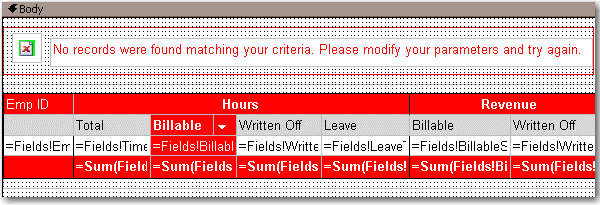
-
Figure: Adding a custom error message to your report
-
In the
Hidden
property of the
Rectangle
, add an expression to show/hide it depending on whether any
rows were returned. Use the following expression, substituting
the bold for your own values (e.g. checking if the sum of all
orders is < 0)
--Expression to set the visibility of the error message controls

= iif( Sum(Fields!SaleTotal.Value, "MyDataSet")>0, True, False)
-
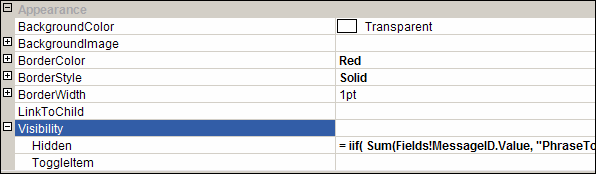
- Figure: The Hidden property of the rectangle
-
Group all other report items into a rectangle - you want to be
able to show and hide them dynamically
-
In the
Hidden
property of this
Rectangle
, add an expression to show/hide it depending on whether any
rows were returned. Switch the True and False values around,
so that it shows if it does have records, and hides if it
does not have records (the opposite behaviour to the error
box). So, in the example above, the expression would be:
--Expression to set the visibility of the main report items

= iif( Sum(Fields!SaleTotal.Value, "MyDataSet")>0, False, True)
-
Layout - Do you have consistent report name?
A professional report should have consistent name.
-
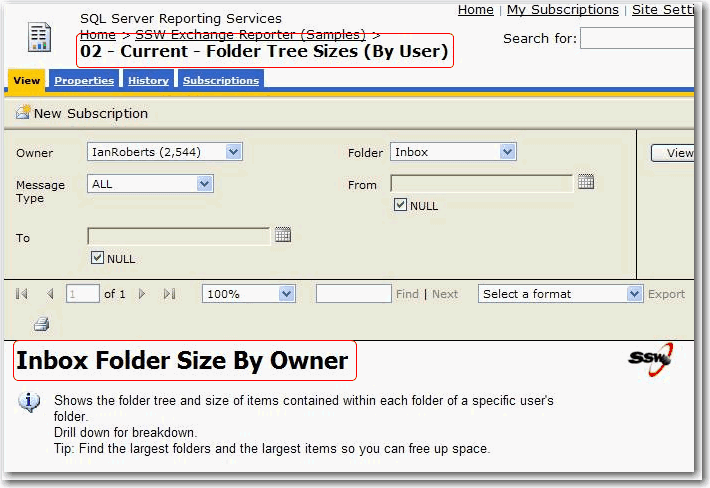
- Bad Example - Inconsistent report name
-
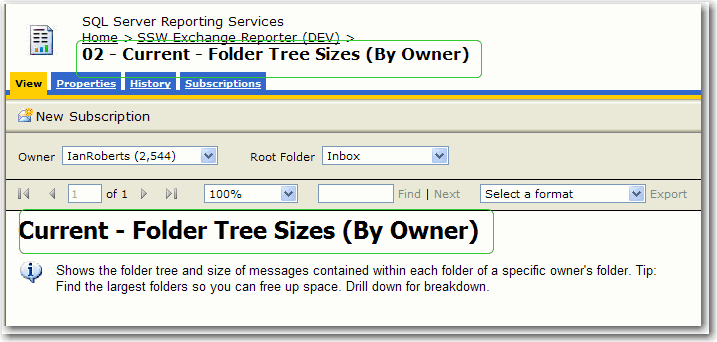
- Good Example - Consistent report name
-
Layout - Do you include feedback information in the report?
A professional report should have the feedback information, then
users can give suggestions directly to the designers.
-
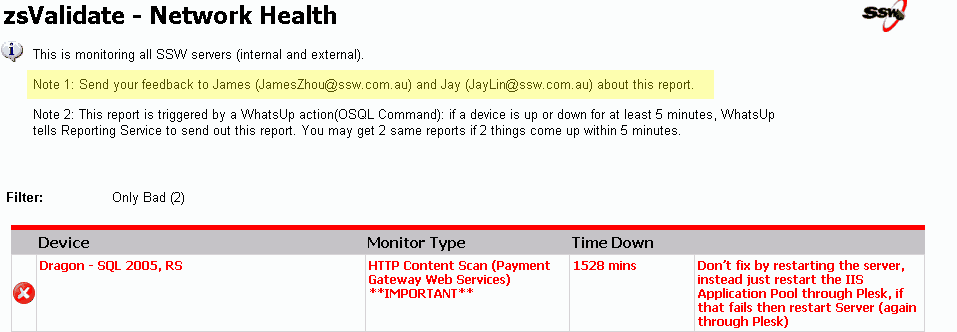
- Good Example - Include feedback information
-
Layout - Do you know which version of Reporting Services you are
running?
You can add the version number to the name of the reporting
server by:
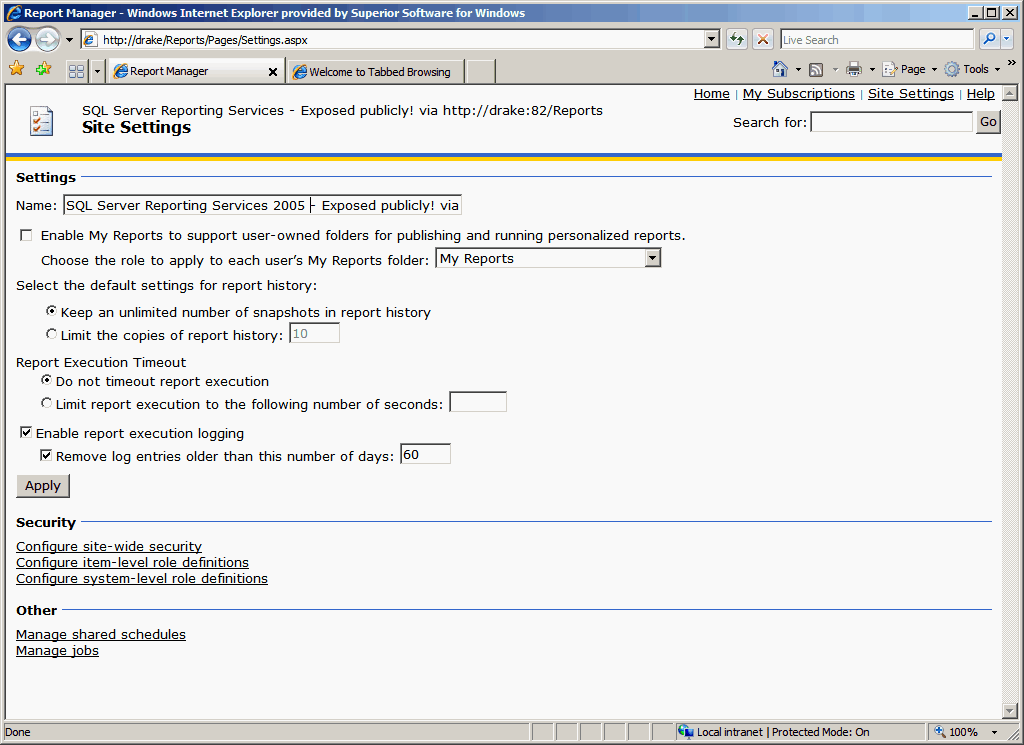
- Going to Site Settings
- Add 2005 or 2008 to the name
-
-
-
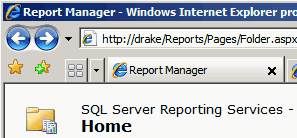
Bad Example - You can't tell what version of reporting
services you are running
-
-
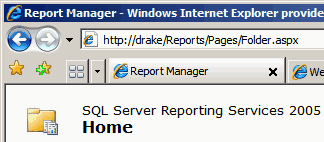
Good Example - We can clearly see that this is running
Reporting Services 2005
-
Layout - Do you put content as less as possible in page header?
Things in page header repeat on every page. To avoid duplicate
and save paper when printing, we put content as less as possible
in page header.
-
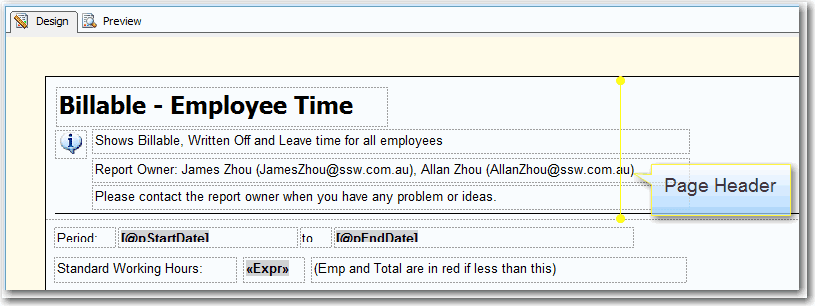
- Bad Example - too many things in page header
-
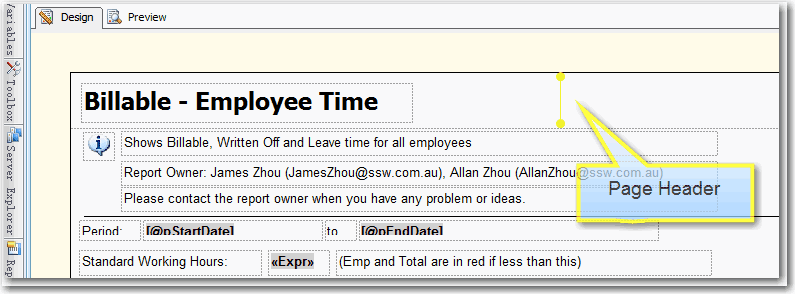
- Good Example - little in page header
-
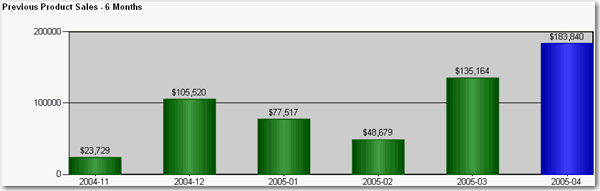
Data Layout - Do you show the past 6 months of totals in a
chart?
When you are working with reports that use time-based data
(sales figures, employee productivity etc.), it is handy to see
how you went this month compared to the past 6 months. The best
way to show this is on a bar chart.
-
-
Good Example - Use of bar chart to show the past 6 months of
totals at the end of your report for easy comparison
To do this:
- Create a new dataset in your report
-
Enter the following query, substituting "MyDate" for the name
of the date field you are referencing, "MyTable" for the view
or table you are selecting from, and "@pEndDate" for the name
of the report parameter you are using for the data end date:
SELECT DISTINCT TOP 6
  CONVERT(varchar(12), Year(MyDate), 101) + '-' + RIGHT('0' + Convert(Varchar(2), MyDate, 101), 2) AS Y
  , Sum(PaidTotal) * -1 AS Total
FROM
  MyTable
WHERE
  MyDate BETWEEN DateAdd(Month,-5,convert(varchar(12), Month(@pEndDate)) + '/1/' + convert(varchar(12), Year(@pEndDate))) AND
CASE WHEN datepart(d,@pEndDate) = 1 THEN DateAdd(d, 1, @pEndDate) ELSE @pEndDate END
GROUP BY
  CONVERT(varchar(12), Year(MyDate), 101) + '-' + RIGHT('0' + Convert(Varchar(2), MyDate, 101), 2)
ORDER BY
  CONVERT(varchar(12), Year(MyDate), 101) + '-' + RIGHT('0' + Convert(Varchar(2), MyDate, 101), 2)
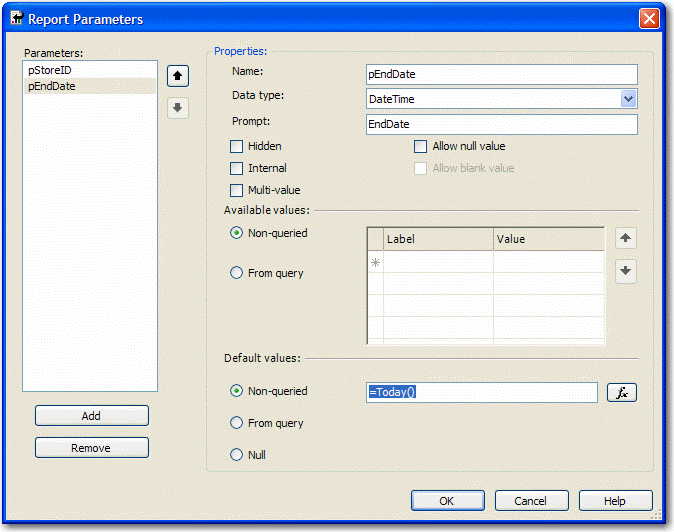
- Configure the new added parameter 'pEndDate'
-
-
Figure: Change Data Type to DateTime and assign to the
proper default values
-
Add a chart to your report in Layout view and change its type
to "Simple Column"
-
Drag the "Total" field from the Datasets window into the Data
area on the chart, and the "Y" field into the Category area.
Your chart will now look similar to the one below.
-
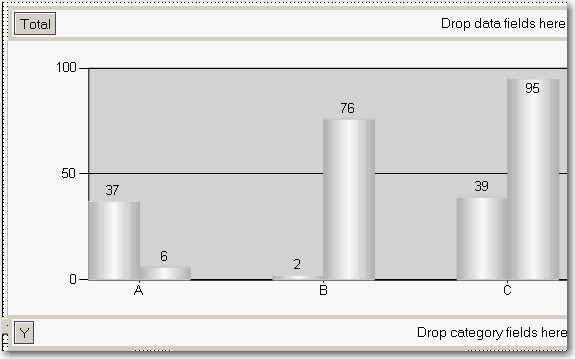
- Figure: Build up the column chart in layout view
-
Now you need to set the last column to be a different color so
it stands out. Right-click the chart and click Properties.
-
Click the "Data" tab, click "Edit..." next to the "Values"
box, then go to the "Appearance" tab and click "Series
Style..." then the "Fill" tab.
-
In the "Color" textbox, enter this expression, then OK all
dialogs to return to the report:
=iif(Right(Fields!Y.Value, 2)=Month(Parameters!pEndDate.Value), "Blue", "Green")
-
Data Layout - Do you show data and chart in one?
It is important to provide a chart, as well as the data which it
is based on. Users of the report service will find the data
easier to understand and compare. However, in order for the
report to be understandable, the data and chart must be clear
and uncluttered.
-
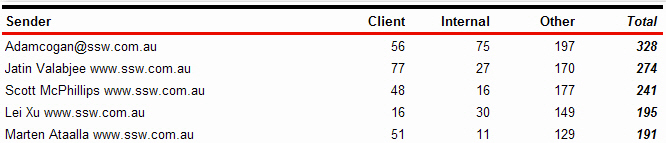
-
Bad Example - there is no chart to visually represent the data
-
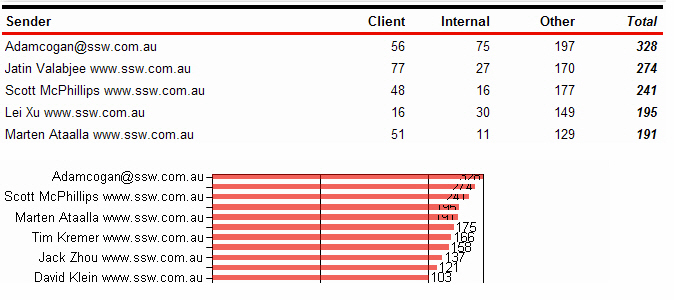
- Bad Example - there is a chart, however it is not clear
-
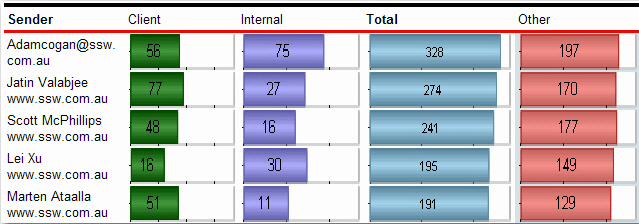
-
Good Example - Data and chart are clearly integrated into one
-
Data Layout - Do you avoid using a single chart when you need it
to be scaled?
-
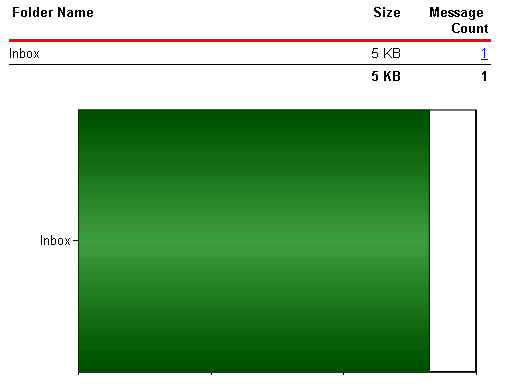
-
Bad Example - Just a chart - poor scaling for only 1 record
-
-
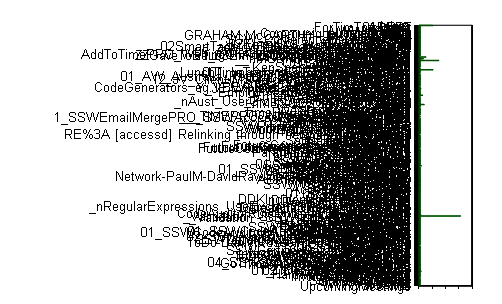
Bad Example - Just a chart - poorly scaling when many records
The reason for this problem is that the 'size' property of the
chart control doesn't support expressions like 'Count(Rows) or
queried values like 'Fields!RowCount.Value', so the chart
control cannot adjust its size according to the data.
The solution for this problem is to use an embedded chart within
the table - this will create a dynamic chart list similar to the
list shown below.
-
- Figure: Size property of the chart control
-
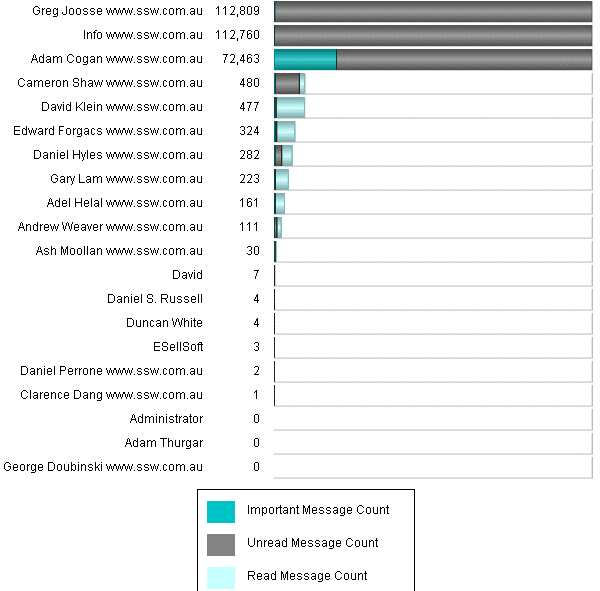
- Good Example - A table with chart
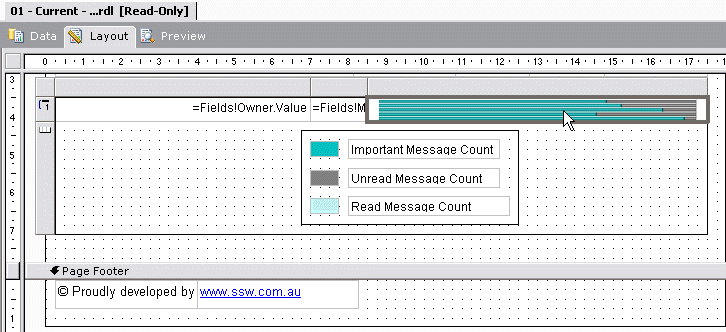
To do this, you need to create a table in your report and add a
chart into each of the rows.
-
-
Figure: Embedded chart in a table will generate dynamic chart
list
Note:
When rendering a report to your browser or an email, Reporting
Services generates a separate image for every single image in
the report, even if they are identical. When you are using
graphs, images or charts in your report, this can cause a large
number of images to be generated. Always include a red warning
at the top of any emailed reports so that users do not try and
forward or reply to them. Use a warning like this:
Warning: Do not reply to or forward this report in an email
- Outlook may slow down or even hang
-
Data Layout - Do you use expressions to show the correct scale
on charts?
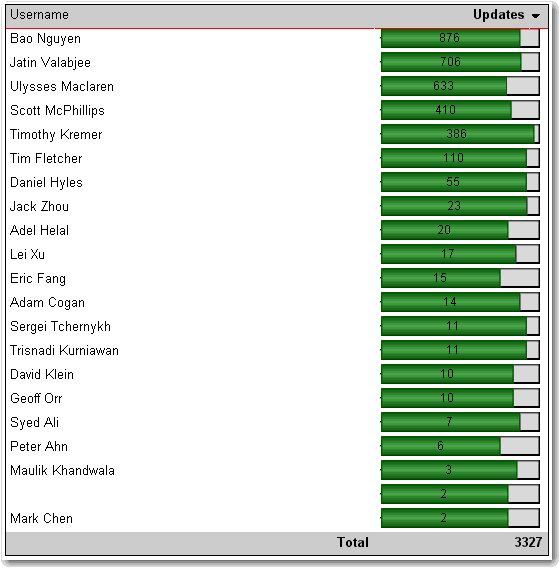
In Reporting Services 2005 you can use an expression to specify
the scale of your charts. If you do not specify a maximum value
for your y axis, the bar charts become inaccurate, as you can
see in this figure.
-
-
Bad Example - With no scale value set, the charts do not
display based on the correct scale
Here's how to set the scale.
-
In Layout view, add a new row to the bottom of the table
-
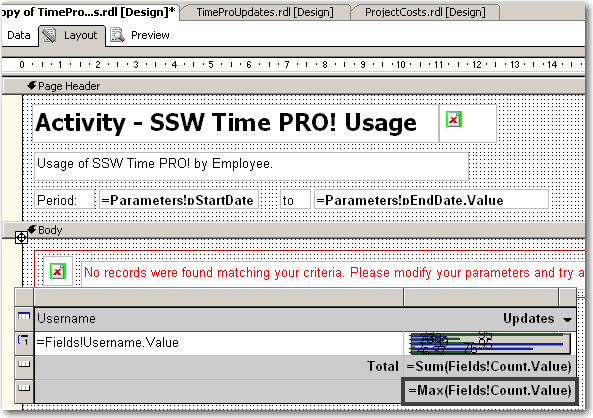
At the bottom of the column with the chart, set the textbox
value to =Max(Fields!MyTotal.Value), where "MyTotal" is the
Data field you're using in the chart.
-
-
Figure: Add a new row to your table and set the max value
-
Set the textbox's Name property to MaxMyTotal (e.g. MaxCount)
-
Set the new row's Visibility/Hidden property to true - you
don't want to show it in the report
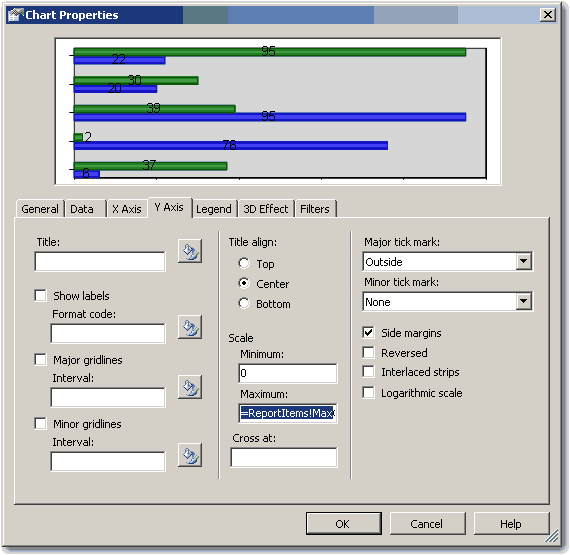
- Open the Chart properties and select the "Y Axis" tab
-
Set the Maximum value to the value of the textbox, i.e.
"=ReportItems!MaxMyTotal.Value"
-
-
Figure: Set the maximum value to the value of the textbox
-
If you expect to have negative values in the chart (e.g. when
comparing 2 values), set the Minimum to -1 multiplied by the
max value, i.e. "=-1 * ReportItems!MaxMyTotal.Value".
Otherwise set it to 0 (zero).
-
If you expect to have negative values in the chart, select the
chart value in the Data tab and click "Edit..." . Go to
Appearance->Series Style->Fill
and enter the following expression:
=iif(Fields!Change.Value > 0, "Green", "Red")
Where "Change" is the name of your data field. This sets the
color of the bar to green if it is positive, and red if it is
negative
-
Click OK and preview the report. The chart will now be using
the maximum value across all the charts.
-
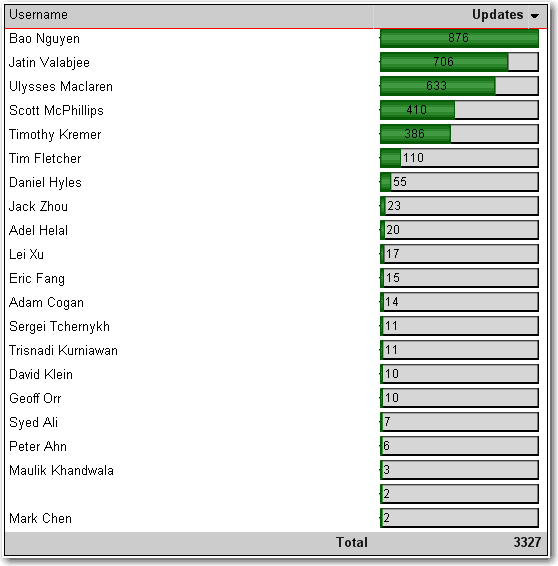
- Good Example - The scale is now correct
-
Data Layout - Do you show change in your reports?
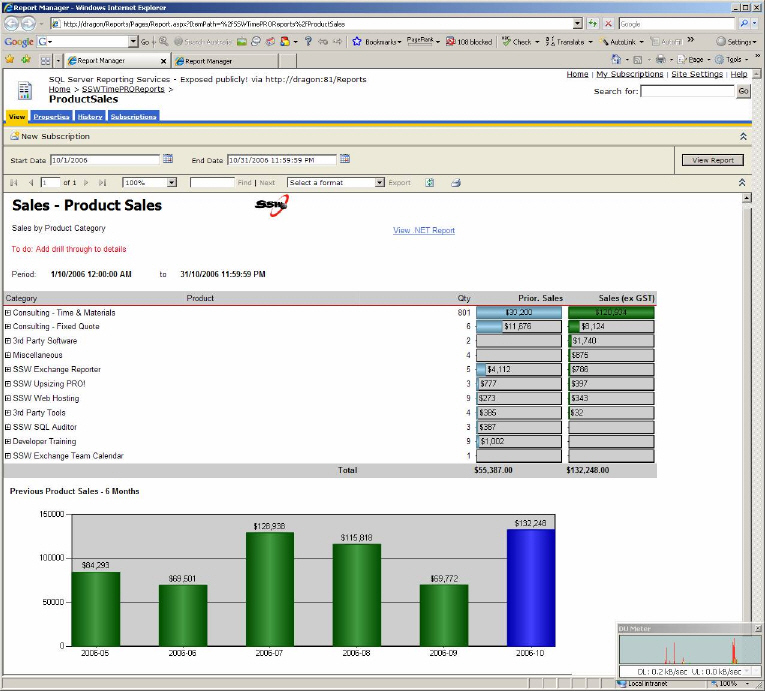
It is important to show previous and current data, as well as
the changes between the two.
-
-
Bad example - does not show the change between the previous
and current data
-
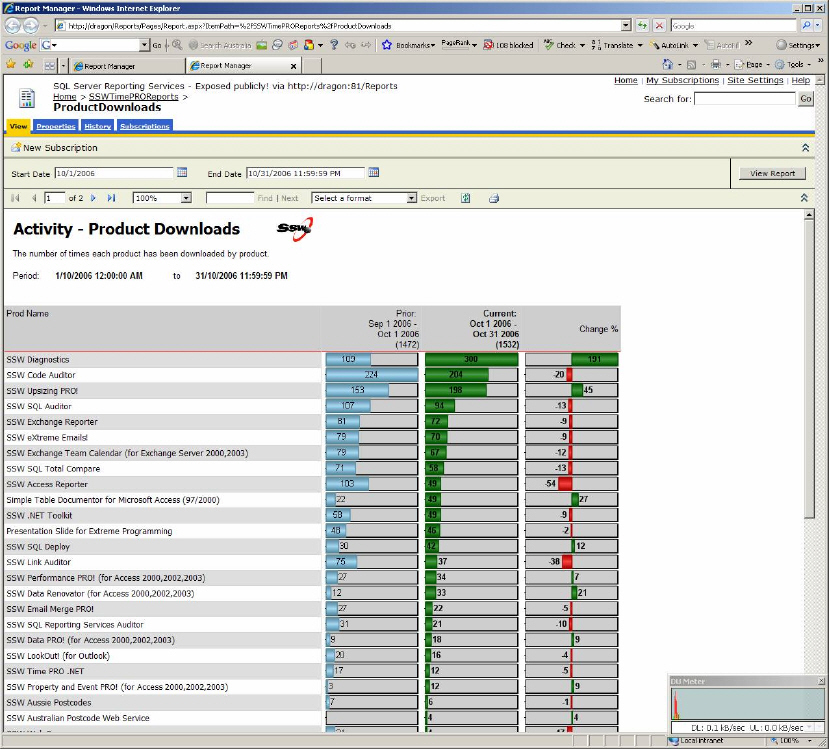
-
Good example - shows the change between the previous and
current data
There will be cases in which the Change column has no meaning
then you'd better to make this column invisible in your reports.
In one of our reports we use an expression on Hidden property of
this column to determine whether to show it based on the value
of a parameter.
-
=iif(Parameters!ComparedExtractionID.Label = "N/A",true,false)
- Expression for Hidden property
-
Data Layout - Do you avoid showing change as a percentage?
When comparing two sets of data in a report (for example, sales
this month compared to last), showing the change as a percentage
is a bad idea. For example, if you made 1 sale last month and 2
this month, you have had a 100% increase. If for another product
you made 1000 sales last month and 2000 this month, that is also
a 100% increase, but you've sold 1000 of that product compared
to 1 of the other product.
For this reason, show the difference as an actual value, so you
can compare all values easily. See the figures below for
examples. To see how to create the negative/positive valued
chart, see
Do you use expressions to show the correct scale on charts?
Bad
 - Notice how the "change" column in the report doesn't
accurately reflect the difference in downloads - 1 download last
month and 2 downloads this month will yield a 100% increase -
which looks impressive as a percentage but really isn't.
- Notice how the "change" column in the report doesn't
accurately reflect the difference in downloads - 1 download last
month and 2 downloads this month will yield a 100% increase -
which looks impressive as a percentage but really isn't.
-
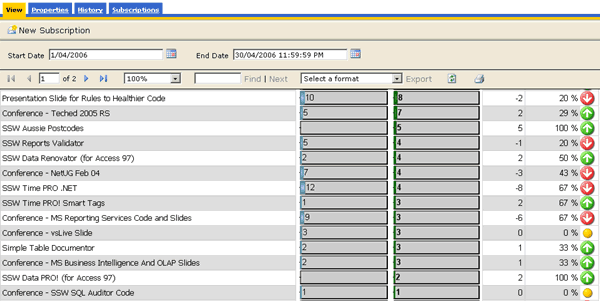
-
Bad Example - The percentage change column in this Reporting
Services product downloads report is misleading
Good
- This works better just showing the difference between the two
values over the 2 months.
-
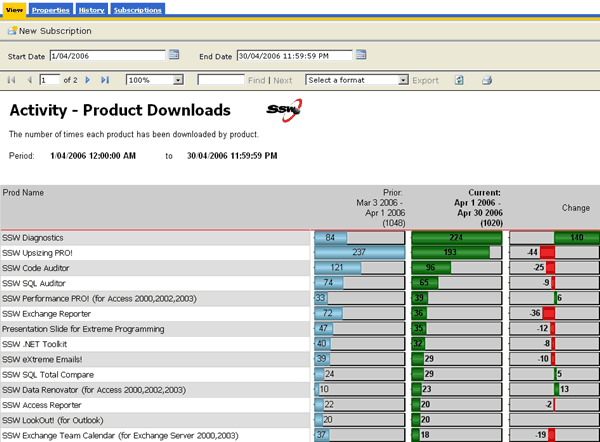
-
Good Example - The column works better as just a difference
between the current and previous download totals
-
Data Layout - Do you use alternating row colors?
For readability, always use alternating row colors. Use White
and Gainsboro (a light shade of grey). Select the row, and enter
this expression in the BackgroundColor property:
= iif(RowNumber(Nothing) Mod 2, "White", "Gainsboro")
-
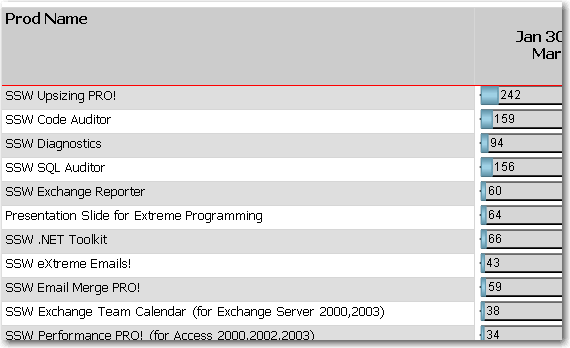
-
Good Example - Alternating row colors greatly improve the
readability of reports, and is very easy to do in Reporting
Services
-
Data Layout - Do you have nodes count like Outlook?
A report with drill through like this should have the number in
nodes like Outlook.
-
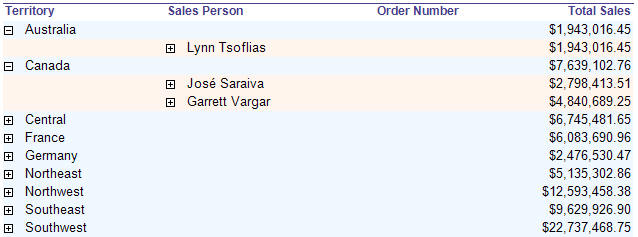
- Bad Example - This does not have the nodes count
-
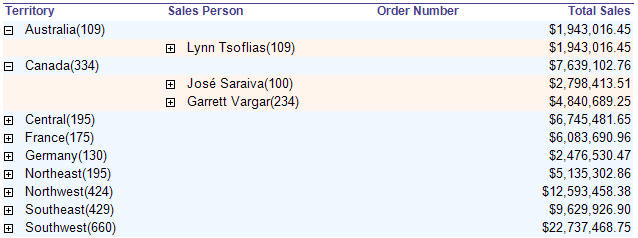
- Good Example - This does have the nodes count
Here's how to add nodes count to the textbox with "collapsed(+)"
in your report:
In the
Expression
property of the
Textbox
, add an expression to show nodes count. Use the following
expression:
-
--Change the SQL ( or add a new DataSet )
SELECT a.TerritoryID,
( CONVERT ( varchar,a.TerritoryDescription ) + ' (' +
CONVERT ( varchar, count ( c.TerritoryID ) ) + ')' ) AS
Number
, ... FROM Territories a INNER JOIN EmployeeTerritories b ON
a.TerritoryID=b.TerritoryID, ... GROUP BY a.TerritoryID,
a.TerritoryDescription,...
--Expression to show nodes count
= Fields!Number.Value
-
Bad Example - Get the Outlook Node Count look by changing the
SQL.
-
--Expression to show nodes count
= Fields!Name.Value
+ "(" + CStr ( CountRows( ) ) + ")"
-
Good Example - Use the CountRows() function to get the Outlook
Node Count look.
Note: The
CountRows
function is one of the several native functions provided by
Reporting Services and returns the count of rows within a
specified scope. If no scope is specified, it defaults to the
innermost scope, which in our case resolves to the static group
that defines the values in the data cells.
-
Data Layout - Do you avoid displaying decimal places?
Having decimal places is generally not required when the
numbers are there to show a general indication. Only include
decimal places on reports for accountants that will be used
for reconcilations.
-
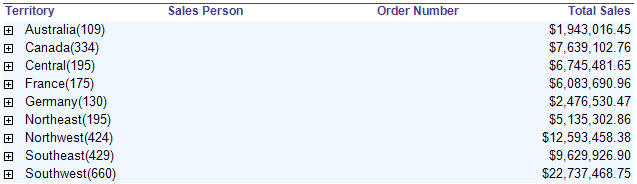
- Bad Example - This does display decimal place
-
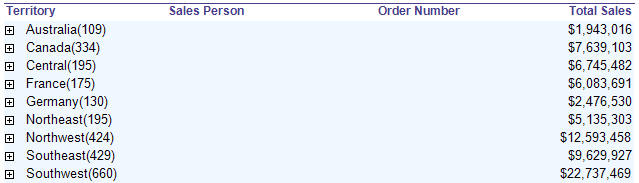
- Good Example - This avoid displaying decimal place
Here's how to remove decimal place in your report:
In the
Expression
property of the
Textbox
, add an expression to format currency values. Use the
following expression:
--Expression to remove decimal place
c0 =
FormatCurrency(
Sum(Fields!TotalDue.Value),
0)
Note: The
FormatCurrency
function is one of several native functions provided by
Reporting Services and returns an expression formatted as a
currency value using a currency symbol according to the
language setting on the textbox.
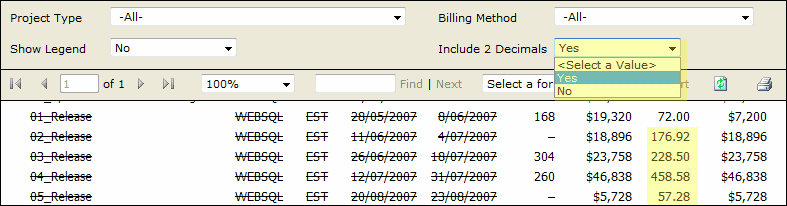
What is some managers don't want decimals and accountants do?
For some users (usually accountants) the number is critical to
accurate reporting and reconciliation. In such cases, add a
parameter to let the users choose.
This workaround should not be necessary. See
the suggestion to Reporting Services ?Give users a runtime
option to increase or decrease decimals places
, so we don't need this workaround.
-
-
Good Example - Add a parameter to set the decimal places
format
-
Data Layout - Do you have consistent height of table row across
all your reports?
Same height of table row across all reports gives users
consistent and professional impression. We use the default
height of table row (0.63492cm) as a standard to make sure all
tables in our reports have consistent row height.
This rule also applies to height of Textbox in all reports.
-
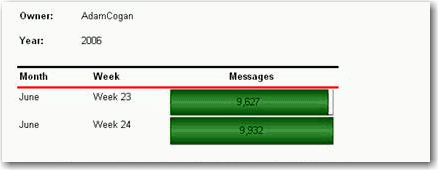
- Bad Example - Bad Height
-
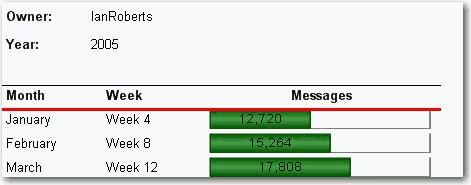
- Good Example - Good Height
-
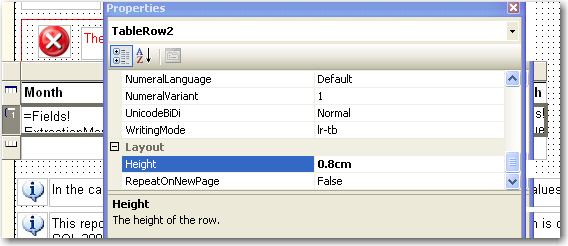
- Bad Example - Bad Height In Design View
-
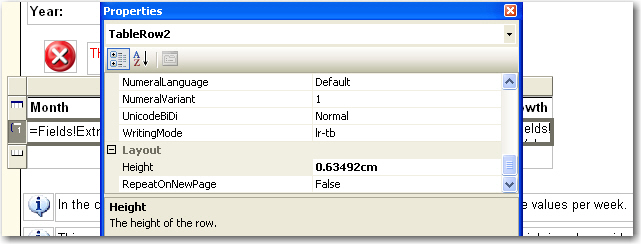
- Good Example - Good Height In Design View
-
Data Layout - Do you display zero number as blank in your
reports?
It looks better to display zero numbers as blank than to leave
lots of '0' in a report. It's easy to do with a simple format
code '#,#'.
-
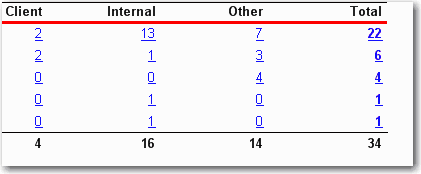
- Bad Example - Bad Zero Number Format
-
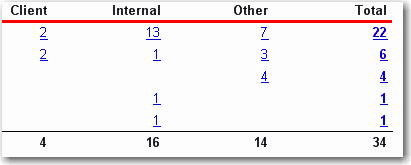
- Good Example - Good Zero Number Format
-
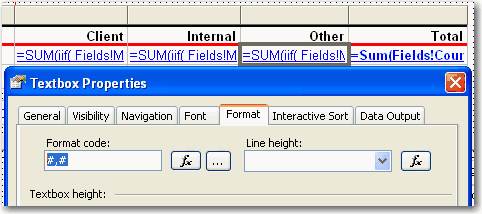
- Good Example - Format Code
-
Data Layout - Do you know the best way to show your data?
-
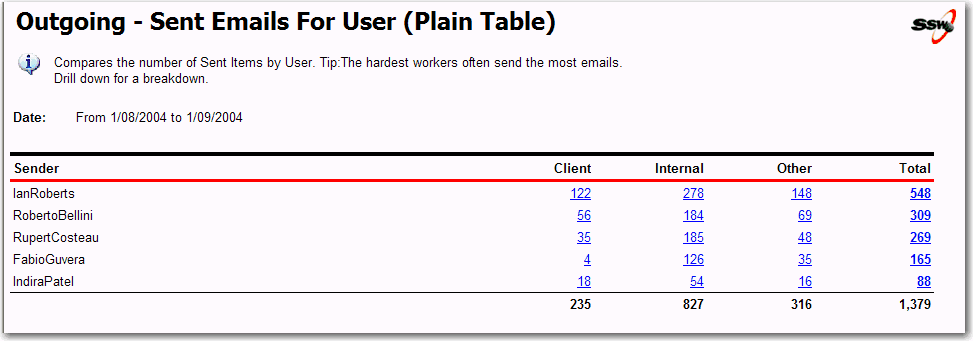
- Bad Example - Plain table
-
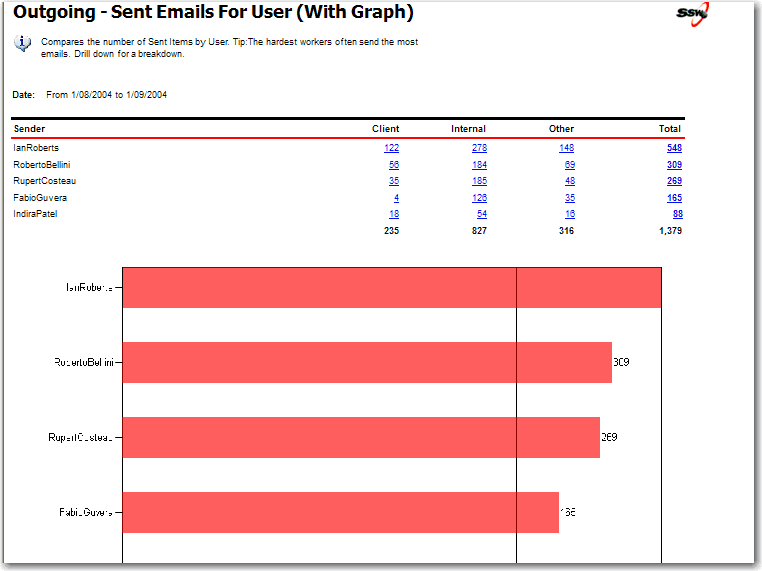
- Good Example - Plain table with separate chart
-
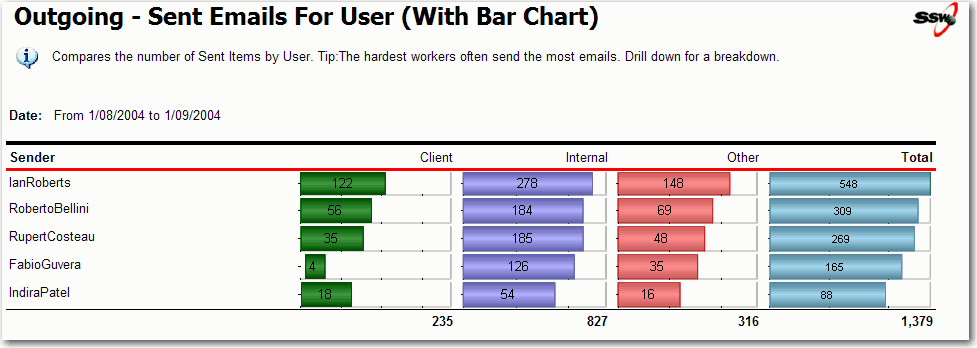
- Good Example - Table with bar chart embedded
-
Data Layout - Do you show time format clearly?
It will give a professional look for your report to show time in
a clear and consistant format.
-
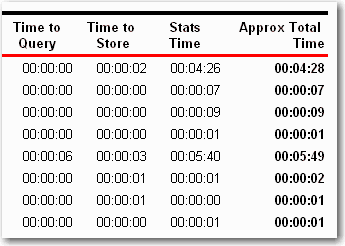
- Bad Example - bad time format
-
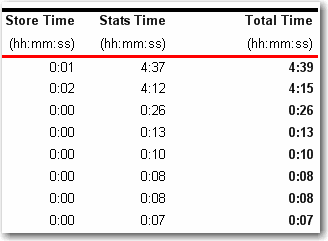
- Good Example - clear time format
A related rule about time format is
Do you keep Time formats consistent across your application?
-
Data Layout - Do you show all of the report parameters in body?
It is much better to display all of the report parameters in
report body, because it will be clear for users to know what
they search not only in IE but also in exported file (PDF,
Excel).
-
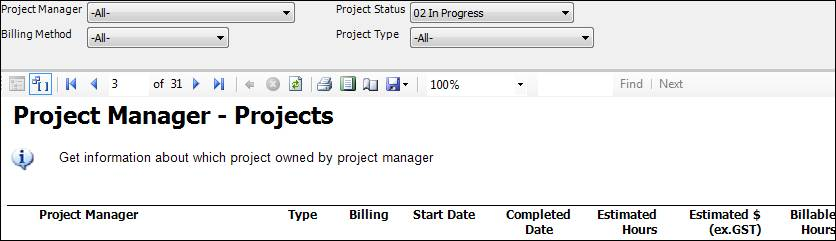
- Bad Example - not displaying all report parameters
-
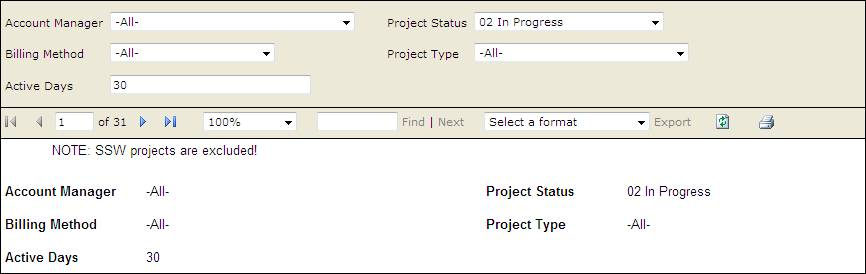
- Good Example - displaying all report parameters
-
Data Layout - Do you know how to use logical page breaks?
Sometime you want your report to break at somewhere to separate
different part of content into individual pages. A logical page
break is what you need.
Logical page breaks are defined in the report definition by
using the PageBreakAtStart and PageBreakAtEnd properties in
various report elements, including group, rectangle, list,
table, matrix, and chart.
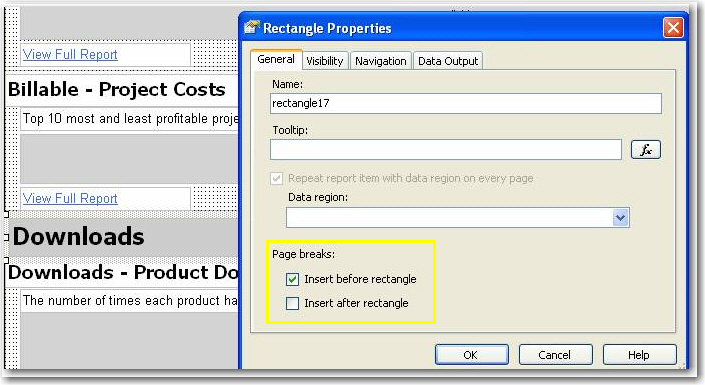
Here is an example of how we add logical page breaks in a report
to make each subreport start showing at right beginning in a new
page.
-
-
Figure: Insert a logical page break before a rectangle
containing a subreport
-
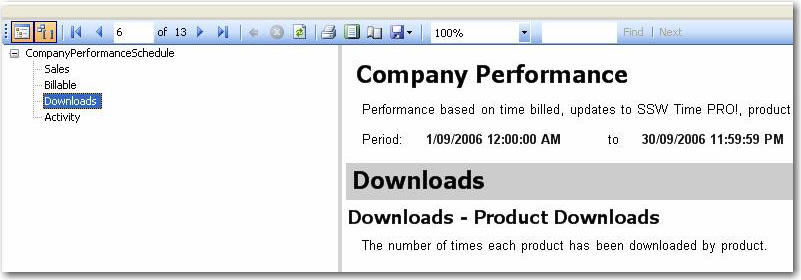
- Figure: The subreport started in a new page
-
Data Layout - Do you know how to prevent charts growing with
rows?
By default charts in table grow with rows. This makes height of
charts inconsistent and the report ugly.
-
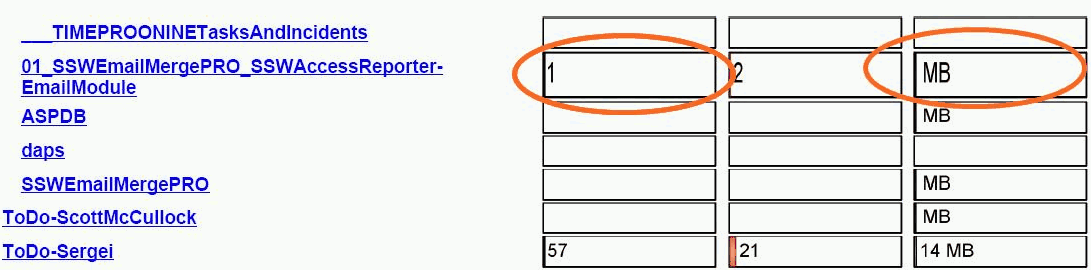
- Bad Example - inconsistent chart height
Putting a rectangle in table cell and placing your chart in the
rectangle fixes this problem.
-
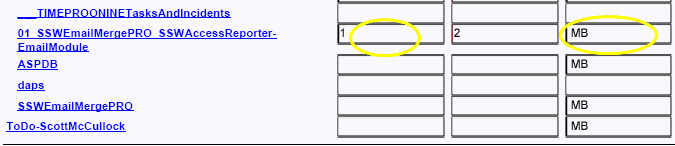
- Good Example - consistent chart height
-
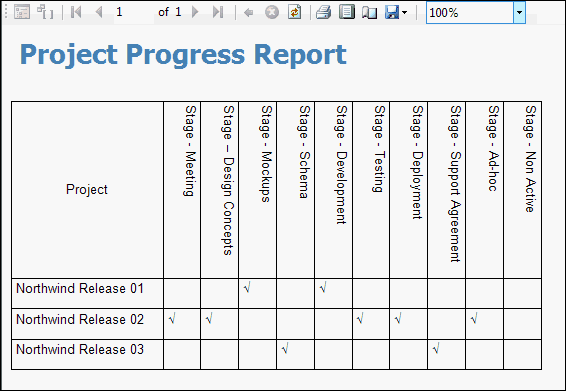
Data Layout - Do you take advantage of vertical text (when there
are lots of thin columns)?
When a report has many columns and each column contains small
amount of data, it is a good idea to use vertical text for the
column headers.
By changing the
WriteMode
of a text box from
lr-tb (left to right, top to bottom)
to
tb-lr (top to bottom, left to right)
your text will become vertical, and you save lots of space.
-
-
Bad Example - Not using vertical text for headings, when you
have lots of thin columns
-
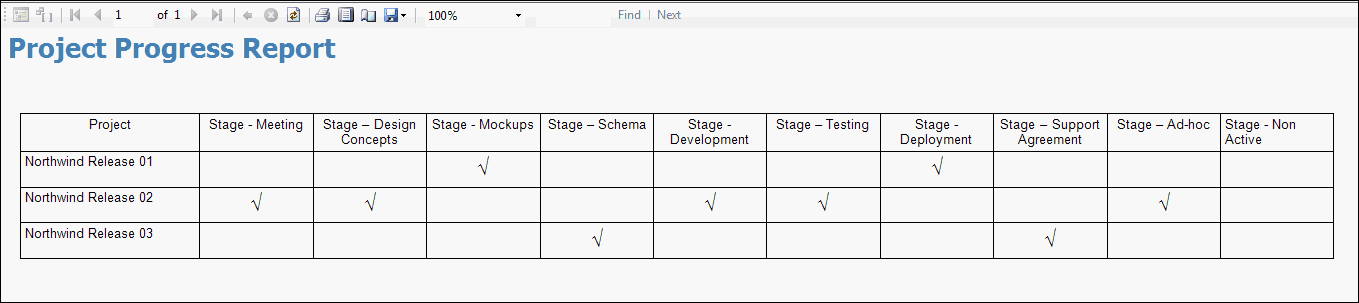
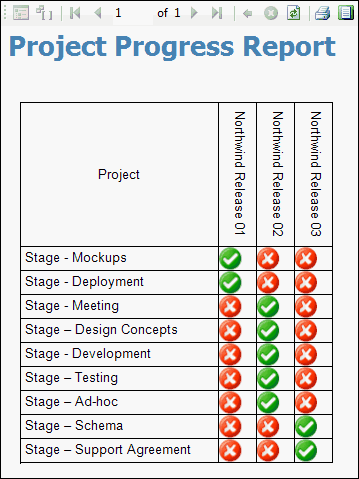
- Bad Example - Not using ticks and crosses
-
-
Good Example - The report width has been reduced by clever use
of the vertical text in the column headers
Note: Microsoft have not given us the option of having the
vertical text bottom to top. It would be easier to read. This
suggestion has been added to Suggestions for Microsoft RS
-
Data Layout - Do you use gray color for past data?
It's common that gray color means old, so we use gray for past
data in reports.
-
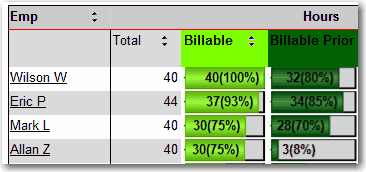
- Bad Example - old data not in gray
-
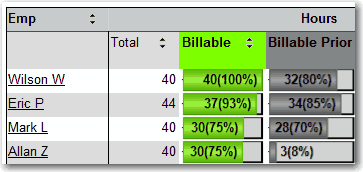
- Good Example - old data in gray
-
Data Layout - Do you use 3D cylinder in column chart?
3D cylinder chart will make your report cool.
-
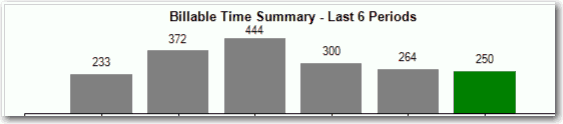
- Bad Example - normal 2D column
-
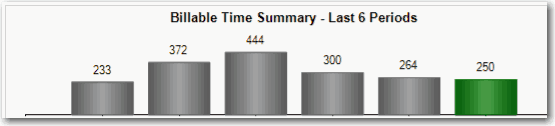
- Good Example - cool 3D cylinder
-
Data Layout - Is title centered in chart?
Title should be centered in chart.
-
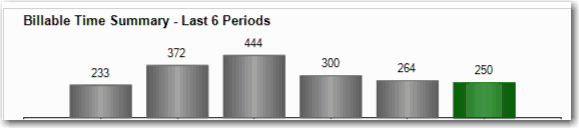
- Bad Example - title not centered
-
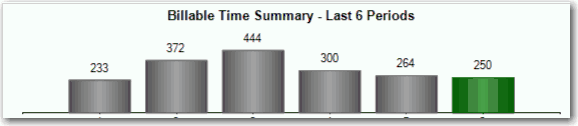
- Good Example - title centered
-
Data Logic - Do you use de-normalized database fields for
calculated values?
Most reports contain some sort of calculation - order totals,
freight costs and so on. You have 3 options on how to display
this in your report:
-
Use an expression in the report (bad).
Avoid doing this because your logic is scattered throughout
the report, and also because this logic cannot be shared
around reports or with your other web and windows
applications.
-
Call an assembly with the calculated logic (better).
This is better then using a calculation expression because the
logic can be shared over multiple reports, and it is easy to
find as all the logic is inside the one .NET project. It is
not the best solution because there is an extra level of
complexity as you have to build, compile and reference the
assembly containing the logic.
-
Use a denormalised database field (best).
This is the best way because not only is the calculated value
accessible directly from the report's data set, but the value
is already pre-calculated which can provide a performance
improvement (compared to calculating the value each time the
report runs).
-
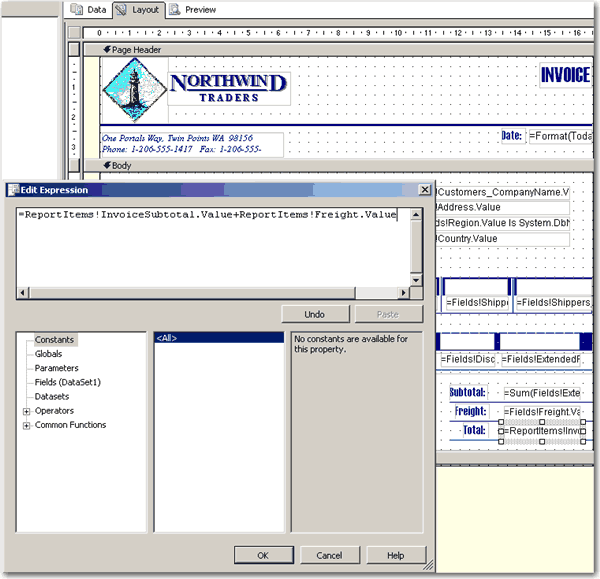
-
Bad Example - Figure: Avoid using expressions for calculated
values
-
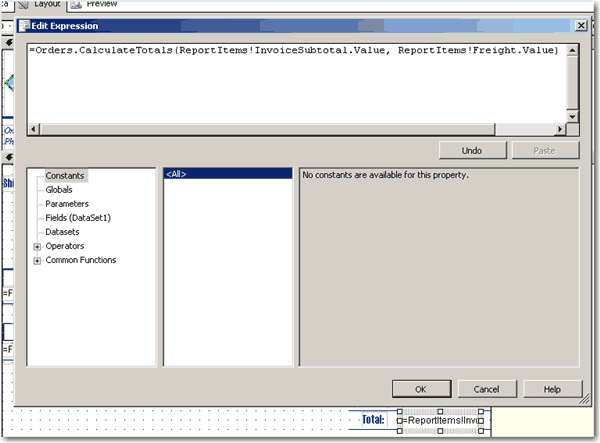
-
Bad Example - Figure: Avoid using external assemblies for
calculated values - it adds an unnecessary level of complexity
-
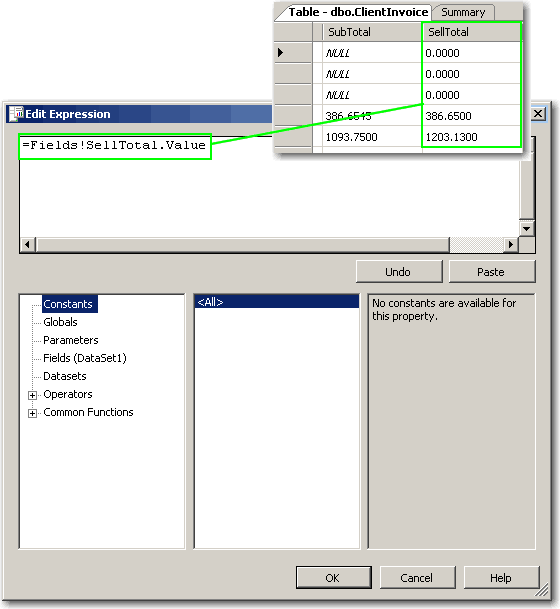
-
Good Example - Figure: Use a denormalised database field for
calculated values
-
Data Logic - Do you use SQL Ranking functions to rank your data
SQL Ranking functions are introduced since SQL 2005. With these
handy functions, you can easily rank your data.
                    SQL Snippet
                    SELECT Rank() Over(Order A.BillableTimeTotal Desc) As Rank
-
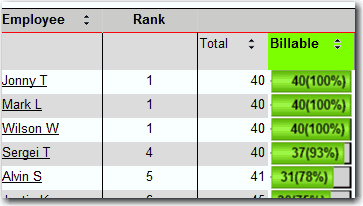
- Figure: Rank by SQL Ranking functions
-
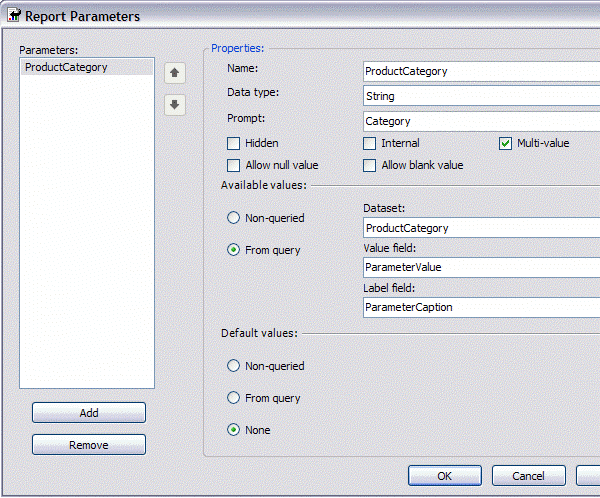
Parameters - Do you avoid showing empty reports by at least
setting Default parameters?
When a user opens a report that has no default parameters, there
is always a split-second of confusion as to why the page is
blank. Default parameters allow the user to see what they
expect... a report, and they also show users the expected format
for parameters and make it easier to run validation tests to see
if all the reports on your server are working correctly.
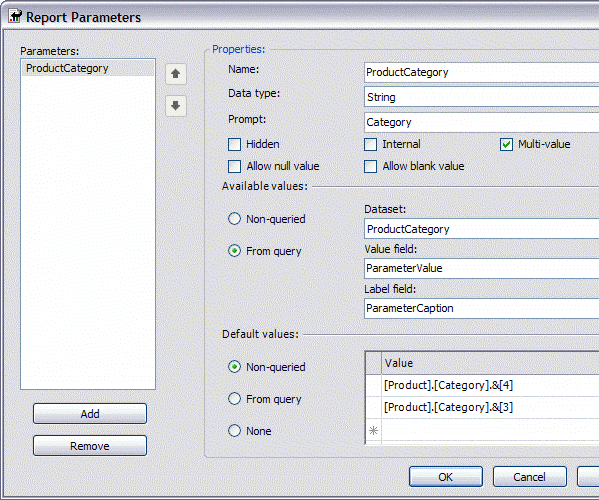
When you create reports, always set default parameters.
-
-
Bad Example - There are no Default Values set for the
Parameter
-
-
Good Example - Default Parameters can be specified manually
(non-queried) or from a query
-
Parameters - Do you avoid unnecessary words in the parameter?
Words such as: "Select", "Enter" and "Type" used in the
parameter names are always a bad practice and should avoided
-
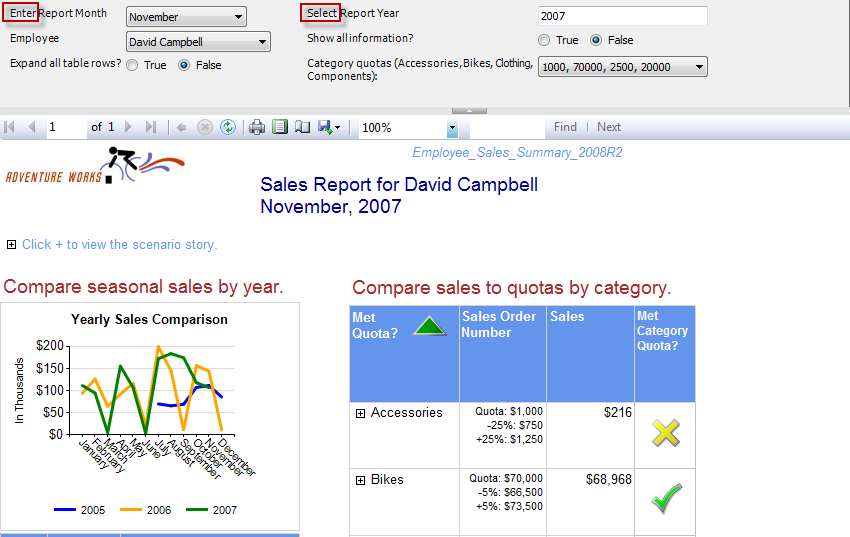
- Bad Example - Parameters with unnecessary words
-
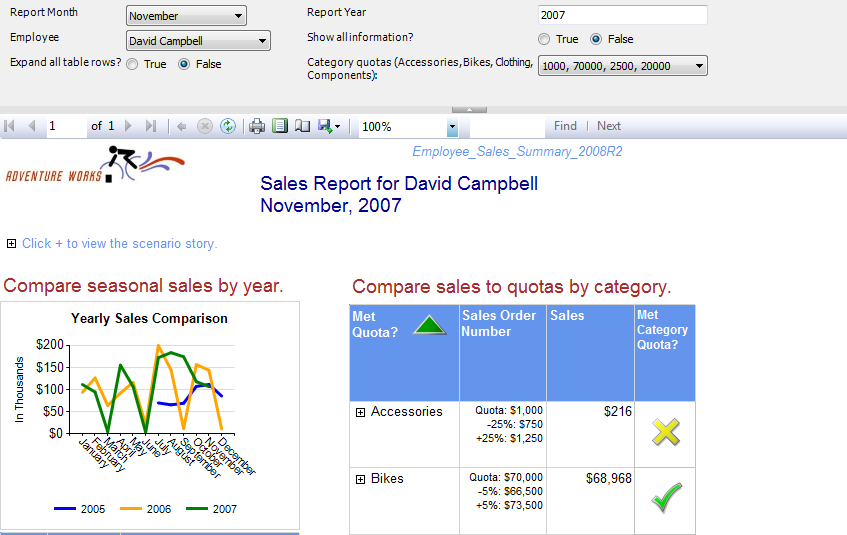
- Good Example - Parameters without unnecessary words
-
Parameters - Do you avoid showing empty reports by the most
intelligent default?(espacially for dates)
When user opens a report, they expect to see something. It is
the developer's job to get the default values for parameters
right. And of course you don't get it right by hard coding
defaults.
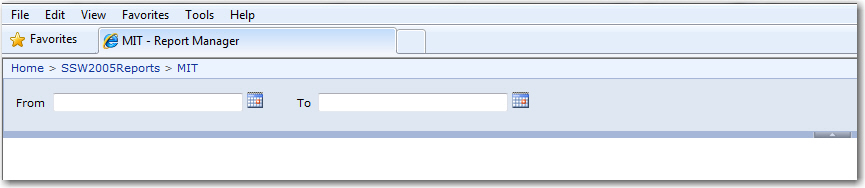
-
-
Bad Example - making a user select the parameters before
seeing the data
The following report shows nothing, because the parameters are
using meaningless default values (in this case, old dates for the
year 2006)
-
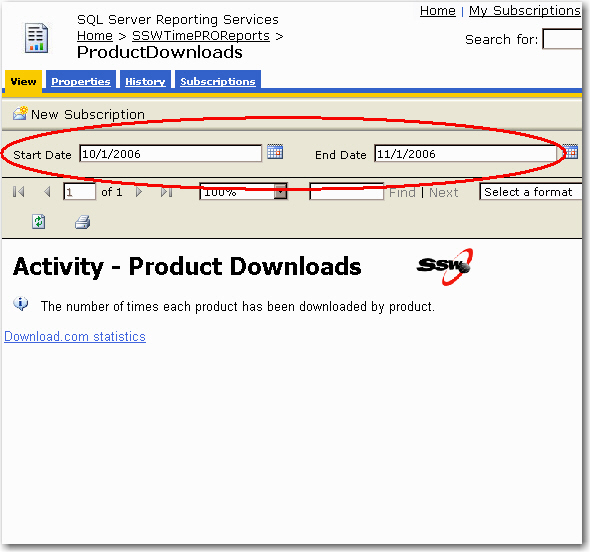
-
Bad Example - Empty report caused by incorrect parameter
default values (probably hard coded for when the developer
wrote the report in 2006)
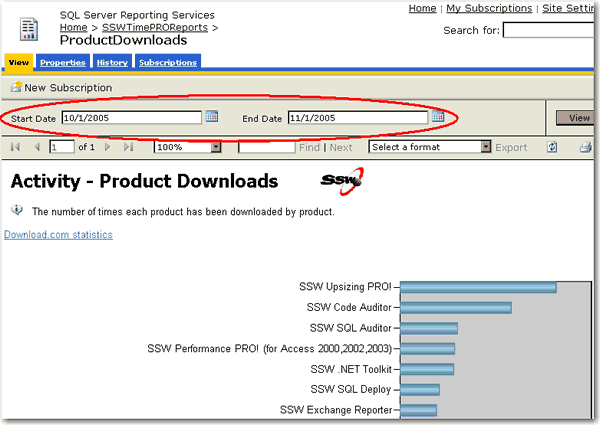
-
-
Good Example - This report shows initial data as the developer
configure useful parameters (in this case default values for
the entire month of October Note: in US date format)
In SQL Reporting Services, parameters can be:
- hard coded
- an expression, or
- from a query
Hard coded values should never be used. Expressions may be good
for some instances, but because it's not linked with your data,
it may not be good enough.
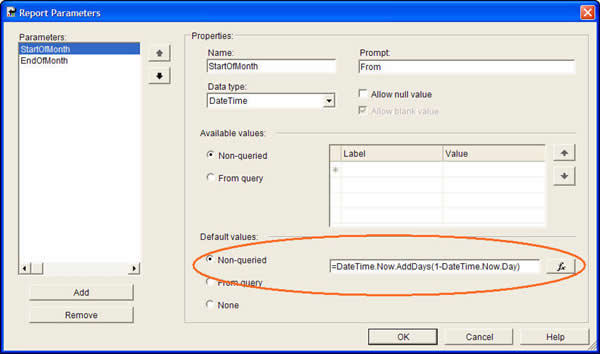
-
--Expression to get the 1st day of the previous month (aka
Start Date)
DateSerial(iif( Month(DateTime.Now)=1, Year(DateTime.Now)-1,
Year(DateTime.Now)), iif( Month(DateTime.Now)=1, 12,
Month(DateTime.Now) - 1), 1)
--Expression to get the 1st day of the current month (aka
End Date)
DateSerial(Year(DateTime.Now), Month(DateTime.Now),1)
--Expression to get the 1st day of the next month
DateSerial(iif( Month(DateTime.Now)=12,
Year(DateTime.Now)+1, Year(DateTime.Now)), iif(
Month(DateTime.Now)=12, 1, Month(DateTime.Now) + 1), 1)
-
Bad Example - Expressions to set the date range to the current
month
-
-
Bad Example - Using an Expression to set the default
values.(This will not be good enough if there is no data in
the current month)
The Solution:
In order to give report parameters correct default values, you
should always use query to generate these values from database.
This will ensure your default values come from
your
data, so they won't fail to give some records.
-
--Query to generate valid date from existing data
SELECT
CONVERT(
DATETIME,
'1, ' +
DATENAME(month, DATEADD(month, 1, MAX(OrderDate)))+
DATENAME(year, DATEADD(month, 1, MAX(OrderDate)))
) AS EndOfMonth,
CONVERT(
DATETIME,
'1,'+
DATENAME(month, MAX(OrderDate))+
DATENAME(year, MAX(OrderDate))
) AS StartOfMonth
FROM Orders
-
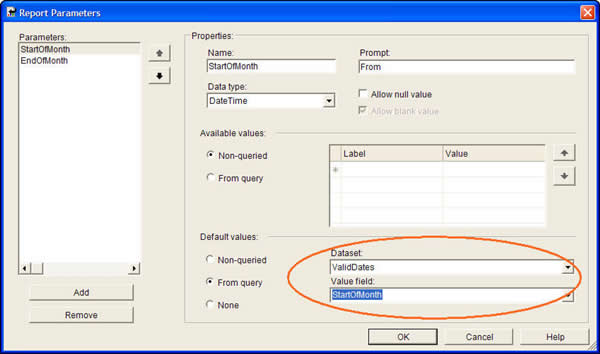
Good Example - Using a query to retrieve the last month of
available data
-
-
Good Example - Using a query to set default values for report
parameters
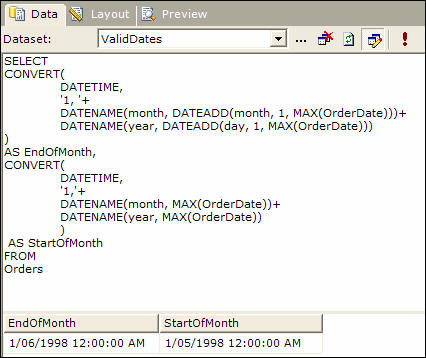
The dataset 'ValidDates' looks similar to this:
-
-
Figure: Create a dataset to query the data and provide useful
default parameter values for your report
-
Parameters/Internationalization - Do you use the DateTime data
type for date parameters?
Use the DateTime data type for date parameters instead of using
strings. There are 3 reasons to do this:
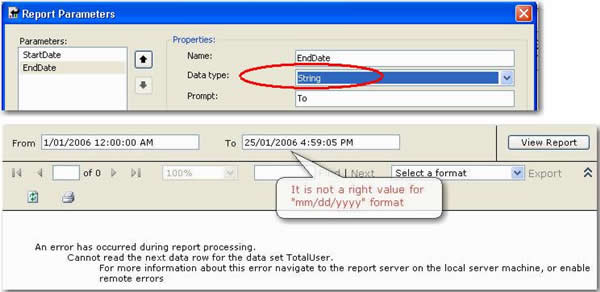
1) Stop the bug "Cannot read the next data row for the data set"
Although a hardcoded string will work, it will not work for all
users regional date/time settings.
E.g. a string data type parameter with a value of "26/01/2006"
is correct for "dd/mm/yyyy", but it is wrong for "mm/dd/yyyy"
2) When SQL Reporting Services is using the DateTime data type
parameter, it will get the datetime value on the users setting
(aka the Culture DateTime format).
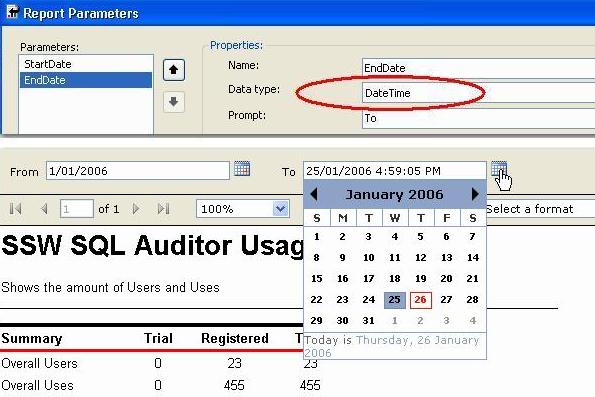
3) Your users also get the advantage of a date/time picker
control, which automatically works out the correct regional date
format. This solves the US/Australian date problem. (i.e. DD and
MM are reversed).
-
-
Bad Example - Using the String data type for date parameter
-
-
Good Example - Use DateTime data type for the date parameter -
you will not get internationalization bugs and it gives users
a calendar control
-
Do you have consistent parameter names?
All display names referring to the same parameter should be
consistent in everywhere of your reports. In addition, the
parameter name and value should be in the same line if possible.
-
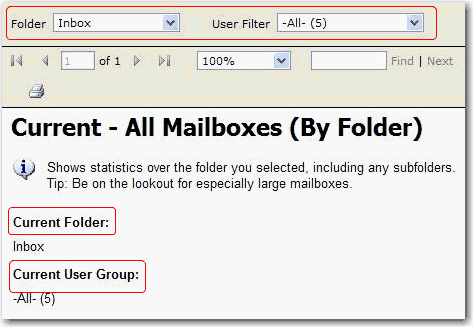
- Bad Example - Inconsistent parameter names
-
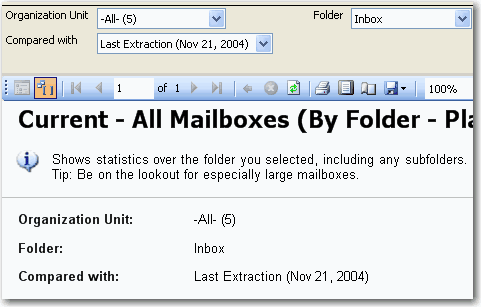
- Good Example - consistent parameter names
Note: If your data is not live, but based on ETL/SSIS
Then each time log each import to a table Eg. Once a week.
Then on the report parameters show this - so users know how
old the data is.
-
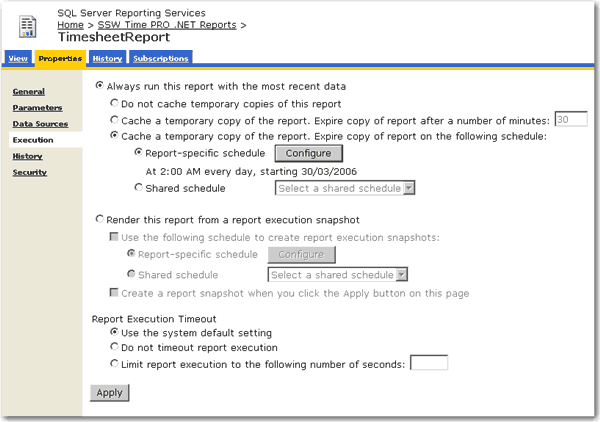
Performance - Do you cache popular reports for better
performance?
When you have a large number of users all trying to access the
same reports, the performance of your report server can suffer
dramatically. Caching reports for a certain period of time can
drastically reduce the load placed on the report server, leaving
it ready to handle other requests.
When a report has caching enabled it only needs to be processed
once within the expiry period. This means that when the first of
your eager users hits that report, the report server will keep a
copy until it expires, and will serve up this copy to any users
that request the report within that period. This leaves the
report server ready to process other reports quicker as it is
not busy processing the popular reports over and over again.
For more information on setting up report caching please see the
following KB article:
http://www.ssw.com.au/ssw/KB/KB.aspx?KBID=Q1668240
-
-
Figure: Enable caching for frequently used reports to improve
performance
-
Performance - Do you schedule snapshots of slow reports for
quicker access?
A report should never take more than 30 seconds to run. Slow
reports frustrate users, and also take valuable server
performance away from the report server.
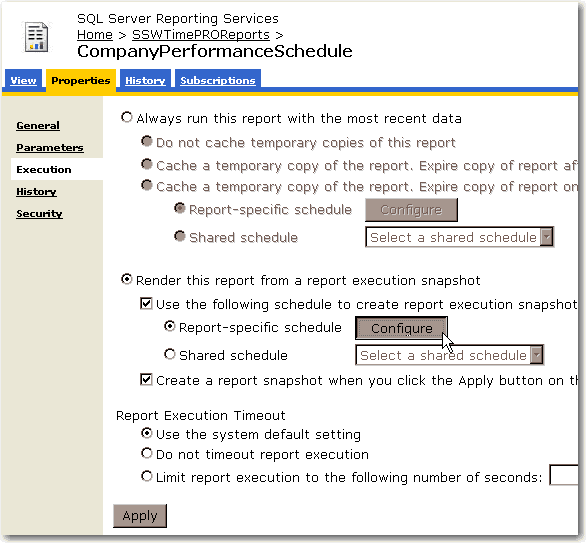
When dealing with slow reports, it is a good idea to setup
scheduled snapshots. As an example, you would schedule a
long running report to create a snapshot at night when the
server is idle and not under a lot of stress. We recommend
creating new snapshots every night so that the information
displayed in the reports is never more than 24 hours old.
As an example:
Do
create a snapshot for a sales summary
Do not
create a snapshot for an invoice report
For information on setting up scheduled snapshots see the
following KB article:
http://www.ssw.com.au/ssw/KB/KB.aspx?KBID=Q1119699
-
-
Figure: Create a scheduled snapshot of slow reports to improve
performance
-
Internationalization - Do you keep use regional friendly
formatting?
You know how we write one million like $1,000,000.00, well when
I was in Brazil I discovered they did it wrong and display it
like $1.000.000,00
I tried to correct many but they didn't listen :-)
So, be culturally sensitive and use regional friendly
formatting.
-
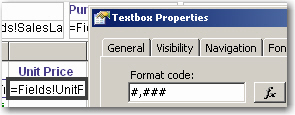
- Bad Example - Bad Number Format
-
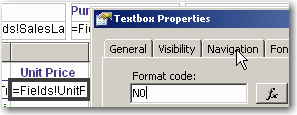
- Good Example - Good Number Format
-
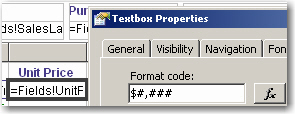
- Bad Example - Bad Currency Format
-
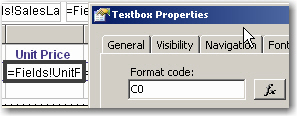
- Good Example - Good Currency Format
-
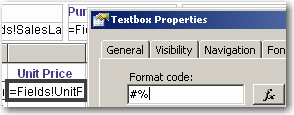
- Bad Example - Bad Percentage Format
-
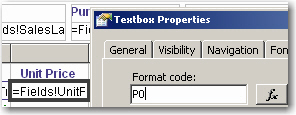
- Good Example - Good Percentage Format
-
Internationalization - Do you make sure your language follows
the user's regional settings?
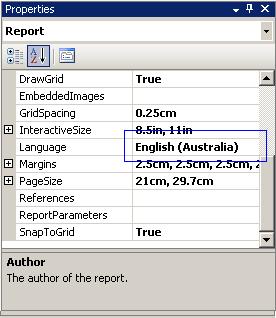
Developers too often change the 'Language' settings on reports
in order to make it look ok for how they want to see it. Without
realizing that they are now not supporting multiple cultures. To
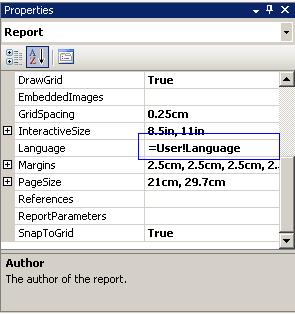
do this, you need to set the 'Language' to
"=User!Language"
. Then the report will recognize user client's culture settings,
e.g. IE's languages settings.
Now you can specify this on either the culture sensitive
controls or the whole report. Generally, is better specify this
property on the whole report.
-
-
Bad Example - Here the 'Language' setting is set to a specific
culture
-
-
Good Example - Here the 'Language' setting is set to
'=User!Language' to detect user's culture automatically
-
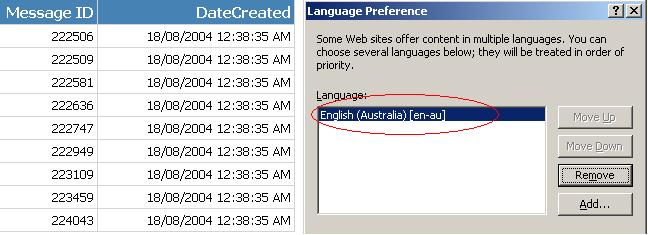
-
Figure: Good Example - Now the data respects user's Language
preference of IE in this case English (Australia)
-
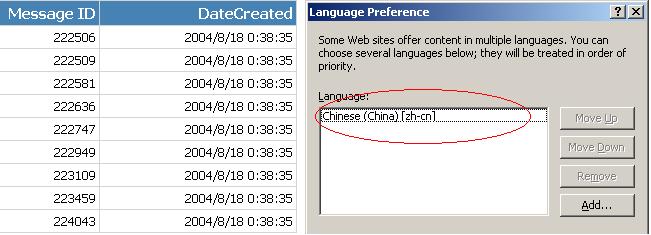
-
Figure: Good Example - Likewise the data also respects user's
Language preference of IE in this case Chinese (China)
Warning: Adding the 'User' who printed the report, stops all
data-driven subscriptions
When you try to add the 'User' your data-driven subscriptions
fail with the following error:
'The '/GroupHealth' report has user profile dependencies and
cannot be run unattended. (rsHasUserProfileDependencies)'.
The reason is the report doesn't know which language to choose
the workaround is to add a user function to fallback the error
to a default language, like: "en-AU"
Public Function Language()
    Try
        Return Report.User!Language
    Catch
        Return "en-AU"
    End Try
End Function
-
Good Example - Use above function to replace your reference to
Report.User!Language it allow the subscription to work
correctly.
-
Internationalization - Are you aware of your date format of
parameter bar?
The format in parameter bar is always decided by the Language
settings of client browser regardless of the Language property
of your report.
-
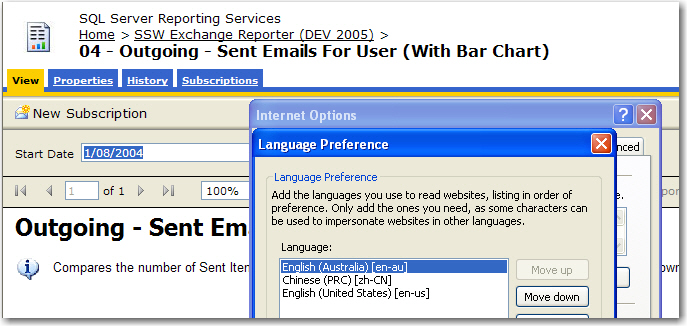
- Figure: Date in English(AU) format in parameter bar
-
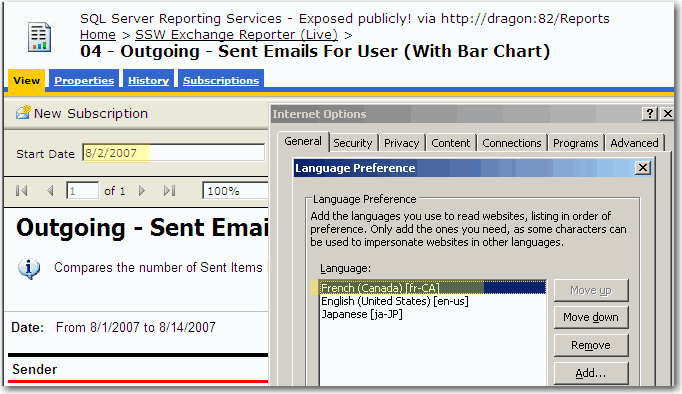
- Figure: Date in French(Canada) format in parameter bar
-
Internationalization - Do you make sure your language rule has
an exception for Currency Fields?
Although we can make the report support multiple cultures (as
per
Do you make sure your language follows the users regional
settings?
), we suggest you don't do this for currency fields. Instead:
-
Have the Language set specifically to the culture you want.
e.g. If you do a report for Australian Dollars, then it
should be "English(Australia)"; if for Chinese Yuan, it
should be "Chinese(People's Republic of China)". Because the
format of currency should not change as per user's culture
setting as $100 AUD <> 100 CNY !
-
Have the currency column header set include the currency.
Because $100 USD <> $100 AUD !
-
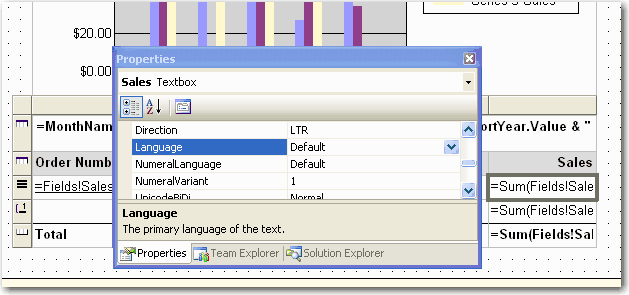
- Bad Example - using default language for currency field
-
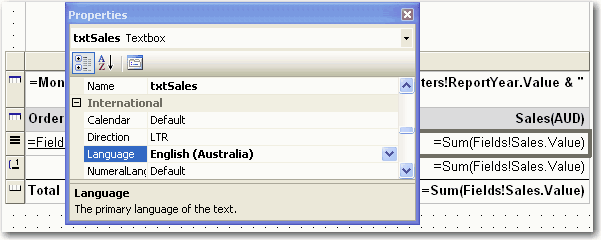
-
Good Example - This currency field stores Australian Dollars
and will always display it that way
-
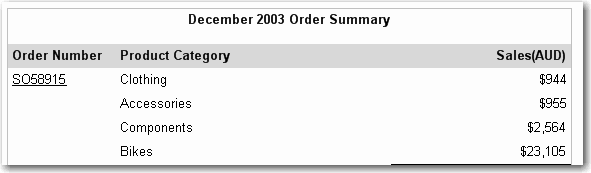
- Figure: AUD currency
-
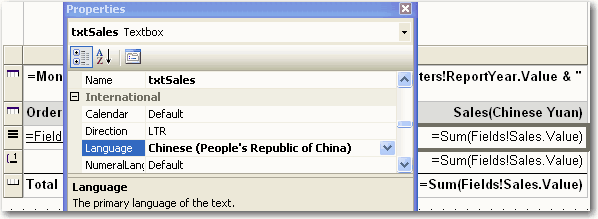
-
Good Example - This currency field stores Chinese Yuan and
will always display it that way
-
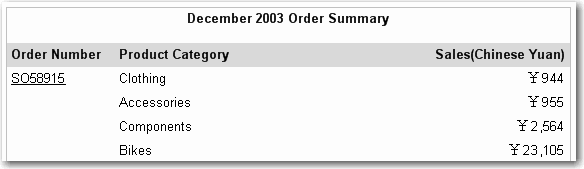
- Figure: Chinese Yuan currency
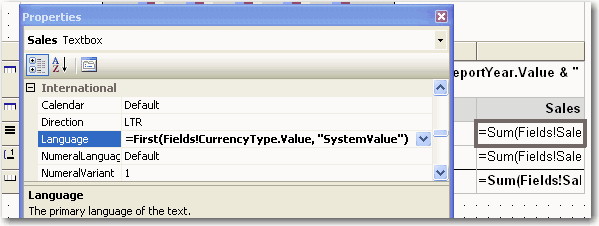
If you don't want to get currency fields hard coded in reports,
you can use an expression to read settings from your database.
-
-
Good Example - using specified language as per value of column
CurrencyType in table SystemValue
-
Admin - Do you validate all your reports?
Reporting Services does not have a build button, and thus, there
is no way to verify that every single report is error free.
Every Reporting Services installation should include this
validator to check that all the reports are good.
-
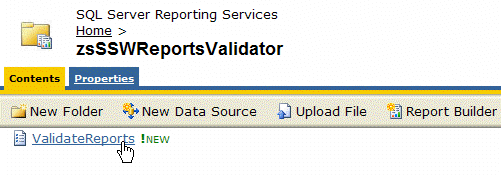
- Figure: SSW SQL Reporting Services Auditor
SSW SQL Reporting Services Auditor is Web-Application that
iterates through all the reports on a report server and shows
whether they have rendered correctly or if any errors occurred.
The SSW SQL Reporting Services Auditor web application returns
an XML dataset that can be consumed natively by SQL 2005
Reporting Services. The XML dataset can also be consumed by SQL
2000 Reporting Services; however, this requires you to write a
custom Data Processing Extension as SQL 2000 Reporting Services
does not natively support XML data sources.
For more information read Microsoft's guide on
Using an External Dataset with SQL 2000 Reporting Services

-
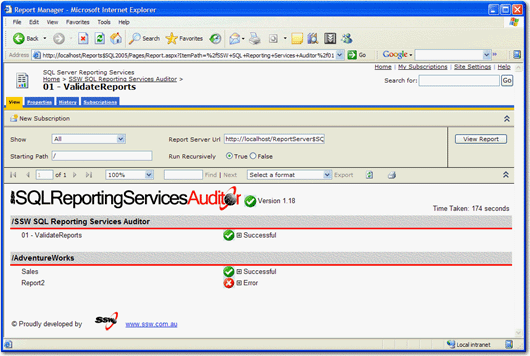
- Figure: SSW SQL Reporting Services Auditor in Action!
Download
SSW SQL Reporting Services Auditor
(Requires SQL Server 2005 Reporting Services).
-
Admin - Do you create a separate virtual directory for Admin
access?
When going public with Reporting Services, you should have 2
ports:
-
A public access port.
This allows your public users to access their reports normally
on a port which has been configured for anonymous users.
-
An admin access port on your web site.
This allows authenticated internal users to administer the
report server via the Report Manager.
To set this up you need to perform the following:
In Windows Explorer:
-
Create a Windows User account for the anonymous reporting
services site to run as. e.g. IUSR_ReportViewer
-
Open up the ReportingServices directory (
C:\Program Files\Microsoft SQL Server\MSSQL.3\Reporting
Services)
-
Duplicate the
ReportServer and
the
ReportManager folders then rename postfix them with
_External e.g. ReportServer_External and
ReportManager_External
-
Set the file access security on the new folders so that
"Everyone" has full permissions.
-
Edit the ReportServer_External/rsreportserver.config file.
Update the URL node
<UrlRoot>http://xxxx:81/ReportServer</URlRoot>
-
the ReportManager_External/RSWebApplication.config file.
Update the URL node
<ReportServerUrl>http://xxxx:81/ReportServer</ReportServerUrl>
In IIS Manager:
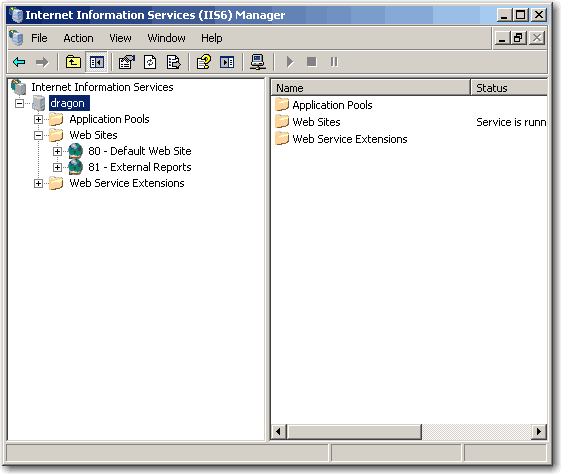
- Create another website on another port (i.e. port 81)
-
Create Virtual Direcoties for ReportServer and Reports then
point them to the new folders we just made. Make sure they are
setup as applications.
-
Change the Authentication of these 2 virtual directorys to use
the user we have already created "USR_ReportViewer". Ensure
that all other Authenticated access is unchecked.
-
In the Reports Virtual Direcotry, make sure that it is running
the same version of ASP.NET. Set the Applicaiton to execute
Scripts and Executables. Add Home.aspx into the Default
Documents.
-
In the ReportServer Virtual Directory, make sure that it is
running the same version of ASP.NET. Remove all the
Application Mappings in the Application Confguration. Then add
a wildcard mapping to the Executable
C:\WINDOWS\Microsoft.NET\Framework\v2.0.50727\aspnet_isapi.dll
In SQL Management Studio:
- Add the user for these folders to have access in SQL
In Reporting Services:
- Go to http://localhost/reports
- Click Properties -> New Role Assignment
-
Enter in IUSR_ReportViewer and click Browser then click OK
Note #1:
The default website will be used for internal Admin (secure)
use, and a website on a different port (in this example we use
port 81) will be used for external anonymous access.
Note #2:
Do these steps again every time you install a Reporting Services
service pack
Once complete, you should now have authenticated access
available on the standard port (80) and public access available
on the new port (81).
We think that we should have the ability to choose how IIS
authenticates clients - read our
Reporting Services suggestion
.
-
-
Figure: Create a separate virtual directory for admin access
The process is a little simpler in SQL 2000:
In Windows Explorer:
-
Open up the ReportingServices directory (typically c:\Program
Files\Microsoft SQL Server\MSSQL\Reporting Services\)
-
Make a copy of the ReportManager folder and call it
ReportManagerPublicAccess
-
Duplicate the file access security settings on ReportManager
in ReportManagerPublicAccess
-
Edit the RSWebApplication.config in the
ReportManagerPublicAccessfolder to point to
http://server:81/ReportServer
In IIS Manager:
-
Configure the default website's ReportsServer virtual
directory to give access to IUSR_ServerName (for public
access)
-
Export the Report and ReportServer virtual directory to an XML
file
- Create another website on another port (i.e. port 81)
-
Add the Report and ReportServer virtual directories using the
XML files created in step 2
-
Set the Reports virtual directory to point to the
ReportsManagerSecure directory instead of just ReportsManager
-
Set the directory security on the ReportServer on port 81 to
use windows integrated security
-
Admin - Do you take advantage of 'Integrated Security' to do
Payroll reports?
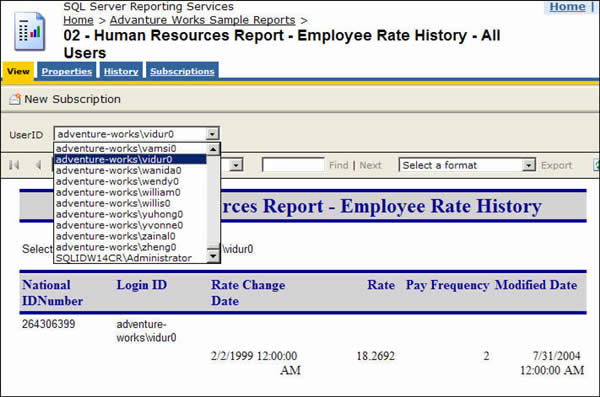
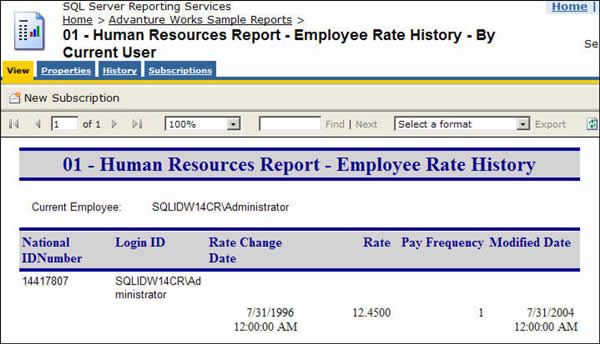
Payroll report should only show the records of the current user,
Reporting Services support "Integrated Security" which you can
use to identify the user who is running the report and only
return relevant result for the current user.
-
-
Bad Example - Everyone can see others' rate changing history
(maybe useful for administrative, but not for your employees)
-
-
Good Example - The current employee can only see his own
record
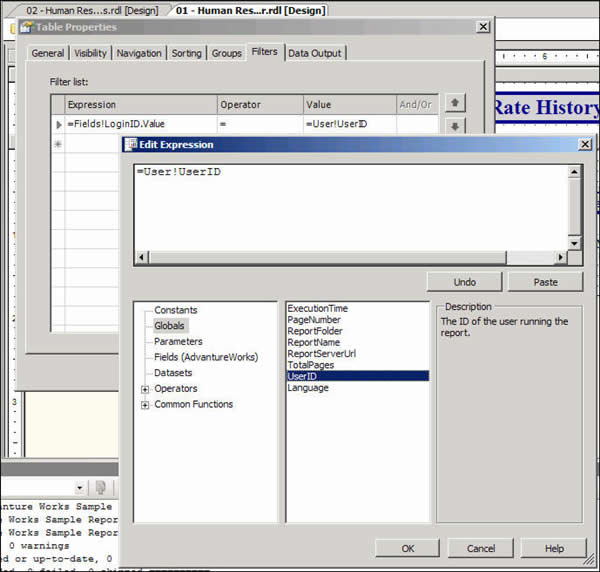
To generate such a report, you need to use the filter on the
data table:
-
-
Figure: Specify the filters on your data table and select
Globals->User!UserID
Note: 'Edit Expression' dialog is only available on RS 2005, but
the UserID global variable is available on RS 2000.
-
Admin - Do you remove @ExecutionTime in subject of subscription
email?
In subscription settings, @ExecutionTime should be removed from
subject, because it ruins conversation threading in Outlook -
You cannot sort them by subject.
-
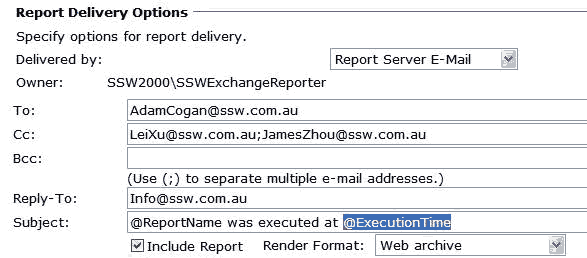
- Bad Example - Keep @ExecutionTime in subject
So we always make subject of subscription exactly same as report
name.
-
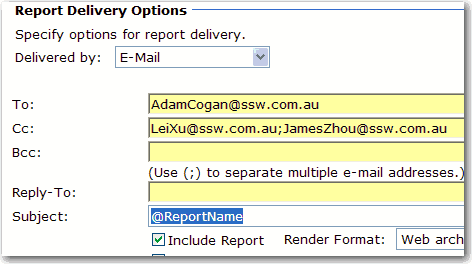
- Good Example - Subject same as report name
-
Do you know to embed an RS report in ASP.NET page the right way
(using Report Viewer instead of IFrame)?
This rule is obsolete and has been replaced with
http://rules.ssw.com.au/SoftwareDevelopment/RulesToBetterMVC/Pages/Do-you-know-the-best-way-to-do-printable-reports.aspx
using MVC 5.
Visual Studio provides a Report Viewer control for WebForms, so
use it instead of the old IFrame method. The report viewer
control is super easy to use - just drag the control into your
page designer and select the properties you like.
The bad old way was to use an IFrame and point it to the
report's URL (including parameters). This is bad because you
might encounter a typing error. If you want to disable vertical
scrollbar, you need to adjust the height of IFrame manually.
Furthermore, you can't configure the report's authentication
separately.
<IFRAME width="100%" height="700" TITLE="Report" src="http://reports.internal.ssw.com.au/ReportServer?
    %2fTimeProOnlineReports%2fClientRegisteredProductsByDate
    &rs:Command=Render&ClientContactID=<%=mintClientContactID%>&ClientExInfo=<%=clientInfo%>&rc:Parameters=false">
</IFRAME>
- Bad Example - Embed report using IFrame
<rsweb:ReportViewer ID="ReportViewer1" runat="server" SizeToReportContent="True" ProcessingMode="Remote" Width="100%" AsyncRendering="false">
    <ServerReport ReportServerUrl="http://reports.internal.ssw.com.au/reportserver"
    ReportPath="/TimeProOnlineReports/ClientRegisteredProductsByDate" />
</rsweb:ReportViewer>
- Good Example - Embed report using Report Viewer
-
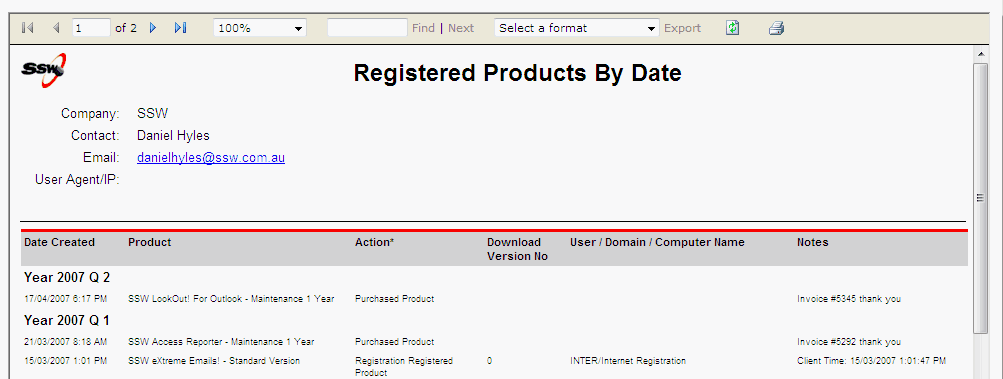
- Bad example - IFrame with vertical scrollbar
-
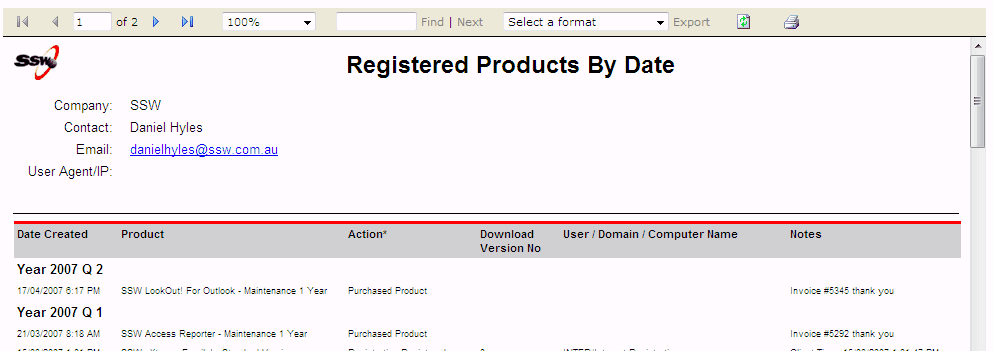
- Good example - Report Viewer without vertical scrollbar
-
Do you know how to get email list of report subscription?
You can get email list in ExtensionSettings, which is an XML
column in Subscriptions table in database of reporting services.
Subscriptions table has a FK with Catalog table, which contains
report name and report path information. Then we can XQuery the
ExtensionSettings to get TO and CC fields according to report
name and report path.
See the following example. You need to fill report name and
report path parameters(@mReportName and @mReportPath). Then this
example will return the email dataset of the report's
subscriptions.
-
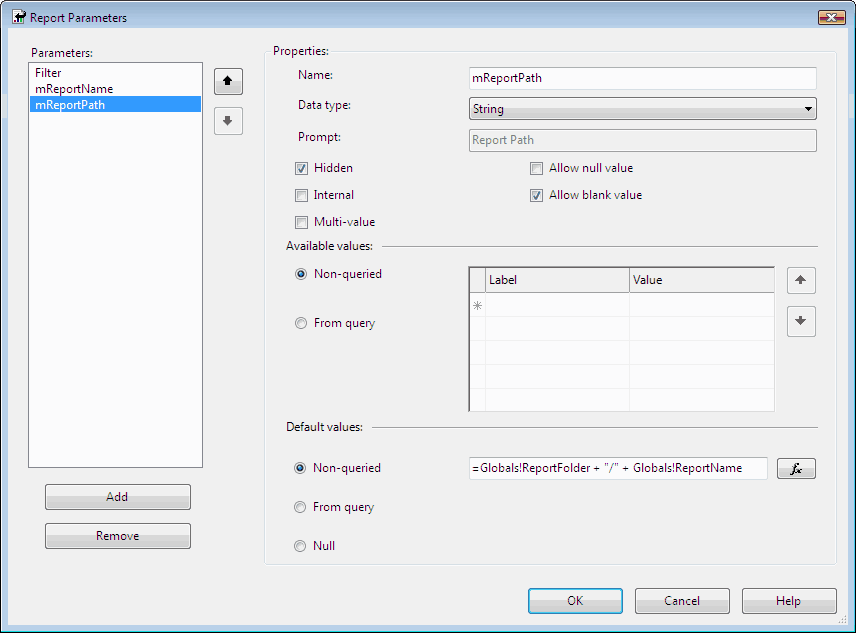
- Figure: Report parameters
-
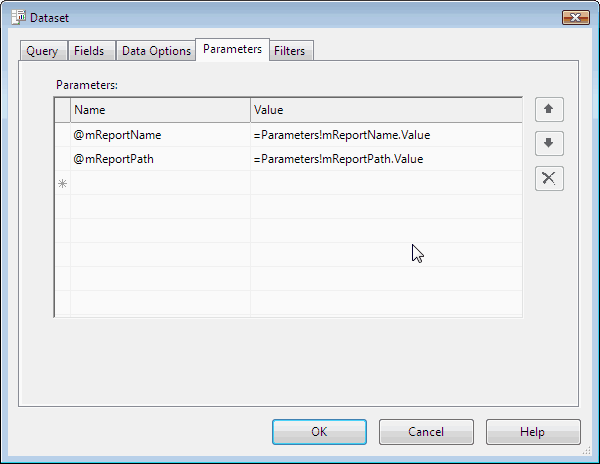
- Figure: Transfer parameters to dataset
DECLARE xmlCursor CURSOR FOR
SELECT       ExtensionSettings
FROM         SubScriptions, [Catalog]
WHERE        SubScriptions.Report_OID = [Catalog].ItemID AND
             [Catalog].Name = @mReportName AND
             [Catalog].Path = @mReportPath
DECLARE @settingsXML AS XML
DECLARE @toEmail AS XML DECLARE @ccEmail AS XML
DECLARE @comment AS XML
CREATE TABLE #subscrpt(toEmail XML, ccEmail XML, Comment XML)
OPEN xmlCursor
/* Perform the first fetch.*/
FETCH NEXT FROM xmlCursor INTO @settingsXML
/* Check @@FETCH_STATUS to see if there are any more rows to fetch.*/
WHILE @@FETCH_STATUS = 0 BEGIN
    SELECT @toEmail = @settingsXML .query('data(/ParameterValues/ParameterValue [Name = "TO"]/Value)')
    SELECT @ccEmail = @settingsXML .query('data(/ParameterValues/ParameterValue [Name = "CC"]/Value)')
    SELECT @comment = @settingsXML .query('data(/ParameterValues/ParameterValue [Name = "Comment"]/Value)')
    INSERT INTO #subscrpt VALUES (@toEmail,@ccEmail,@comment)
    /* This is executed as long as the previous fetch succeeds.*/
    FETCH NEXT FROM xmlCursor INTO @settingsXML
END
SELECT toEmail, ccEmail, Comment FROM #subscrpt
DROP TABLE #subscrpt
CLOSE xmlCursor
DEALLOCATE xmlCursor
- Good Example - Get email list
-
Do you add report owner in your report?
Report owner is the person who looks after this report. It's a
good way to put the owner on the report in order to get any
response or suggestion on time.
There're four things you have to take care of.
-
Please make sure you use a group (or a team) as the report
owner rather than individual names. We do this to reduce
maintenance work - whenever a person comes or leaves we do not
need to modify the report.
-
Make the report owner a hyperlink which links to the
definition of the group (or the team).
-
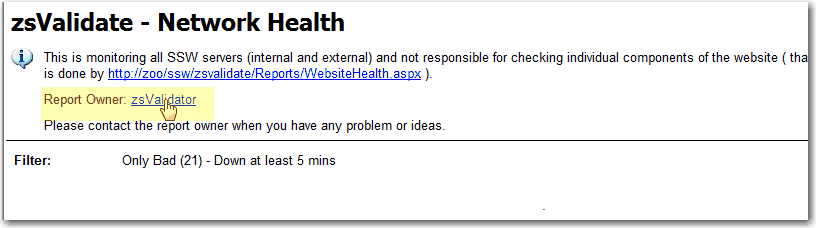
- Good Example - Show report owner in the report
- When you cannot refer to a group, refer to the person
-
Use the same idea for web pages, however in that case use the
term "Page Owner"
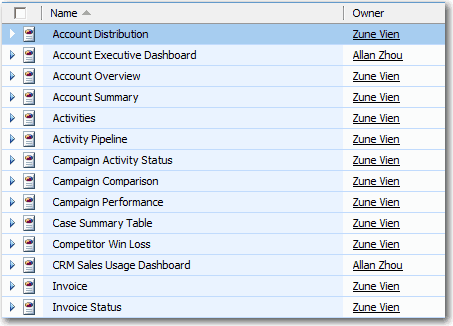
In CRM, the report can read from the CRM database since the
report owner is stored by CRM against the report:
-
-
CRM - you already have a report owner so display this in your
report
-
Do you use single line box instead of double line box?
Double line box makes reports look messy and inelegant, so it is
better to use single line box.
-

-
Bad Example - Double line box makes the report above look
messy
-
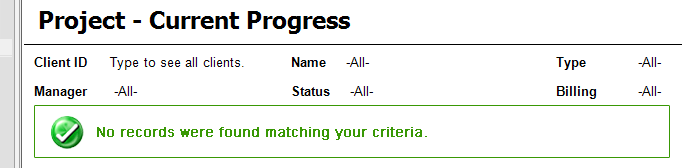
-
Good Example - Single line box makes the report above look
clean and elegant
-
Do you change the name of site settings?
The default site settings name of SSRS is "SQL Server Reporting
Services" regardless of version 2005 or 2008. So we'd better add
the version to the site settings name then users can find the
version of SSRS here.
-
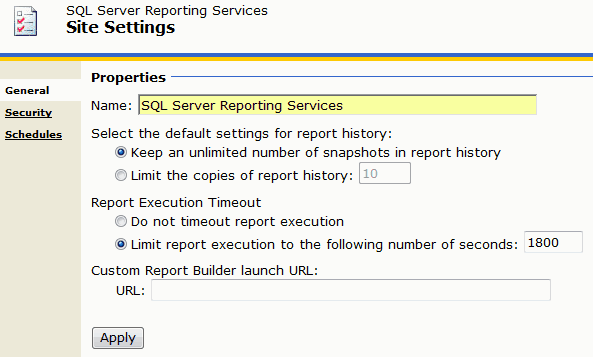
- Bad Example - Site settings without SSRS version
-
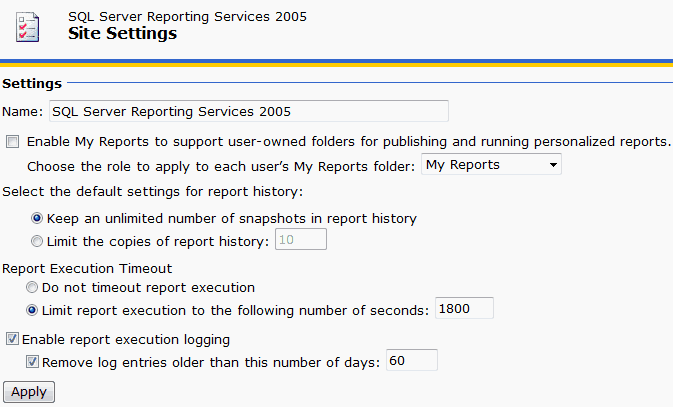
- Good Example - Site settings with version of SSRS 2005
-
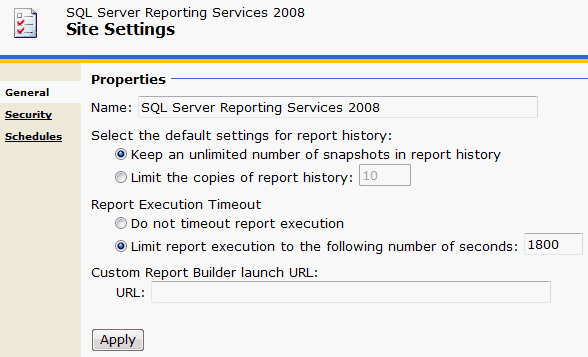
- Good Example - Site settings with version of SSRS 2008
-
Do you use the correct authentication for your report?
Using anonymous authentication is not recommended because of
security reasons.
-
Anonymous accounts (the IUSER_* and IWAM_* accounts) are
managed by windows security system. We do not want to use
these accounts because we have to manually configure our
report server security settings.
-
We do not want everyone on the Internet update or overwrite
stuffs on the report server.
Besides, anonymous authentication is no longer supported in RS
2008.
The best way to expose your report is to use ReportViewer and
setup the credentials on it using ReportViewerCredentials.
-
Dim userName As String =
ConfigurationManager.AppSettings("ReportViewer_UserName")
Dim password As String =
ConfigurationManager.AppSettings("ReportViewer_Password")
Dim domain As String =
ConfigurationManager.AppSettings("ReportViewer_UserDomain")
reportViewer.ServerReport.ReportServerCredentials = New
ReportViewerCredential(userName, password, domain)
Dim paramList As List(Of ReportParameter) = New List(Of
ReportParameter)
paramList.Add(New ReportParameter("ClientContactID",
mintClientContactID, False))
reportViewer.ServerReport.SetParameters(paramList)
-
Do you have URL Access link for your report?
Reporting Service makes buliding, generating, managing and
publishing report very easy, however sometime you want to refer
to your report by URL from somewhere else. You will find that
you can only link to the report default status, but not when you
have changed the parameters. It should be as easy as using
QueryString in ASP.NET application, but Microsoft didn't do
that. See our
Better Software Suggestions for Reporting Service.
A workaround for this is to use URL Access to bulid up a link by
yourself then put it at the bottom of the report, so any time
you want to refer to your current report status, you can just
copy this link and put into your emails.
At SSW, we have "URL Access" at the bottom of reports for easy
reference.
-

-
Figure: URL Access link for quick reference at the bottom of
report
-
http://localhost/ReportServer/Pages/ReportViewer.aspx?%2fSSWTimePRO_CompanyPerformance%2f01+-+BillableTimeSummary&rs:Command=Render
-
Bad Example - Only refer to the default report URL, parameters
on the report will be lost
-
http://localhost/ReportServer/Pages/ReportViewer.aspx?/SSWTimePRO_CompanyPerformance/01%20-%20BillableTimeSummary&rs:Command=Render&rs:ParameterLanguage=en-AU&pStartDate=1/06/2009&pEndDate=7/06/2009&pEmpID=ALZ
-
Good Example - Refer to the report with all parameters ready
Please note "rs:ParameterLanguage=en-AU" in the query string,
this is very important espeically when you are passing culture
sensitive data (DateTime) over URL. The server may not know your
intended culture so you have to specify this together with the
actual data in the URL.
Refer to the following MSDN references for more details:
-
Do you have a clear labelling for including / excluding GST?
In reporting, total sales / revenue amount can be categorised as
two types, which are include GST or exclude GST. It is very
important to have clear labelling to avoid the user guessing on
whether it includes GST or exclude GST.
-
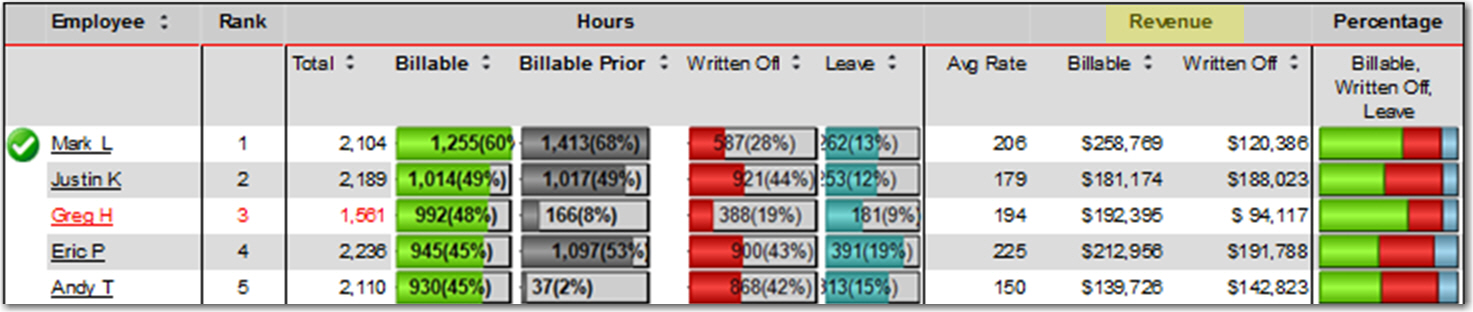
- Figure: Bad Example - Unclear labelling
-

- Figure: Good Example - Clear labelling
-
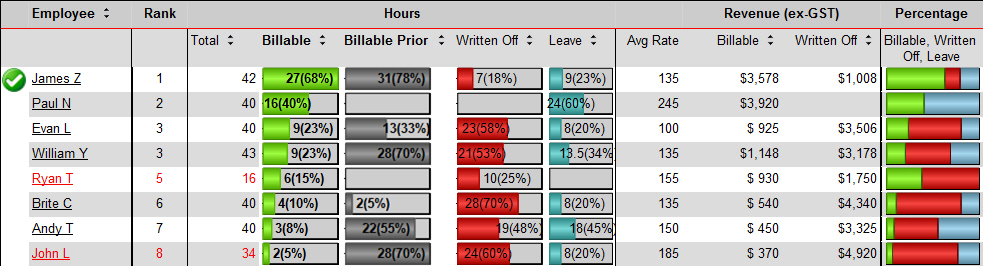
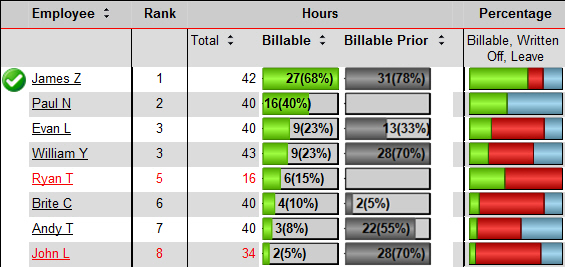
Do you have a summary and a detailed version of your report?
In the vast majority of cases where the readership of the report
is wide, some viewers like or need great detail while others
just need a quick summary.
-
-
Bad Example – Only one version of the report with too
many columns for most readers to digest
-
-
Good Example – Only the most important columns included
for the summary version and the detailed version can be left
as in the "Bad Example" above.
-
Analyzing with Excel - Do you use a live data feed?
-
-
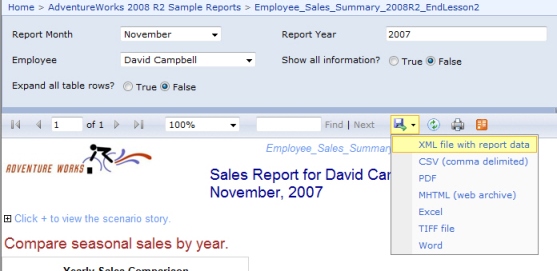
Figure: Bad example - static data that will need to be
re-exported
-
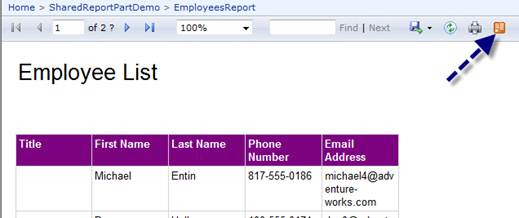
- Figure: Good example - as the data is always live
This is a great feature as it take advanatages of Excel 2010
PowerPivot together with Reporting Services 2008 R2 to allow end
users to subscribe to live data from a report.
See what the experts said below:
"And that, by the way, makes it very useful, as it means that
PowerPivot models can get data from Essbase and SAP BW (aka
Netweaver BI) (via SSRS), which standard Analysis Services
cannot do. But it also means that developers can write LINQ
queries against reports and that whatever OData clients sprout
up can get at that data as well. In general, it means that
reports in SQL R2 support a RESTful interface."
- Andrew Brust
"Using atomsvc feeds and loving it :)
We've used this feature in our last 4-5 BI projects and the
clients are all applauding this feature. It is a very nice way
of surfacing information to users that want to use the
information as a starting point for doing more analysis. It does
indeed take a lot of the burden off the IT dept that previously
had to build custom reports for everything."
- Trond Brande
-
Do you follow the naming converstion standards in Reporting
Service?
We use SQL Server naming standards in Reporting Service
management.
-
Do you use SharePoint Integration Reporting Mode over
Normal(Native) Reporting Mode?
With the use of SharePoint 2010 Integration mode of Reporting,
users can have following advantages:
-
The users Can easily deploy data sources, reports to
sharePoint document libraries instead of Report Manager.
-
The users can be much more self-sufficient with SharePoint.
- Very easy one step configuration of the add-in
-
37 languages supported including bi-directional languages.
-
Accessing Reporting in local mode when Access Services is
enabled.
-
Improved Report Preview experience with Report Builder 3.0 and
edit sessions and deploy their reports to SharePoint document
libraries, leveraging SharePoint for security.
-
The users can take advantage of the new version of Report
Builder that came with SQL Server 2008 R2 and deploy their
reports to SharePoint document libraries, leveraging
SharePoint for security.
-
-
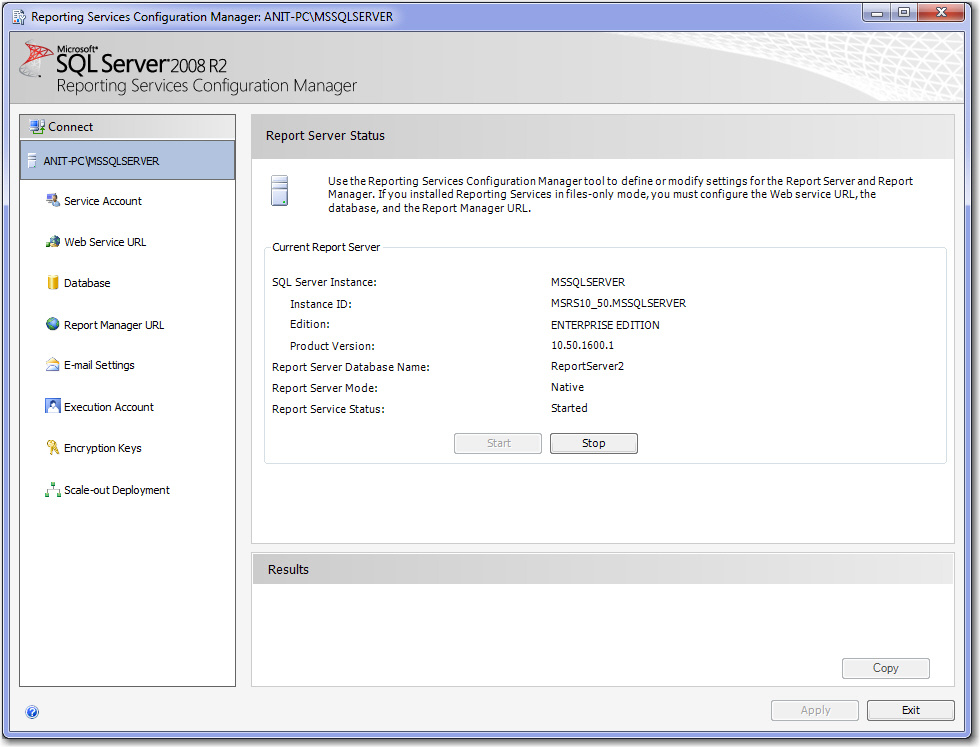
Bad Example – SQL Report Manager (which requires Visual
Studio and TFS if you want source control).
-
-
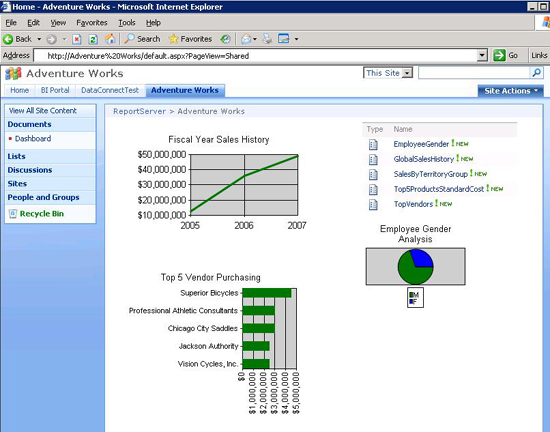
Good Example – SharePoint Integration (you get nice
source control via SharePoint and you can use the nice Report
Builder 3).
-
Do you know how to display reports in Firefox, Chrome and Safari
(SQL Reporting Services 2008R2/2012)?
SQL Reporting Services works great with Internet Explorer but
other browsers sometimes don’t work correctly,
Here’s the solution.
-
-
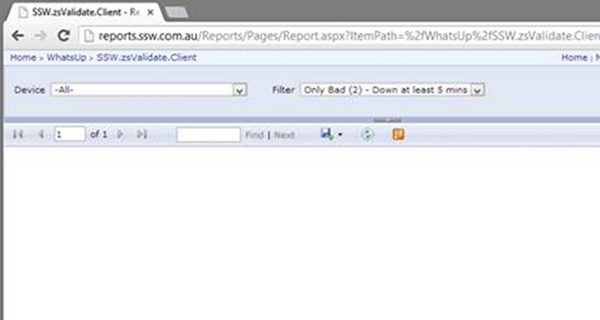
Figure: Bad Example – SQL RS does not work in Chrome by
default
This issue is caused by Reporting Services emitting Quirks Mode
HTML, to fix this make the following changes to the
ReportingServices.js file the full path to this file is:
C:\Program Files\Microsoft SQL
Server\MSRS10_50.MSSQLSERVER\Reporting
Services\ReportManager\js\ReportingServices.js
Add the following java script:
function pageLoad() {
var element = document.getElementById("ctl31_ctl10");
if (element)
{
       element.style.overflow = "visible";
} }
Once this change is made reports will be visible.
-
-
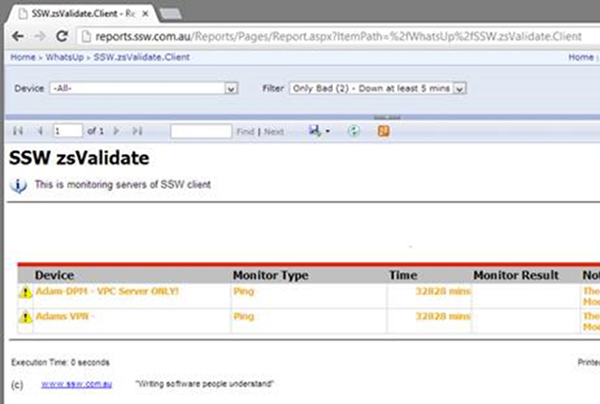
Figure: Good Example – SQL RS fixed to correctly display
in Chrome
More information at:
stackoverflow.com/questions/5968082/ssrs-2008-r2-reports-are-blank-in-safari-and-chrome
Read
how to display reports properly for Reporting Services
2005/2008
.
-
Do you know how to display reports properly in Firefox / Chrome
(Reporting Services 2005/2008)?
Sometimes users try to view SQL Server Reports in Firefox or
Chrome Browser, it does not display at all or displays in a half
screen.
They found it strange when the same report works absolutely fine
in Internet Explorer.
-
-
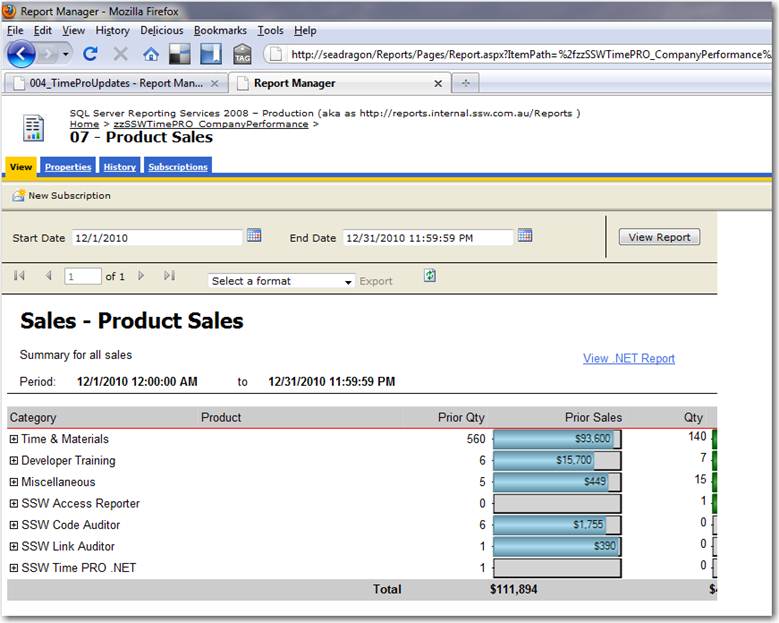
Bad Example – SQL Report viewed in Firefox / Chrome
(which does not display report properly or display only half
the screen.)
The Solution:
Add the code below to "%ProgramFiles%\Microsoft SQL
Server\MSSQL.3\ReportingServices\ReportManager\Styles\ReportingServevices.css"
                .DocMapAndReportFrame
                {
                    min-height: 860px;
                    min-width: 2000px;
                }
-
-
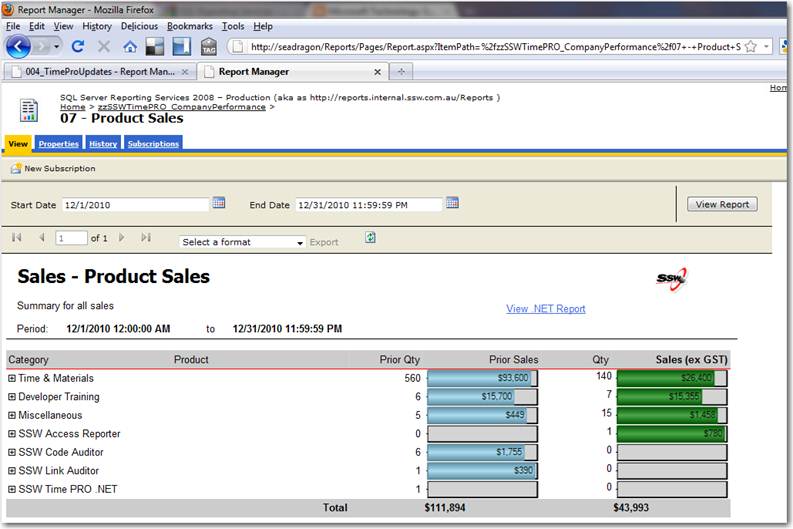
Good Example – SQL Report viewed in Firefox / Chrome
(which displays properly in Firefox and Chrome ).
Read
how to display reports properly for Reporting Services
2008R2/2012
.
-
Do you have a report which refresh your data source?
If you have a SQL database data source with data coming from an
external source (i.e. MYOB), then you should create a report
which allows user to manually refresh data. Your report should
have:
-
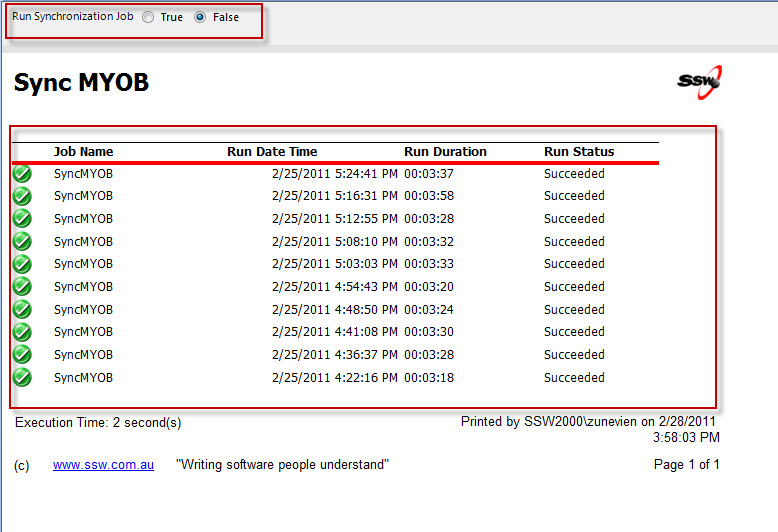
A checkbox/radio button which allows user to trigger the
refresh.
-
A table display the history of previous refresh including
start time, duration and status...
-
-
Good Example: A report with a radio button allows you to
refresh data and a table showing the history.